
Calibration of tools
Manual — Assets · chapter 4 of 12
Measuring instruments and tools need periodic calibration, with a certificate. In H2O this lives in the Calibrations tab of Tools: each calibration recorded keeps the date, the next date, the laboratory, the numbers and the PDF certificates, and the record shows the status of the current calibration.| Registration field (Tools) | Effect |
|---|---|
| Calibration Interval (months) | When you record a calibration, the Next Calibration is filled in with the calibration date plus this interval (it can be changed before saving). |
| Alert (days before) | How many days before the next calibration the status changes to Expiring. Blank means 30 days; with 0, the calibration is Expiring only on the day of the next calibration itself. |
| NBR ISO/IEC Standard | It is pre-filled in the NBR ISO/IEC field of each new calibration. If you enter another standard in the calibration, it becomes the asset’s standard. |
| Requires Calibration | Informative flag: the Calibrations tab and the status work with or without it. |
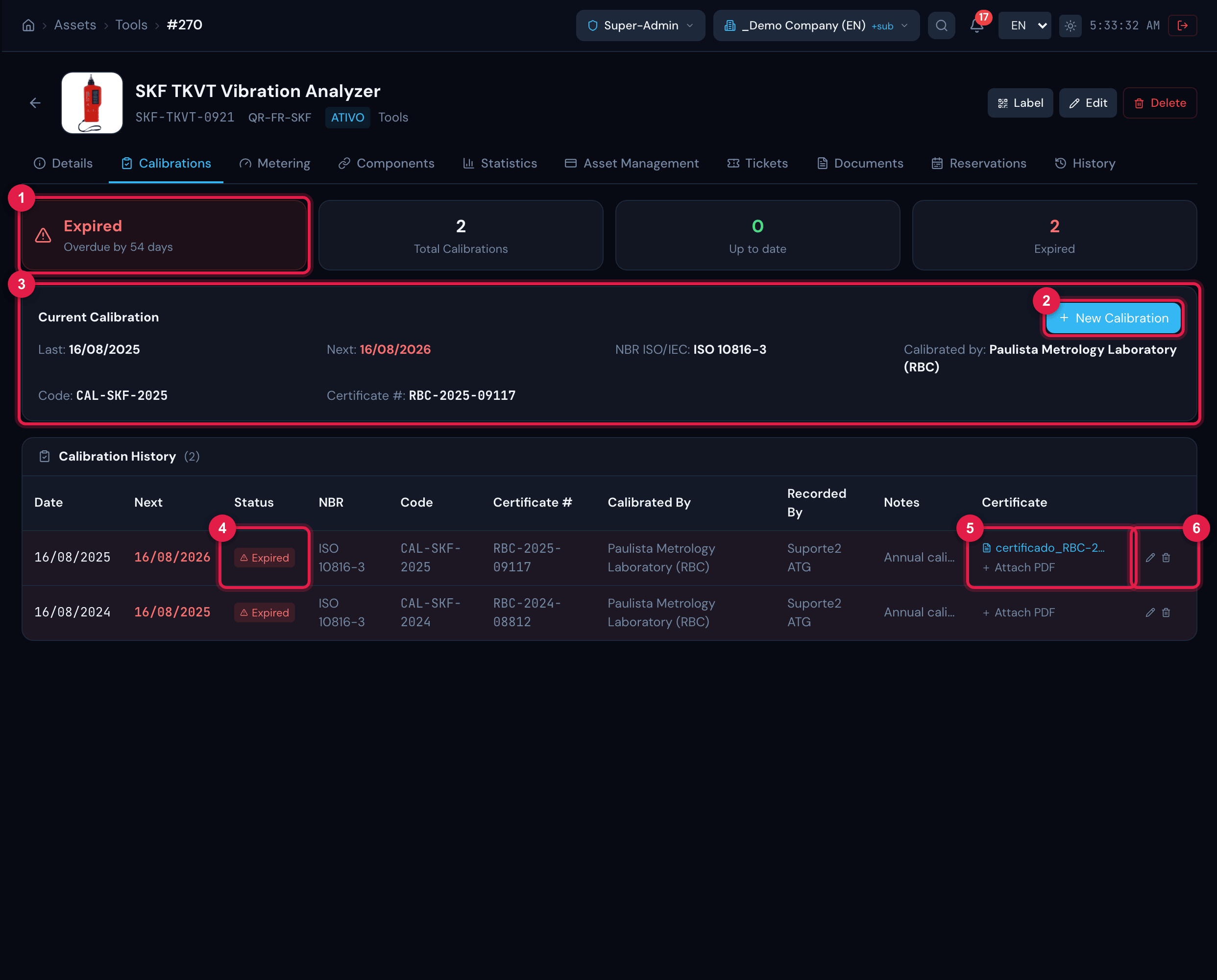
Figure 9. Calibrations tab of a tool with an expired calibration: the status card (Expired, “Overdue by N days”), the total of calibrations, the Up to date and Expired cards, the Current Calibration and the Calibration History with the certificates.
- 1Status of the current calibration and the days left (or overdue).
- 2New Calibration.
- 3Current Calibration card: last, next, standard, laboratory, code and certificate number.
- 4History row with the status badge.
- 5Certificate column: click the name to download; Attach PDF adds another one.
- 6Pencil (edit) and trash can (remove) of the calibration.
- Open the tool and the Calibrations tab. Click New Calibration (or, if there is none yet, Record First Calibration).
- Fill in Calibration Date — the Next Calibration is calculated from the asset’s interval; adjust it if the laboratory gave another date. Both are required, and the next date must be after the calibration date.
- Enter, if you wish, NBR ISO/IEC, Calibrated By (company or laboratory), Calibration Code, Certificate # and the Notes.
- In Certificate, choose one or more PDFs (up to 20 MB each). The attachment is optional and is only uploaded after the calibration is saved.
- Click Save. The calibration goes into the history and the record shows the new status.
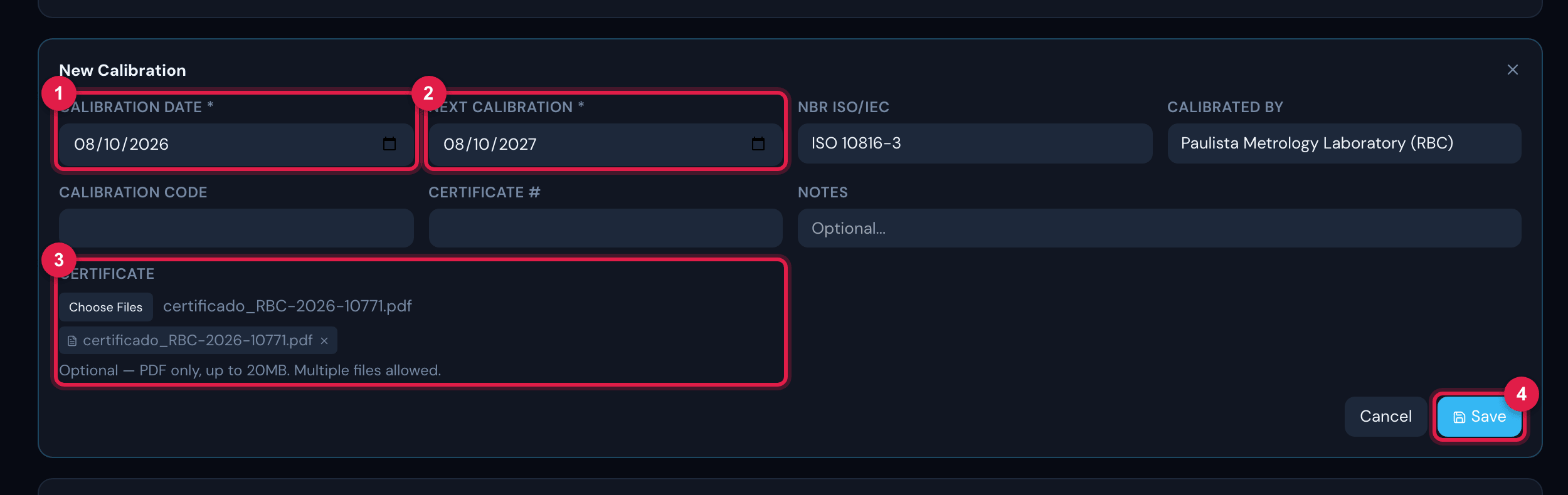
Figure 10. The New Calibration form: Calibration Date and Next Calibration (calculated from the interval), NBR ISO/IEC, Calibrated By, Calibration Code, Certificate #, Notes and the Certificate field for PDFs.
- 1Calibration Date (required).
- 2Next Calibration (required) — filled in with the date + the asset’s interval.
- 3Certificate: “Optional — PDF only, up to 20MB. Multiple files allowed.”
- 4Save.
Correcting, removing and who receives the alert
Section titled “Correcting, removing and who receives the alert”- Correct: the row’s pencil reopens the form (Edit Calibration). Changing the next date recalculates the status immediately.
- Remove: the row’s trash can asks for confirmation (Remove this calibration?) and deletes the calibration permanently; the asset’s status becomes that of the most recent remaining calibration. The X next to a certificate (it appears on hover) removes only that PDF.
- E-mail alert: a daily check on the server sends an e-mail 30, 15, 7 and 1 day before the next calibration and on the day itself, through the notification rule Ativo: vencimento próximo (validade, inspeção, calibração, seguro, CA) (rule names are shown in Portuguese). The asset’s technician and technical group and the administrators receive it. These days are fixed — Alert (days before) only changes the status shown on screen. The rule comes switched on and can be adjusted in System › Notifications.
| Action | Tools right |
|---|---|
| See the tab and download certificates | Read |
| Record a calibration and attach a certificate | Create |
| Edit a calibration | Edit |
| Remove a calibration or certificate | Trash |
Was this page helpful?
Thanks for the feedback!
Got it — we will improve this page.