
Where suppliers, contacts and job roles appear
Manual — Suppliers, contacts and workforce · chapter 7 of 8
| Where | What it uses | How |
|---|---|---|
| Project › Team tab | Suppliers and contacts | When adding a member, choose the type Suppliers or Contacts. The team’s suppliers become the columns of the daily report workforce. |
| Daily report (Workforce tab on the web, Workforce in the app) | Job roles × companies | Number of people per job role and per company, split into direct/indirect and active/idle. |
| Occupational Safety › Workers | Supplier and job role | The worker’s Company (the supplier, for a third-party worker) and Job role, which defines the required NR trainings; the same job role organizes the training matrix, the SST work instruction and the risk inventory. |
| Tickets | Suppliers | The supplier can be requester, technician or watcher of the ticket; those tickets appear in the Tickets tab of its record. |
| Assets › Asset Management | Supplier | The supplier of the purchase; the asset starts to show in the Assets tab of the supplier record. |
| Invoices | Supplier | Approving the invoice creates the supplier of the issuer’s CNPJ, if it does not exist (chapter 3). |
| Contracts | Suppliers | Linked through the Contracts tab of the supplier record or through the Suppliers tab of the contract record. |
| NCR | Supplier | The supplier responsible for the non-conformity. |
The daily report workforce
Section titled “The daily report workforce”For the supplier to appear in the daily report, add it to the project Team:
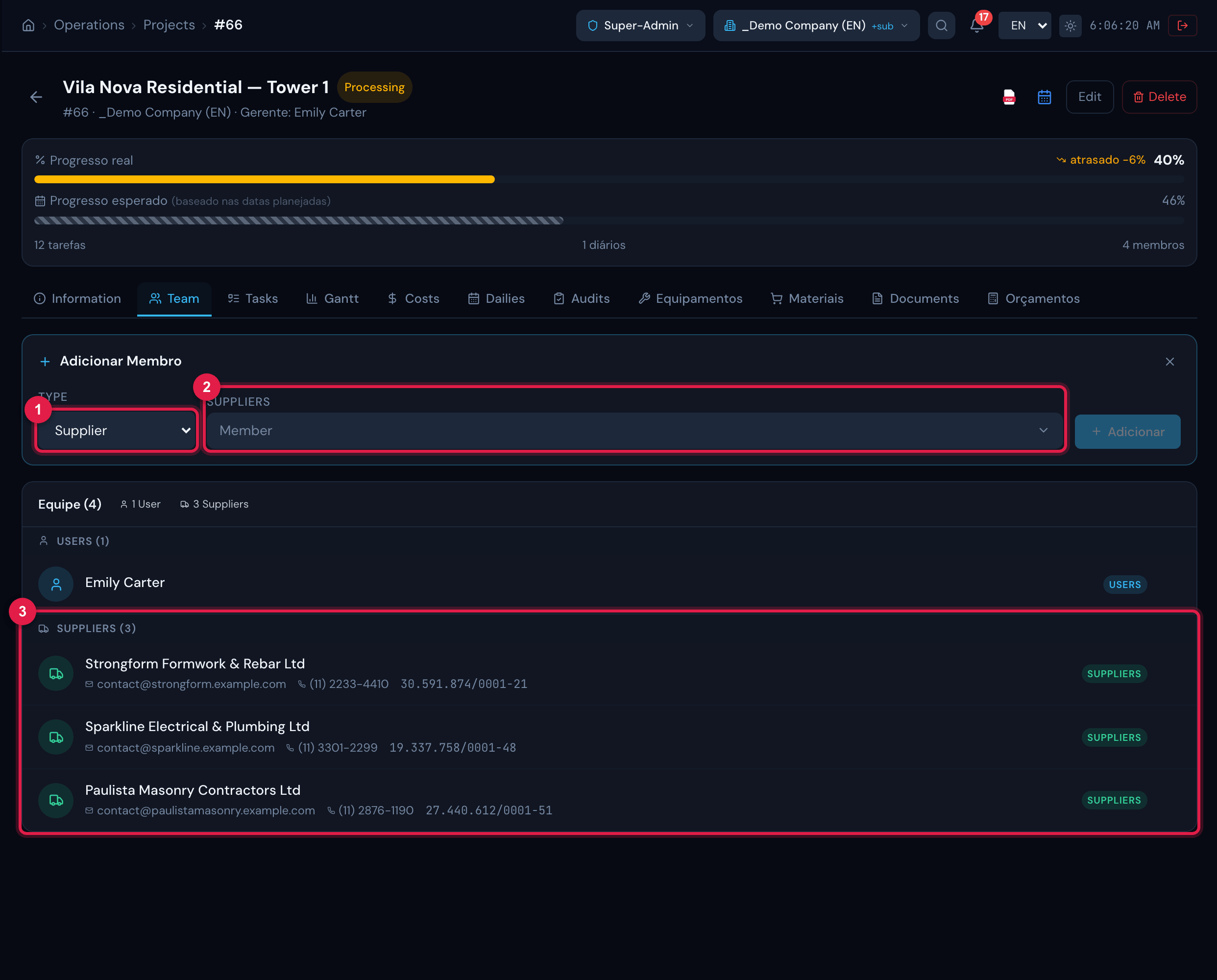
Figure 12. Project › Team tab with the Supplier type chosen and three contractors already in the team.
- 1Member type: User, Group, Supplier or Contact.
- 2Supplier selector.
- 3Suppliers in the team.
In the daily report, the Workforce tab has four panels — Direct Workforce, Indirect Workforce, Idle Direct Workforce and Idle Indirect Workforce (“professionals idle due to lack of released work fronts”). In each panel, the rows are the job roles of the type (direct or indirect) and the columns are the companies: the first is your own company (with the name of the parent company in H2O) and the others, the suppliers of the project team. Copy Workforce brings the quantities from another day of the same project (it replaces those of the day).
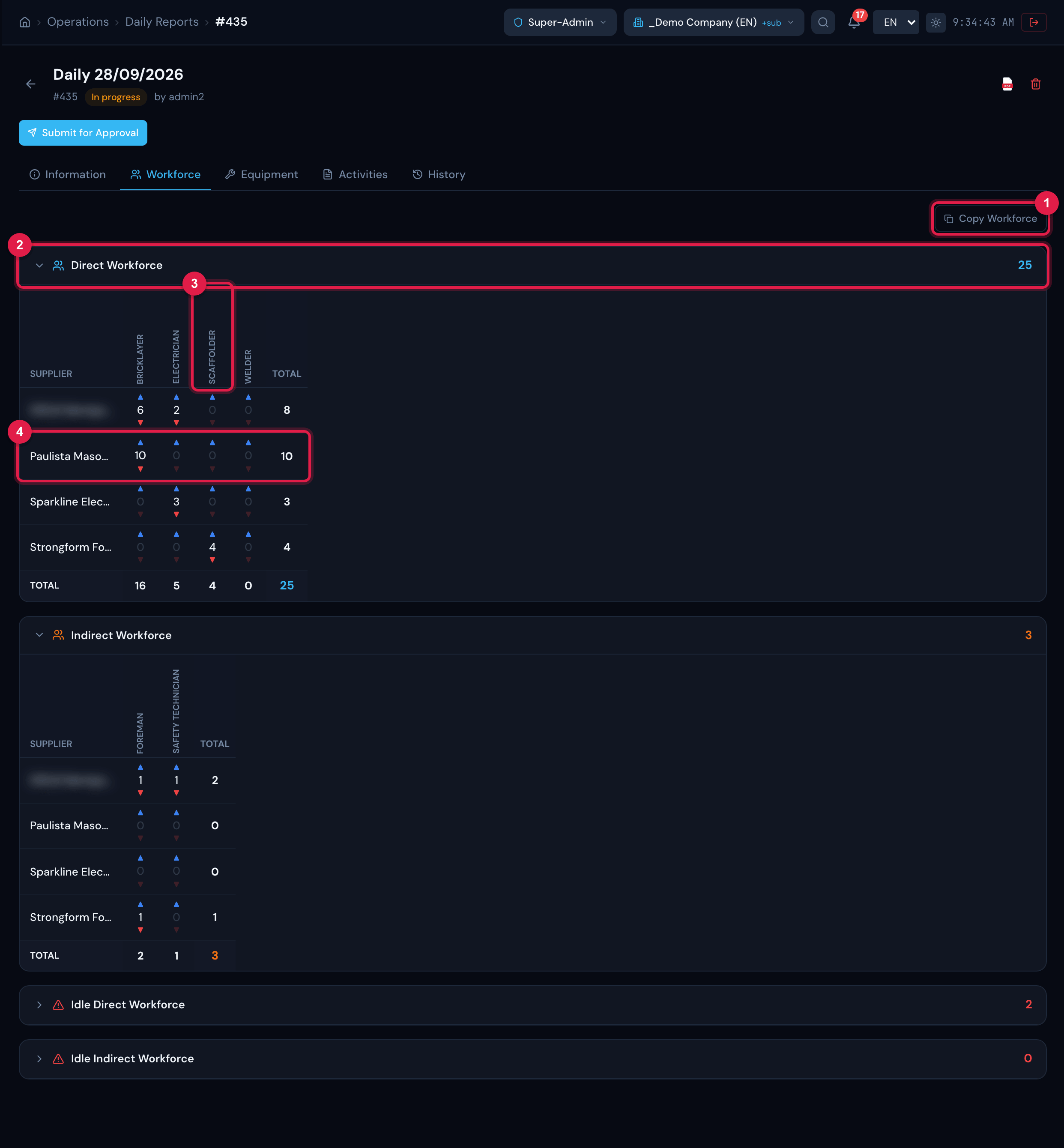
Figure 13. Workforce tab of a daily report: the Direct Workforce panel with your own company and the team’s contractors in the rows, the job roles in the columns and the totals (the own company’s name is blurred in the screenshot).
- 1Copy Workforce.
- 2Direct Workforce panel (below, Indirect and the idle ones).
- 3Column of a job role (registered in Workforce).
- 4Row of a supplier of the project team.
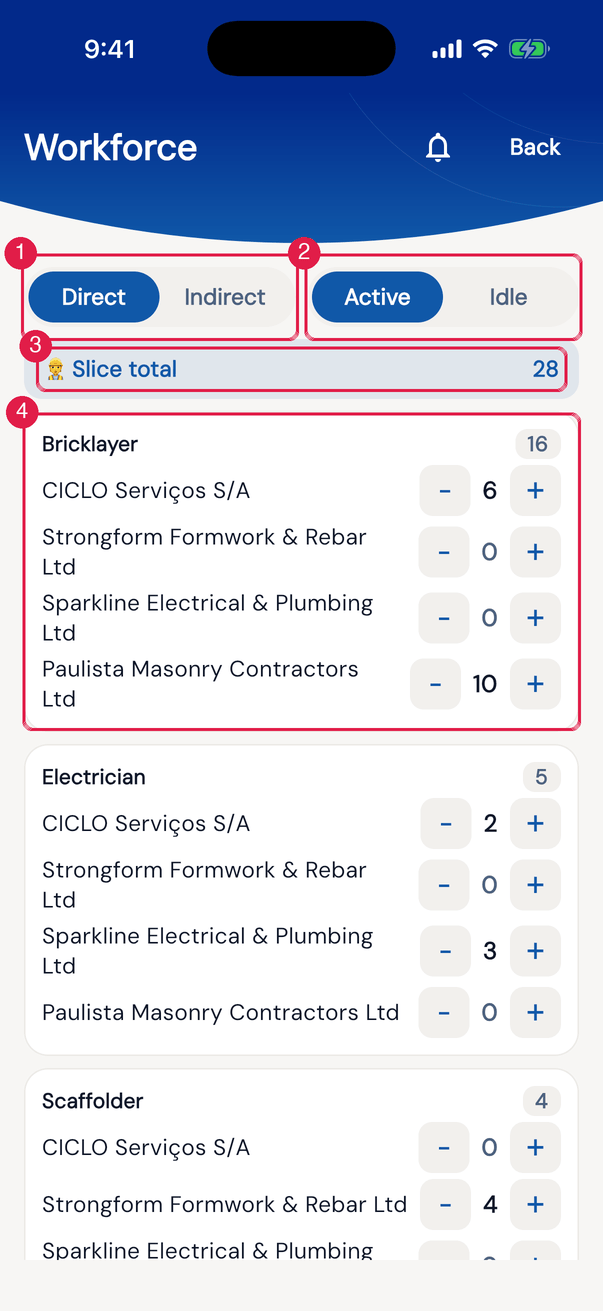
App H2OFigure 14. In the app, the day’s Workforce: the Direct / Indirect and Active / Idle selectors, the Slice total and one card per job role, with each company and the − and + buttons.
- 1Direct / Indirect.
- 2Active / Idle.
- 3Slice total.
- 4Job role card: one row per company, with − number +.
In SST
Section titled “In SST”In the worker registration, Company is the supplier (for a third-party worker) and Job role (sets the required NRs) is one of the job roles of Workforce. The job role links the worker to the training matrix and to the job role’s SST work instruction. See Flow 1 — The worker base in the Occupational Safety manual.
Was this page helpful?
Thanks for the feedback!
Got it — we will improve this page.