
AI assistant
Manual — Task templates and checklists · chapter 5 of 10
Create with AI builds the draft of a template from a few questions — or from free text — and returns the checklist ready for review: items grouped in sections, the type of each question, tolerance ranges on the measurements, required photos where they make a difference and the translation into a second language. Before generating, the assistant looks for similar templates that already exist, so that you do not create a duplicate.Step 1 — Type
Section titled “Step 1 — Type”In Knowledge › Templates, click Create with AI. The Create Template with AI window shows the four steps at the top — Type, Questions, Similar and Review — and, at the bottom, Back, Step N of 4 and Next.
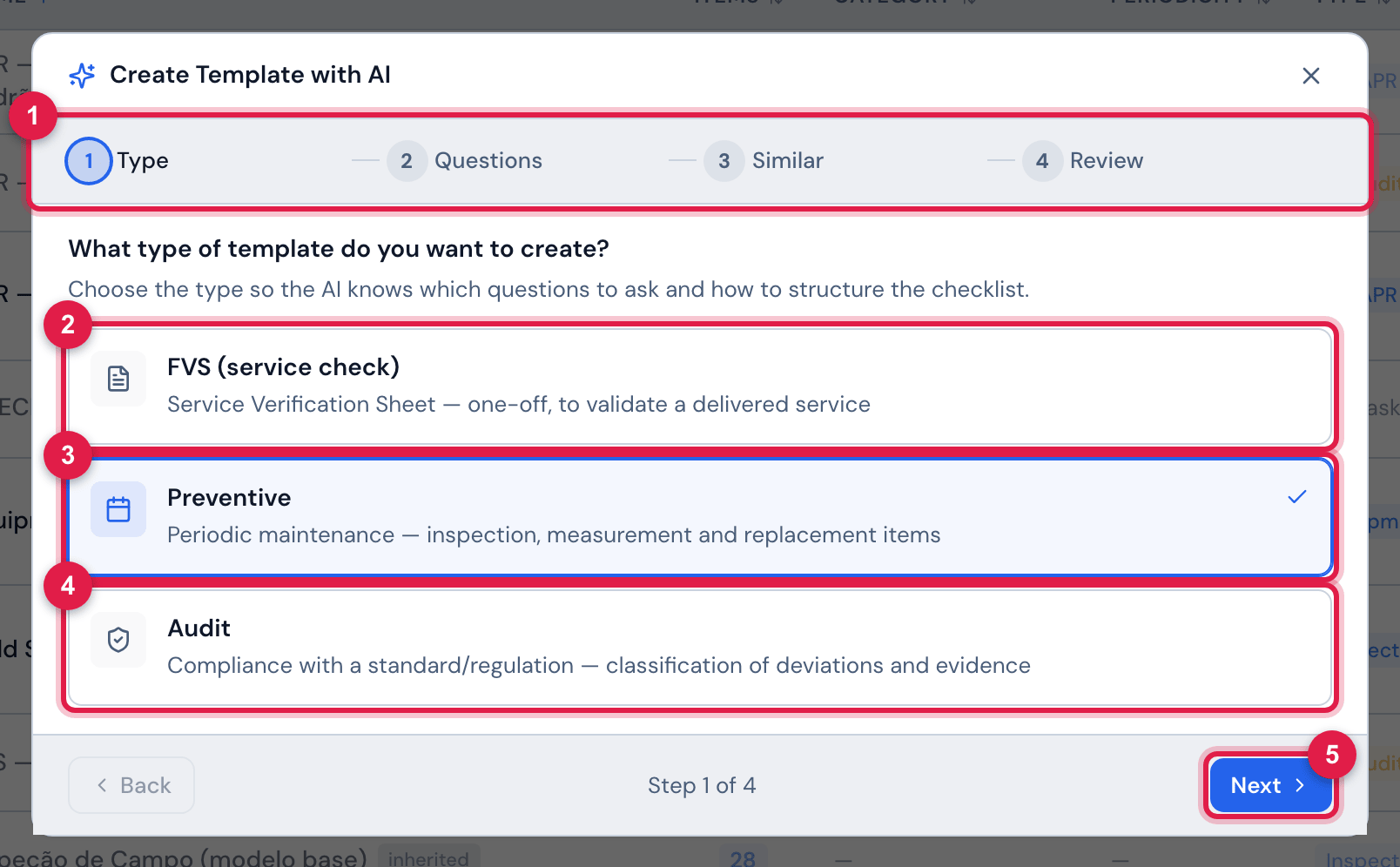
Figure 12. Step 1: What type of template do you want to create? — Preventive chosen.
- 1The four steps.
- 2FVS (service check) — Service Verification Sheet: one-off, to validate a delivered service.
- 3Preventive — periodic maintenance: inspection, measurement and replacement.
- 4Audit — compliance with a standard or regulation.
- 5Next.
| Type | The template produced | Preferred items |
|---|---|---|
| FVS | Task, no periodicity | service verification, with measurements and photos when the level is Complete |
| Preventive | Task, with periodicity (monthly, quarterly, semiannual or annual) | inspection, measurements with a range (Numeric) and replacements |
| Audit | Audit | Compliant / Partial / NC / NA, with sections by chapter of the standard; Score if you ask for scoring |
Step 2 — Questions
Section titled “Step 2 — Questions”Choose the mode: Guided assistant (fields per type) or Describe freely (your own text). The fields with ∗ are required — Next only lights up when they are filled in. Answer in your language: that is the language the AI will write the template in.
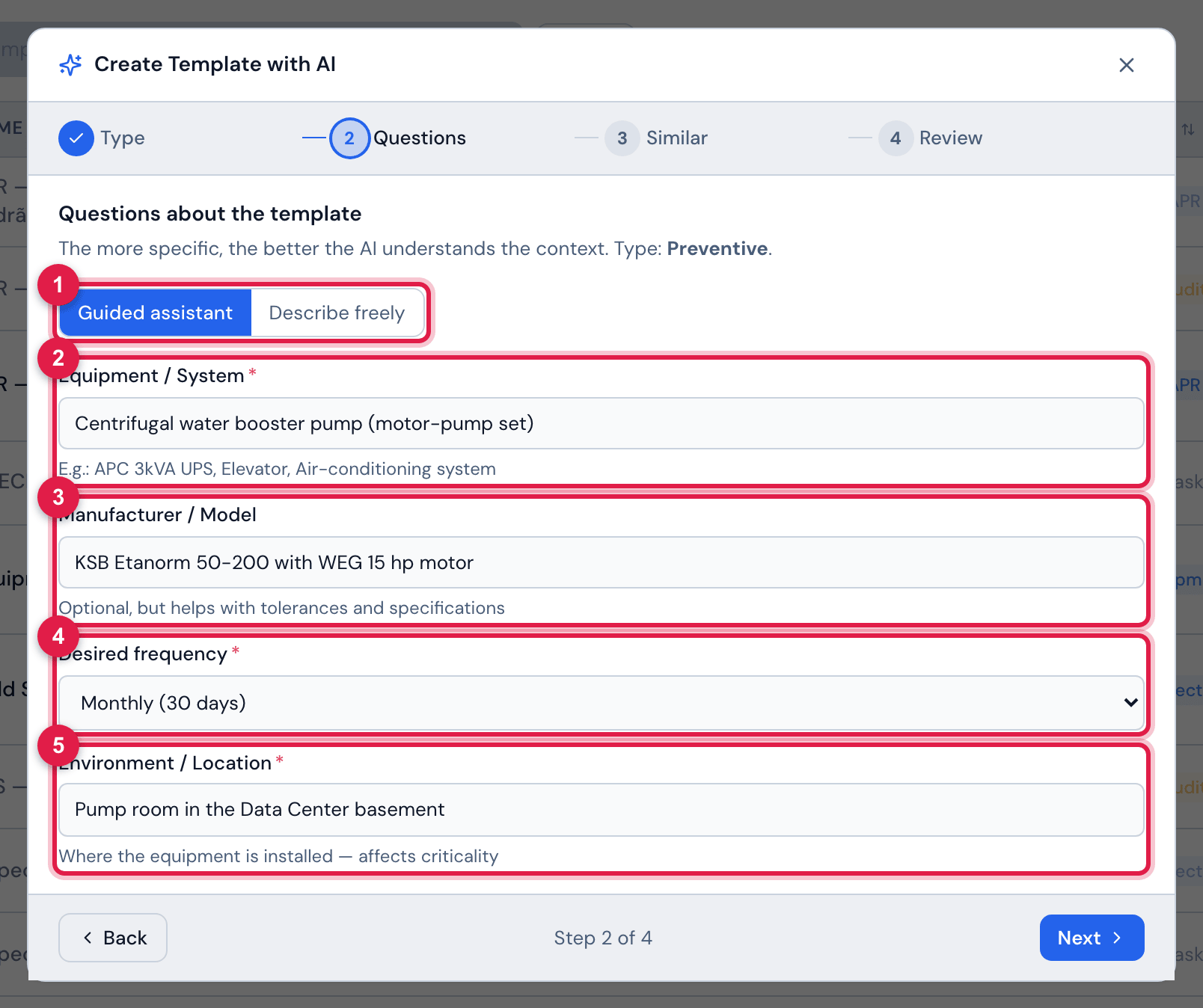
Figure 13. Step 2 of a Preventive in the Guided assistant: “Centrifugal water booster pump (motor-pump set)”, “KSB Etanorm 50-200 with WEG 15 hp motor”, Monthly (30 days) and “Pump room in the Data Center basement”.
- 1Guided assistant / Describe freely.
- 2Equipment / System ∗.
- 3Manufacturer / Model — optional, helps with the tolerances.
- 4Desired frequency ∗.
- 5Environment / Location ∗.
| Type | Guided assistant fields |
|---|---|
| FVS | Service to check ∗, Environment / Location ∗, Applicable standard, Level of detail ∗ (Basic ~10–15 items / Complete ~20–30 items with measurements and photos) |
| Preventive | Equipment / System ∗, Manufacturer / Model, Desired frequency ∗ (Monthly (30 days), Quarterly (90 days), Semiannual (180 days), Annual (365 days)), Environment / Location ∗ |
| Audit | Audit subject ∗, Reference / Standard ∗, Scope ∗, Use scoring |
- Describe freely: write in Describe the checklist you need — from 20 to 4,000 characters. State the equipment or service, the location, the standard, the periodicity, what to measure with the acceptable ranges, where to require a photo and which choices the technician must mark. The type from step 1 still applies.
- The more concrete, the better: “input voltage (207 to 253 V)” becomes a Numeric item with the range; “record which systems were inspected (electrical, HVAC, fire)” becomes a Multiple Choice with the options.
Step 3 — Similar
Section titled “Step 3 — Similar”When you click Next, H2O looks for similar templates (Searching for similar templates…). The search does not use the AI and does not count towards the daily limit.
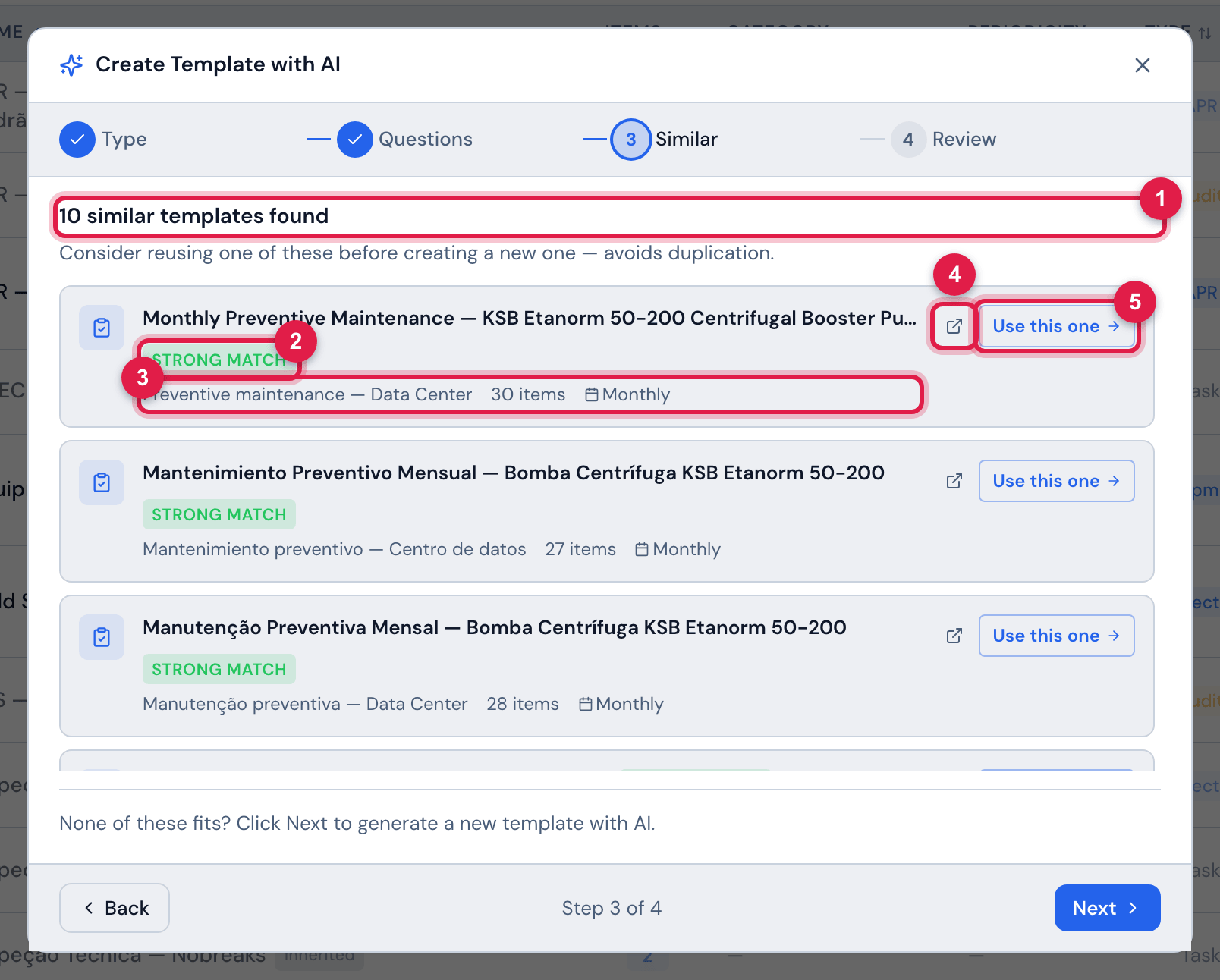
Figure 14. Step 3 of a preventive for the booster pump: the preventive template generated earlier by the assistant, Monthly Preventive Maintenance — KSB Etanorm 50-200 Centrifugal Booster Pump, comes first, as Strong match; right below are the templates the assistant generated in the Spanish and Portuguese demo companies (the similarity search looks at every company) and, scrolling the list, Monthly infrastructure inspection — Data Center and Mechanical seal replacement — booster pump.
- 1The title: N similar templates found — or Related templates, when the similarity is weak.
- 2The Strong match badge.
- 3Category, N items, N uses and the periodicity of the template.
- 4Open in a new tab — opens the record without leaving the assistant.
- 5Use this one — closes the assistant and opens the record of the existing template.
- Where the similar templates come from: from the active templates whose name or description contains the words of your answers (those of the free text, in the other mode). Words shorter than three letters and very common ones (“of”, “for”, “with”…) are ignored. A word in the name weighs more than in the description; one word in the name is already a Strong match. Up to 10 appear.
- FVS and Preventive search among the Task templates; Audit, among the Audit ones. Preventive favours periodic templates; FVS, those without periodicity.
- Nothing similar: We searched but found nothing similar in your system., with the Keywords used in the search:. Move on.
- Use this one copies nothing: it only opens the template. If it almost fits, Clone and adjust is usually better than generating another one (chapter 2).
Step 4 — Review
Section titled “Step 4 — Review”When you click Next on step 3, the AI generates the template (Generating template… — up to 1 minute; do not close the window). Then Generated template appears for review.
| Whoever asks in… | The template comes in… | The translation (2nd language) comes in… |
|---|---|---|
| Portuguese | Portuguese | English |
| English | English | Spanish |
| Spanish | Spanish | English |
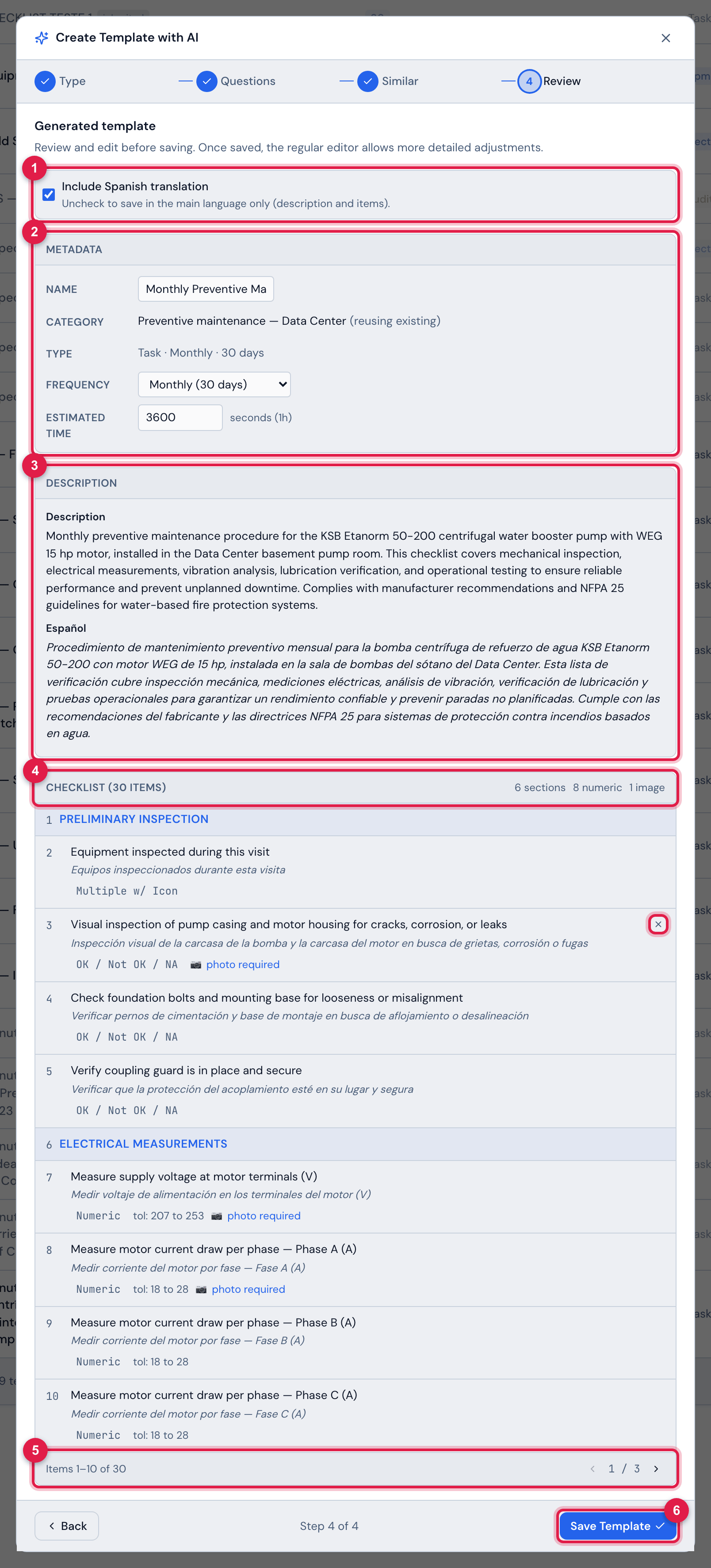
Figure 15. Step 4: the template generated for the pump preventive — the name, the existing category by name (Preventive maintenance — Data Center, reusing existing), the type, the frequency, the estimated time, the description and the checklist, 10 items per page.
- 1Include Spanish translation — untick to save in the main language only.
- 2Metadata: Name, Category (existing or (new), with an editable name), Type, Frequency and Estimated time (in seconds).
- 3Generated Description (read-only here; edit it later on the record).
- 4Checklist (N items): each item with its type, range (tol:) and photo required; hover and click the X (Remove item) to drop an item.
- 5The pagination Items 1–10 of N.
- 6Save Template.
- The name comes in the main language only. The items carry the translation in the Translation (2nd language, optional) field (chapter 4); the description may include, below it, the same text in the second language. Without Include … translation, none of this is saved.
- The proposed Category is one of the categories within your reach (the header site and the recursive ones of the sites above) or a new one, with an editable name — created in the header site.
- In the assistant you can change the name, the new category, the frequency and the estimated time, and remove items. Adding, rewriting, changing the type or reordering items is done on the record, after saving (chapter 4).
- The AI uses the simple and choice types (from Image to Compliant / Partial / NC / NA, plus Single Choice, Multiple Choice and Multiple w/ Icon). Table / Grid, Measurement Point, Thermography, Electrical Panel Inspection, UPS Inspection and the four electrical test sheets (LV Breaker Test Sheet, RMU / MV Panel Sheet, Transformer Sheet, MV/LV Panel Sheet) you add by hand.
- Save Template stores the template and opens the record. The History records Created by the AI assistant: <name> (N items).
- If the generation fails, Try again generates again — and counts one more towards the day’s limit.
After saving
Section titled “After saving”The saved template is a template like any other, stored as a New Template:
| Field | How the assistant stores it | What to check in Edit |
|---|---|---|
| Site | the header site | the 📍 of the record; for another site, clone it with the header there (chapter 2) |
| Recursive | Yes — the template also appears in the sites below the header site | turn it off if the template should apply only to the header site |
| Periodicity | the one chosen in step 4, already in the value Automatic Scheduling reads | — |
| Duration | the Estimated time, in minutes when it is not a value from the list | — |
| By (Technician) | empty | choose the technician, if there is a default one |
| Generates Non-Conformity and Group Non-Conformities | No | turn on if the non-compliant items must become NCRs (chapter 8) |
| Section Inspection, Private, State | No, No, Active | — |
| items’ photo required | as the AI proposed | works as Photo required on the web and in the app (chapter 4) |
Also check the items — the text, the type, the Numeric ranges and the required photo of each one (chapter 4) — and run the Preview tab and the PDF preview to see how the technician will receive it.
Who uses it and the daily limit
Section titled “Who uses it and the daily limit”- Create with AI appears for those with Create in Task Templates — the same right as New Template.
- Each user has a daily generation limit — 30 per day, unless another value is configured on the company’s server. Every generation counts, successful or failed, including Try again. It resets at midnight.
- The same counter applies to the other AI features with a limit: the ticket search by phrase and the AI composition search in the budget. The similar-template search (step 3), Save Template and the checklist AI buttons (Improve text, Suggest — chapter 7) do not count.
- Once the limit is reached, step 4 shows Daily limit of 30 AI requests reached. Try again after <date and time>. — with the configured limit and the time it comes back.
Was this page helpful?
Thanks for the feedback!
Got it — we will improve this page.