
Team
Manual — Projects · chapter 5 of 13
The Team tab lists who takes part in the project: users, groups, suppliers (the contracted builder, the rental company, the equipment manufacturer) and contacts. The team has three practical effects:- the app: the project only appears in Projects in the app of those in the team — directly, as a user, or through a group they belong to (chapter 11);
- the tasks: the members appear as quick suggestions in the Task Team (chapter 6);
- contact: each member’s e-mail and phone are at hand, with a link to write or call.
Adding and removing
Section titled “Adding and removing”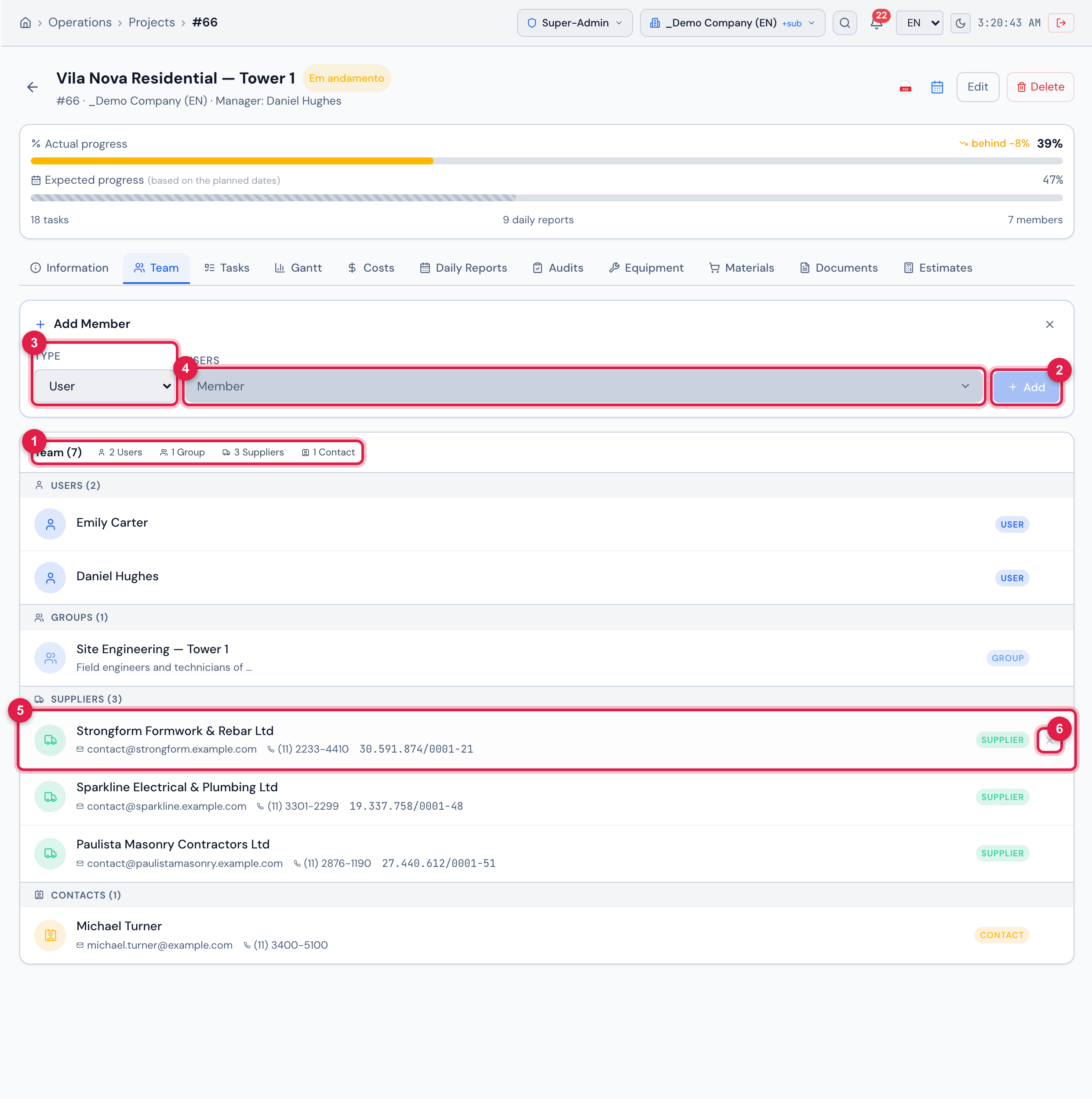
Figure 10. Team tab of Vila Nova Residential — Tower 1 with the Add Member panel open and the 7 members grouped by type: Emily Carter and Daniel Hughes, the group Site Engineering — Tower 1, three suppliers (formwork and rebar, masonry, building services) and the contact Michael Turner.
- 1Team (N) and how many members there are of each type.
- 2Add — includes the chosen member. (The Add button at the top of the card opens this panel.) It needs the Create right in Projects.
- 3Type — User, Group, Supplier or Contact.
- 4The member selector — when opened, it shows a list with search, only with who is not in the team yet.
- 5A member: photo or icon, name and whatever the record has (job title, e-mail, phone, company tax ID); the type badge on the right.
- 6✕ on mouse-over — removes the member. It needs the Edit right in Projects.
- On the project page, open the Team tab and click Add.
- Choose the Type and search for the person, group, supplier or contact.
- Click Add in the panel. The member joins the list and their app receives the project at the next sync.
- Removing asks for confirmation (Remove this member from the team?). The person stops seeing the project in the app; what they have already recorded (daily reports, progress, checklists) stays.
- For a large team, prefer groups: whoever joins or leaves the group starts (or stops) seeing the project without touching the team.
- Suppliers and contacts do not use the app; they join the team for record and contact.
Was this page helpful?
Thanks for the feedback!
Got it — we will improve this page.