
Profiles
Manual — Users, groups and profiles · chapter 10 of 12
People › Profiles holds the company’s profiles — the same for every site. Click a profile to open the permission editor.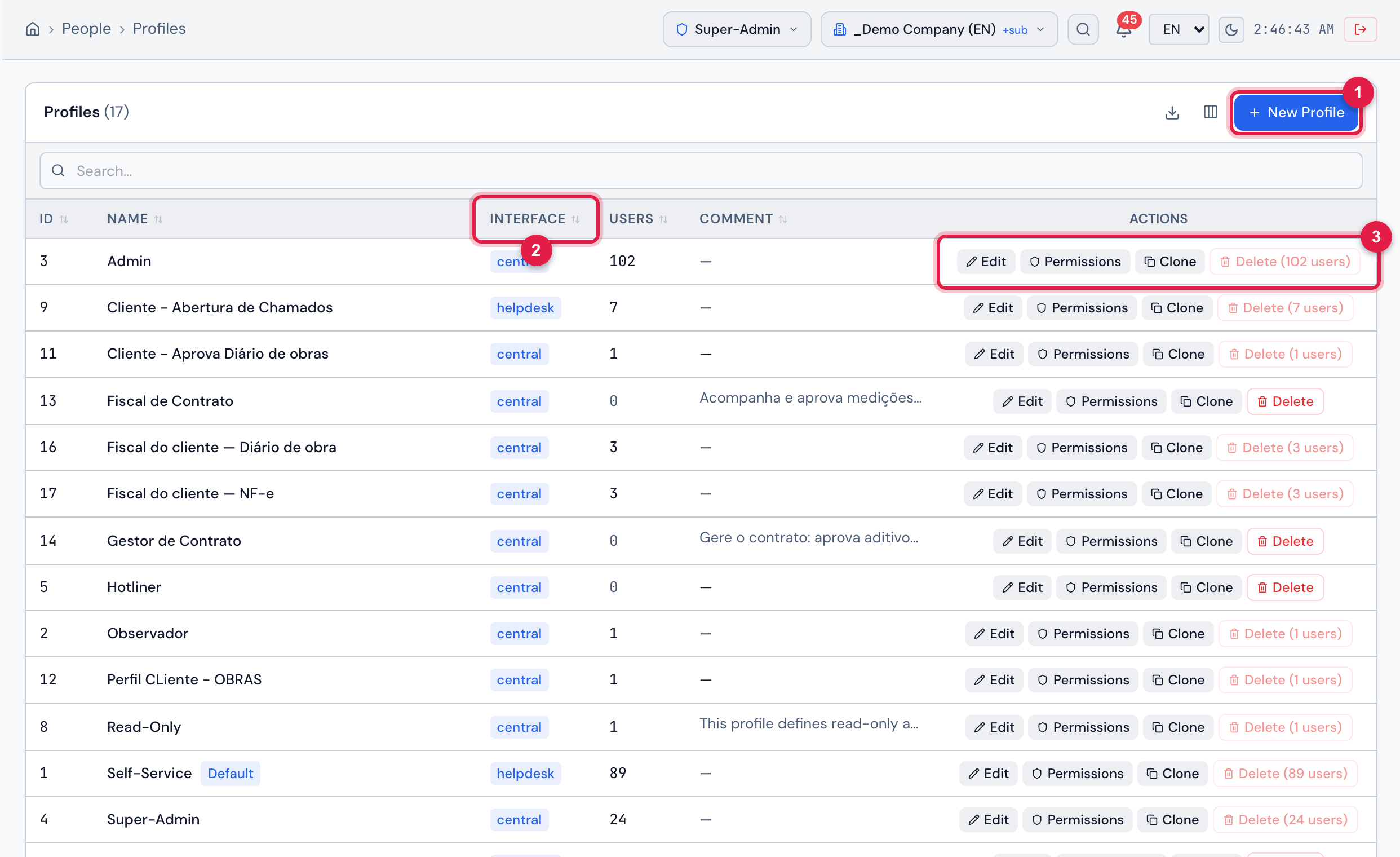
Figure 22. People › Profiles: New Profile, the search and the table with Name (and the Default badge), Interface, Users (how many assignments use the profile) and Comment, with the actions of each row.
- 1New Profile (Create level on Profiles).
- 2Interface — central (the full H2O) or helpdesk (the self-service portal).
- 3Actions: Edit, Permissions, Clone and Delete — the latter, disabled while there are users, shows how many there are.
Create, edit, clone and delete
Section titled “Create, edit, clone and delete”| Action | Level on Profiles | How it works |
|---|---|---|
| New Profile | Create | opens a bar at the top: type the Profile name, choose Central or Helpdesk and click Create. The profile is created without any rights: open it and turn the permissions on. The name cannot repeat that of another profile. |
| Clone | Create | creates a copy with the same interface and all the permissions of the source profile — the safest way to create a profile similar to another one. The window suggests the name with (copy); the users are not copied. |
| Edit | Edit | the Edit Profile window changes Name, Interface, Comment and the Default flag. |
| Delete | Trash | only for profiles without users; asks for confirmation (Delete profile? This cannot be undone.) and is permanent. |
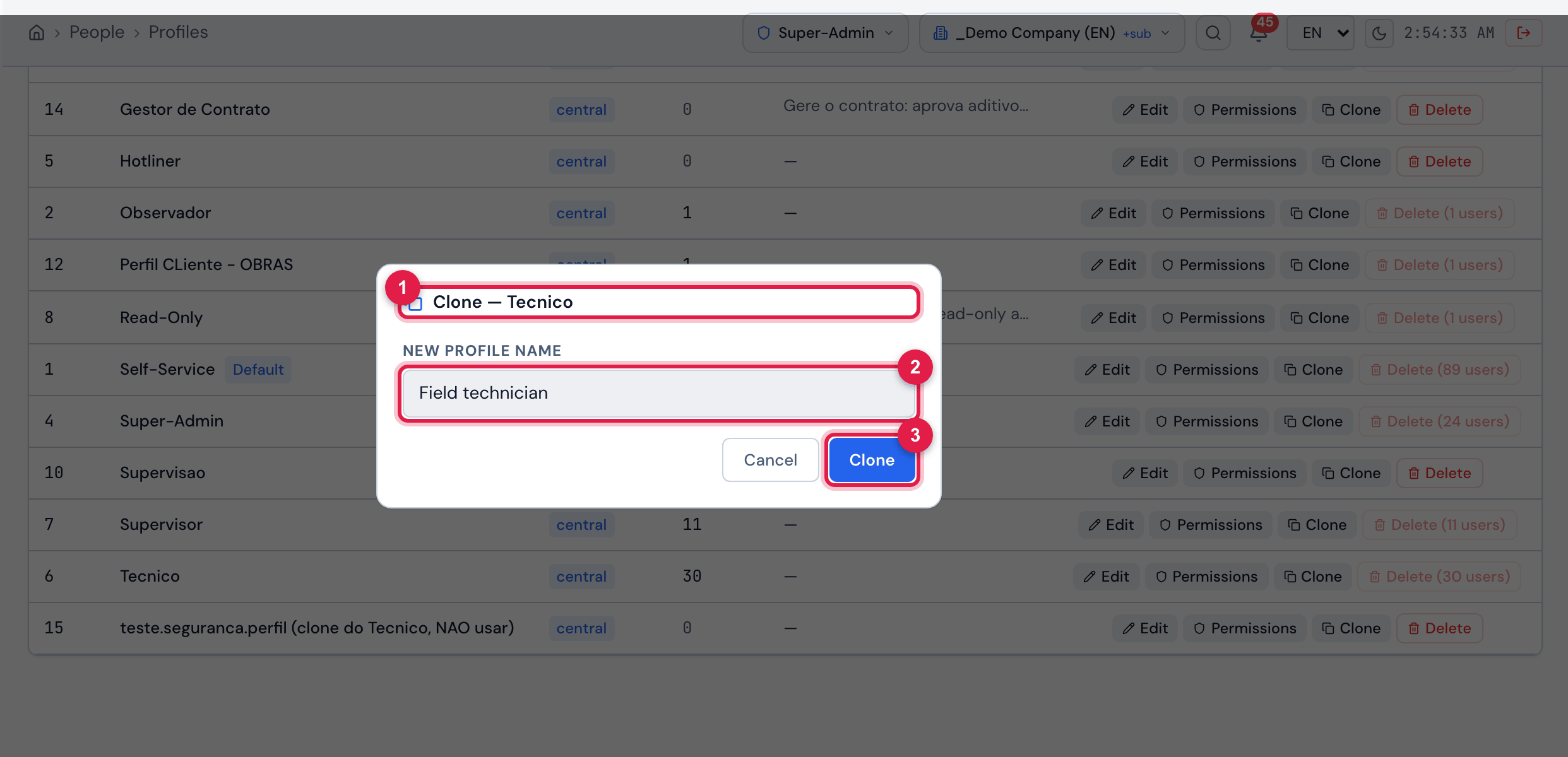
Figure 23. The Clone — Tecnico window: New profile name already changed to “Field technician” (not cloned yet) and the Cancel and Clone buttons.
- 1The source profile.
- 2New profile name.
- 3Clone.
- Helpdesk interface: whoever works with an active helpdesk profile enters the self-service portal (open and follow their own tickets), not the full H2O. Helpdesk profiles are also left out of the planning supervisor and technician lists.
- The Default flag appears as a badge in the list, but today it changes nothing: each person’s profile is always the one from their assignments.
The permission editor
Section titled “The permission editor”The editor opens on the Permissions tab: the rights are grouped as in the menu (Overview, Operations, Planning, ITIL, Occupational Safety, People…), each group with how many rights are in use (N/M active).
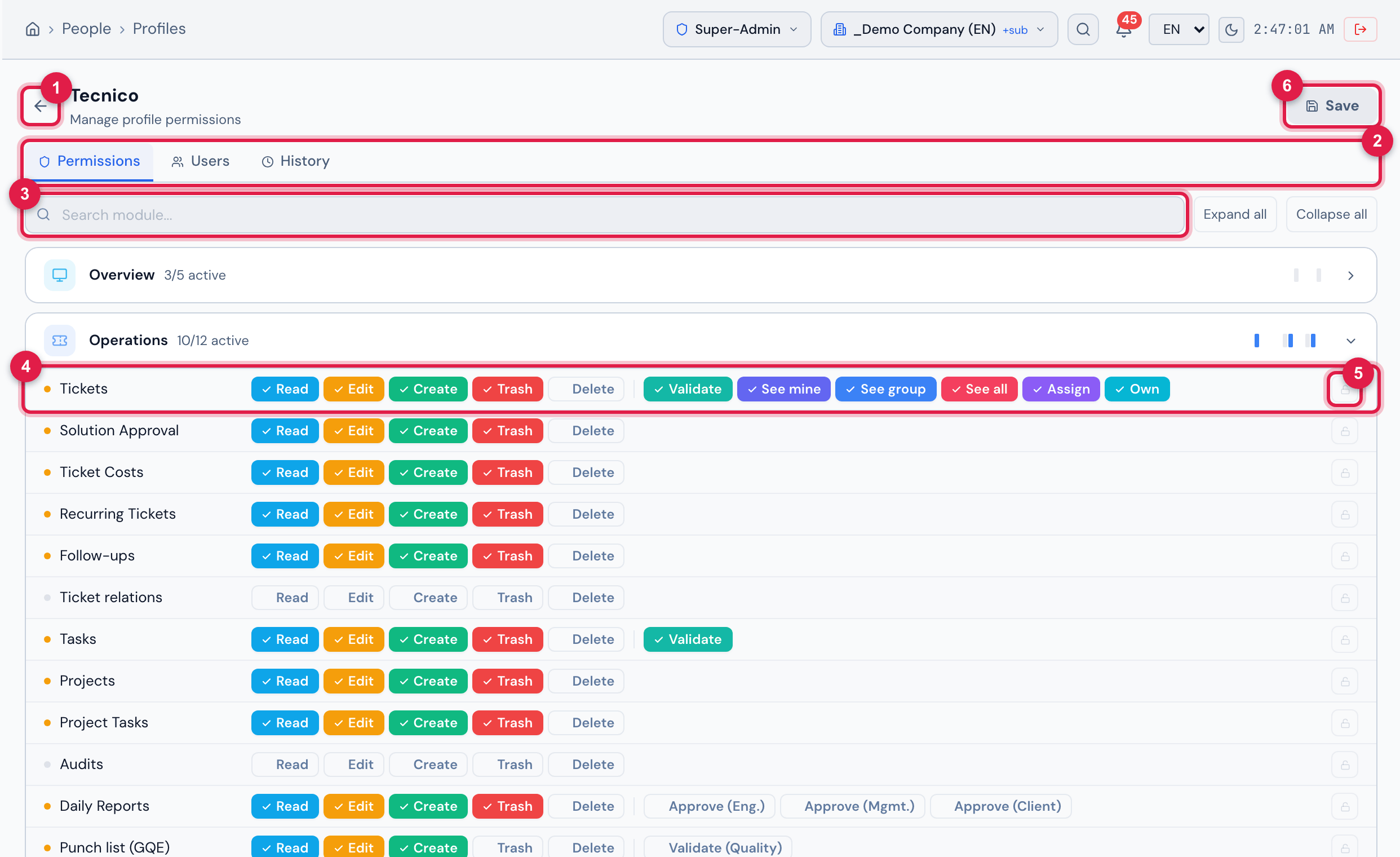
Figure 24. The editor of the Tecnico profile, Permissions tab, with the Operations group open: the Tickets row has the five levels and, after the separator, the special levels Validate, See mine, See group, See all, Assign and Own.
- 1Back to the profile list.
- 2The Permissions, Users and History tabs.
- 3Search module… — filters the rows by name; next to it, Expand all and Collapse all.
- 4A right row: click each level to turn it on (colored) or off.
- 5The lock: Grant all / Revoke all for the row.
- 6Save — enabled when there are changes.
- Open the group (click its name) or search for the right in Search module…
- Click the levels to turn them on or off. The changed row is highlighted and, next to the profile name, the number of changes appears.
- Click Save. Saved appears.
- The dot before the name shows the use: green, all the levels of the row on; yellow, some; gray, none.
- The lock turns on or off only the levels the row shows. Levels without a button (such as changing ticket priority) stay as they were.
- The Other group, at the end, gathers old rights that the profile still has and that are not in any group.
- What each level unlocks is in chapter 11.
- The changes apply to everyone with the profile, on every site. Whoever has H2O open sees the change when reloading the page.
Users and History tabs
Section titled “Users and History tabs”The Users tab answers “who has this profile?”: one row per assignment, with the person (and the email), the Login, the Entity of the assignment (with the recursive badge) and the Last login. Click a row to open the person’s record.
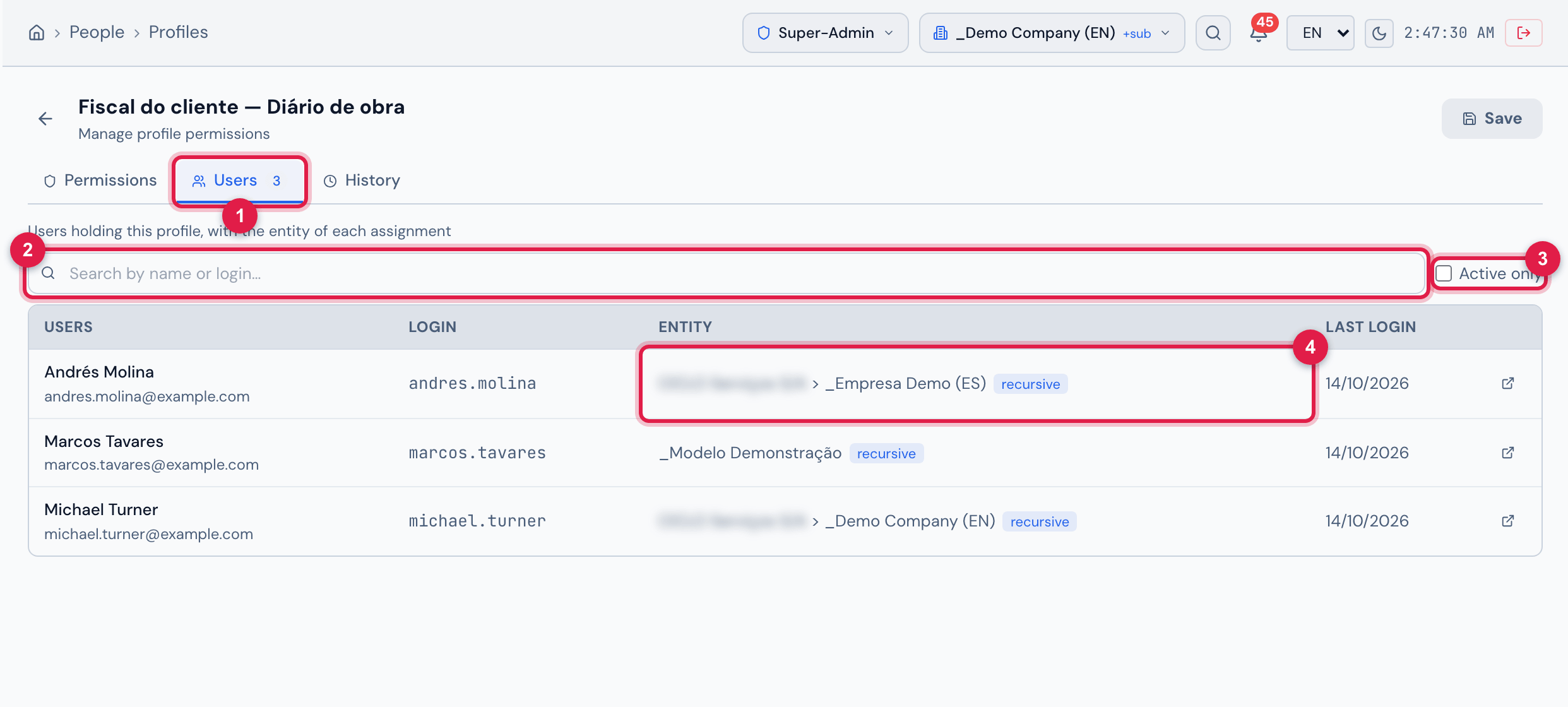
Figure 25. The Users tab of the Fiscal do cliente — Diário de obra profile: three assignments, each on a site, all recursive.
- 1Users tab, with the count.
- 2Search by name or login…
- 3Active only — hides the deactivated users (those shown with the inactive badge).
- 4Entity — the site of the assignment and the recursive badge.
The list shows the assignments of all sites, 50 at a time.
The History tab keeps the changes to the profile: its creation, the changed permissions, name and interface — with date, time and author. Each permission change reads as a sentence, with the module and the levels as in the editor: Module: levels before → levels after. The filters at the top separate creations and updates; Filter history… searches the text.
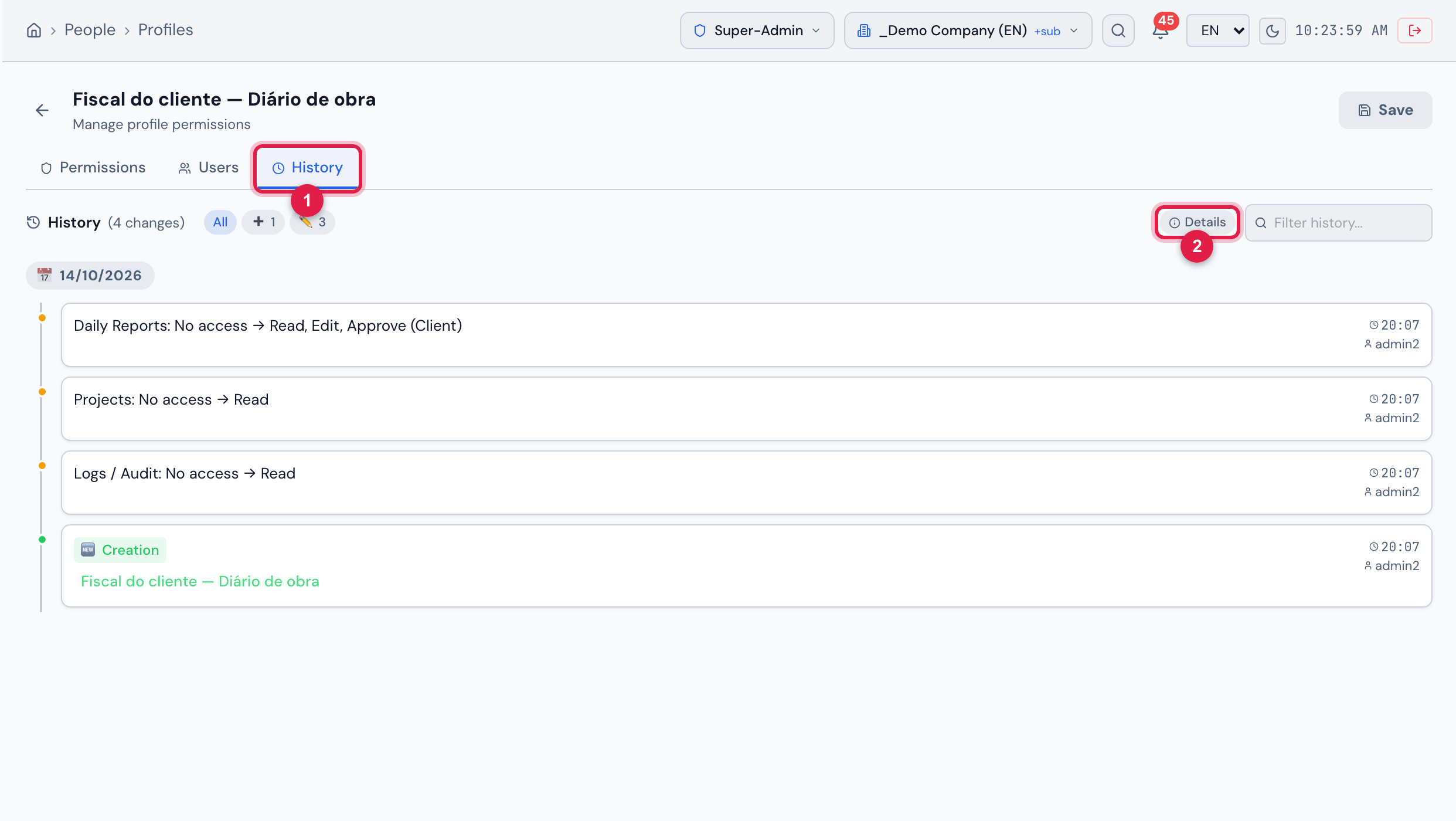
Figure 26. The History tab of the Fiscal do cliente — Diário de obra profile: the Creation and three permission changes — Daily Reports: No access → Read, Edit, Approve (Client), Projects: No access → Read and Logs / Audit: No access → Read — each with the time and the author.
- 1History tab.
- 2Details — also shows the saved values.
Was this page helpful?
Thanks for the feedback!
Got it — we will improve this page.