
Recording an item
Manual — Punch list (GQE) · chapter 4 of 11
Click New item (needs Create). If a project was chosen on the screen, it comes already filled in.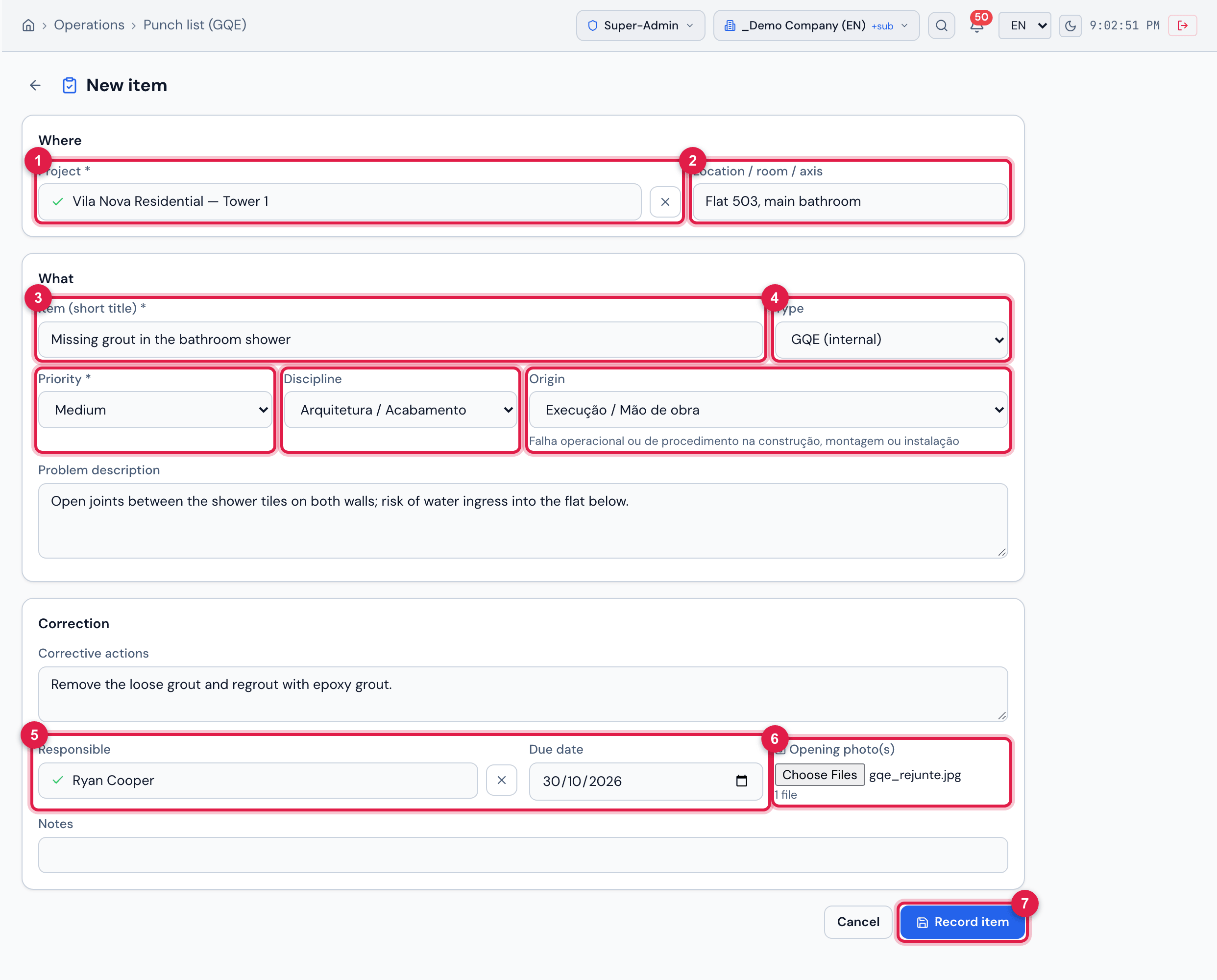
Figure 4. The New item page, in three blocks: Where, What and Correction.
- 1Project (required) — the list brings all projects of the sites you can see; type to filter.
- 2Location / room / axis — where the deviation is.
- 3Item (short title) (required) — it shows in the list, in the PDF and in the work order title.
- 4Type, Priority, Discipline and Origin — when you choose the origin, its description appears below.
- 5Responsible and Due date.
- 6Opening photo(s) — several at once.
- 7Record item.
- In Where, choose the Project and fill in the Location / room / axis (e.g. “Plant room, floor 3, axis B-4”).
- In What, write the title, choose the Type (GQE (internal) or Client punch list), the Priority, the Discipline and the Origin, and describe the problem: what was found, where and why it is a deviation — cite the design or the standard, when there is one.
- In Correction, write the Corrective actions, choose the Responsible and the Due date, and attach the Opening photo(s).
- Click Record item. The item is created in Triage / Under review, with the next number of the project, and its page opens.
| Field | Rule |
|---|---|
| Project, Item (short title) | required. Only projects of the sites you can see; the item belongs to the site of the project. |
| Priority | comes as Medium; change it if needed. |
| Type | comes as GQE (internal). |
| Discipline, Origin | only the active options of the Lists page (chapter 10). |
| Responsible | the active users of the sites you can see — all of them; type part of the name to filter. |
| Opening photo(s) | images only; they belong to the site of the item. If any fails to upload, the message says how many (N photos failed) — attach them again on the item page. |
Was this page helpful?
Thanks for the feedback!
Got it — we will improve this page.