
PDF, e-mail and exports
Manual — NF-e and material receiving · chapter 9 of 11
The receiving leaves H2O in three ways: the inspection PDF of each invoice (to file, print or send by e-mail), the list spreadsheets and the NFe Items report, which gathers the products of all invoices.The inspection PDF
Section titled “The inspection PDF”Generate the PDF with the record’s PDF button or with the list’s Generate the inspection PDF icon. It comes out in the language of whoever generates it and reflects the invoice at that moment — generate it again after each approval.
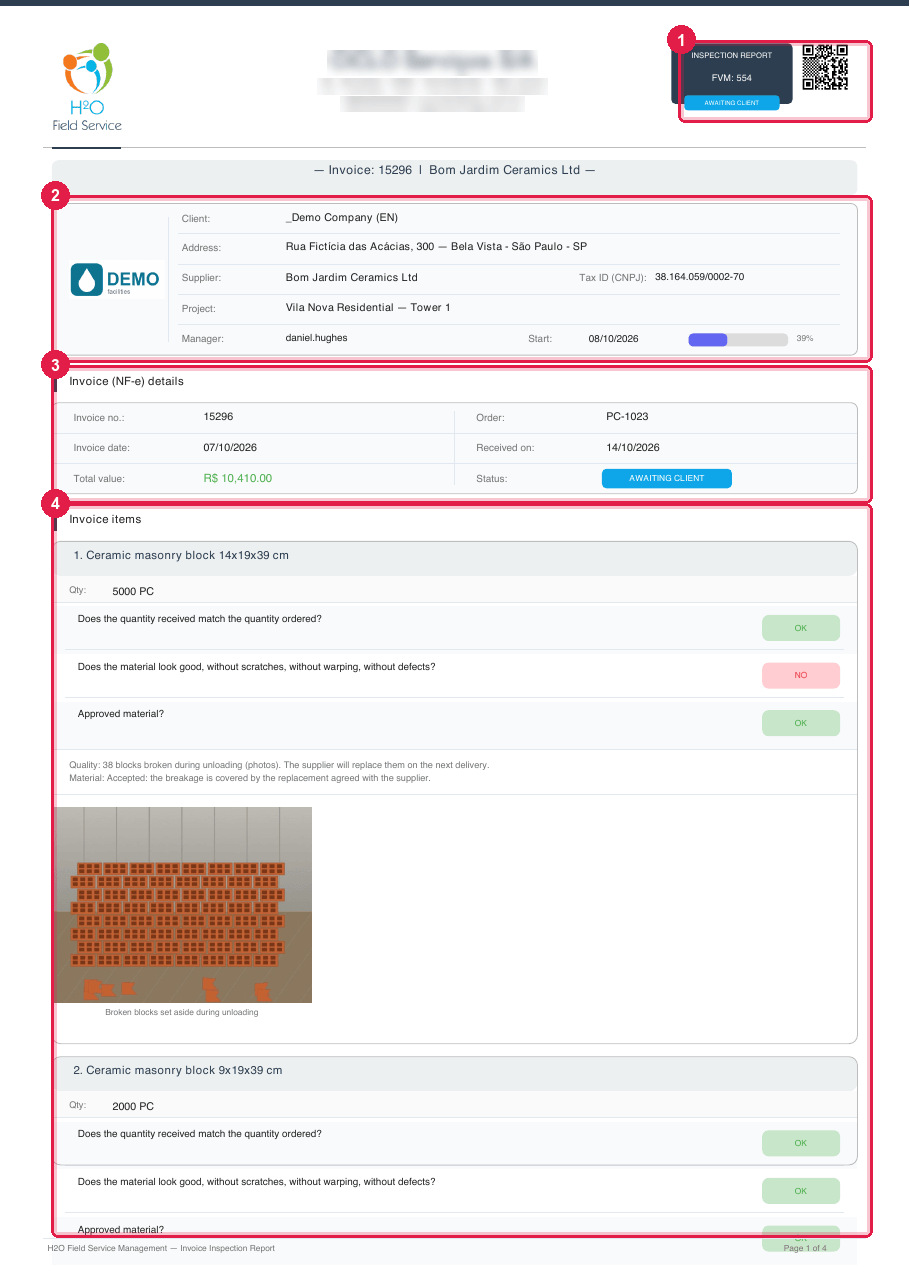
Figure 18. The first page of the PDF of invoice 15296 from Bom Jardim Ceramics, Awaiting Client.
- 1INSPECTION REPORT, the FVM number (the invoice ID) and the state badge.
- 2The client, the supplier and the project, with the manager and the progress.
- 3Invoice (NF-e) details.
- 4Invoice items: one card per item, with the quantity, the three questions answered OK or NO, the comments of each check and the item photos, with the caption below.
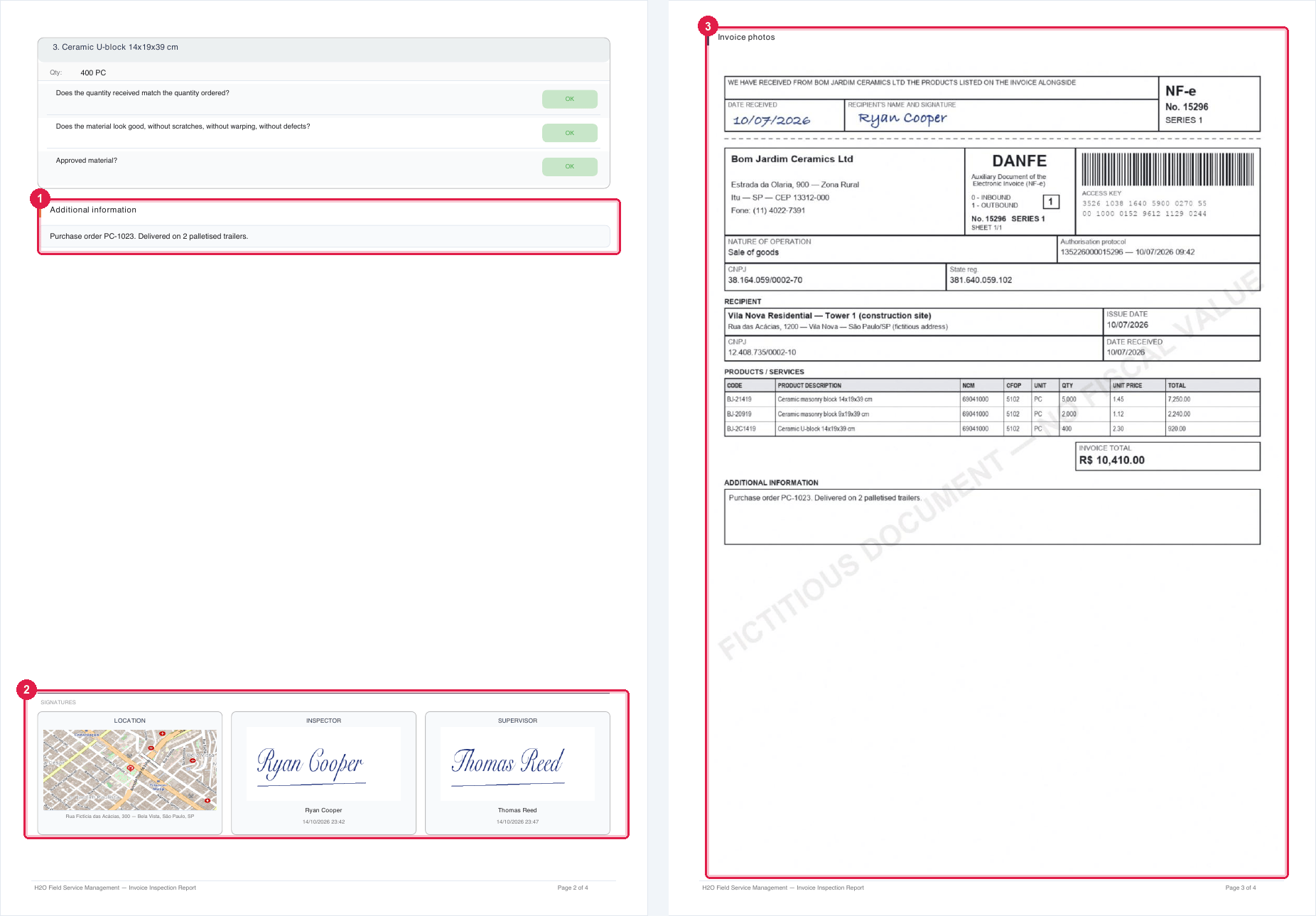
Figure 19. Pages 2 and 3 of the same PDF: the end of the items, the additional information, the signatures and the first document.
- 1Additional information — the additional details that came with the imported invoice.
- 2SIGNATURES: LOCATION (the map of the check made in the app), INSPECTOR and SUPERVISOR (engineering).
- 3Invoice photos — each attached document gets a page of its own, after the signatures.
- Each signature comes with the name and the date and time — those made on the web and those made in the app. The CLIENT box appears only after the client signs; before that, the PDF has three boxes.
- When the invoice has comments, the Notes section — the record’s Comments and reasons (history) — comes between Additional information and SIGNATURES. After the signatures come the documents, one per page: Invoice photos, Order photos and Certificates.
- Below the three questions come the item comment and the comment of each check, with its name in front — Quantity: …, Quality: …, Material: … —; only what was filled in comes out. Then come the item photos taken at receiving, each with its caption below. The reference image does not go into the PDF.
- In the Portuguese and Spanish PDFs, the check questions also appear in English, right below. Long item comments continue on the next page.
Sending by e-mail
Section titled “Sending by e-mail”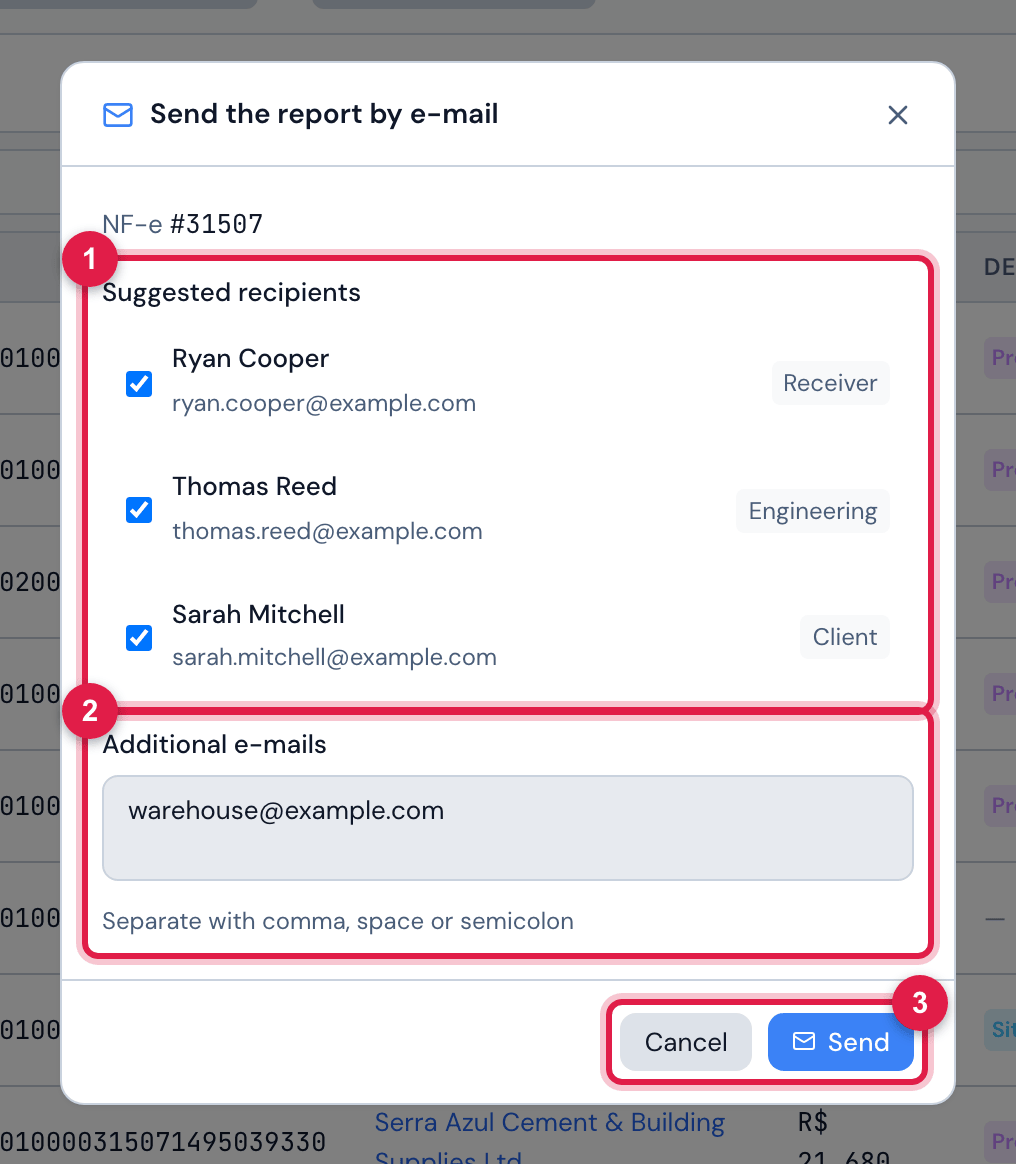
Figure 20. The e-mail of invoice 31507: the people in charge already ticked and one more address.
- 1Suggested recipients — whoever acted on the invoice, with the role: Receiver, Engineering or Client.
- 2Additional e-mails — separate with comma, space or semicolon.
- 3Send and Cancel.
- The Send the report by e-mail icon, on the invoice row, opens the sending. The e-mails of whoever imported it, approved it as engineering and approved it as the client come ticked; untick whoever should not receive it.
- Send puts the sending in the queue (E-mail queued for sending.). In a few minutes an e-mail Inspection Report — NF-e … arrives, with the PDF attached.
- An address with a typo is ignored. Check the list before sending.
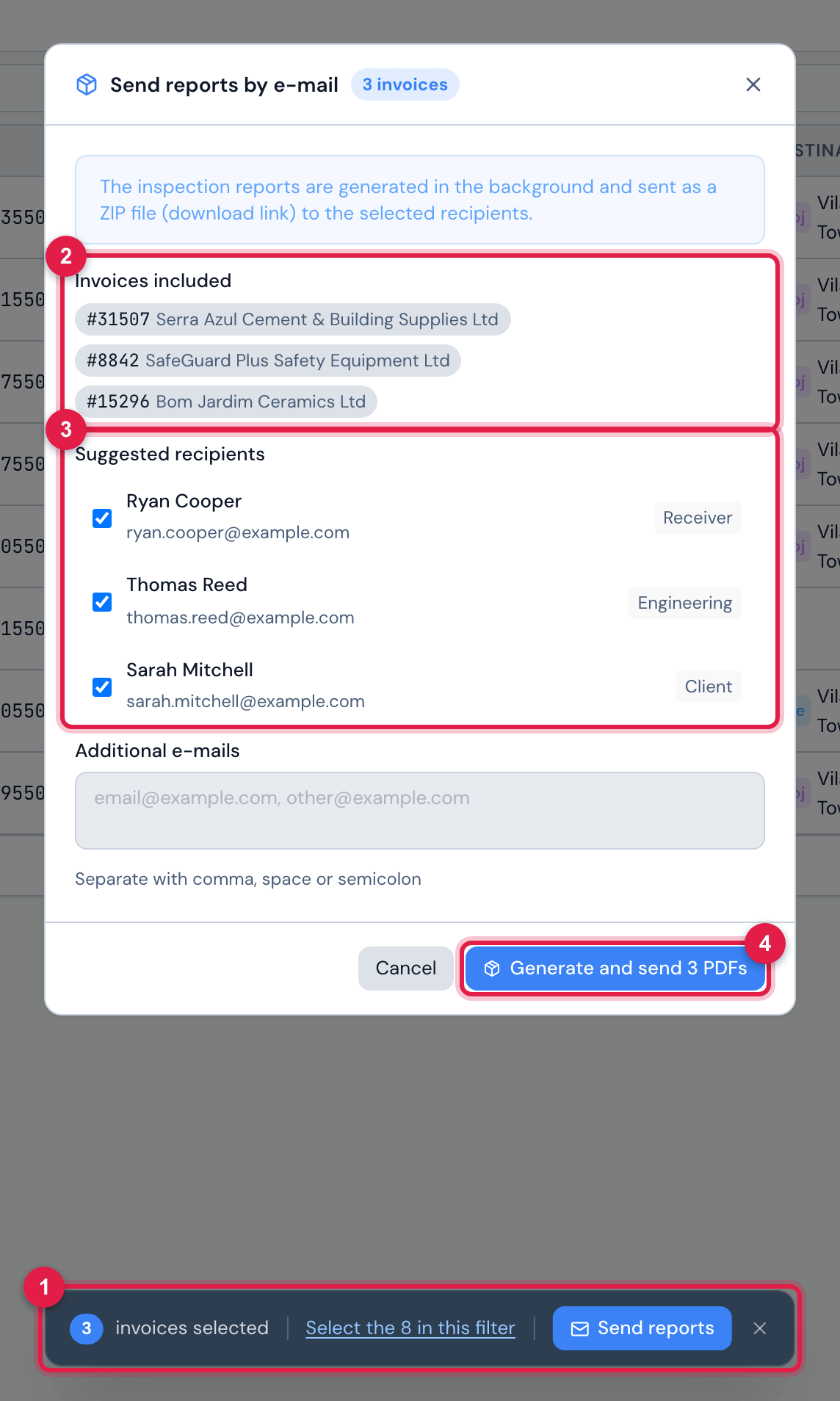
Figure 21. Invoices 31507, 8842 and 15296 ticked in the list and the batch sending.
- 1The selection bar: how many invoices, Select the N in this filter, Send reports and the X to clear.
- 2Invoices included.
- 3Suggested recipients — the people in charge of all the invoices, without repeating.
- 4Generate and send N PDFs.
- In the list, tick the invoices (the header box ticks the page). To send all the invoices in the filter — for example, those of the month —, click Select the N in this filter on the bar.
- Click Send reports, check the recipients and click Generate and send N PDFs.
- The PDFs are generated in the background and go in a ZIP file: an e-mail arrives with the download link, valid for 30 days.
Exporting the invoice list
Section titled “Exporting the invoice list”The Export icon, at the top of the invoice list, downloads a spreadsheet:
- What to export: Current page or All filtered — the tab, the period and the search of the moment.
- Format: Export to Excel or Export to PDF. The spreadsheet takes the visible columns, with the same text as the screen.
- Many invoices ask for confirmation before starting; the bar shows the progress.
NFe Items
Section titled “NFe Items”Warehouse › NFe Items lists the products of all the invoices you can see, one per row — it is the screen to answer “how much cement arrived this month?” or “which items have not been checked yet?”.
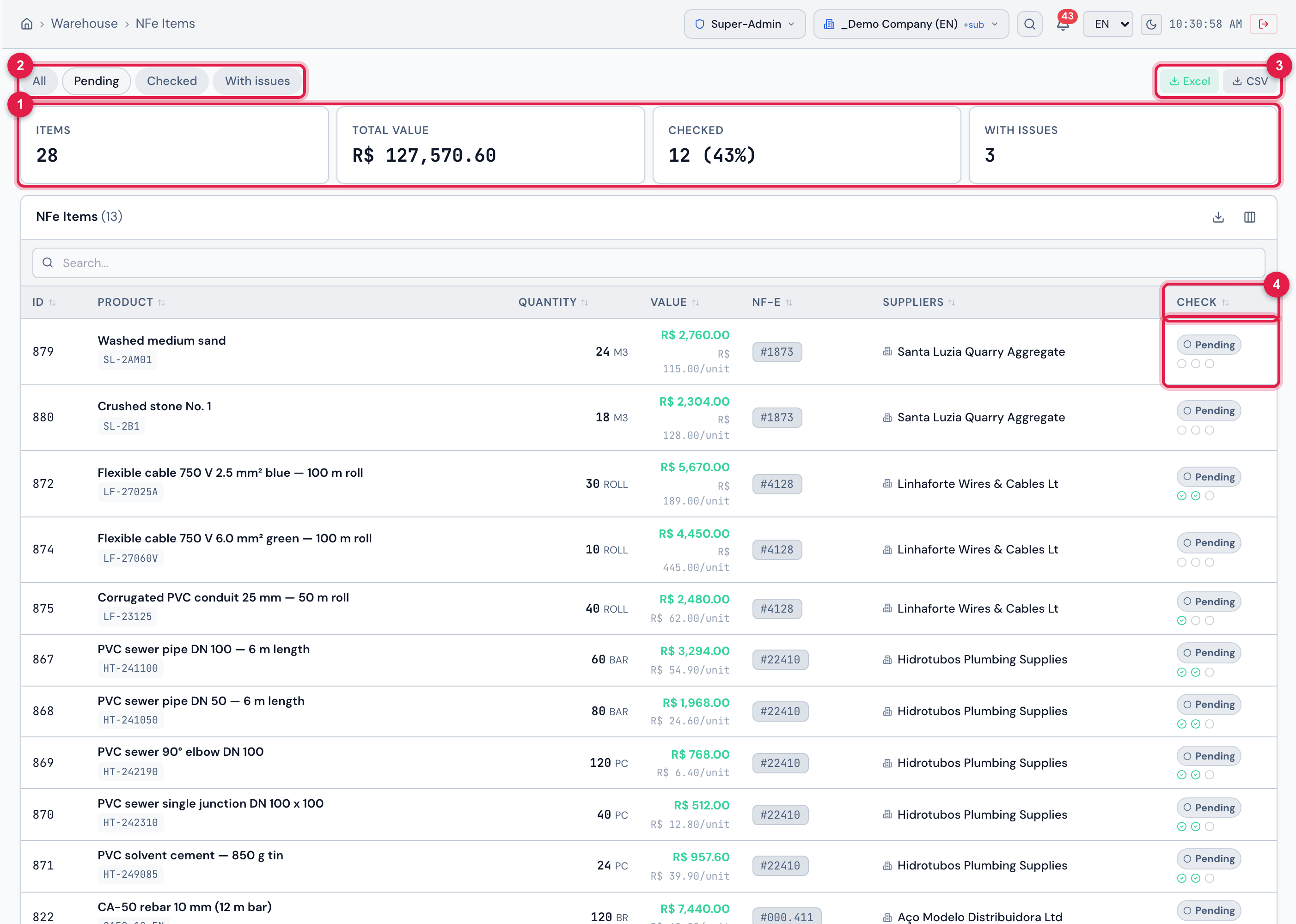
Figure 22. Warehouse › NFe Items, Pending tab.
- 1The cards: Items, Total Value, Checked (with the percentage) and With issues — the tab does not change the cards.
- 2The All, Pending, Checked and With issues tabs.
- 3Excel and CSV.
- 4The Check column: the item badge (on this tab, Pending) and the three marks.
| Tab | Items |
|---|---|
| Pending | with some of the three answers still missing and none Non-compliant |
| Checked | with the three answers Compliant |
| With issues | with some answer Non-compliant |
- The search looks in the product, the code, the NCM, the GTIN, the supplier and the invoice number. Click a row to open the invoice.
- The CProd, GTIN and NFe Date columns are hidden; show them in Columns.
- Excel and CSV download the items of the chosen tab and of the applied search, as in the list, with the invoice, the supplier, the date, the invoice state, code, GTIN, product, quantity, unit, values, NCM, CFOP, the three checks, whether it went into the stock (Processed) and the comment.
The NFe report
Section titled “The NFe report”In Overview › Reports, the NFe item shows the invoices of a period grouped By month, By supplier or By status, with the Total NFe. It counts only the invoices you see in the list.
Was this page helpful?
Thanks for the feedback!
Got it — we will improve this page.