
Sending, approving and rejecting
Manual — NF-e and material receiving · chapter 7 of 11
Once checked, the invoice follows a fixed path: warehouse → engineering → client. Each step carries the signature of whoever acts; engineering and the client can reject, and an invoice that is already with the client can be sent back for adjustment. The buttons are in the box above the record’s tabs.| Current state | Who acts | Button | Right in Invoices (NFe) | Signs? | Goes to |
|---|---|---|---|---|---|
| Receiving | the storekeeper | Send to Engineering | Edit | yes | Awaiting Engineering |
| Receiving or Awaiting Engineering | engineering | Approve (Engineering) | Approve (Eng.) | yes | Awaiting Client — and the materials enter the stock |
| Receiving or Awaiting Engineering | engineering | Reject | Approve (Eng.) | yes | Rejected |
| Awaiting Client | the client | Approve (Client) | Approve (Contractor) | yes | Approved |
| Awaiting Client | the client | Reject | Approve (Contractor) | yes | Rejected — and the stock is removed |
| Awaiting Client | whoever has Edit | Return for adjustment | Edit | no | Receiving or Awaiting Engineering — the stock is removed and the engineering and client signatures lose their validity |
| Rejected | the storekeeper, in the app | Send to engineering | Create | no | Awaiting Engineering |
| Approved | — | none | — | — | end |
Sending to engineering
Section titled “Sending to engineering”
Figure 10. Invoice 4128 from Linhaforte Wires & Cables, Receiving, opened by the receiver Ryan Cooper.
- 1The notice: Materials will be loaded into stock after Engineering approval.
- 2Send to Engineering.
- Check all the items and attach the documents (chapters 5 and 6).
- Click Send to Engineering and sign (below).
- Sent to Engineering appears; the invoice becomes Awaiting Engineering and the items now belong to engineering.
The button appears for whoever has Edit. Engineering does not need it: it approves directly.
The signature
Section titled “The signature”On the web, each flow action asks for a signature drawn on the spot: it is recorded on the invoice and appears in the inspection PDF, in the role’s box — INSPECTOR, SUPERVISOR (engineering) or CLIENT.
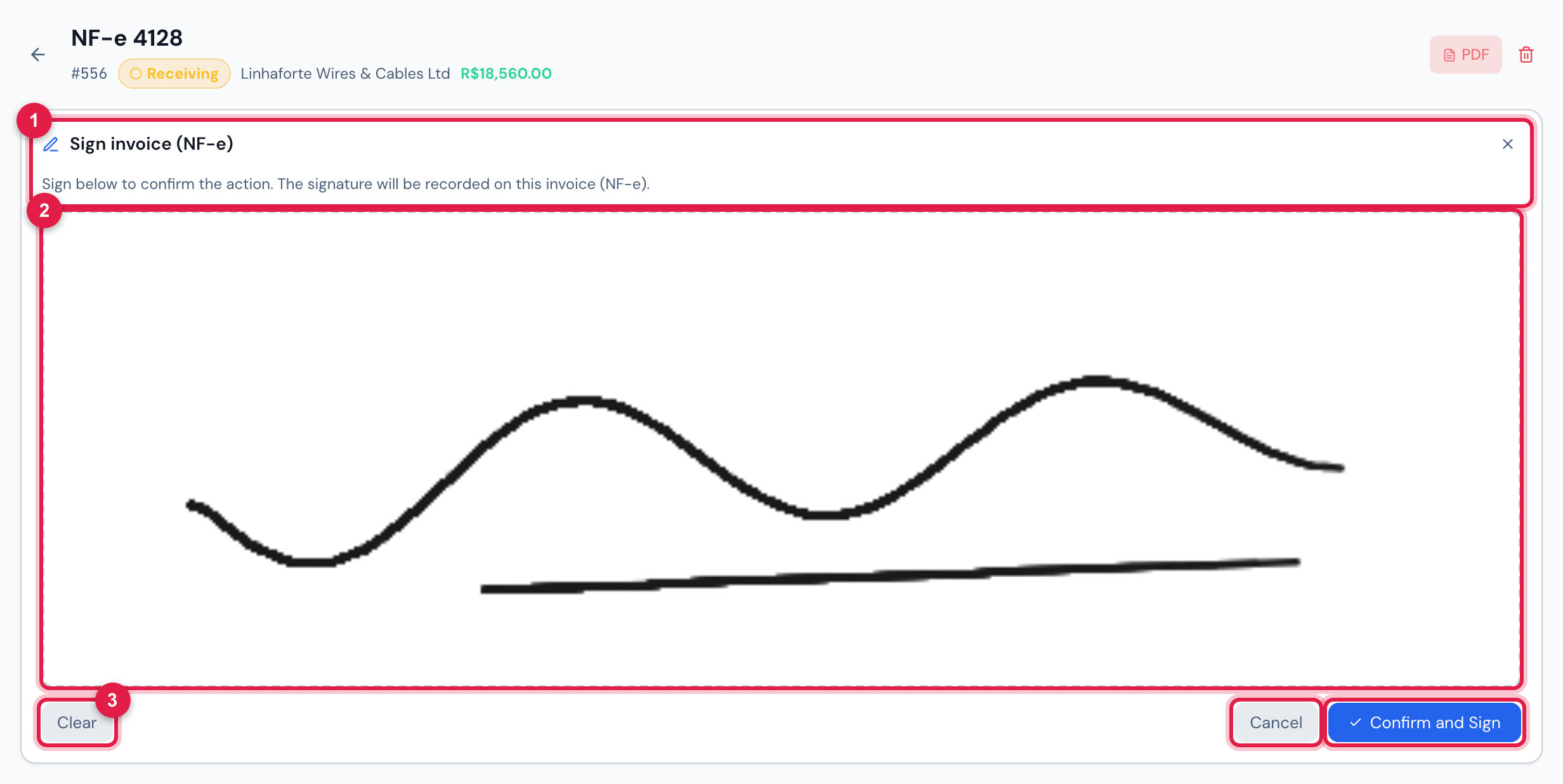
Figure 11. The action’s signature, drawn with the mouse or a finger.
- 1Sign invoice (NF-e) and the notice Sign below to confirm the action. The signature will be recorded on this invoice (NF-e).
- 2The signature field.
- 3Clear, Cancel and Confirm and Sign.
- Confirm and Sign only works after some stroke. Cancel gives up the action: the invoice does not change.
- Each role has its own signature on the invoice: whoever imported and checked the invoice and then approves as engineering signs again, now as engineering.
- If you have already signed this invoice in the action’s role, Signature already registered appears — You have already signed this invoice (NF-e). Do you want to sign again? — with Yes, sign again, No, proceed without a new signature and Cancel.
- The first signature of someone who does not have one on file yet is also kept in My Profile (Getting started — web manual, chapter 11). The invoice, however, always asks for the stroke on the spot.
Approving as engineering
Section titled “Approving as engineering”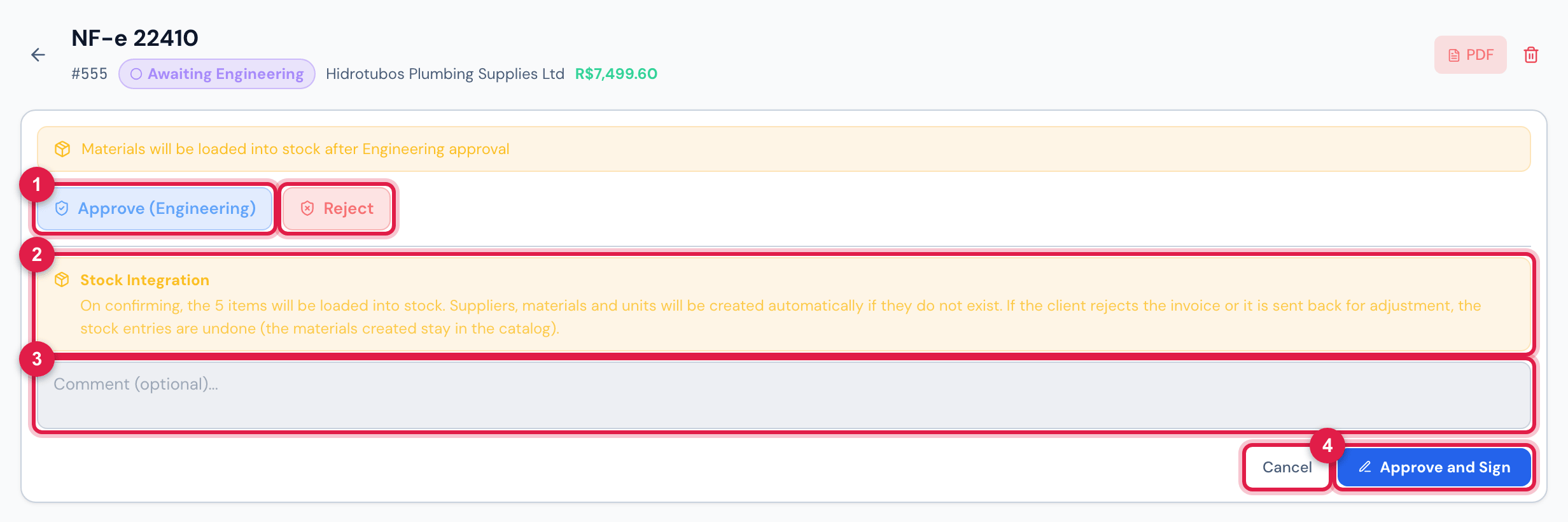
Figure 12. Engineering approving invoice 22410 from Hidrotubos, Awaiting Engineering: the stock notice before signing.
- 1Approve (Engineering) and Reject.
- 2Stock Integration — how many items will enter the stock.
- 3The Comment (optional)… field.
- 4Approve and Sign and Cancel.
- On the Items tab, check the Material of each item and run Analyze Similarity; resolve and save the stock links (chapter 8).
- Click Approve (Engineering). The box warns that, on confirming, the items will be loaded into stock and that suppliers, materials and units that do not exist will be created.
- Click Approve and Sign and sign.
- The invoice becomes Awaiting Client, with the Engineering step filled in the Approval Workflow, and the notice says how many items entered the stock: Approved! N items loaded into stock.
- Without the stock analysis, the approval stops at Similarity analysis required — Go to the Items tab and run the similarity analysis before approving.
- With all links decided and saved, the approval loads the stock right away. If no item had a saved or automatic link, the Material Review window opens to decide and load; if only some were left undecided, the invoice is approved with the notice Approved, but stock error: There are items awaiting review (N). and the entry is completed later, with Approve stock entry (chapter 8).
- The Stock Integration notice reminds you that, if the client rejects the invoice or it is sent back for adjustment, the stock entries are undone — the materials created stay in the catalog (chapter 8).
The approval’s Comment (optional)… goes into Comments and reasons (history), with date and time, and into Notes in the PDF. A note about a specific item fits better in the item’s Comment (chapter 5).
Rejecting
Section titled “Rejecting”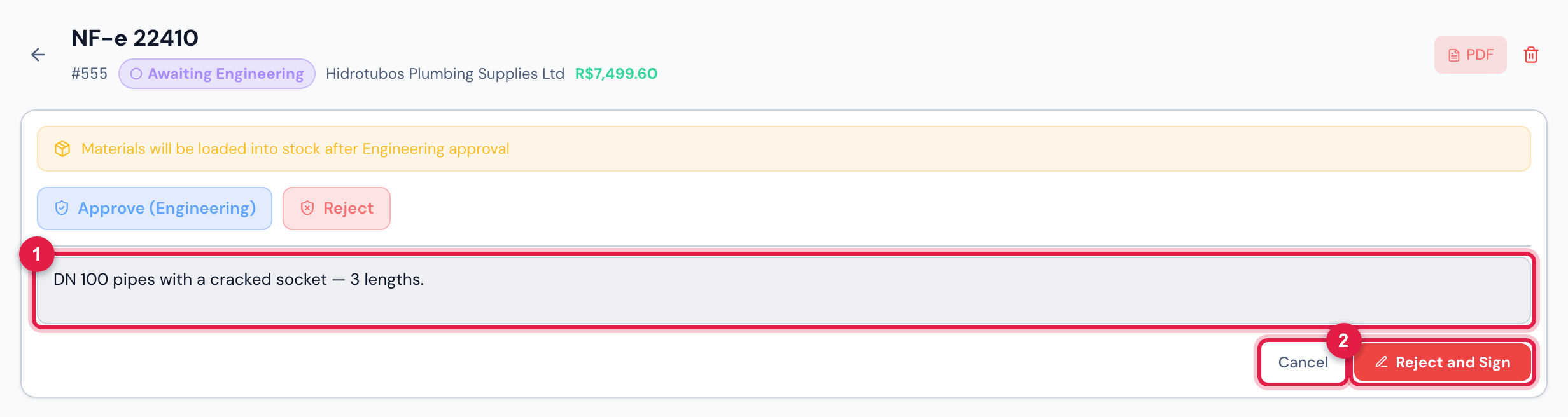
Figure 13. Engineering rejecting invoice 22410, with the reason filled in.
- 1The rejection reason, required.
- 2Reject and Sign — only with the reason — and Cancel.
- Reject appears for engineering in Receiving and Awaiting Engineering, and for the client in Awaiting Client — with the same assigned-person rule as approving. The reason is required; the client can also leave the Client note (optional)….
- The invoice goes to Rejected (notice Rejected). The reason, with date and time, goes into Comments and reasons (history), is highlighted in the Rejection reason box of the Information tab and appears in Notes in the PDF. Who rejected and when are in the History.
- When the client rejects — on the web or in the app —, the stock entry made by engineering’s approval is undone (see the warning in chapter 8).
- On the web, a Rejected invoice has no buttons and no reopen option: the rejection ends its flow on the web. Today, only the app still puts it back into the flow: the storekeeper opens the invoice, corrects it and taps Send to engineering (chapter 10). If the correction is of another kind — wrong key, cancelled invoice —, move the invoice to the trash.
Approving as the client
Section titled “Approving as the client”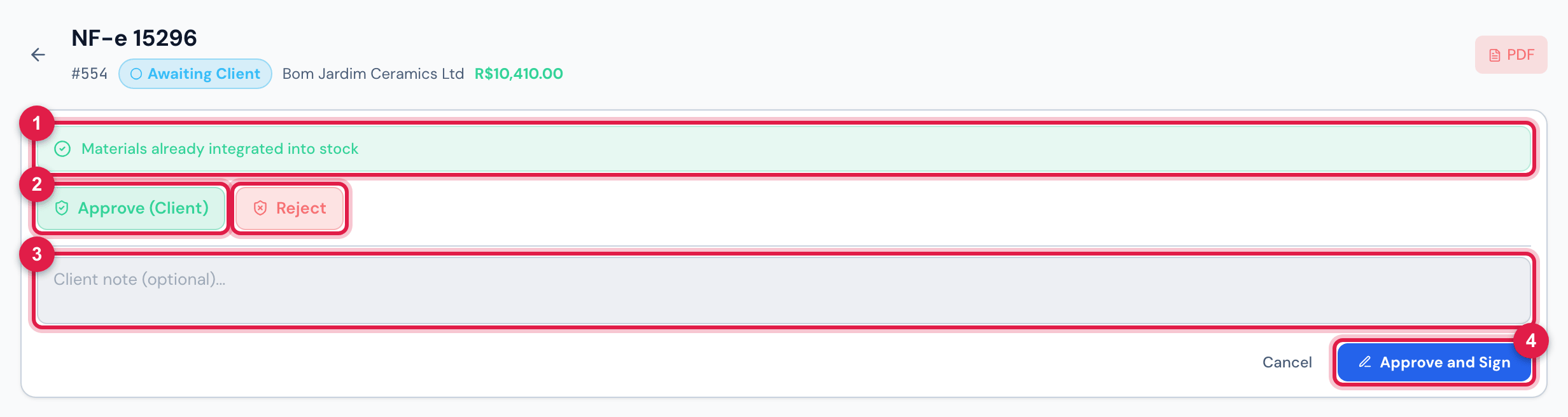
Figure 14. The client Sarah Mitchell with invoice 15296 from Bom Jardim Ceramics, Awaiting Client: the two buttons and the note.
- 1The Materials already integrated into stock strip.
- 2Approve (Client) and Reject.
- 3Client note (optional)….
- 4Approve and Sign.
- The client checks the invoice through the Items and Documents tabs — all read-only — and through the inspection PDF.
- Approve (Client) → Approve and Sign takes the invoice to Approved (Approved successfully). The note stays in Client note, on the Information tab.
- While the invoice has not reached Awaiting Client, whoever only has Approve (Contractor) sees Awaiting Engineering approval before Client approval.
- An Approved invoice has no more buttons: the receiving is closed.
Return for adjustment
Section titled “Return for adjustment”When the invoice is already with the client and an error shows up — an item entered with the wrong quantity, a missing certificate —, whoever has Edit can send it back without rejecting.
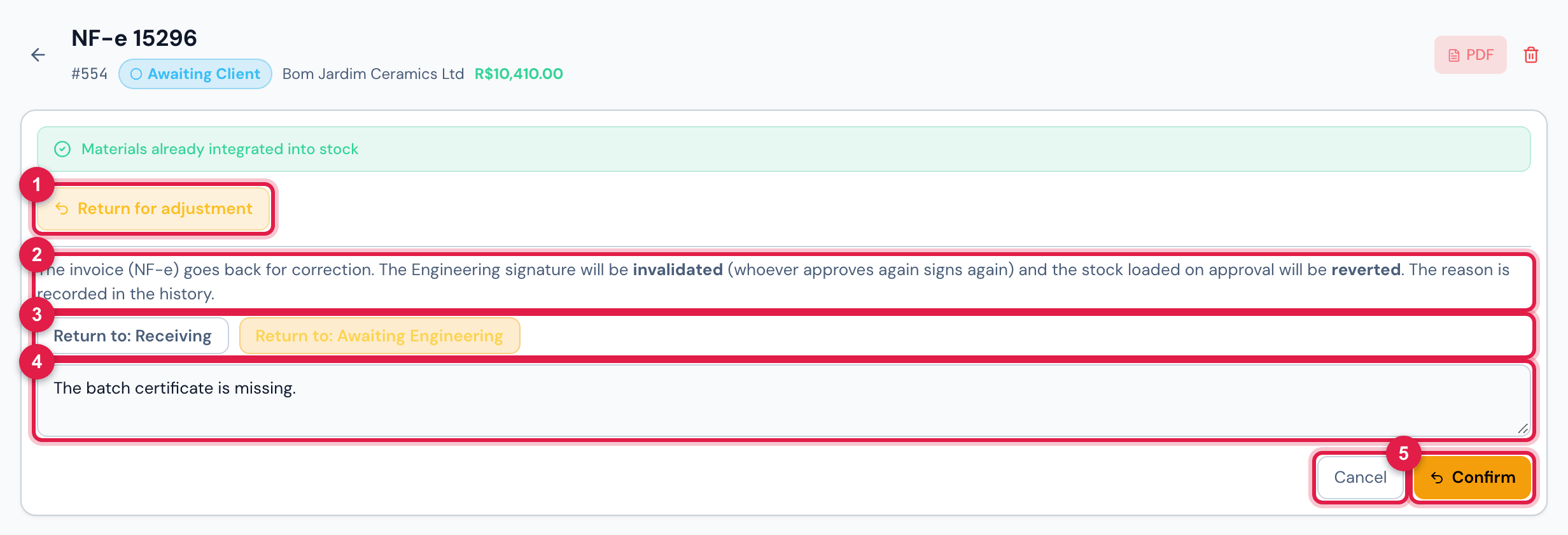
Figure 15. Return for adjustment on invoice 15296, Awaiting Client.
- 1Return for adjustment.
- 2The notice of what happens.
- 3Return to: Receiving and Return to: Awaiting Engineering.
- 4The reason, required.
- 5Confirm and Cancel.
- Choose where the invoice goes back to — Receiving (the storekeeper corrects it) or Awaiting Engineering (engineering corrects it) —, write the reason (at least 3 letters) and click Confirm.
- The stock loaded at engineering’s approval is removed; the engineering and client signatures stop being valid, and whoever approves again signs again. The notice is Invoice (NF-e) returned to …, followed by Engineering signature invalidated.
- The reason stays in Comments and reasons (history) (with [Voltou para ajuste], written by the system in Portuguese) and in the History.
- An Approved invoice cannot go back or be rejected: correct it before the client’s approval.
Was this page helpful?
Thanks for the feedback!
Got it — we will improve this page.