
Deactivate, validity and trash
Manual — Users, groups and profiles · chapter 8 of 12
There are three ways to take someone out of H2O, all of them reversible:| Way | When to use it | Where |
|---|---|---|
| Deactivate | leave of absence, dismissal, suspected improper access: the person can no longer sign in, at once. | Deactivate button of the record or the list (Edit on Users) |
| Validity | access with set dates: a contractor until the end of the contract, an intern from the first day. | Valid from and Valid until fields (Edit) |
| Delete (trash) | a record created by mistake or that should no longer appear in the lists. | Delete button (Trash level on Users) |
In every case the history remains: the person’s tickets, tasks, daily reports and signatures do not change.
Deactivating and activating
Section titled “Deactivating and activating”- Deactivate acts at once, without confirmation: Deactivated appears and the record badge changes to Inactive.
- The person can no longer sign in (Account disabled. Contact your administrator.), on the web and in the app, and the session that was open drops within one minute.
- In the list, the user moves to the Inactive filter. Activate gives the access back, with the same assignments and groups.
- The same applies to the Status in Edit.
Account validity
Section titled “Account validity”In Edit, the Status & Validity part has Valid from and Valid until. Both are optional; when empty, the account is always valid.

Figure 16. Status & Validity in the record’s Edit: Status (Active), Valid from empty and Valid until filled in (not saved yet).
- 1Status — active or inactive.
- 2Valid from — before this date the person cannot sign in.
- 3Valid until — after this date the person cannot sign in.
- Before the start, the sign-in answers Account will only be valid from date; after the end, Account expired on date.
- An open session also drops when the validity ends.
- With the validity passed, the record shows the red Expired badge next to the status and to Valid until. To give the access back, change or clear the date and save.
Delete, trash and restore
Section titled “Delete, trash and restore”- In the record (or in the list row), click Delete and confirm.
- The user leaves the lists and can no longer sign in to H2O; the open session drops within one minute.
- To see the deleted users, click Trash at the top of the user list; click again to go back.
- Restore (Edit level) brings the user back with the assignments and groups they had.
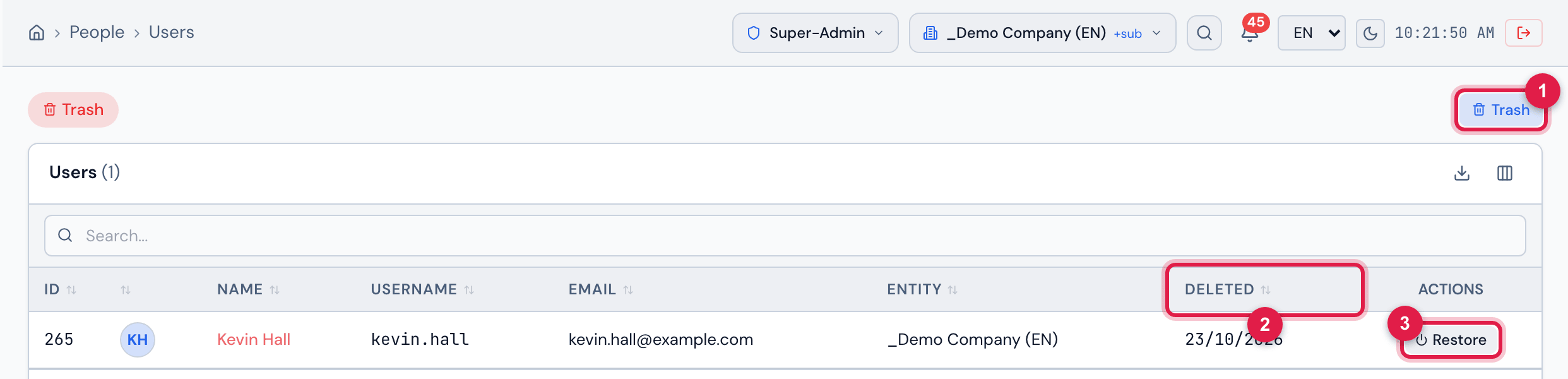
Figure 17. The user list in Trash mode: the Deleted column with the date and, on each row, Restore.
- 1Trash — turns trash mode on and off.
- 2Deleted — the date of deletion.
- 3Restore.
- Nobody can delete their own account: You cannot delete your own user.
- The login of a user in the trash stays reserved: a new registration with the same login — or changing the login of another account to it — is refused with The login “…” belongs to a user in the trash. Restore it or choose another login.
Was this page helpful?
Thanks for the feedback!
Got it — we will improve this page.