
Tasks
Manual — Projects · chapter 6 of 13
The Tasks tab is where the schedule is built: the steps of the project, in a tree (parent task and subtasks), each with a responsible person, dates, state and %. The Gantt (chapter 7) draws these same tasks.The task tree
Section titled “The task tree”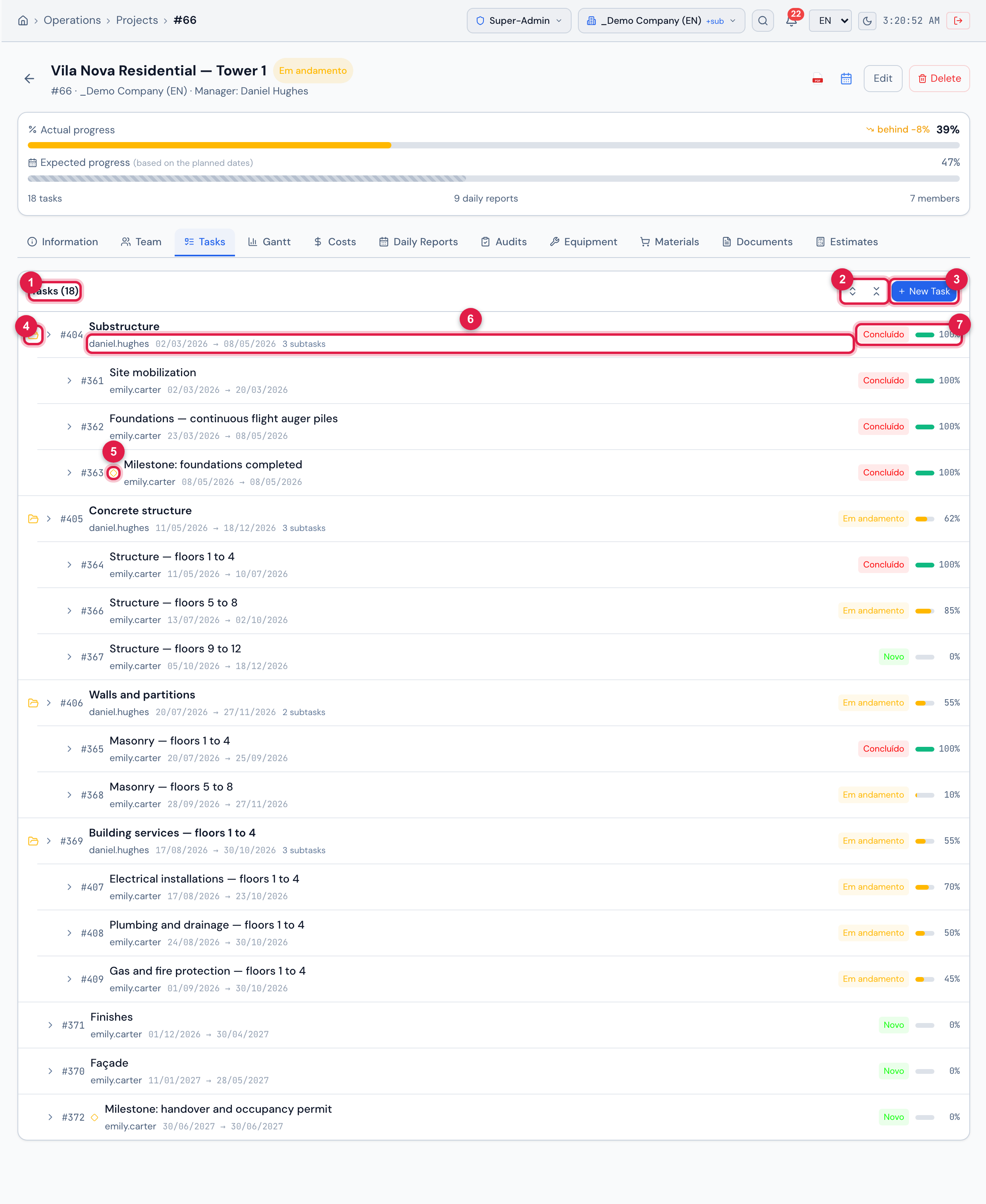
Figure 11. Tasks tab of Vila Nova Residential — Tower 1 (18 tasks): the parent tasks Substructure, Concrete structure, Walls and partitions and Building services — floors 1 to 4, with the subtasks indented, and the milestone ◆ Milestone: foundations completed.
- 1Tasks (N) — the total.
- 2Expand tree / Collapse tree — shown when there are subtasks.
- 3New Task — it needs the Create right in Projects.
- 4Folder icon — opens or closes the subtasks of this task.
- 5Diamond — the task is a milestone.
- 6Responsible person, planned dates and how many subtasks there are.
- 7State and % bar.
Click a task to expand its details (below). Tasks are listed by planned start date. A task that is a commissioning phase gets the Phase N badge next to its name (see Commissioning phase, below).
Creating and editing a task
Section titled “Creating and editing a task”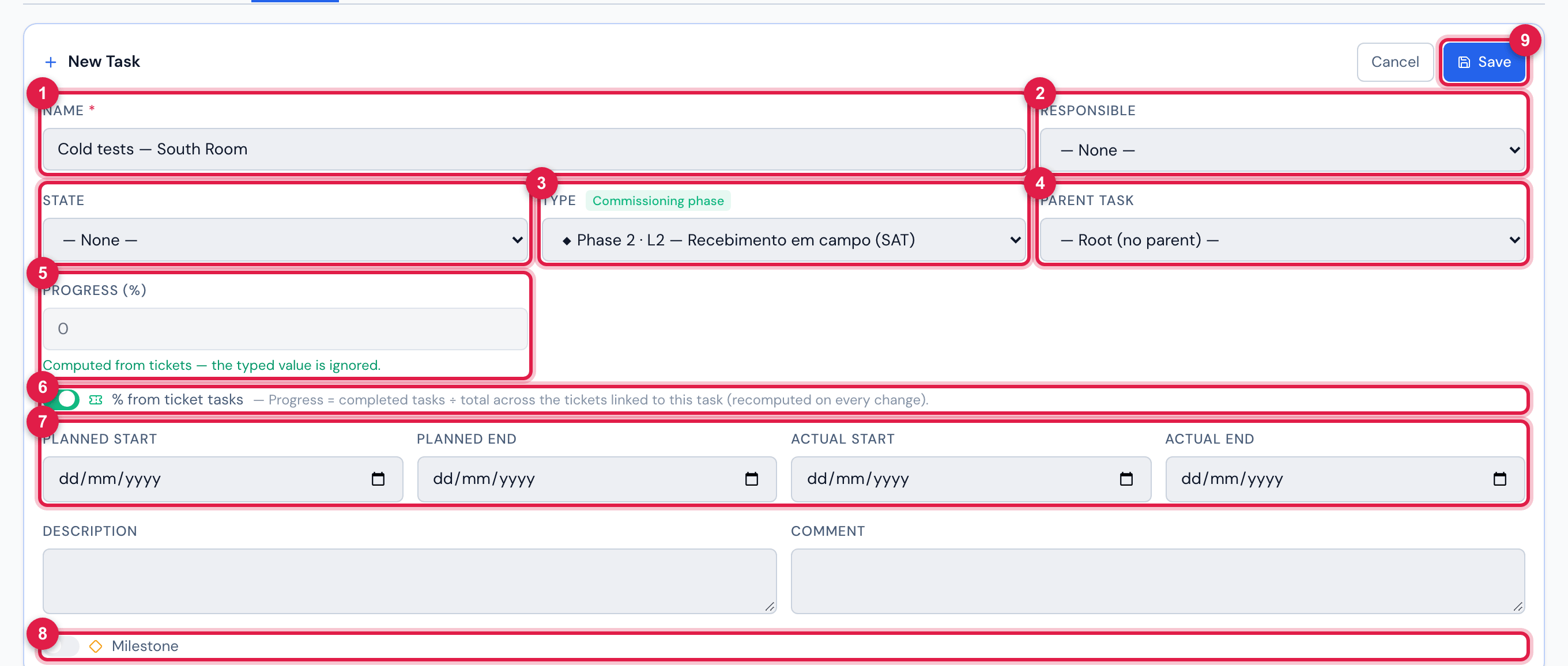
Figure 12. The New Task form in the Data Center — Cooling Retrofit project, with a type that is a commissioning phase: the Commissioning phase badge, the % from ticket tasks switch on and Progress (%) locked.
- 1Name (required).
- 2Responsible and State.
- 3Type — the types marked as a phase appear with ◆ and the phase number.
- 4Parent Task — — Root (no parent) — or the task this one is a subtask of.
- 5Progress (%) — locked when the % comes from the tickets.
- 6% from ticket tasks.
- 7Planned and actual dates.
- 8Milestone.
- 9Save.
| Field | What it is for |
|---|---|
| Name | required. E.g. “Foundations”, “Structure — floors 1 to 5”, “Main switchboard energization”. |
| Responsible | a user. It appears in the list, in the Gantt and in the PDF (statistics by responsible person). |
| State | the same state catalog as the projects. |
| Type | from the Configuration › Project task types list. A type marked as Commissioning phase changes the % calculation (below). |
| Parent Task | leave — Root (no parent) — for a main step, or choose the task this one belongs to. When editing, the list does not include the task itself nor its subtasks, so that no loop is closed. |
| Progress (%) | the progress, from 0 to 100. |
| Planned Start / Planned End | what the Gantt draws. Without dates, the task stays in the list, but without a bar. |
| Actual Start / Actual End | when the task actually started and finished. In the Gantt they appear as a dashed band behind the bar. |
| Description / Comment | free texts. |
| Milestone | turns the task into a checkpoint: diamond in the list and in the Gantt, and it goes into Upcoming milestones and deliverables in the PDF. |
- A parent task is a summary: its planned dates always follow the earliest start date and the latest end date of its subtasks; its Actual End only appears when all subtasks have an actual end; and its % is the average of the subtasks in From tasks mode (chapter 3) or after an Auto-Calc (chapter 7). Typing dates in the parent is pointless.
- Edit, in the expanded task, opens the same form (Edit right in Projects).
- Delete (Trash right in Projects) asks for confirmation and does not work on a task with subtasks (Cannot remove a task that has subtasks.): delete or move the subtasks first. The task’s dependencies are deleted with it.
- To change only the % of several tasks, the quickest way is the Gantt (dragging) or the Operations › Kanban › Project tasks board — see the Kanban manual.
Task tickets, team and dependencies
Section titled “Task tickets, team and dependencies”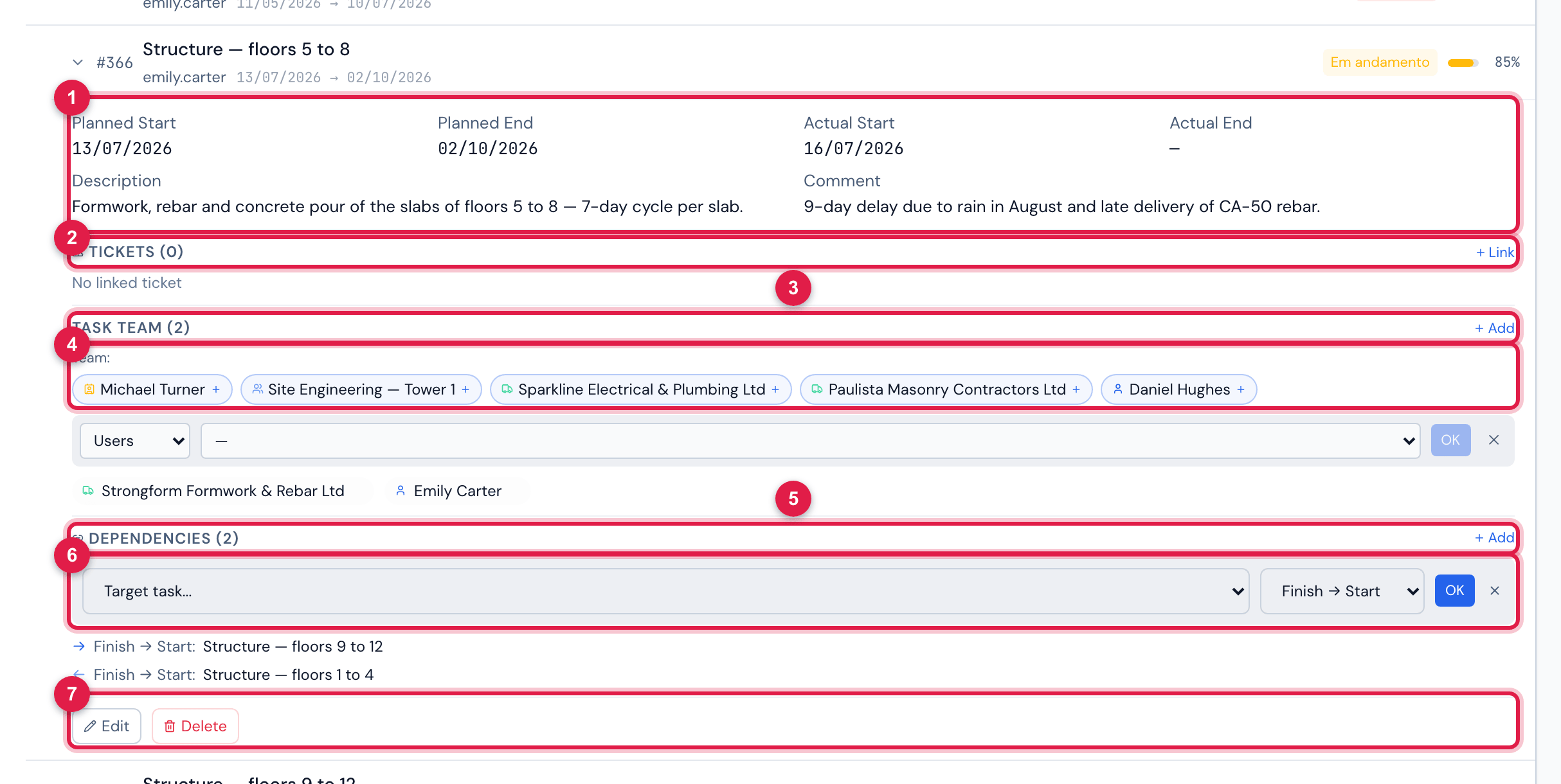
Figure 13. The task Structure — floors 5 to 8 expanded: dates, description and comment, Tickets, Task Team (Emily Carter and the supplier Strongform Formwork & Rebar) with the suggestions from the project team, and Dependencies (← Structure — floors 1 to 4, → Structure — floors 9 to 12) with the new dependency panel open.
- 1The four dates, the description and the comment.
- 2Tickets (N) and Link — links a ticket to the task by its number.
- 3Task Team (N) and Add.
- 4Suggestions — the members of the project team, one click to include.
- 5Dependencies (N) and Add.
- 6Target task… and the type (Finish → Start, Start → Start, Finish → Finish, Start → Finish).
- 7Edit and Delete the task.
| Block | How it works |
|---|---|
| Tickets | Link (Create right) asks for the Ticket ID (the ticket number) — in the example, the Façade task has the ticket “Install lifeline on the east façade” linked. The linked ticket appears here, in the project’s Tickets tab in the app and in the PDF summary (ticket status). The ✕ unlinks (Edit right). A ticket linked twice to the same task is refused (Ticket already linked.). |
| Task Team | who works on this task: user, group, supplier or contact — from inside or outside the project team. Add needs Create; the ✕ removes and needs Trash. In the app, the Mine filter of the Tasks tab and Attendance use this team (chapter 11). |
| Dependencies | Add (Create right) links this task (the source) to another (the target). → shows the tasks that depend on this one; ←, the ones this one depends on. The ✕ removes (Trash right). |
| Dependency type | Meaning |
|---|---|
| Finish → Start | the target only starts when the source finishes (the common case: structure before masonry). |
| Start → Start | the target starts together with the source. |
| Finish → Finish | the target finishes together with the source. |
| Start → Finish | the target finishes when the source starts (rare). |
Commissioning phase
Section titled “Commissioning phase”In commissioning (FAT, SAT, functional and integrated tests), the progress of each phase comes from the field: from the tests executed in the tickets. For that, the task type must be marked as Commissioning phase in Configuration › Project task types (there, Create default levels (L1–L5) creates the five phases at once).
- When you choose a type that is a phase, the form shows the Commissioning phase badge and turns on % from ticket tasks. Progress (%) locks: Computed from tickets — the typed value is ignored.
- The phase % = approved tasks ÷ total tasks of all the tickets linked to it. A failed task or one in retest does not count as done. Without a linked ticket, the phase stays at 0%.
- The % recalculates by itself whenever a task of those tickets changes — on the web or in the app.
- With at least one phase, the project page gets the Commissioning tab (the assets × phases matrix), and the Gantt PDF gets the commissioning section.
How to create the tickets of each phase in a batch, the matrix, approval, failure and retest are in the Commissioning manual.
Was this page helpful?
Thanks for the feedback!
Got it — we will improve this page.