
Projects: concepts
Manual — Projects · chapter 1 of 13
A project in H2O brings together in one place the schedule (tasks with dates, dependencies and milestones), the team, the progress (actual progress compared with what was expected for today) and the day-to-day records: daily reports, audits, rented equipment, material requests, documents, costs and estimates.It serves a construction job — a residential tower, a warehouse —, the implementation or retrofit of an infrastructure — the electrical room of a data center, the replacement of UPS units, a substation — and any work with a beginning, a middle and an end, such as a maintenance shutdown. Routine work (preventive and corrective maintenance) stays in tickets; the project organizes what has a delivery date.
| Term | What it is |
|---|---|
| Project | the record: name, site, state, manager, planned and actual dates, progress mode. Each project is a row in the list (chapter 2). |
| Project task | a step of the schedule, with responsible person, dates, state and %. Not to be confused with the ticket task (the execution of a ticket, with a checklist): the two are connected when you link a ticket to a project task (chapter 6). |
| Parent task | a task with subtasks. It works as a summary: its dates and % come from its subtasks (chapters 6 and 7). |
| Milestone | a task marked as Milestone — a checkpoint, such as “Occupancy permit” or “Main switchboard energization”. It is shown as a diamond. |
| Dependency | the link between two tasks: Finish → Start, Start → Start, Finish → Finish or Start → Finish. |
| Team | the users, groups, suppliers and contacts of the project. The team is what makes the project appear in each person’s app (chapter 5). |
| State and Type | the situation of the project (with a color) and its classification. Both come from an environment catalog: there is no screen in H2O to register them, and the names appear as they were recorded, whatever the screen language (chapter 3). A state marked as finished ends the “Overdue” of the project page. |
| Progress | the project %, typed by hand, calculated from the tasks or from the schedule (chapter 3). |
| Commissioning phase | a task whose type is a phase: its % comes from the tasks of the linked tickets (chapter 6 and the Commissioning manual). |
Where it is
Section titled “Where it is”In the menu Operations › Projects. The screen opens with the list of projects of the site chosen in the header (and of the sites below it); click a row to open the project page (chapter 4).
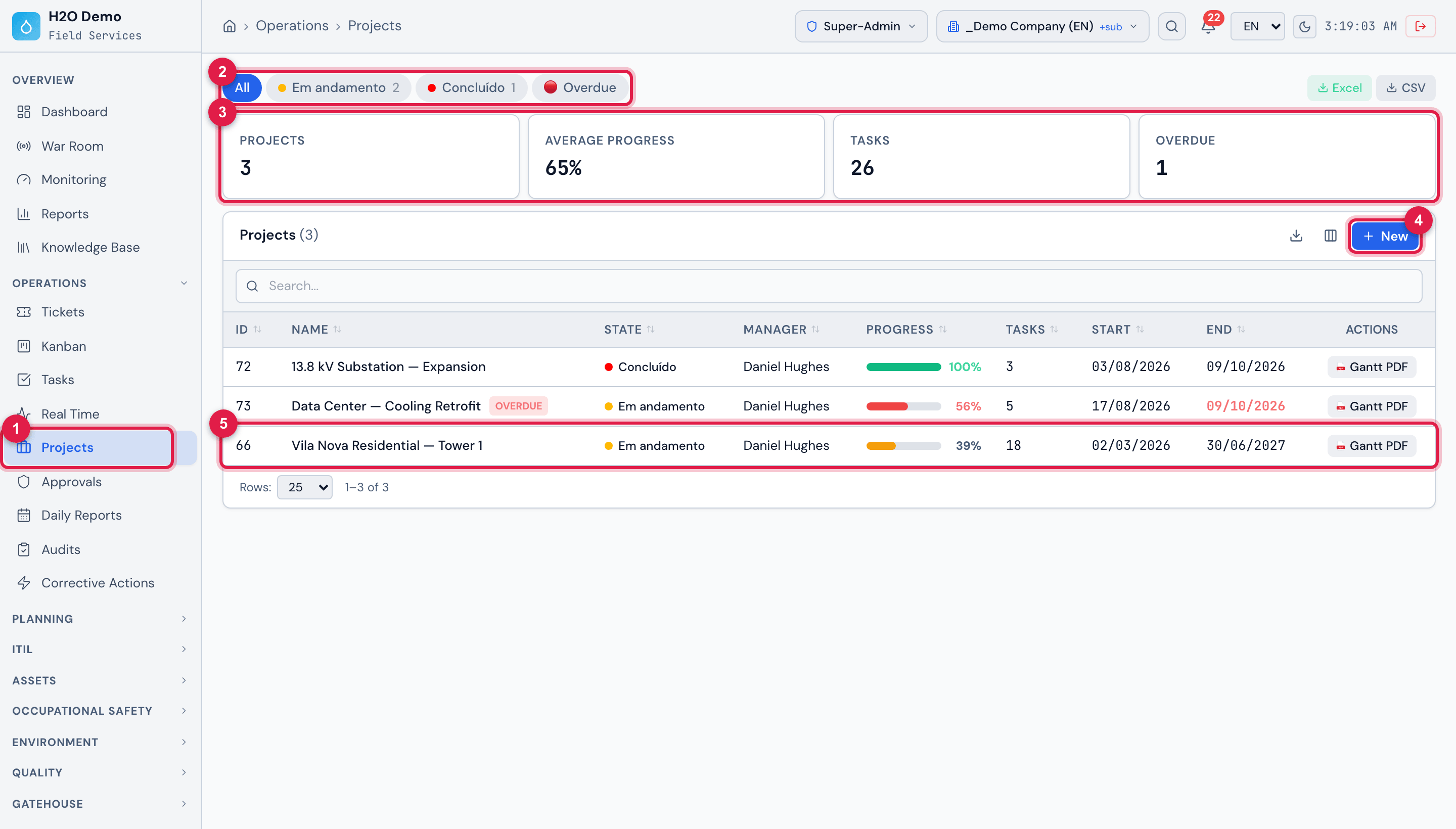
Figure 1. Operations › Projects in the site “_Demo Company (EN)”: the state filters, the four summary cards and the list with the three example projects — Vila Nova Residential — Tower 1, 13.8 kV Substation — Expansion and Data Center — Cooling Retrofit.
- 1Menu Operations › Projects.
- 2Filters by state and Overdue (chapter 2).
- 3Cards Projects, Average Progress, Tasks and Overdue.
- 4New — creates a project (chapter 3). Only shown with the Create right in Projects.
- 5The row of the project Vila Nova Residential — Tower 1: click to open its page.
Other paths that lead to the same project: Operations › Daily Reports and Operations › Audits (the records of all projects), Operations › Kanban › Project tasks (the tasks on a board), Overview › Reports › Projects (chapter 12) and the H2O app (chapter 11).
Access rights
Section titled “Access rights”The module uses the Projects right of the profile (People › Profiles › profile › Permissions tab). Each button of the Projects screens asks for the same level the server requires to save: if the button is shown, the save goes through. The levels of the row are Read, Edit, Create, Trash and Delete; in the Projects screens, the delete buttons ask for Trash (deletion is logical).
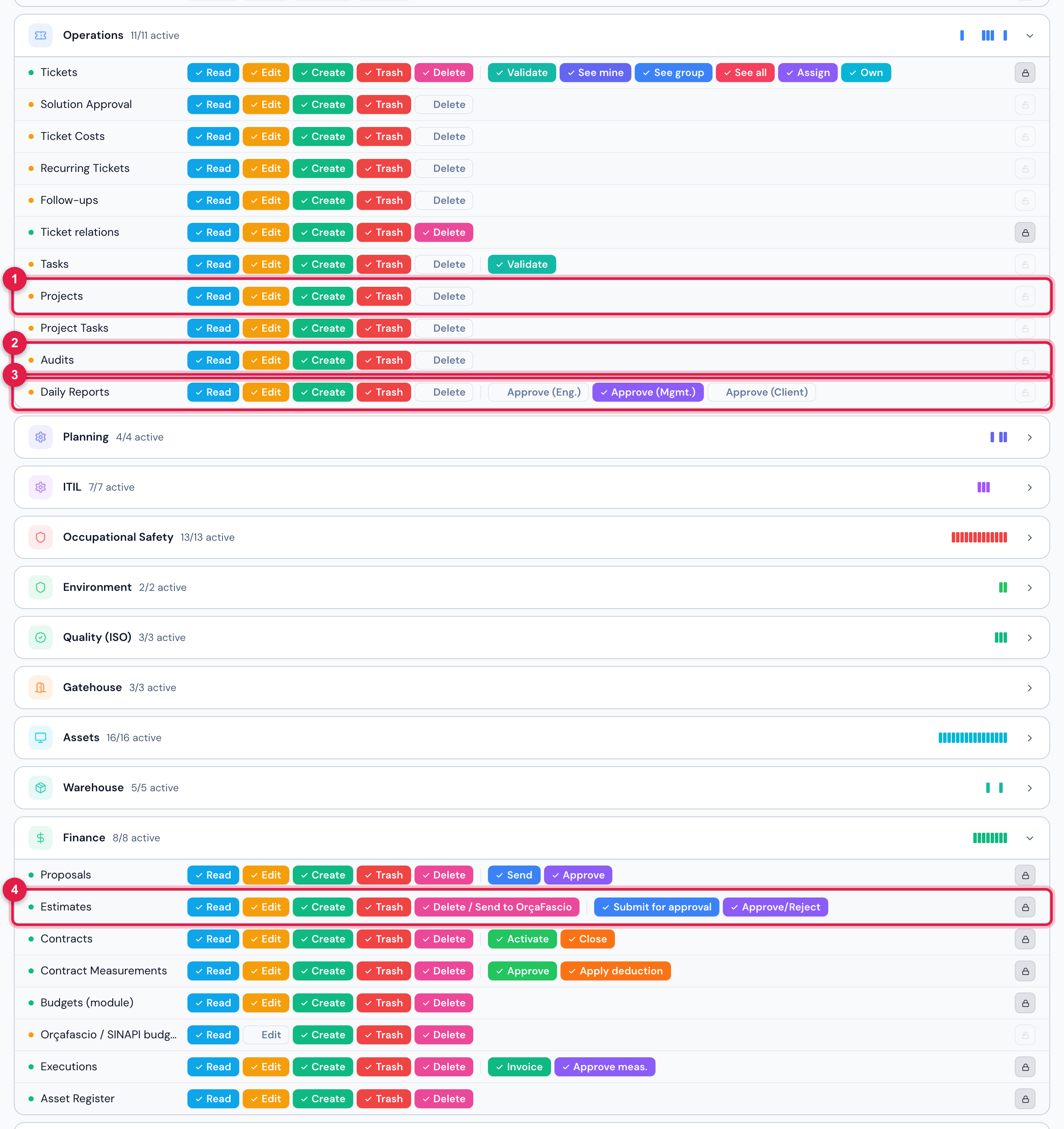
Figure 2. People › Profiles › Super-Admin › Permissions: in the Operations group, the rows Projects, Project Tasks, Audits and Daily Reports; in the Finance group, Estimates, with the extra levels Submit for approval and Approve/Reject.
- 1Projects row — the module right.
- 2Audits row — the project audits.
- 3Daily Reports row — the Daily Reports menu and the daily report approvals.
- 4Estimates row — the Estimates tab, with Submit for approval and Approve/Reject.
| Level in Projects | What it allows |
|---|---|
| Read | the menu, the list, the project page with all tabs, the Gantt (read-only, with Critical), the Gantt PDF, the MS Project XML and the Excel/CSV export. |
| Edit | Edit the project page; remove a member of the project team; Edit a task; unlink a ticket (✕); in the Gantt, drag the bars (dates, duration and %), Progress and Auto-Calc; correct a cost (pencil); answer the equipment checklists, Continue Pickup and Demobilize. |
| Create | New project; Add a member to the team; New Task; Link a ticket; Add to the task team; Add a dependency and create a dependency in the Gantt (Link and the dots of the bars); New Daily Report; Upload a document; Mobilize equipment and open its checklists (Mobilization Checklist, Pickup, Return); New Cost. |
| Trash | Delete the project (only without tasks), a task, a member of the task team, a dependency (in the Tasks tab or by clicking its line in the Gantt), a document, a piece of equipment, a cost and a daily report. |
The Project Tasks row, right below Projects in the Operations group of the profile, is not used: the project tasks follow the Projects right.
| Other right | Where it matters in the project |
|---|---|
| Audits | the Audits tab: Read sees it, Create allows New Audit, Edit answers the checklist, Trash deletes an audit that is still open (chapter 9). |
| Daily Reports | the Operations › Daily Reports menu and the daily report approval levels (Approve (Eng.), Approve (Mgmt.), Approve (Client)). In the Daily Reports tab of the project page, New Daily Report follows the Create level of Projects. |
| Estimates | the Estimates tab, button by button: Create — New Budget, Link from H2O, Link from OrçaFascio, Edit and Duplicate; Trash — Delete; Delete / Send to OrçaFascio (the fifth column of the row) — Send to OrçaFascio and Resend; Submit for approval — Submit for Approval; Approve/Reject — Approve and Reject (chapter 8). The Tickets right allows nothing here. |
| Consumables | Create allows Request Material in the Materials tab (chapter 10). |
| Reports | the Overview › Reports menu, where the projects report is (chapter 12). |
Web and app
Section titled “Web and app”The project is set up and managed on the web; in the H2O app the team follows it and records what happens in the field (chapter 11).
| I do this… | Web | App |
|---|---|---|
| create and edit the project, the team and the schedule | yes | no |
| see the Gantt | yes, with editing | yes, read-only |
| update the % of a task | yes (project page, Gantt, Kanban) | yes (Tasks tab) |
| daily report | yes | yes (today’s report) |
| project audit | yes | yes (manager and members of the project Group) |
| rented equipment | yes | yes |
| material request | yes | yes (profile with the central interface) |
| costs, documents, estimates, commissioning, PDF and XML | yes | no |
| asset mobilization, team attendance, photo reports | no | yes |
Was this page helpful?
Thanks for the feedback!
Got it — we will improve this page.