
Quotations
Manual — Purchasing: orders, quotations and accounts payable · chapter 6 of 9
In the quotation you say what you want to buy and who you want prices from. Each supplier receives by e-mail their own link and answers directly in H2O, without logging in, until the deadline. The proposals appear side by side, you choose the winner of each item and H2O generates the purchase orders.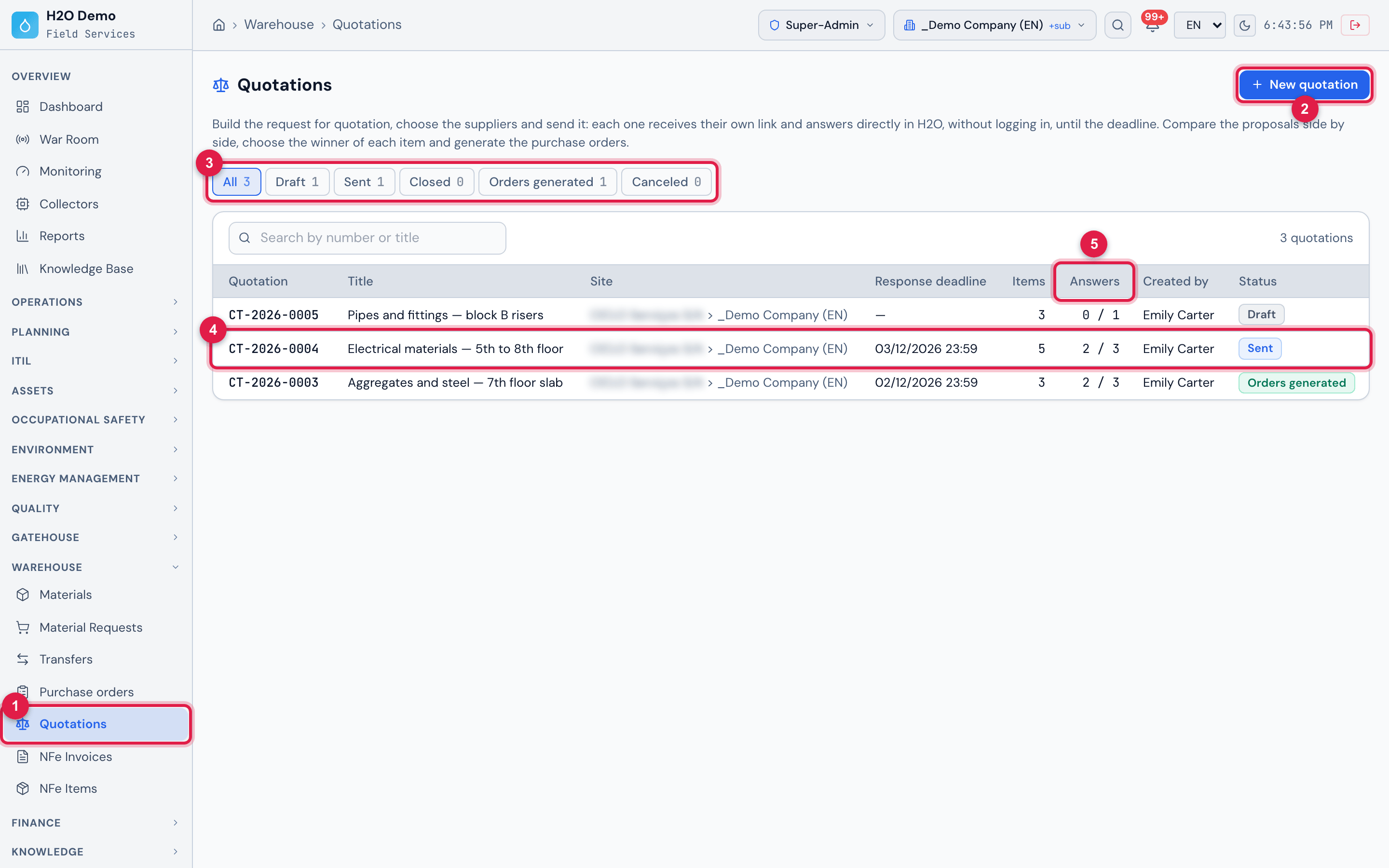
Figure 14. The Quotations list.
- 1Quotations, in the Warehouse menu.
- 2New quotation.
- 3The tabs by status.
- 4A quotation: number, title, site, response deadline, items, answers, who created it and status.
- 5Answers — how many answered, out of how many invited.
| Status | What it means |
|---|---|
| Draft | being prepared; no supplier has received anything |
| Sent | the suppliers received the link and can answer until the deadline |
| Closed | you closed the answers; nobody else can answer |
| Orders generated | the winners were chosen and the purchase orders, created |
| Canceled | the quotation was canceled, with the reason recorded |
In the list, a sent quotation whose deadline has passed shows deadline passed.
Building the quotation
Section titled “Building the quotation”- In Warehouse › Quotations, click New quotation.
- Give it a Title and choose the site in Deliver to (site). If there are material requests approved for purchase, select the ones that go in: each one becomes an item and later follows to the winning supplier’s order.
- Click Create draft. The quotation opens in edit mode.
- Fill in the Response deadline, the Instructions to the supplier and the items.
- Under Invited suppliers, select who will receive it.
- Click Save, to continue later, or Save and send.
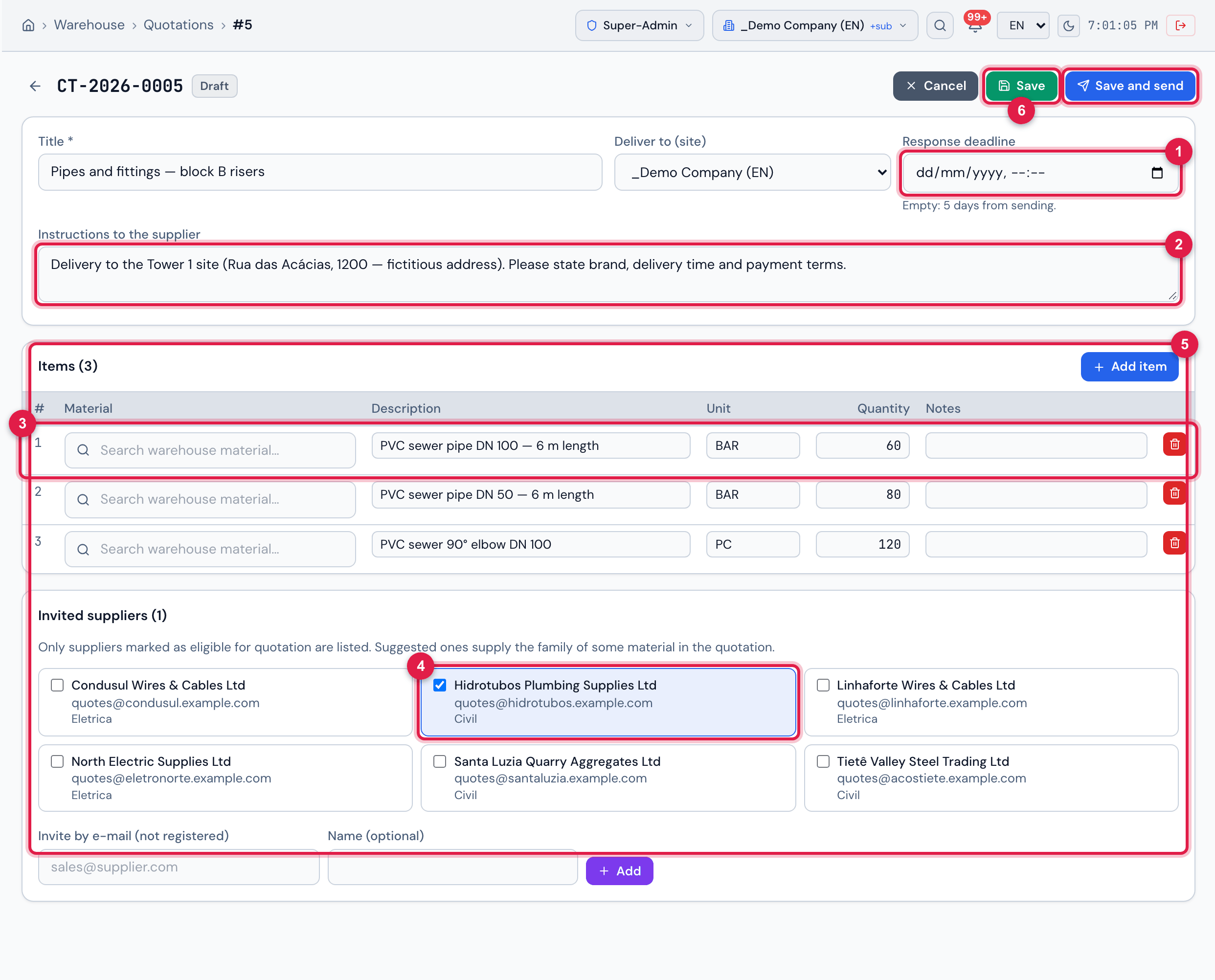
Figure 15. A quotation draft being edited.
- 1Response deadline — empty, it is 5 days from sending.
- 2Instructions to the supplier — shown in the e-mail and on the answer page.
- 3An item: Material (from the warehouse) or Description, Unit, Quantity and Notes.
- 4A selected supplier. Each card shows the quotation e-mail and the families they supply.
- 5Invite by e-mail (not registered) — the e-mail and, if you wish, the name; click Add.
- 6Save and Save and send.
- The list of invitees only shows suppliers eligible for quotation (chapter 2). The suggested badge marks whoever supplies the family of some material in the quotation — which is why it is worth tying the item to a warehouse Material.
- An eligible supplier with no e-mail appears with no e-mail: fill in the e-mail on their record before sending.
- The quotation has no price: the supplier is the one who enters the price.
Sending and following up
Section titled “Sending and following up”Send to suppliers (or Save and send) sends each invitee an e-mail with their link. From then on the quotation is Sent.
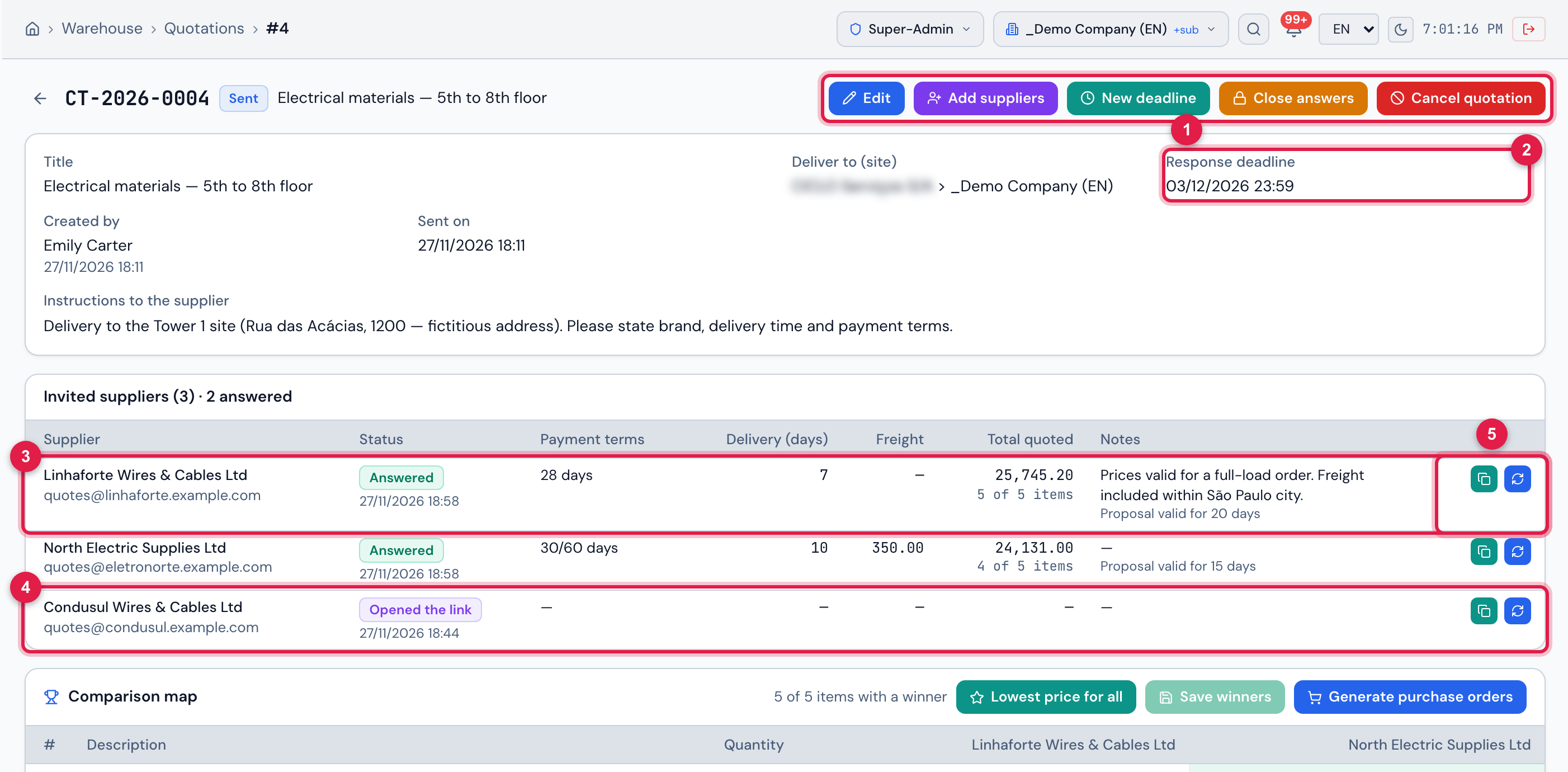
Figure 16. A Sent quotation, with two answers out of three.
- 1Edit, Add suppliers, New deadline, Close answers and Cancel quotation.
- 2Response deadline.
- 3A supplier that Answered: payment terms, delivery time, freight, total quoted, how many items they quoted, notes and proposal validity.
- 4A supplier that has not answered yet.
- 5The buttons of the row: Copy the supplier link and Resend the e-mail.
| Supplier status | What it means |
|---|---|
| Not sent | the quotation is still a draft |
| Sent | the e-mail with the link was sent |
| Opened the link | the supplier opened the page but has not answered yet |
| Answered | the proposal has arrived |
| Declined | the supplier declined |
- Copy the supplier link is for sending the link by another channel — WhatsApp, for example. The link is personal: each supplier has their own.
- Add suppliers invites someone else after sending, from the records or by e-mail, and sends the link right away.
- New deadline changes the deadline for everyone and reopens a closed or expired quotation.
- Close answers closes the quotation before the deadline.
- Edit, after sending, changes only the instructions: the items do not change, because the suppliers have already answered on them.
- If the supplier attached their proposal, the file appears in the row for download.
Comparing and choosing
Section titled “Comparing and choosing”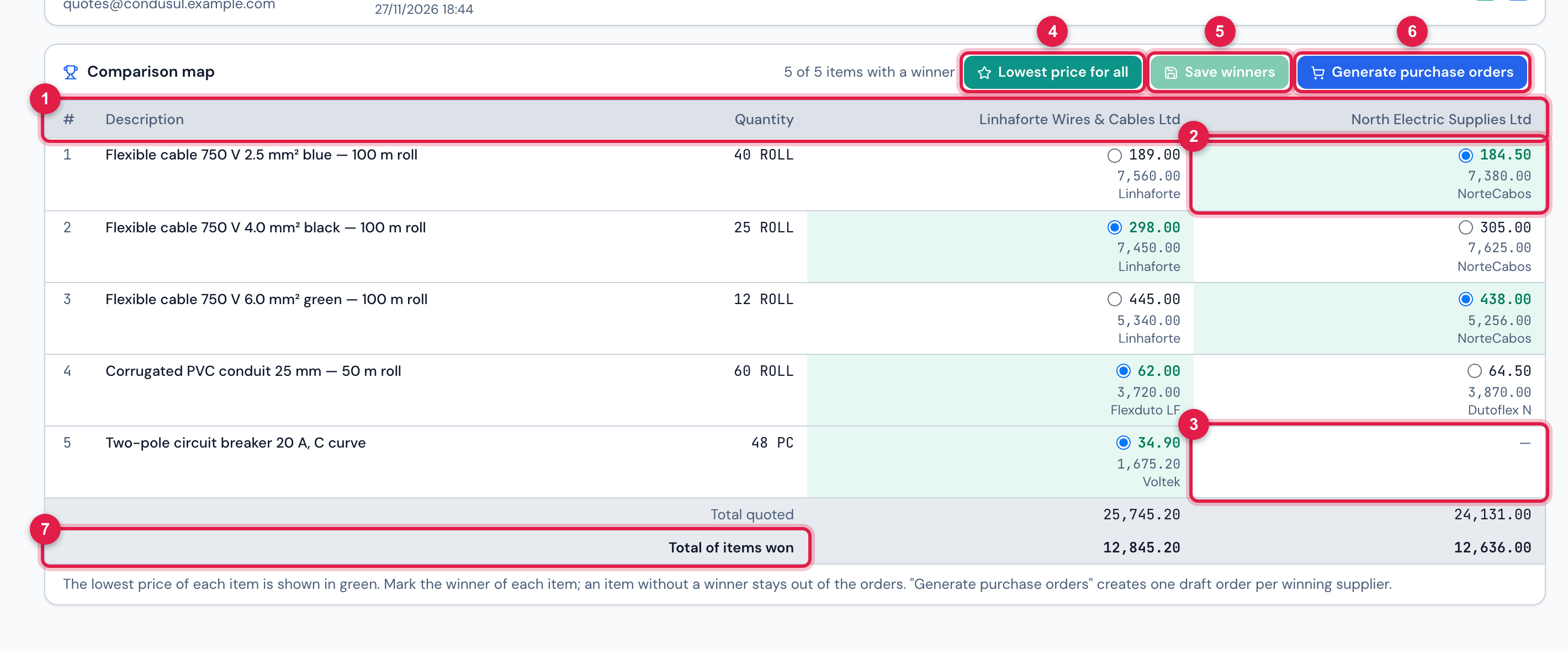
Figure 17. The Comparison map of the quotation.
- 1One column per supplier that answered.
- 2The lowest price of the item, in green, marked as the winner.
- 3An item the supplier did not quote.
- 4Lowest price for all — marks the lowest price of every item at once.
- 5Save winners.
- 6Generate purchase orders.
- 7Total of items won by each supplier.
- Open the quotation and scroll down to the Comparison map.
- On each item, mark the winning supplier — or click Lowest price for all.
- Check the Total of items won by each supplier. Remember the freight, which appears in the supplier list.
- Click Save winners if you want to keep it and decide later.
- Click Generate purchase orders.
- The winner is per item: one quotation can become orders for several suppliers.
- An item without a winner stays out of the orders.
- Below each price are the item total and the brand or model the supplier entered.
- The lowest price is only an indication: you can choose another supplier for the delivery time, the brand or the payment terms.
Generating the orders
Section titled “Generating the orders”Generate purchase orders creates one order per winning supplier, with the items they won, the prices of the proposal, the payment terms and the freight. The quotation becomes Orders generated.
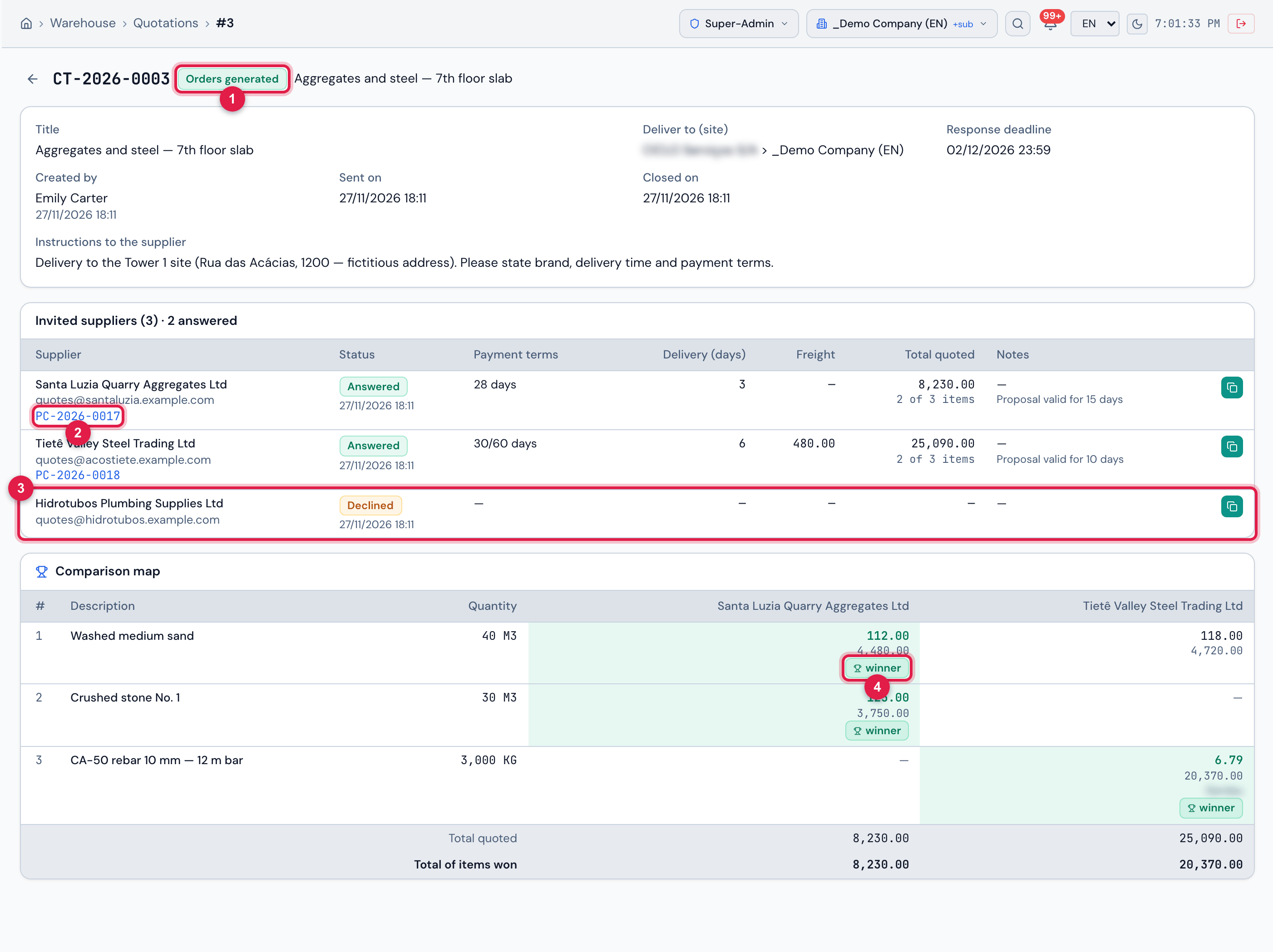
Figure 18. A quotation with Orders generated.
- 1The Orders generated status.
- 2The purchase order of each winning supplier — click to open it.
- 3A supplier that answered Declined.
- 4The winner badge on each item.
Was this page helpful?
Thanks for the feedback!
Got it — we will improve this page.