
Daily report in the app
Manual — Daily report · chapter 8 of 9
In the H2O app, the daily report is made on the job site, on a phone or tablet, with or without signal. Everything entered is kept on the device and goes up on synchronization — the ⏳ waiting to be sent badge marks what has not gone up yet. The app shows the projects whose team you are on (the Projects manual, chapter 11).Opening today’s daily report
Section titled “Opening today’s daily report”There are two entries: the Daily report module on the home screen (with the Work site selector) and the Daily report tab of the project panel (with the project fixed). Both have the same button and the same list.
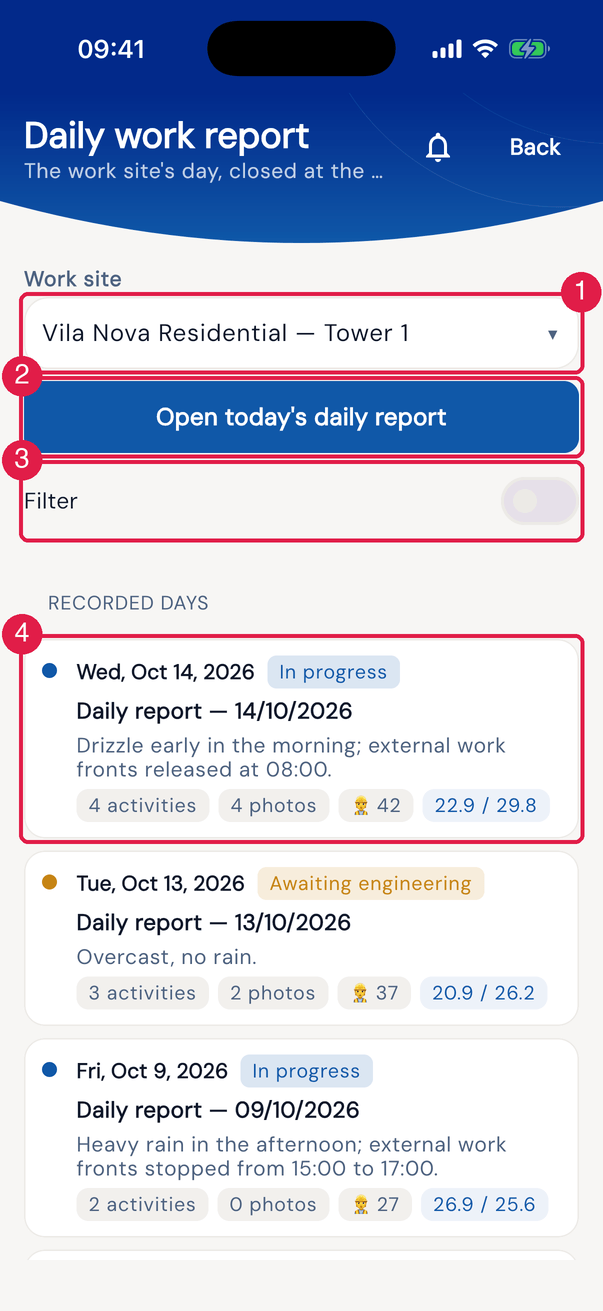
App H2OFigure 22. The Daily report module with the work site Vila Nova Residential — Tower 1: the button for the day and the recorded days.
- 1Work site — the project. The app remembers the last one chosen.
- 2Open today’s daily report.
- 3Filter — turns on the filter by state.
- 4A day: date, state badge, title, summary and the counts of activities, photos, people and the weather.
- Open today’s daily report opens today’s daily report if it already exists — in the app, each day of the job has only one daily report. Otherwise, it opens New daily report.
- Filter: when turned on, choose the states that appear; the choice is kept on the device.
- Tapping a day opens the daily report.
- Open today’s daily report appears to whoever can create the daily report: Read in Daily Reports (the app’s rule) or Create in Projects.
- Client view: whoever has Approve (Client) without Read, Approve (Eng.) or Approve (Mgmt.) sees only the daily reports Awaiting management, Awaiting client and Approved, without the create button — in the module and in the project tab.
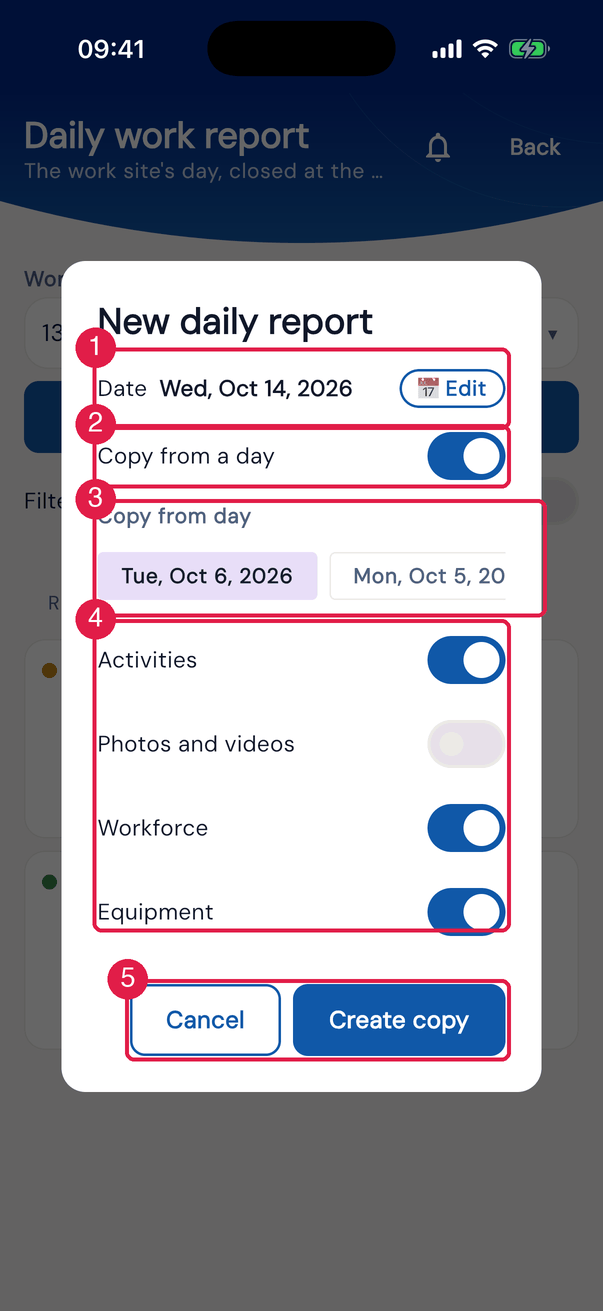
App H2OFigure 23. New daily report in copy mode, with the source day chosen and Activities, Workforce and Equipment turned on.
- 1Date and 📅 Edit.
- 2Create blank / Copy from a day.
- 3Copy from day — the previous days of the job.
- 4Activities, Photos and videos, Workforce and Equipment.
- 5Create copy and Cancel.
- The date goes up to today: a future date shows The daily cannot be for a future date. If the chosen date already has a daily report, the app opens the existing one.
- In the copy, Photos and videos only goes together with Activities (turning one on turns on the other).
- The weather for the date is fetched before creating; without signal, the daily report is created without weather and the app fetches it again when it is opened online. The weather condition appears in the device’s language.
The day in one scroll
Section titled “The day in one scroll”In the app, the daily report is a single screen, in the order of the work: the header with the approval progress, the weather, the summary, the activities, the workforce, the equipment, the energized site and, at the end, the approval and the PDF.
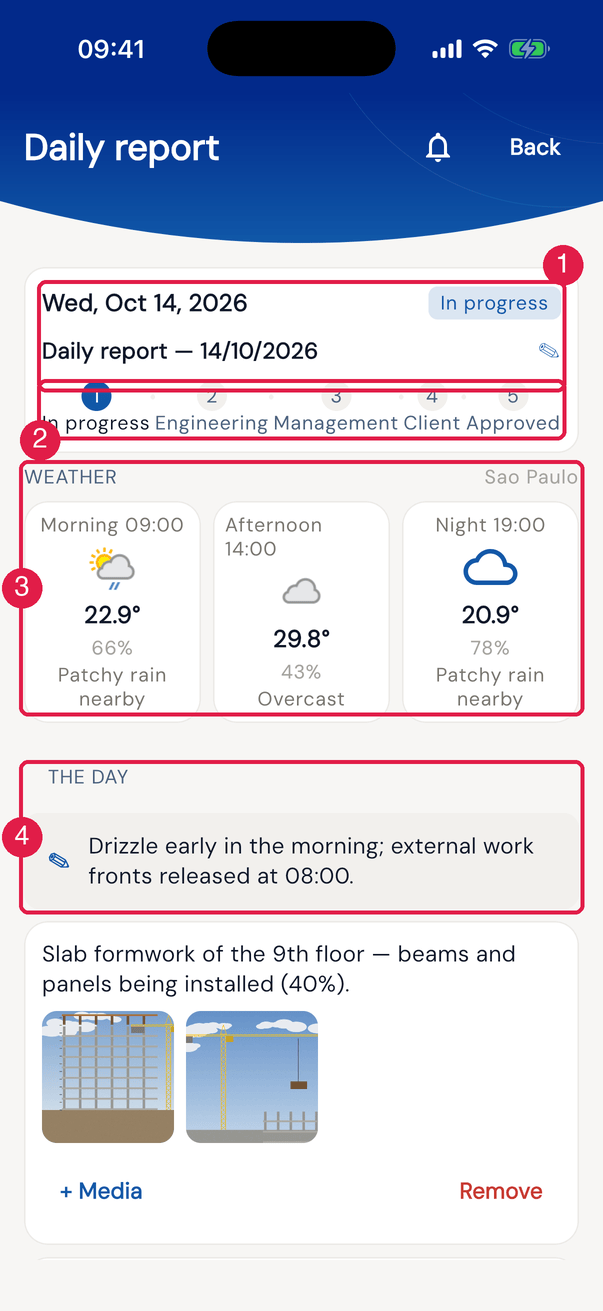
App H2OFigure 24. The top of today’s daily report in the app.
- 1The date and the title of the day — ✎ to edit the Day title.
- 2The progress: In progress, Engineering, Management, Client and Approved.
- 3Weather — morning, afternoon and night.
- 4The day — the summary; tap to edit.
- The summary of the day is the General observations field of the web.
- When the web’s Client observations field has text, it appears highlighted in The day block (Client observations: …) — that is where the reason for a rejection is kept.
- In a project with Daily report without client approval, the progress has no Client step.
Activities and photos
Section titled “Activities and photos”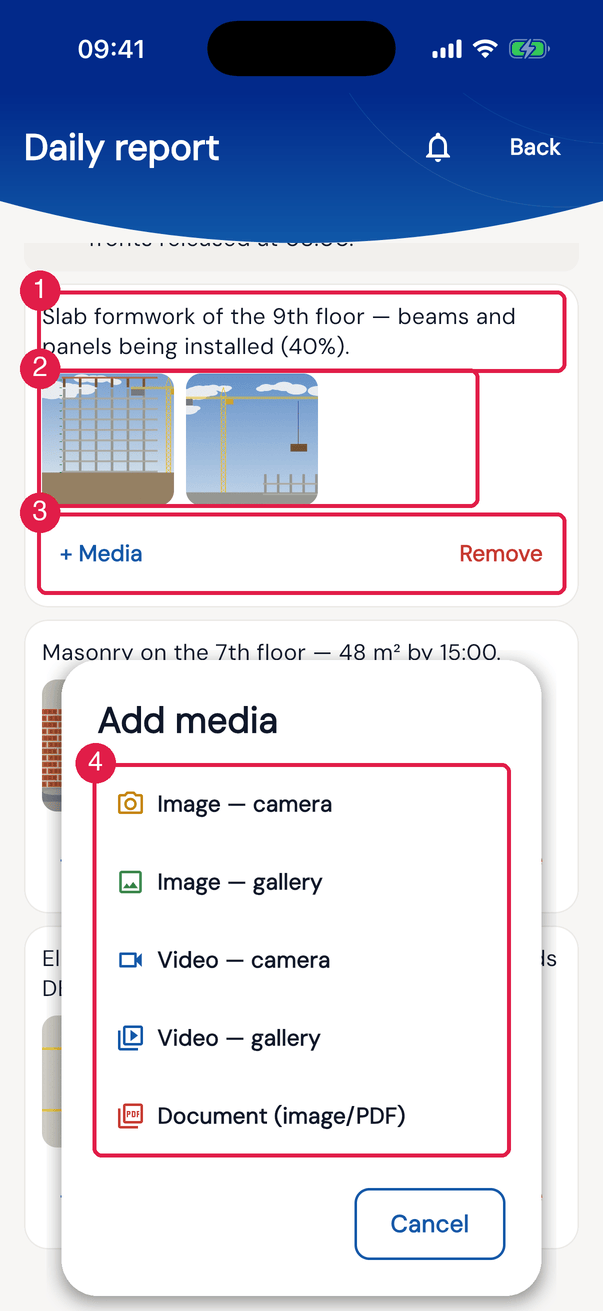
App H2OFigure 25. An activity with photos and Add media opened by + Media.
- 1The activity — tap the text to edit.
- 2The photos of the activity.
- 3+ Media and Remove.
- 4The sources the device has — here, Image — camera, Image — gallery, Video — camera, Video — gallery and Document (image/PDF); on a device with a document scanner, also Scan document.
- Write in New activity and tap Add activity.
- Photos always go into an activity, through + Media. Photo saved in the daily report. appears.
- A camera photo gets a stamp with the date and time, the location and the project name; a gallery photo, the date and place recorded in the photo itself. Videos, PDFs and scanned documents go in without a stamp.
- Without signal, the photos stay on the device and go up on synchronization.
Workforce
Section titled “Workforce”The Workforce card shows the total of people of the day (active N · idle N); Open workforce → opens the grid.
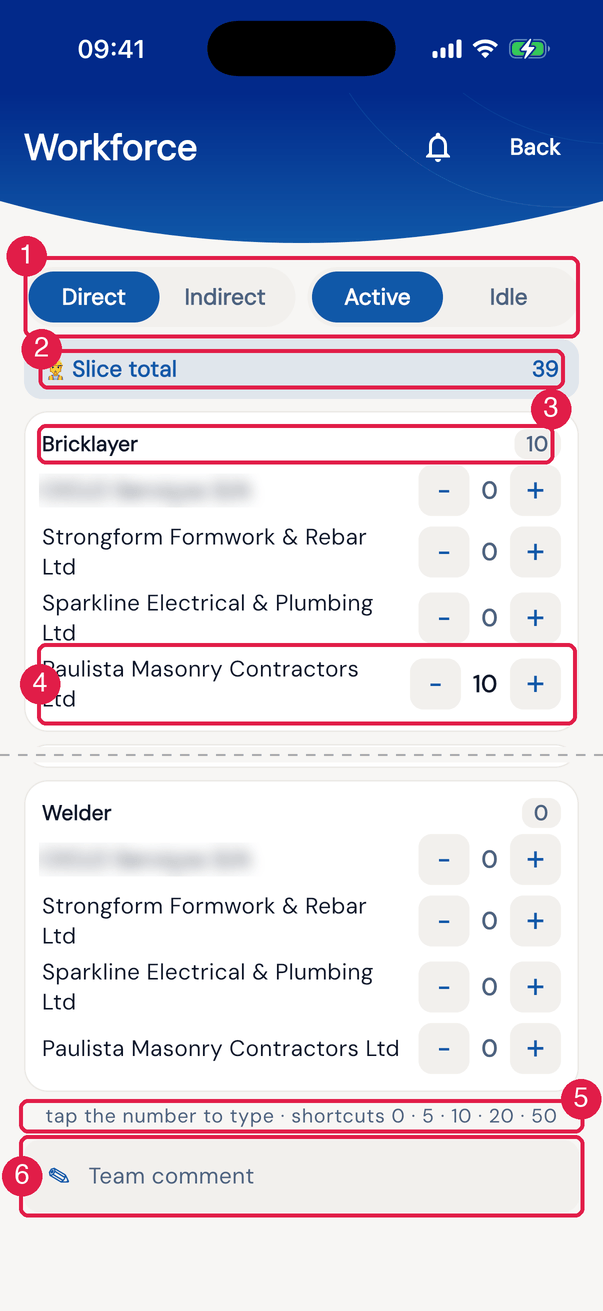
App H2OFigure 26. The workforce screen in the Direct × Active slice: each job role with the companies and the counts.
- 1Direct / Indirect and Active / Idle — the four panels of the web.
- 2👷 Slice total — adds up only the open tab (here, Direct × Active).
- 3The job role and its subtotal.
- 4Each company with −, the count and +.
- 5The hint: tap the number to type; shortcuts 0, 5, 10, 20 and 50.
- 6Team comment of the slice (active or idle).
- The job roles are those of the job’s site (or of the sites above); with none, No team configuration for this site — synchronize or register them in People › Workforce.
- The team comment can only be edited with the daily report In progress; the idle comment is the web’s Idle Team.
Equipment and energized site
Section titled “Equipment and energized site”- Equipment: Total equipment: N, the list and, below, Equipment, Quantity and Add equipment.
- Energized site: the Energized site? switch saves immediately and shows Warning: energized site — reinforce safety measures. With the switch on, fill in Location, Team and Comment and tap Save (Energy saved). It is the same answer as Energized area? on the web: with it on, the web list shows ⚡ Yes and the PDF brings the alert.
Approval and signature
Section titled “Approval and signature”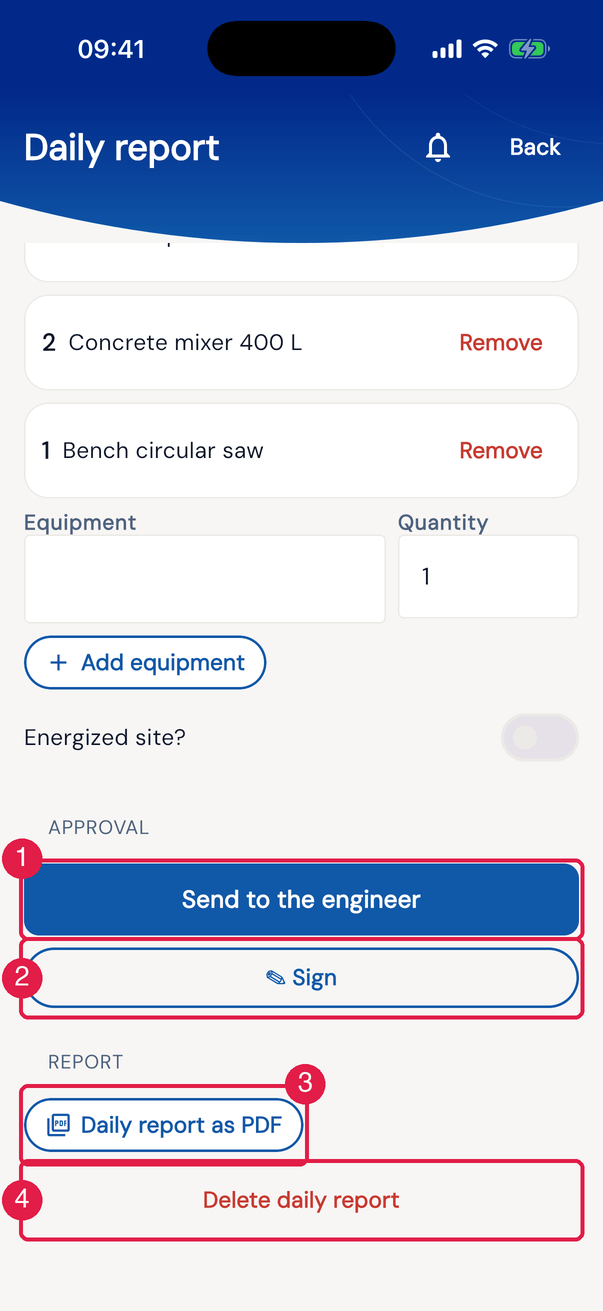
App H2OFigure 27. The end of the daily report in the app: the Approval block, the Report and Delete daily report.
- 1The button of the next step — here, Send to the engineer.
- 2✎ Sign — and, in the approval steps, ✗ Reject, for whoever can approve the step.
- 3Daily report as PDF.
- 4Delete daily report — with Trash in Projects.
| State | Button in the app | Who |
|---|---|---|
| In progress | Send to the engineer (or Send to the manager, for whoever has Approve (Eng.)) | whoever has Read in Daily Reports / engineering |
| Awaiting engineering | Send to the manager | whoever has Approve (Eng.) |
| Awaiting management | Send to the client or, in the project without client, Approve the daily | whoever has Approve (Mgmt.) |
| Awaiting client | Client approval | whoever has Approve (Client) |
- The app asks for the signature before each flow action. Without a signature on the daily report, the button opens the Signature — <role> pad (Author, Engineering, Management or Client), which already comes with the signature registered in your profile: the app downloads it from the server and keeps it on the device, so it shows ready even offline, once it has been downloaded (with no network and no image on the device, the pad opens blank: sign with your finger). Check it and confirm. Signature saved appears and the action continues: State updated — uploads on next send.
- ✎ Sign signs without changing the state.
- With no action of yours in the step, the button is greyed out and No action for you on this daily report right now. appears.
- The app does not archive or reopen: that is done on the web (chapter 5).
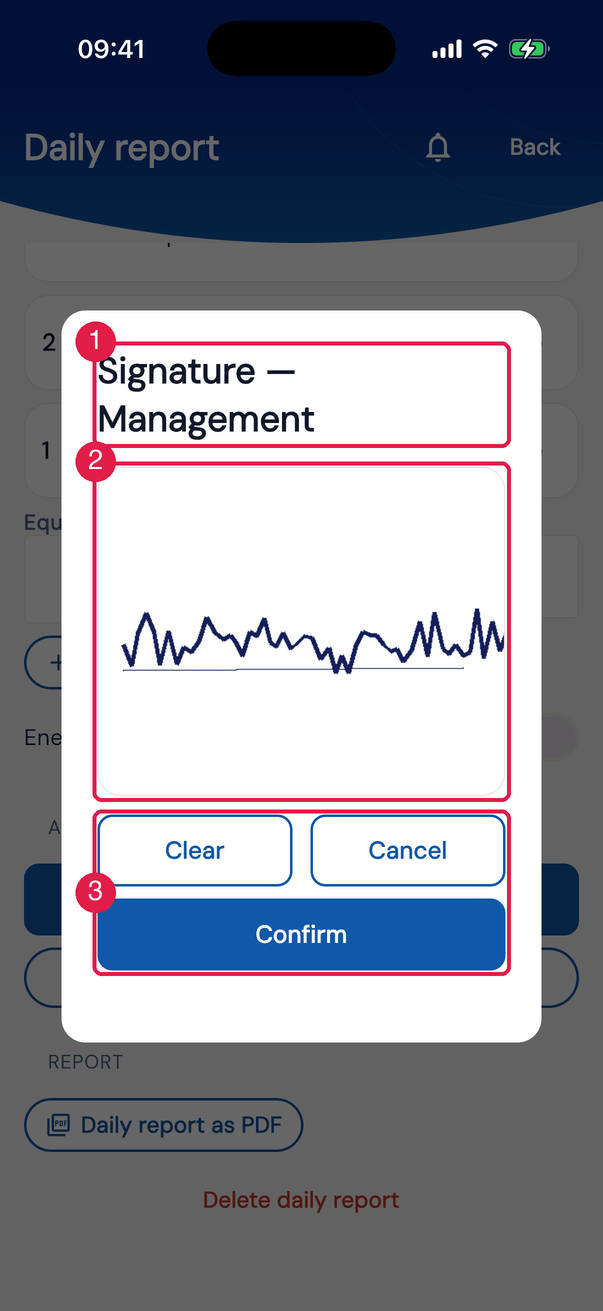
App H2OFigure 28. The signature pad of whoever approves as management, already with the signature registered in the profile.
- 1Signature — Management.
- 2The pad with the profile signature — Clear wipes it to sign again with your finger.
- 3Confirm and cancel.
Until when the app allows changes
Section titled “Until when the app allows changes”| What | Up to the state |
|---|---|
| title, summary, new activity, equipment, energized site, workforce and Delete daily report | up to Awaiting client (before Approved) |
| edit and remove an activity, + Media | up to Awaiting management |
| delete a photo | up to Awaiting engineering |
| team comment | only In progress |
The PDF in the app
Section titled “The PDF in the app”- Daily report as PDF: online, it downloads the server PDF — the same as the web (chapter 6); offline, it builds a PDF on the device itself, with what it has, in the app’s language. The PDF opens for sharing.
- In an Approved daily report, the button becomes View official PDF.
Was this page helpful?
Thanks for the feedback!
Got it — we will improve this page.