
Integrity: number, trail and signature verification
Manual — Occupational Safety · chapter 10 of 13
Every document signed in the module (APR, PT, inspection, training, SST work instruction, PGR, accident, CIPA minutes, oversight, measurement) gets a number (e.g., APR-2026-0003), a content revision and, for each signature, a 12-character verification code (XXXX-XXXX-XXXX). What the signature “signs” is a SHA-256 hash of the document content at that moment — which is why the system can tell, at any time, whether the content is still the same as what was signed.| Signature status | Meaning | When it happens |
|---|---|---|
| Intact | the current content is identical to what was signed | normal situation |
| Content changed after signing | someone edited the document afterwards; the signature remains on record but does not cover the current text | e.g., editing the CIPA minutes after they were signed; editing a frozen risk |
| Invalidated | the signature was cancelled by an explicit action | Reopen an APR/PT/inspection/accident/minutes; new version of an SST work instruction (invalidates the issuer) |
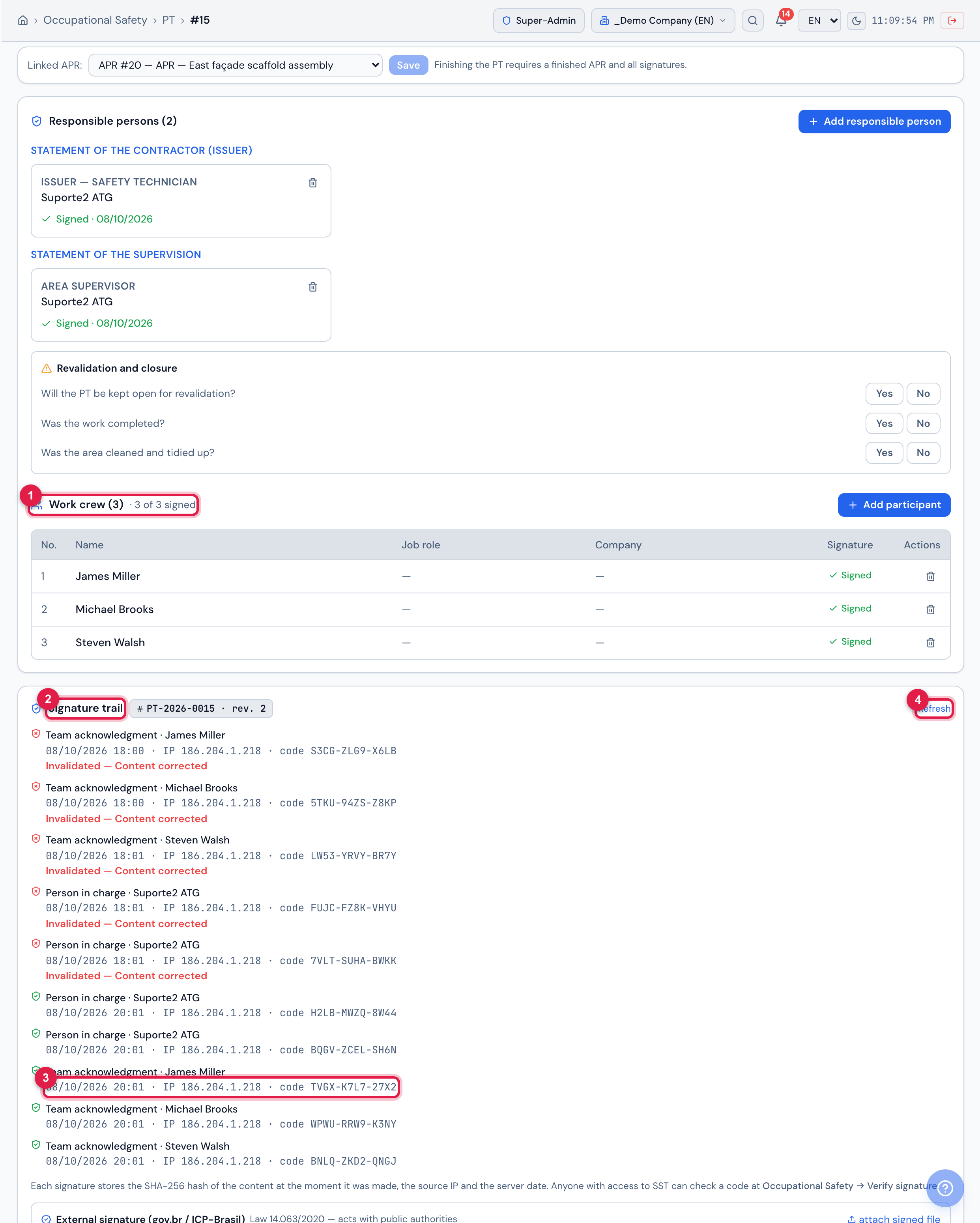
Figure 73. Signature trail block at the end of the document page — here, PT #15 (PT-2026-0015 · rev. 2): role (Team acknowledgment, Person in charge), who signed, date/time, IP and the code of each signature. The first five rows are signatures invalidated when the PT content was corrected (red shield, “Invalidated — Content corrected”); the five signatures collected again come next, in green. The footer reminds you that the code can be checked in Occupational Safety › Verify signature.
- 1Work crew (3) · 3 of 3 signed: the work crew table with the Signature column; the trail is right below.
- 2Title of the Signature trail block, with the document number next to it; below, one row per signature — red shield = invalidated, green shield = intact.
- 3Date/time, IP and verification code — the same one printed on the PDF.
- 4Refresh recalculates the status.
Verifying a signature by its code
Section titled “Verifying a signature by its code”The Occupational Safety › Verify signature page lets anyone with access (auditor, contract inspector, client with a user account) check a printed PDF: type the code that appears under the signature and click Verify. The system shows the document type and number, the signature row with its status, the signed hash and the current hash, and the open document link. The link /sst/verify?code=XXXX-XXXX-XXXX comes already filled in when it arrives by e-mail or QR code.
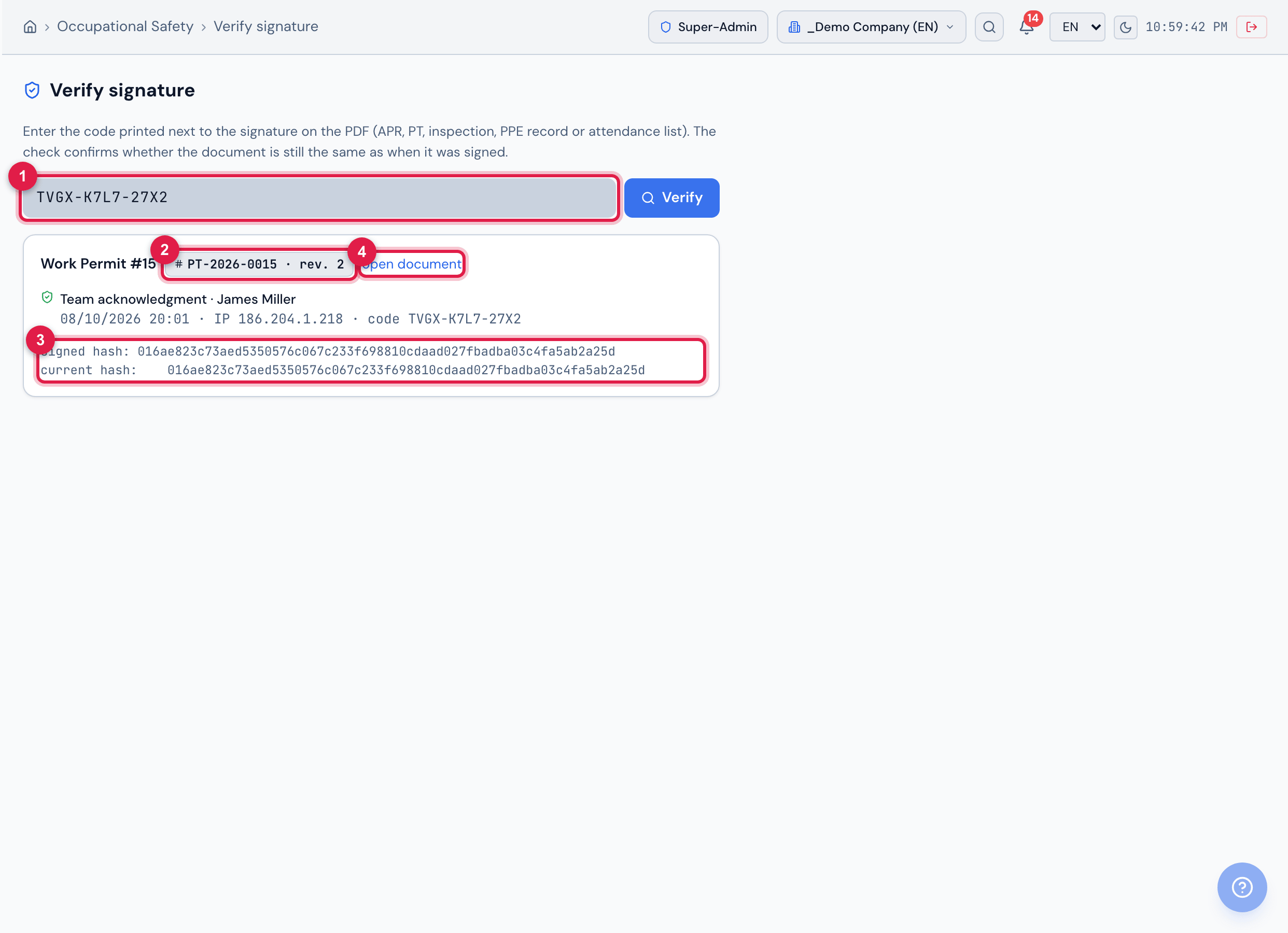
Figure 74. Verify signature page with the code of a signature on PT #15 (Team acknowledgment · James Miller): intact signature, signed hash equal to the current hash.
- 1Code field (12 characters); next to it, the Verify button.
- 2Document number (PT-2026-0015 · rev. 2) next to the title Work Permit #15; below, role, signer, date/time, IP and code.
- 3Signed hash × current hash.
- 4open document link.
External signature (gov.br / ICP-Brasil)
Section titled “External signature (gov.br / ICP-Brasil)”When the contract requires a certificate-based signature (a public agency, for example), the flow is: generate the document PDF in H2O, sign it outside (gov.br — the Brazilian government portal, advanced signature — or an ICP-Brasil certificate, the Brazilian public key infrastructure) and attach the signed file back to the trail, with the signer’s name and the provider. H2O stores the file (PDF or .p7s), its SHA-256 and the hash of the document content at the moment of the upload; the trail then shows the external signatures block. There is no automatic integration with the gov.br API — it requires accreditation of the agency itself.
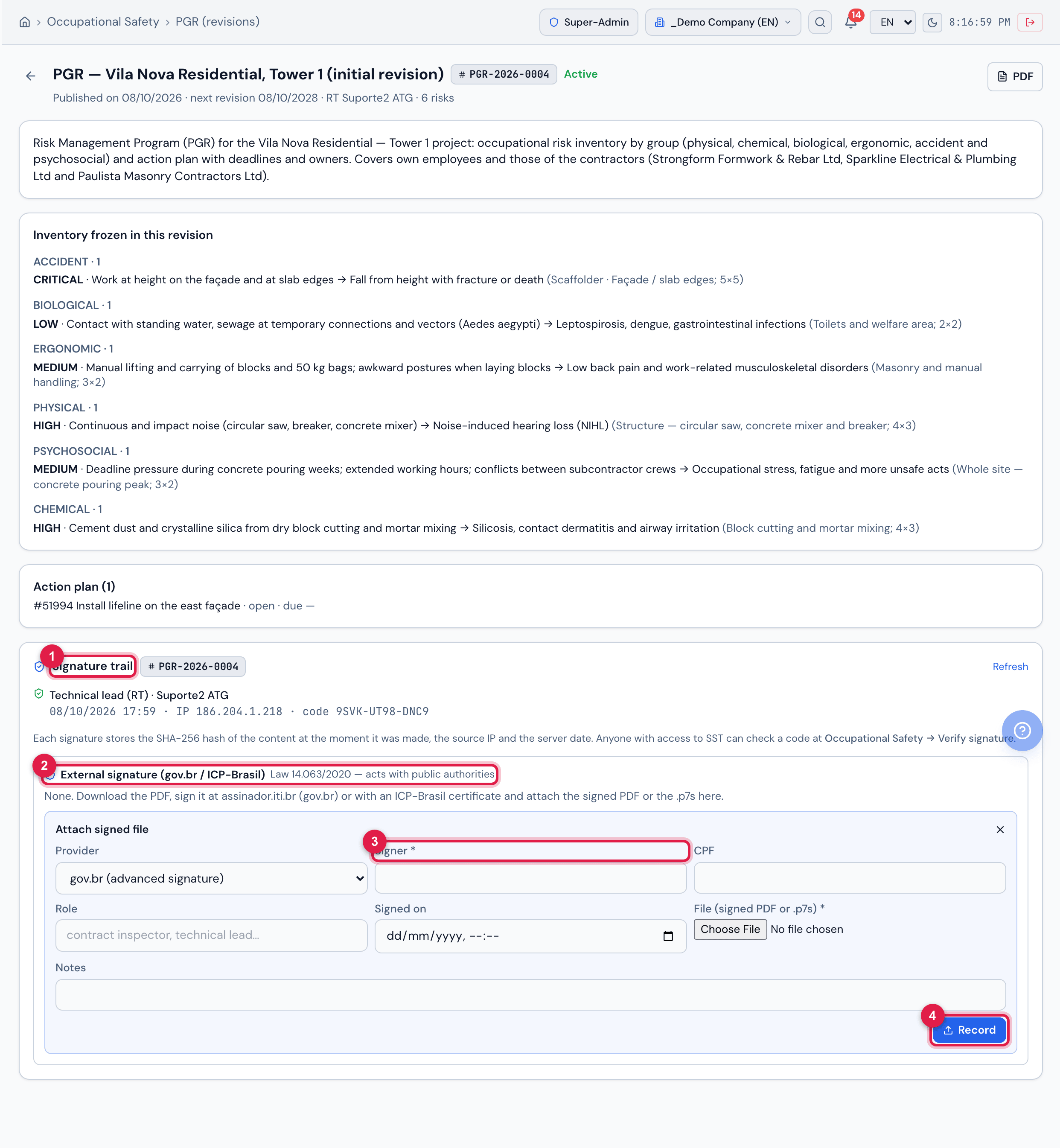
Figure 75. Active PGR revision (PGR-2026-0004): below the frozen inventory and the action plan, the Signature trail (the RT signed, with date, IP and code) and the External signature (gov.br / ICP-Brasil) block — still “None” — with the Attach signed file form open: Provider (gov.br advanced signature, ICP-Brasil or Other), Signer, CPF, Role, Signed on, File (signed PDF or .p7s) and Notes. The block appears on every document with a trail, only for users with the Contractor SST oversight right.
- 1Document Signature trail (here, the RT signature).
- 2Title of the external signature block, with the reference to Law 14.063/2020 (the Brazilian law on electronic signatures with public authorities).
- 3Signer (required); next to it, the CPF. The provider defaults to gov.br (advanced signature).
- 4Record — stores the signed file with its SHA-256 and the hash of the document content at that moment.
What the PDF carries
Section titled “What the PDF carries”- Footer on every page: document number, revision and content hash.
- Under each signature: date/time, IP and verification code.
- Drawn signatures (team, work crew, attendance, PPE) are printed as images; registered signatures (responsible persons, RT) too, copied at the moment of signing.
- Documents generated by the app: when the document has already been sent and has nothing pending, the app downloads the same PDF as the server; if there is no network, it generates a simplified local PDF.
Was this page helpful?
Thanks for the feedback!
Got it — we will improve this page.