
Two-factor authentication
Manual — Getting started — web · chapter 3 of 13
Two-factor authentication (also called 2FA or MFA) asks, besides the password, for a 6-digit code generated by an authenticator app on your phone. The code changes every 30 seconds, so someone who finds out your password cannot sign in without your phone. This chapter explains everything, step by step: what the authenticator app is, how to turn it on, how to sign in, what to keep and what to do when something goes wrong.It is mandatory for all users, except those the administrator exempts. It is enforced in three phases:
| Phase | What happens |
|---|---|
| 7-day deadline | The deadline starts at your first access (through the web or the app) without 2FA turned on. You sign in normally, and the web shows at the top of every screen the bar Set up two-factor authentication. Your account will require it in N days. |
| Deadline passed | Sign-in does not finish without setting it up: after the password, the screen asks you to scan the QR code right there. |
| On | Every sign-in asks for the code — except in the browsers and devices you marked as trusted. |
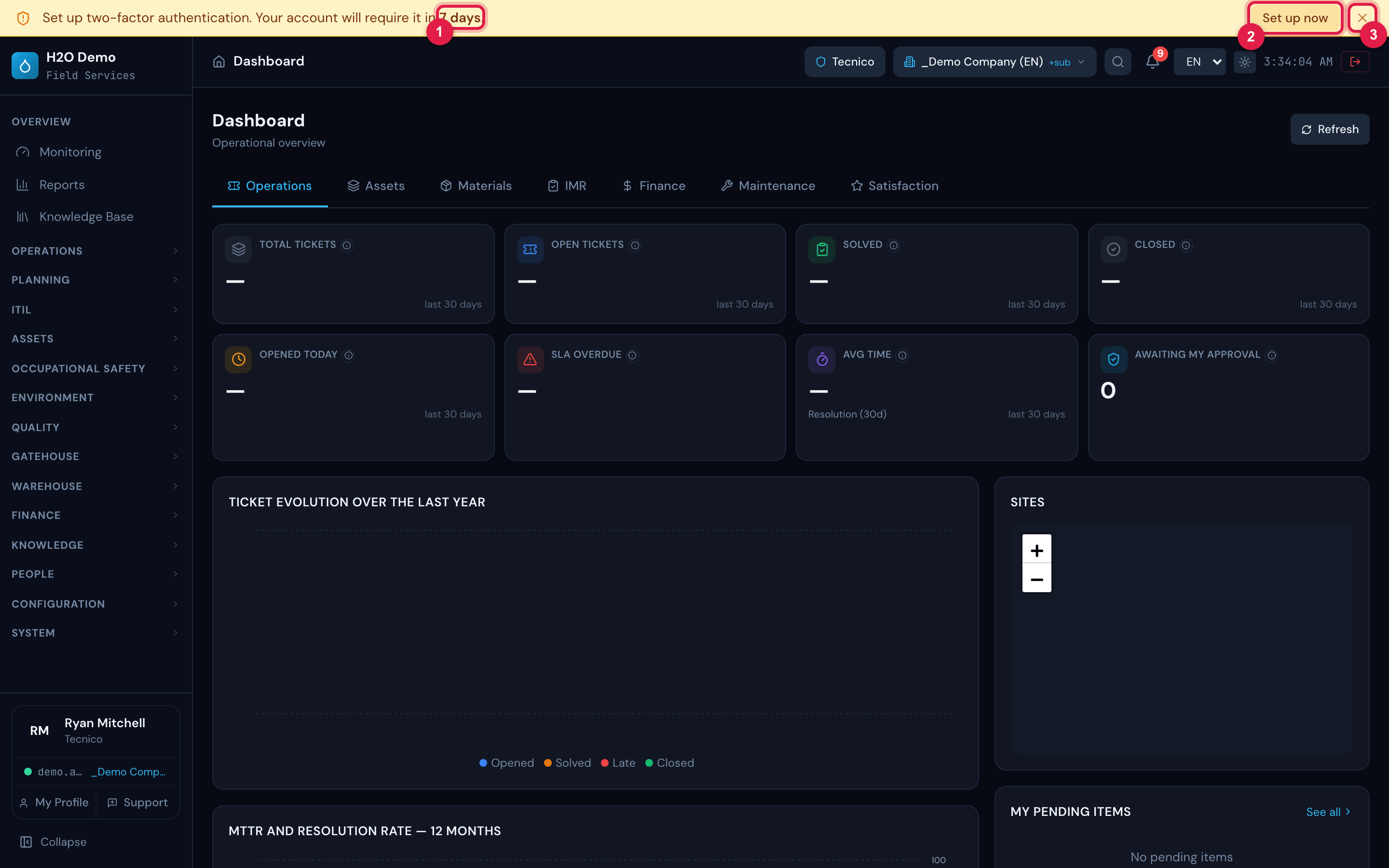
Figure 3. The yellow deadline bar, at the top of every screen: Set up two-factor authentication. Your account will require it in 7 days., with the Set up now button and the X to dismiss it.
- 1Days left before 2FA becomes mandatory.
- 2Set up now — opens My Profile, at the 2FA block.
- 3X (Dismiss) — hides the bar only until you close this tab.
What an authenticator app is
Section titled “What an authenticator app is”It is a phone app that keeps verification “accounts” and shows, for each one, a 6-digit code that renews every 30 seconds (the standard called TOTP). It works without internet: the code is calculated on the phone itself, from the correct time.
- Any TOTP authenticator app works: Google Authenticator, Microsoft Authenticator, Authy, 1Password and others. Use the one your company recommends or the one you already use.
- H2O does not send codes by SMS or by email. The only code is the one from the authenticator app (or a recovery code, if you lose your phone).
- Install the app on your phone before you start and keep it open: when you turn 2FA on, the H2O screen shows the QR code and waits for the first code.
- The authenticator app is a separate app from the H2O app. The H2O app does not generate codes.
Step by step: turning it on through My Profile
Section titled “Step by step: turning it on through My Profile”Do it on the computer, with the phone in your hand.
- On the phone: install the authenticator app and open it.
- On the computer: open My Profile — through the card with your name, at the bottom of the menu, or through the Set up now button on the yellow bar.
- In the Two-Step Verification block (which shows Off), click Turn on now.
- Set up two-factor authentication appears, with a QR code and the App code field.
- On the phone: in the authenticator app, tap to add an account — usually a +, or an option such as “Add account” / “Scan a QR code” (the name changes from app to app). If the app asks for the account type, choose the other account / personal account option.
- Point the phone’s camera at the QR code on the computer screen. The app creates the account H2O — your company name, with your login, and starts showing a 6-digit code.
- Could not read the QR? In H2O, click Can’t scan?: Enter this key manually in the app: appears, followed by a sequence of letters and numbers. In the authenticator app, choose the option to type the key (something like “Enter a setup key”), type it exactly as shown and, if the app asks, choose the time-based type.
- On the computer: type in App code the code the app shows now. If it is about to change (the app shows the time left), wait for the next one.
- Click Activate.
- H2O shows the 8 recovery codes. Keep them (next section) and click I saved the codes, continue. The block then says On — Your account is protected with an authenticator app. — and the message Two-step verification set up. appears.
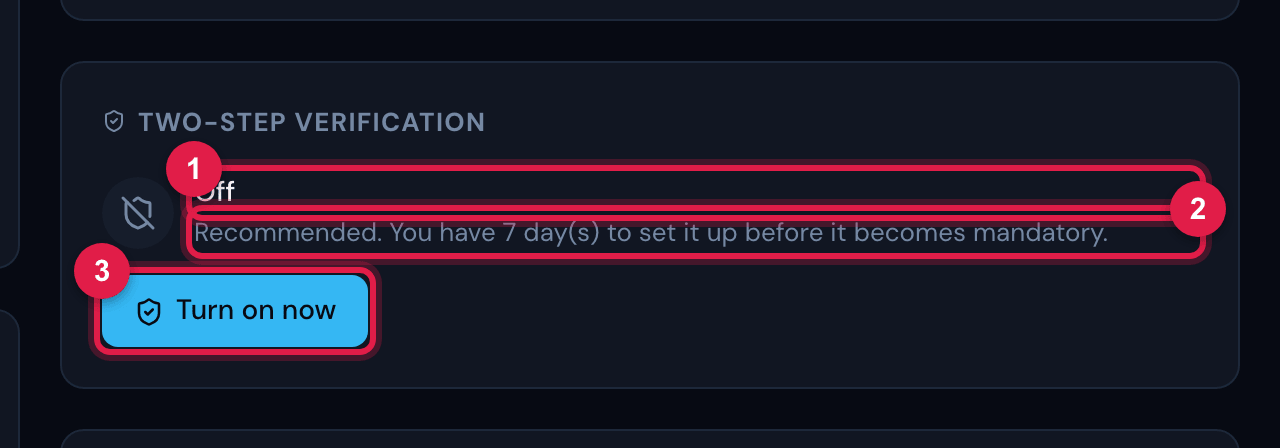
Figure 4. My Profile › Two-Step Verification before turning it on: the status Off, the reminder Recommended. You have 7 day(s) to set it up before it becomes mandatory. and the Turn on now button.
- 1Status: Off.
- 2How many days of the deadline are left.
- 3Turn on now.
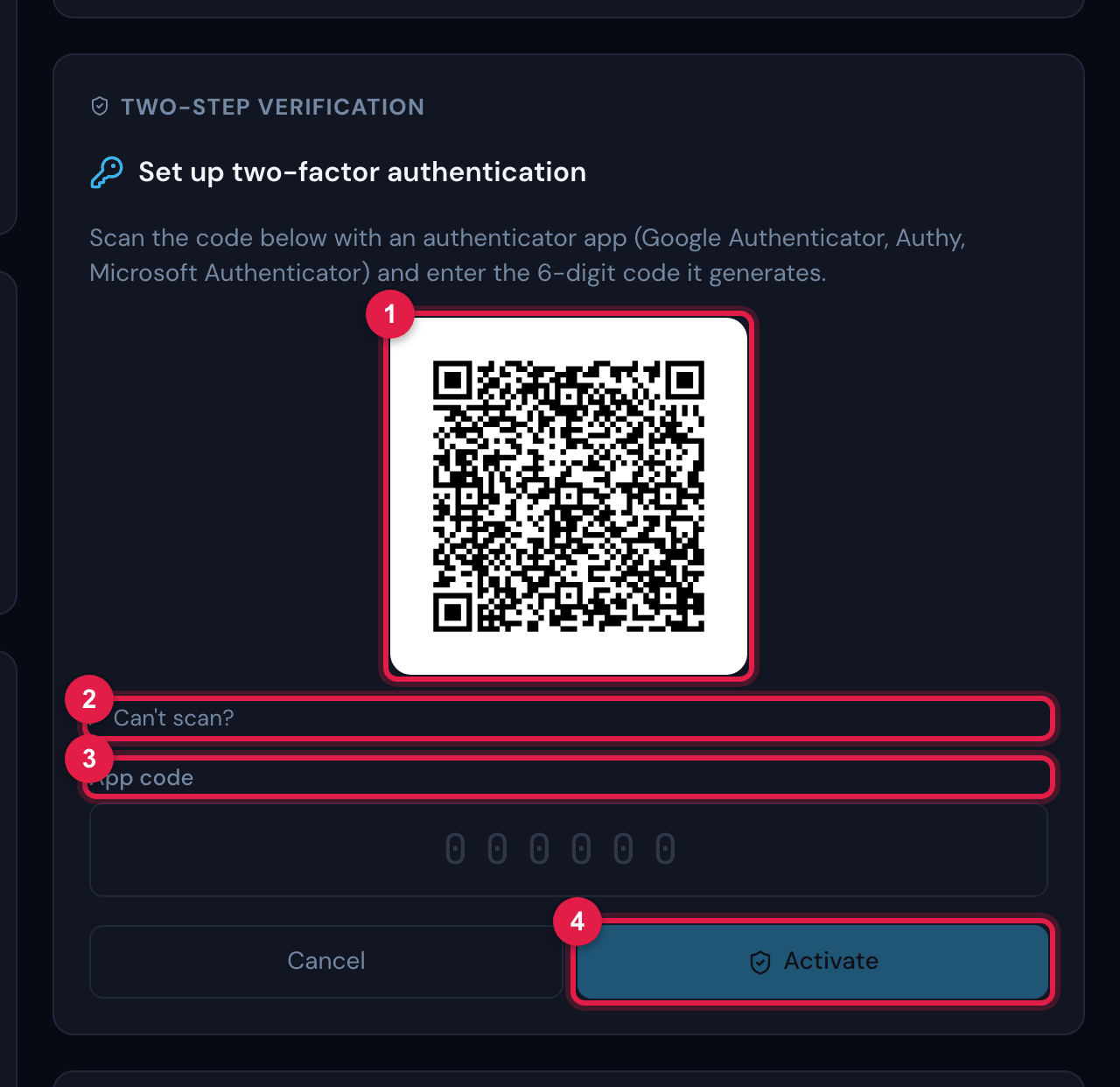
Figure 5. After Turn on now: the title Set up two-factor authentication, the explanation, the QR code for the authenticator app, the Can’t scan? shortcut, the App code field and the Cancel and Activate buttons.
- 1QR code — read it with the authenticator app on your phone.
- 2Can’t scan? — shows the key to type into the app.
- 3App code: the 6 digits the app shows now.
- 4Activate — checks the code and turns 2FA on.
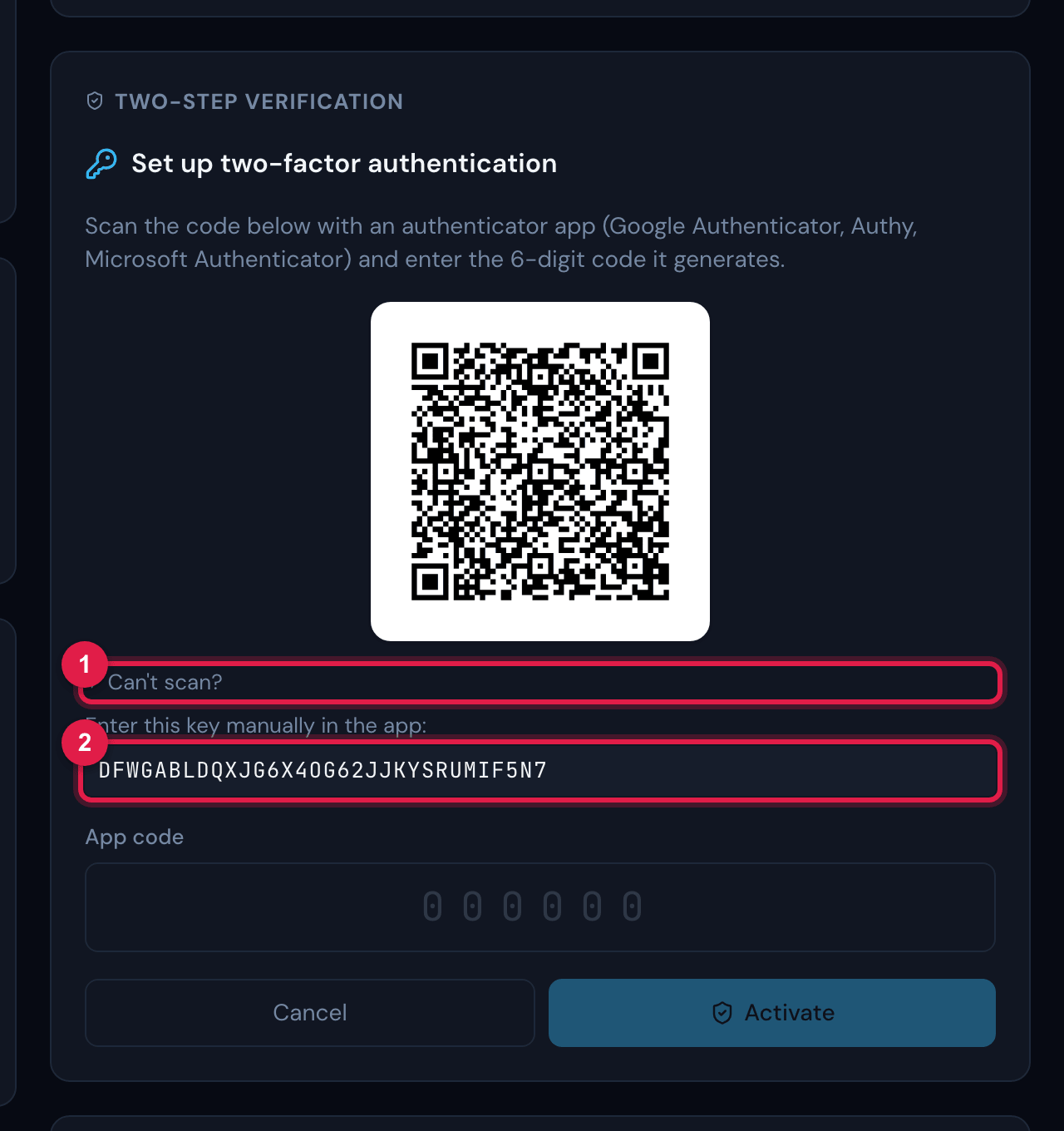
Figure 6. Can’t scan? open: the sentence Enter this key manually in the app: and the key, to type into the authenticator app when the QR cannot be read.
- 1Can’t scan?
- 2The key to type into the authenticator app.
The recovery codes
Section titled “The recovery codes”When you turn it on, H2O shows 8 recovery codes, in the format XXXX-XXXX (letters from A to F and numbers). Each one works only once and replaces the app code when you are without your phone. They are not shown again — the screen warns: These codes will not be shown again. Save them before continuing.
- Copy codes — copies all eight to paste into a password manager.
- Download PDF — saves the file
h2o-recovery-codes-company.pdf, with the codes numbered and the date. - Keep them away from the phone that has the authenticator app (printed in a drawer, in a password manager on the computer): someone who loses the phone loses both together.
- Do not send the codes by email or by message, and do not keep them with the password.
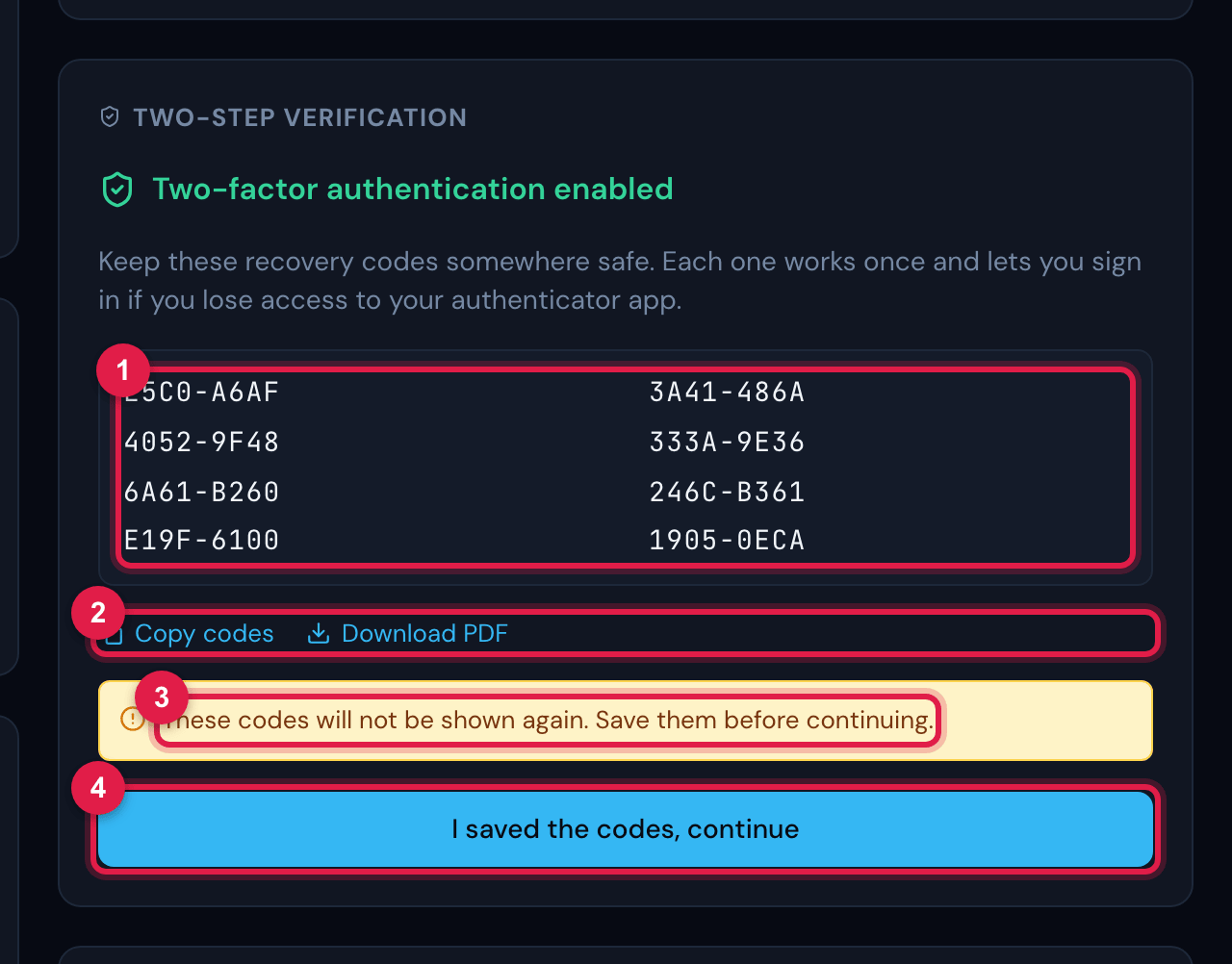
Figure 7. Two-factor authentication enabled: the 8 recovery codes in two columns, Copy codes, Download PDF, the yellow warning that they will not be shown again and the I saved the codes, continue button.
- 1The 8 codes — each one works once.
- 2Copy codes and Download PDF.
- 3Warning: the codes are not shown again.
- 4I saved the codes, continue.
Mandatory setup at sign-in
Section titled “Mandatory setup at sign-in”Once the deadline has passed, after the password H2O shows Set up two-factor authentication — Your account now requires two-factor authentication. Scan the code with an authenticator app to continue. The way is the same as in the step by step: read the QR with the authenticator app (or, in Can’t scan?, type the key into the app), type the code it shows now and click Activate. Then come the 8 recovery codes, with Copy codes and Download PDF; the I saved the codes, continue button finishes the sign-in.
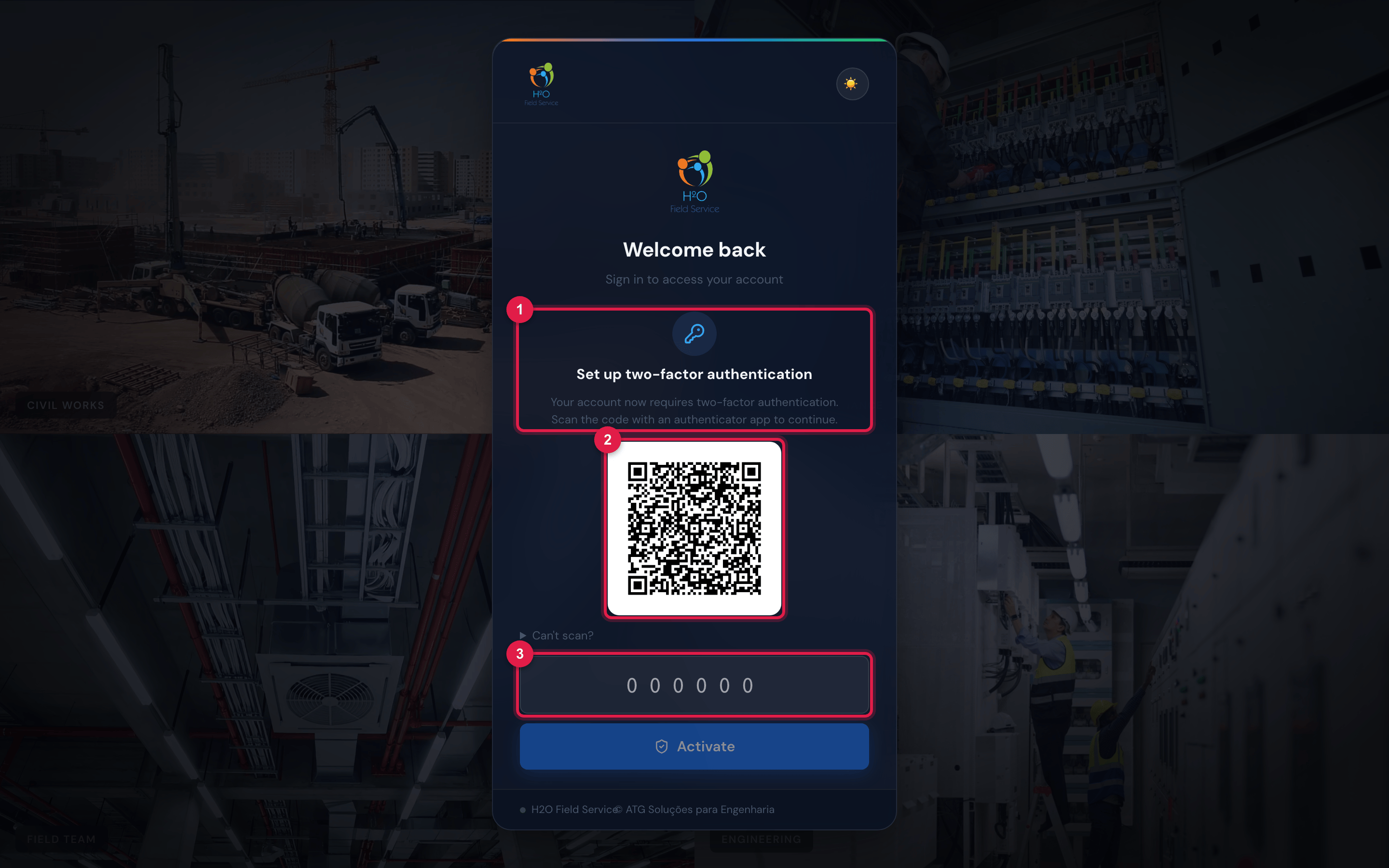
Figure 8. Sign-in with the deadline passed: the Set up two-factor authentication card, the QR code, the Can’t scan? shortcut, the code field and the Activate button.
- 1Title and explanation of the requirement.
- 2QR code for the authenticator app.
- 3Field for the 6-digit code — the Activate button just below is enabled only with the 6 digits.
Signing in with the code
Section titled “Signing in with the code”- Type your username and password and click Login.
- Enter the 6-digit code from your authenticator app. appears. Open the app on your phone and look for the account H2O — your company name (check the login, if there is more than one).
- Type the code shown now (if it is about to change, wait for the next one) and click Verify — or press Enter.
The code must be typed within a few minutes after the password. After that, the screen answers Session expired. Please log in again.: use Back to login and sign in again.
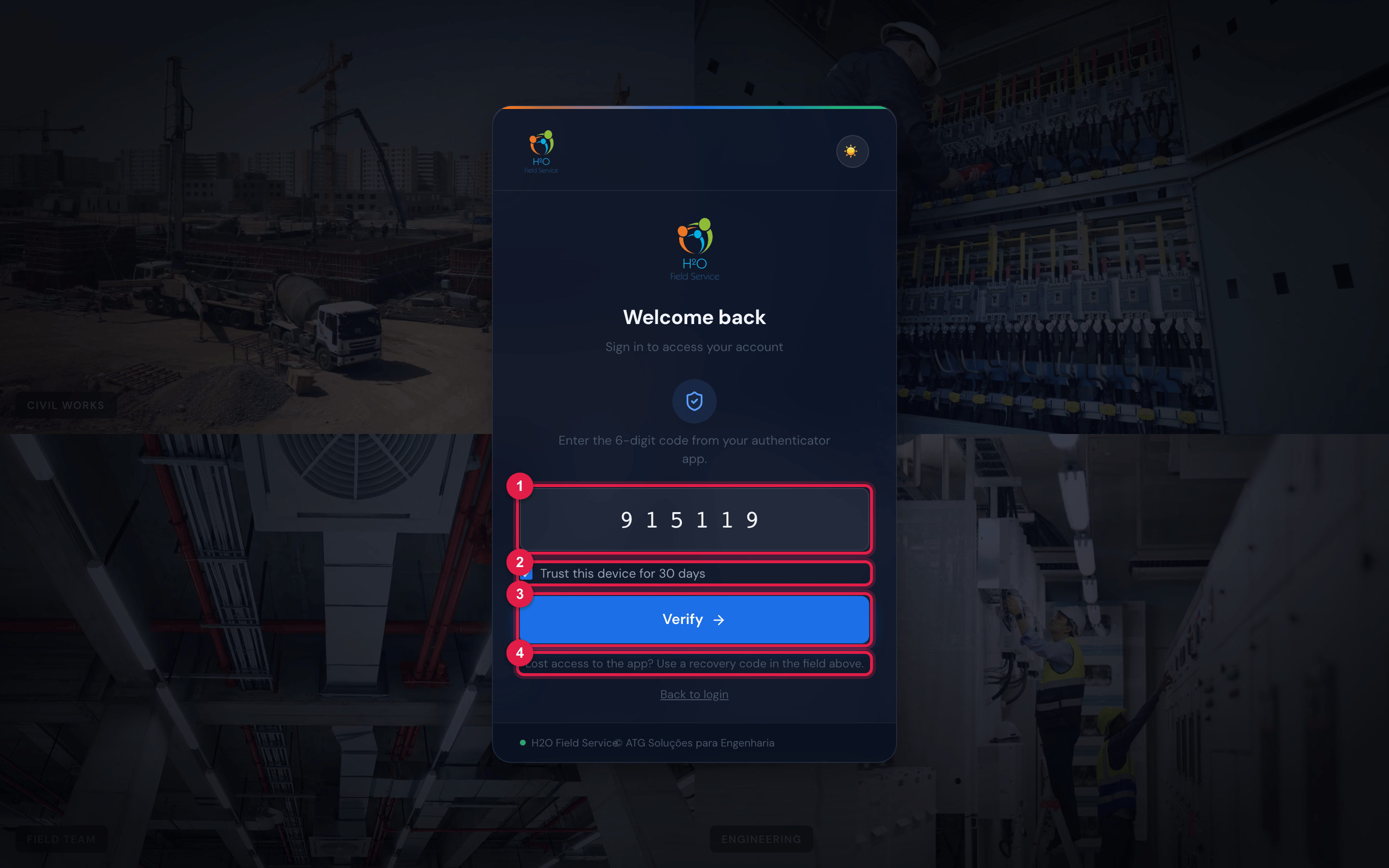
Figure 9. The code request at sign-in: the 6-digit field (here, with a code already typed), the Trust this device for 30 days box ticked, the Verify button, the hint Lost access to the app? Use a recovery code in the field above. and the Back to login link.
- 1Code field — it also accepts a recovery code (XXXX-XXXX).
- 2Trust this device for 30 days.
- 3Verify.
- 4Recovery code hint.
Trust this device
Section titled “Trust this device”If you tick Trust this device for 30 days before Verify, H2O stops asking for the code in this browser for 30 days counted from then — the period is not renewed by use. The trust is kept for the user exactly as typed: if you usually sign in with your login and one day sign in with your email, the browser is treated as new.
Trusted browsers and devices appear in My Profile › Two-Step Verification › Trusted devices, with the name (for example, Chrome · Windows, or the phone model in the case of the app) and the date they expire. The X on each row removes one; Forget all removes all of them — at the next sign-in, the code is asked for again.
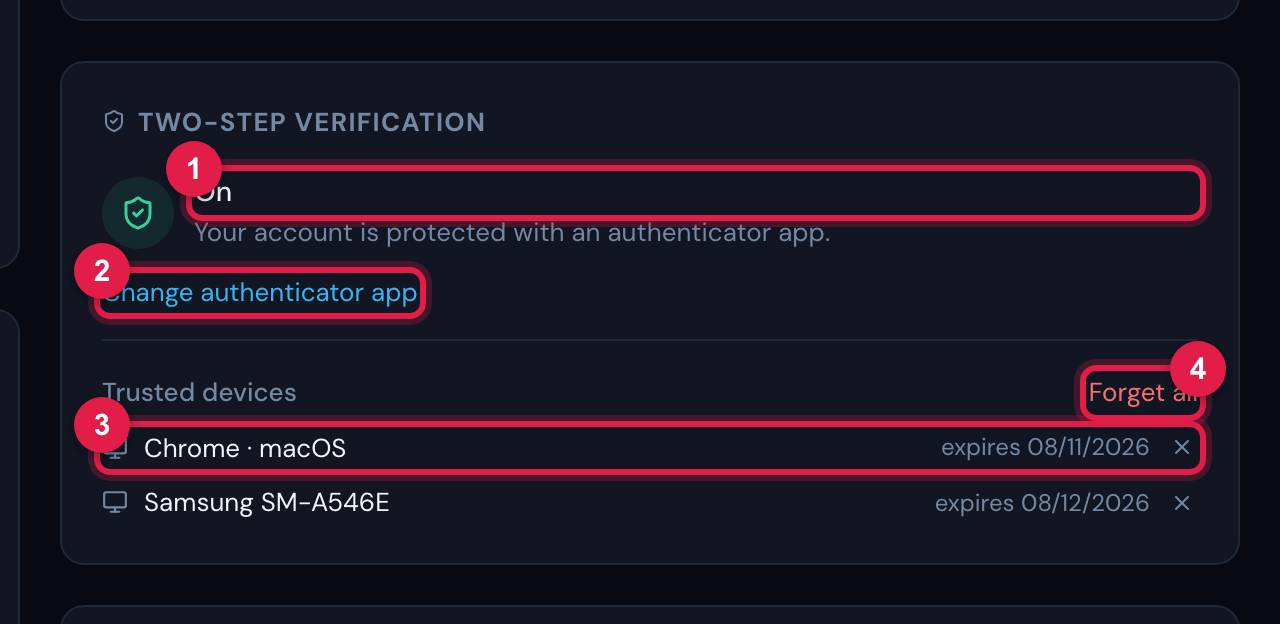
Figure 10. My Profile with 2FA On: the Change authenticator app link and the Trusted devices list, with two devices — Chrome · macOS (a browser) and Samsung SM-A546E (a phone with the H2O app) —, the date each one expires, the X to remove it and Forget all.
- 1Status: On — Your account is protected with an authenticator app.
- 2Change authenticator app.
- 3A trusted device and the date it expires.
- 4Forget all.
In the H2O app, trust in the device lasts 60 days and is renewed at each sign-in with the password; on a device marked as shared, the app asks for the code at every sign-in — see chapter 3 of the app manual.
Common problems
Section titled “Common problems”| Problem | Why | What to do |
|---|---|---|
| Incorrect code. Check the app and try again. with the right code | the phone’s time is wrong: H2O accepts the code of the current period and, at most, that of the previous or next period (about 30 seconds each way) | turn on automatic date and time on the phone and try again with the code shown now |
| the code was refused right after being typed | the code changed while you were typing | wait for the next code and type it without delay |
| there are several H2O accounts in the authenticator app | the QR was read more than once — each Turn on now, and each attempt at the mandatory setup, generates a new QR; only the last one activated counts | use the account added last; delete the others. If in doubt, sign in with a recovery code and do Change authenticator app, deleting first all the H2O accounts for that company from the app |
| the code is from another company or another user | the authenticator app has several H2O — company accounts, one per company and user | choose the account with the right company name and login |
| I changed phones | the authenticator app account stayed on the old phone | with the old phone still at hand, sign in and do Change authenticator app, reading the QR with the new phone; without it, sign in with a recovery code and make the change |
| I lost my phone, or deleted the authenticator app by mistake | the app’s accounts went with it (some authenticator apps keep a cloud backup — check yours) | sign in with a recovery code and do Change authenticator app; without codes, ask the administrator to reset your 2FA |
| Session expired. Please log in again. | a few minutes passed between the password and the code | Back to login and sign in again |
| the recovery code was refused | the hyphen is missing, the code was already used, or it is from an old list (changing the app generates new codes) | type it in the XXXX-XXXX format, with an unused code from the most recent list |
| Too many attempts. Please wait a moment. | too many wrong codes in a short time | wait a minute, check the phone’s time and try with the current code |
I lost my phone or changed devices
Section titled “I lost my phone or changed devices”- You still have the old phone, or the recovery codes: sign in with the code (or with a recovery code) and, once inside, make the change below.
- You have neither the phone nor the codes: only the H2O administrator at your company can reset 2FA (next section).
To change the app or the phone:
- Install the authenticator app on the new phone.
- In My Profile › Two-Step Verification, click Change authenticator app.
- Confirm your password to change the app. You will scan a new code next — your account stays protected. appears. Type the password and click Continue.
- Read the new QR code with the new phone, type the code it shows now and click Activate.
- Keep the 8 new recovery codes and click I saved the codes, continue. The old H2O account can be deleted from the old authenticator app: it no longer works.
For the administrator: reset and exempt
Section titled “For the administrator: reset and exempt”In People › Users, open the user; on the Details tab, at the end, is the Security — Two-factor authentication block (you need the right to edit users). The user list also has the MFA column, with Active, Exempt or Inactive.
- Reset MFA (user lost access) — asks for the confirmation Reset this user’s MFA? They will sign in normally next time and get a new 7-day period to set up the authenticator app; after that, setup becomes mandatory. and, on Reset, deletes the user’s authenticator app, recovery codes and trusted devices. The new 7-day deadline starts at the next access: the user signs in with the password only, sees the yellow bar and sets it up through My Profile. Ask them to delete the old H2O account from the authenticator app.
- Exempt this user from mandatory MFA — an exempt user is never required to use it (not even after the deadline), but can turn 2FA on by themselves. Use it for service accounts or cases the company decides.
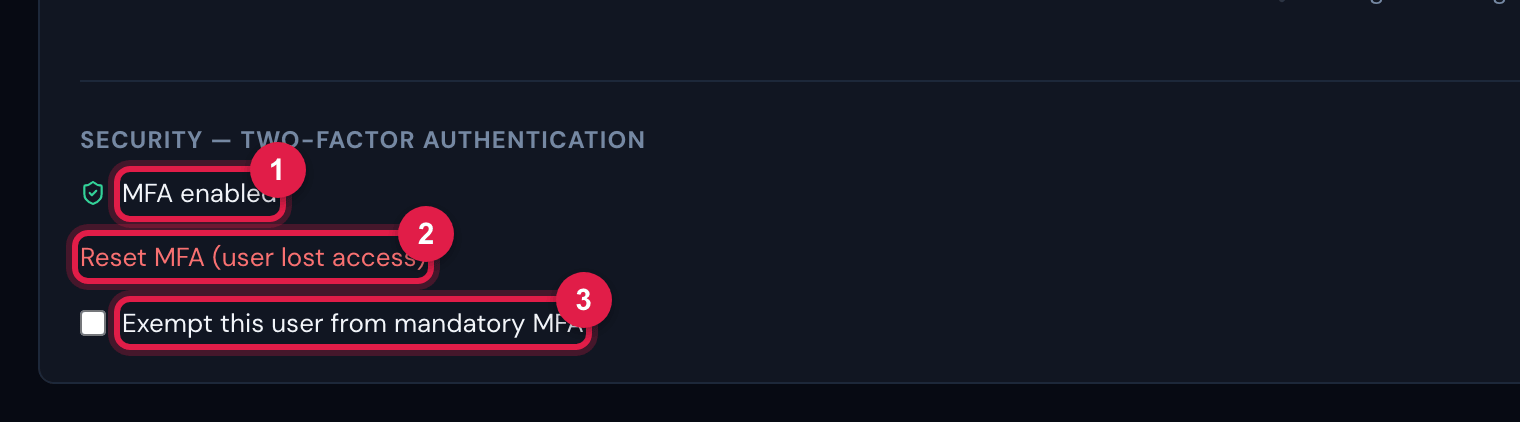
Figure 11. User record (People › Users › Details tab): the Security — Two-factor authentication block, with the status (MFA enabled), the Reset MFA (user lost access) link and the Exempt this user from mandatory MFA box.
- 1The user’s 2FA status: MFA enabled or MFA not set up (and the exempt badge, when applicable).
- 2Reset MFA (user lost access).
- 3Exempt this user from mandatory MFA.
Was this page helpful?
Thanks for the feedback!
Got it — we will improve this page.