
Reports: PDF and spreadsheet
Manual — Punch list (GQE) · chapter 9 of 11
The report is always for one project and comes from two places: from the project row in the Projects with items table — PDF button and Spreadsheet icon —, taking the list filters; or from the page of any item, through the Project PDF button, with the whole project. The text comes out in the language of your screen and the dates in the company date format.The PDF options
Section titled “The PDF options”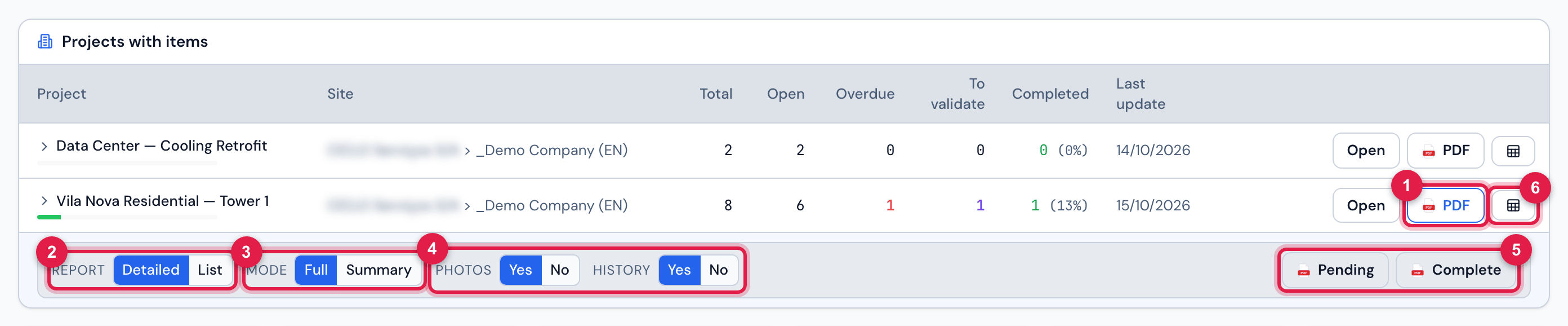
Figure 15. The PDF button of the Vila Nova Residential — Tower 1 row opens the options right below it.
- 1PDF — opens and closes the panel.
- 2Report: Detailed (one block per item) or List (one row per item).
- 3Mode: Full or Summary (Detailed only).
- 4Photos and History: Yes / No (History only in the full Detailed report).
- 5Pending and Complete — generate the PDF.
- 6The Spreadsheet icon — downloads the CSV.
| Button | Which items | What for |
|---|---|---|
| Pending | the open ones — Triage / Under review, In progress, Under validation and Blocked — within the list filters | follow up with the team or the supplier |
| Complete | all items of the filter, in any status | the project handover, with the acceptance |
| Option | What changes |
|---|---|
| Detailed · Full | each item with data, description, actions, notes, block reason or justification, Links (work order and NCR), all opening and closing photos side by side, the other attachments by name and the HISTORY; at the end, the 3. ACCEPTANCE |
| Detailed · Summary | each item with only the header, the first data line and the photos — no long texts and no history |
| List | landscape page, one row per item, with the first opening photo and the first closing photo as thumbnails; no acceptance. Made for projects with hundreds of items |
| Photos: No | removes the photos (the PDF gets much smaller) |
| History: No | removes the history of each item |
What the PDF brings
Section titled “What the PDF brings”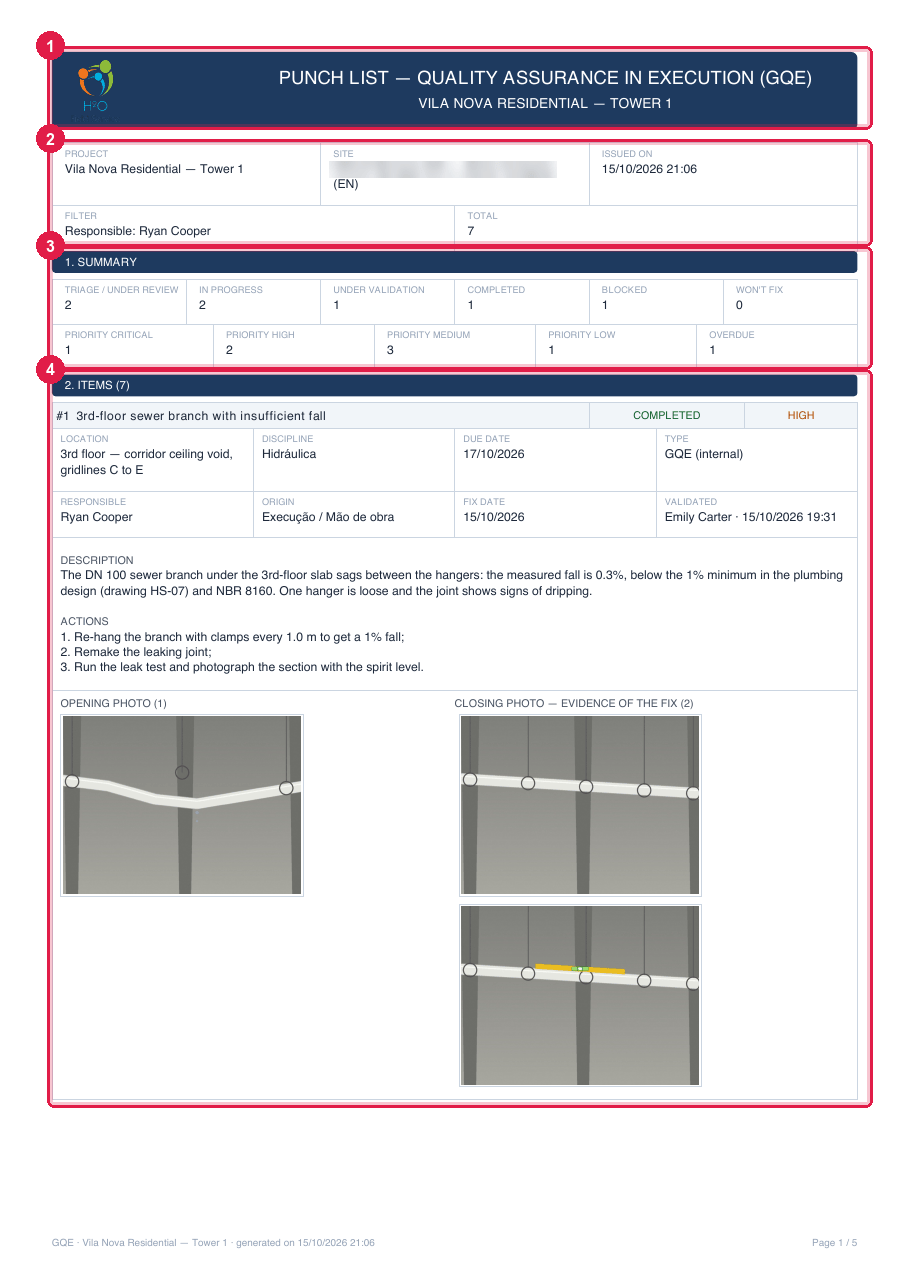
Figure 16. Complete PDF, Detailed, page 1, generated from the project row with the filter Responsible… = Ryan Cooper: the header, the summary and the first item.
- 1The header with the company logo, PUNCH LIST — QUALITY ASSURANCE IN EXECUTION (GQE) and the project name.
- 2Project, Site, Issued on, Filter and Total.
- 31. SUMMARY: how many in each status, in each priority and the Overdue ones.
- 42. ITEMS and the first block.
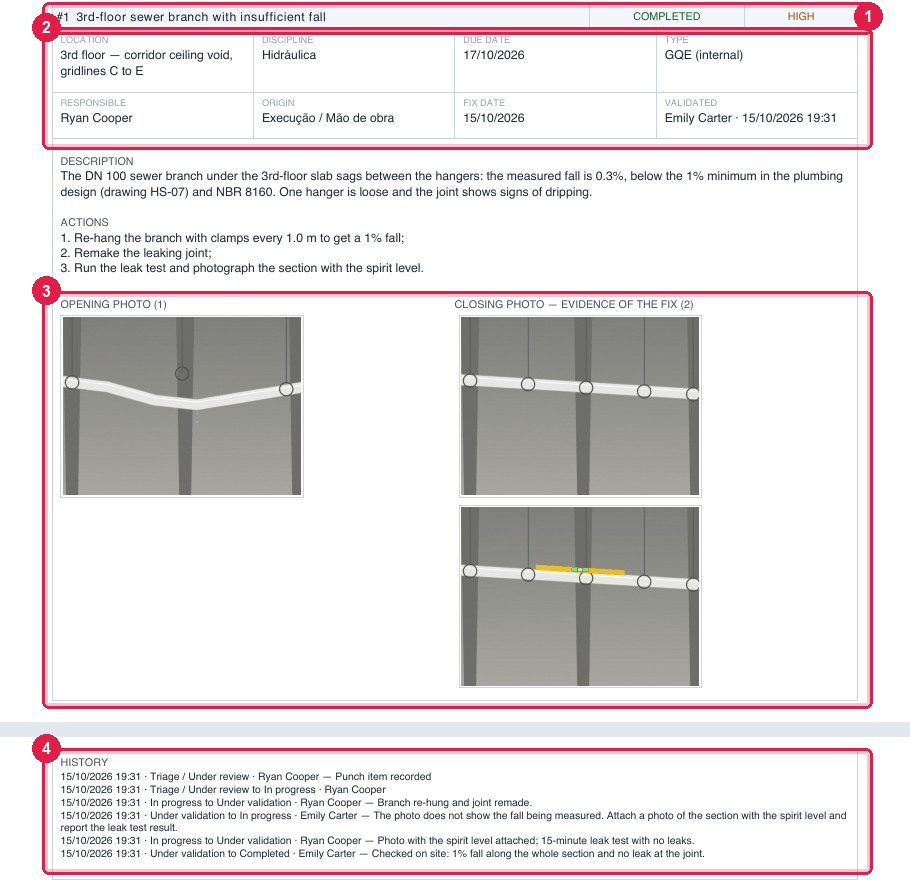
Figure 17. The block of GQE #1 (completed): data, texts, OPENING PHOTO and CLOSING PHOTO — EVIDENCE OF THE FIX in pairs, and the HISTORY with the rejection.
- 1Number, title, status and priority.
- 2Location, Responsible, Due date, Fix date and Validated.
- 3The opening and closing photos, in pairs — all of them.
- 4The HISTORY, with date, person and comment of each step.
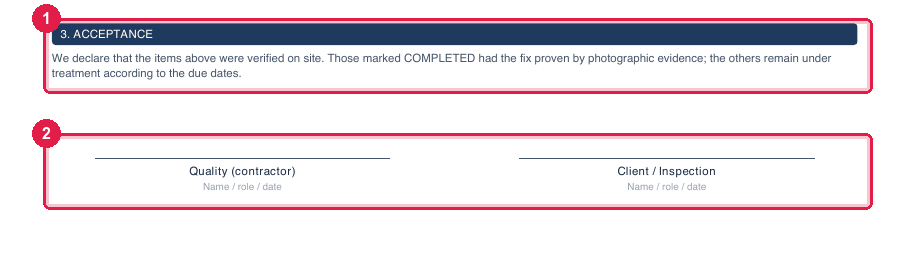
Figure 18. The last page of the Detailed report: 3. ACCEPTANCE, with the handover signature lines.
- 1The acceptance text: the COMPLETED ones have the fix proven by photo; the others remain under treatment.
- 2Quality (contractor) and Client / Inspection — Name / role / date.
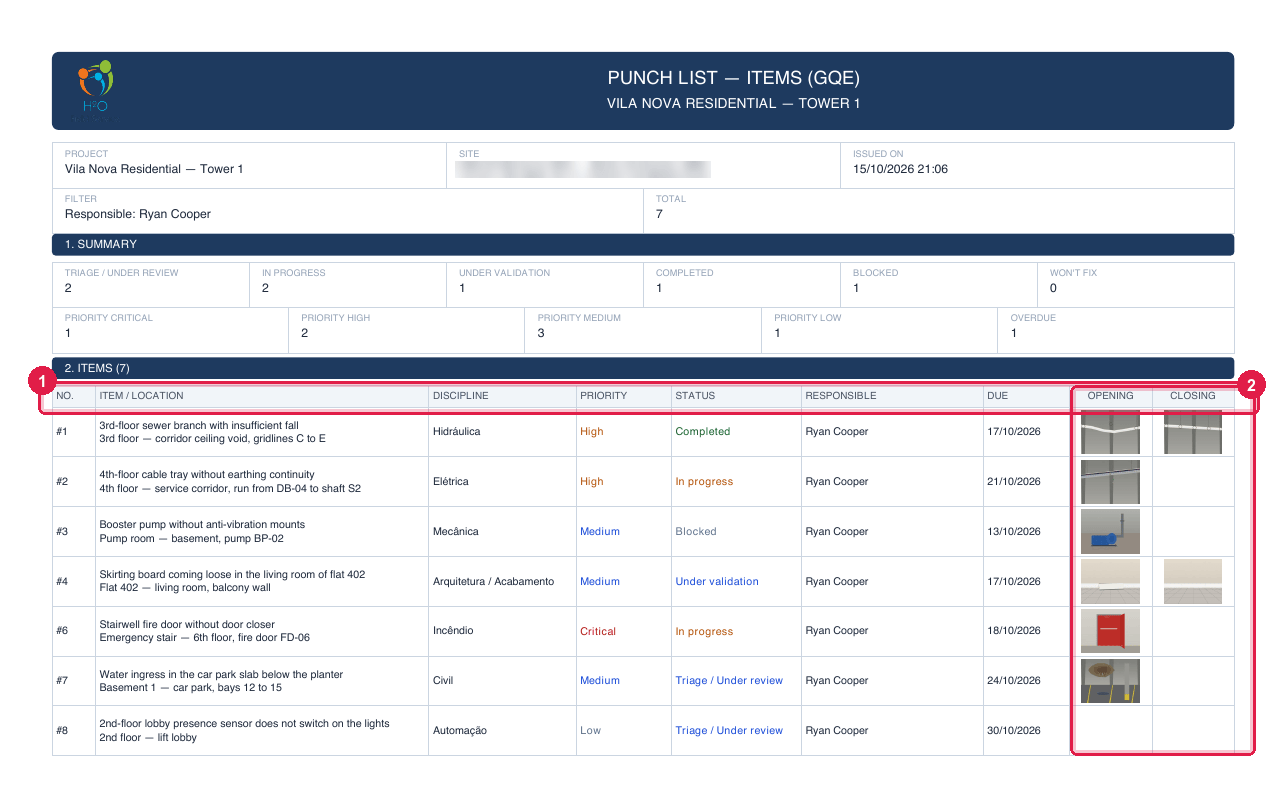
Figure 19. The PDF as a List: PUNCH LIST — ITEMS (GQE), one row per item, with the thumbnails (the same filter Responsible… = Ryan Cooper).
- 1The columns No., Item / location, Discipline, Priority, Status, Responsible and Due.
- 2Opening and Closing — the first photo on each side.
- Nothing is cut: a long title wraps, and all photos go in, in pairs (opening × closing); when they do not fit on the page, they continue on the next one with (continued).
- An attachment that is not an image — a PDF in the closing panel, for example — shows by its file name, under OTHER OPENING ATTACHMENTS or OTHER CLOSING ATTACHMENTS (in the List, under Attachments: below the title).
- The acceptance is meant to be printed and signed by hand at the handover inspection — H2O does not collect those signatures.
- Large projects take longer to generate: wait for the file to open.
The spreadsheet
Section titled “The spreadsheet”The Spreadsheet icon downloads a CSV (semicolon-separated, opens directly in Excel) with the project items that are in the list — the same filters, status included. With the initial Open filter, only the open ones come out; for the whole project, first click the Project total card (or choose All statuses).
| Columns (in the screen language) |
|---|
| project · site · no · type · item · location · discipline · origin · priority · status · description · actions · responsible · due_date · fix_date · validated_by · validated_at · block_reason · work_order · ncr · created_at · notes |
Was this page helpful?
Thanks for the feedback!
Got it — we will improve this page.