
Signing in to H2O
Manual — Getting started — web · chapter 2 of 13
The sign-in screen shows your company’s logo, the greeting Welcome back and the access fields, over videos of construction and maintenance work. At the top right, the moon/sun button (Toggle light/dark theme) changes the theme — dark is the default, and the choice is kept in the browser.- Open your company’s address in the browser.
- In Username, type your login — or the email registered on your user: both work.
- In Password, type the password. The eye icon at the end of the field shows what you typed, so you can check it.
- Click Login (or press Enter). While it checks, the button shows Logging in….
- If your account already uses two-factor authentication, H2O asks for the code from the authenticator app; if it does not yet and the deadline to turn it on has passed, it asks you to set it up right there — see chapter 3.
- Done: the Dashboard opens, with the menu on the left (chapter 5). Self-service profiles open the My Tickets portal.
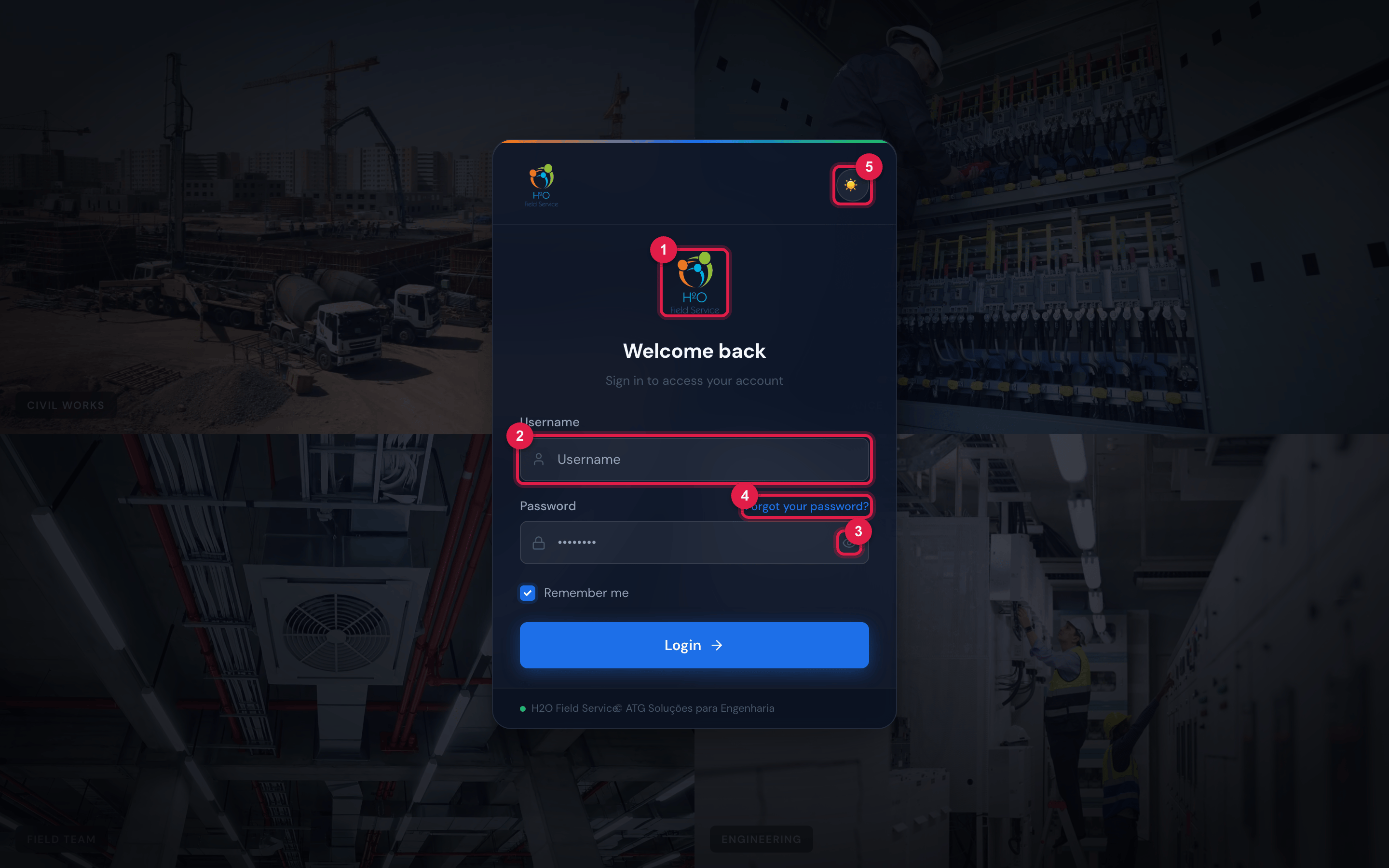
Figure 1. The H2O sign-in screen at the company’s address: the company logo (in the demo environment, H2O’s own), Welcome back, the Username and Password fields, the Forgot your password? link, the Remember me box (already ticked) and the Login button. In the footer, H2O Field Service and © ATG Soluções para Engenharia.
- 1Company logo — it comes from the address you opened.
- 2Username field: accepts the user’s login or email.
- 3Eye icon: shows the password you typed.
- 4Forgot your password? — explains how to get a new password (chapter 4).
- 5Moon/sun button: light or dark theme.
When sign-in is refused
Section titled “When sign-in is refused”For security, a username that does not exist and a wrong password get the same message — Invalid credentials. —, so that nobody can find out by trial which users exist. The account status (deactivated, expired) is only stated after the password matches.
| Message | What it means | What to do |
|---|---|---|
| Please enter your username and password. | one of the two fields is empty | fill it in and click Login |
| Invalid credentials. | the username (or email) does not exist in this company, or the password does not match | check the company address, the username and the password; if you forgot the password, see chapter 4 |
| Account disabled. Contact your administrator. | the password is right, but the administrator deactivated your user | talk to the H2O administrator at your company |
| Account expired on date | the user record has a Valid until date that has already passed | ask the administrator to adjust the validity |
| Account will only be valid from date | the record has a Valid from date in the future | wait for the date or ask the administrator to adjust it |
| Company not found or inactive. | the address does not match an active company in H2O | check the address with the administrator |
| Too many attempts. Please wait a moment. | too many wrong attempts in a row for the same user (see below) | wait a minute and try again, calmly |
| Could not sign in right now. Please try again. | no connection to the server, timeout or server failure — it is not a wrong password | check the internet connection and try again; if it persists, tell support |
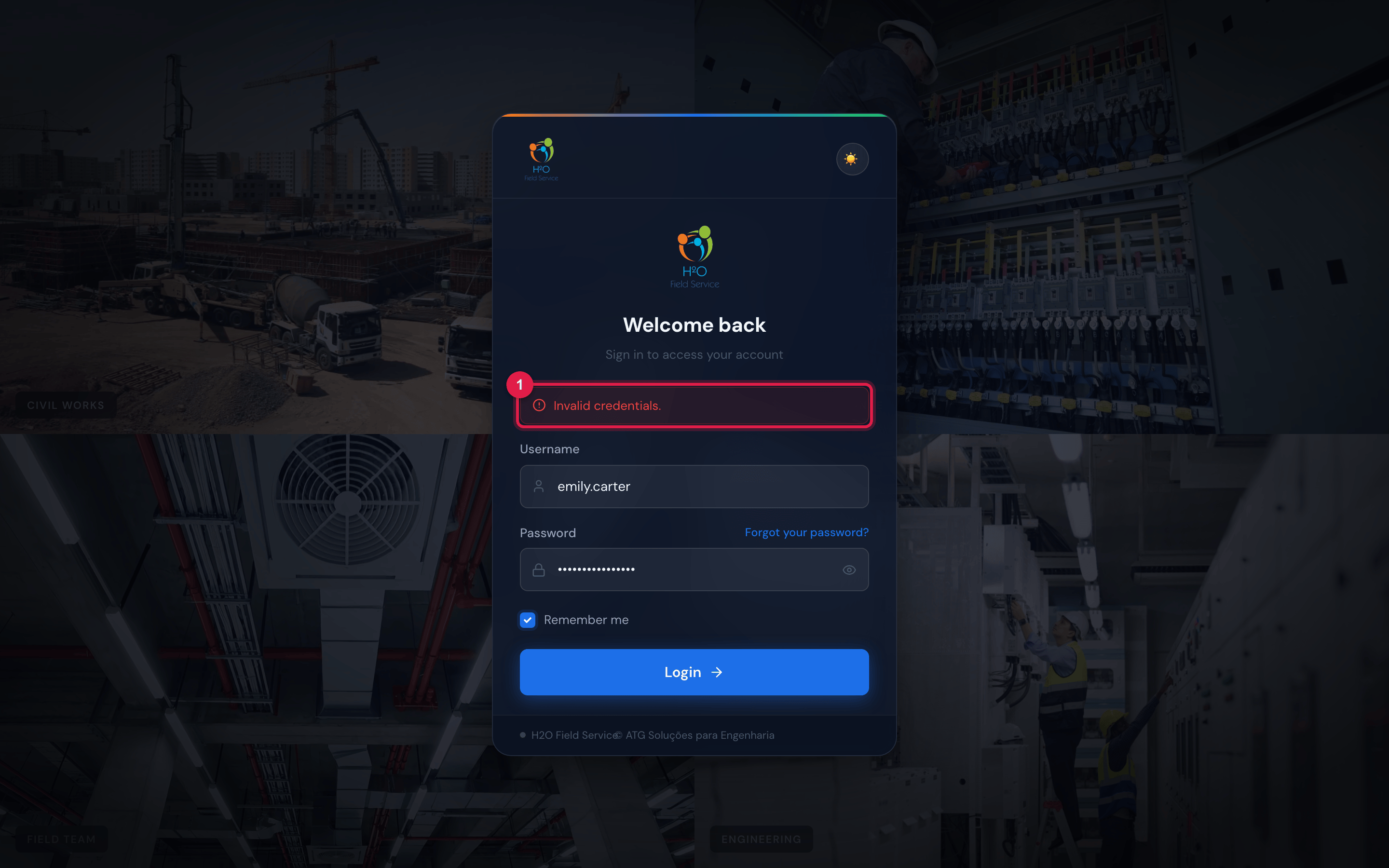
Figure 2. Sign-in refused (right username, wrong password): the red bar above the fields shows Invalid credentials., and the card shakes to draw attention.
- 1The refusal message — the same for a nonexistent username and a wrong password.
Attempt limit
Section titled “Attempt limit”Eight wrong passwords in a row for the same user, within one minute, make H2O refuse new attempts for a short while, with Too many attempts. Please wait a moment. Just wait a minute. A correct sign-in resets the count.
Was this page helpful?
Thanks for the feedback!
Got it — we will improve this page.