
Overview: asset types and rights
Manual — Assets · chapter 1 of 12
In H2O, an asset is any piece of equipment or property that receives maintenance and that you want to track one by one: the generator set, the pump, the air conditioner, the elevator, the calibrated tool, the PPE handed to a worker. Each asset has a record with its registration data and, in tabs, the calibration, the components, the metering, the asset management data, the reservations, the tickets, the documents and the history. A label with a QR code links the equipment in the field to its record — and lets anyone open a ticket just by scanning the code with a phone.Assets are organized into 16 fixed types. Each type is an item of the Assets section of the menu, with its own list, its own fields (the additional fields, grouped in sections on the record) and its own right in the profile. You cannot create a new type; within each type, the Type field of the record is used to subdivide (for example, “Split” and “Self-contained” within HVAC).
| Type (Assets menu) | What is particular about it |
|---|---|
| Generator Sets, Computers, Electrical, HVAC, Plumbing, Furniture, Civil, Security, Networks/Telecom, UPS | Registration with the additional fields of the type (voltage, current, power, network, electrical panel…). |
| Tools | Calibrations tab (history, PDF certificates and status Up to date / Expiring / Expired); fields Requires Calibration, Calibration Interval (months) and Alert (days before) — chapter 4. |
| Metering | Meters and instruments: meter type, brand, protocol and the calibration dates typed in the registration. In the app, the record gets the Measure shortcut. |
| Elevators | Equipment data, ropes, overspeed governors and Next Inspection, which generates an e-mail alert. |
| Fire Protection | Extinguishing agent, capacity, Expiry date, Last recharge, Next inspection and AVCB No.; the expiry date and the next inspection generate alerts. |
| Vehicles/Fleet | License plate, RENAVAM, fuel, odometer and Insurance expiry, which generates an alert. |
| PPE/CPE | Certificate of Approval (CA No., CA Expiry), Lifespan (months), category with the suggested NR standard, and the Usage Status and the current delivery, filled in by the Occupational Safety module. |
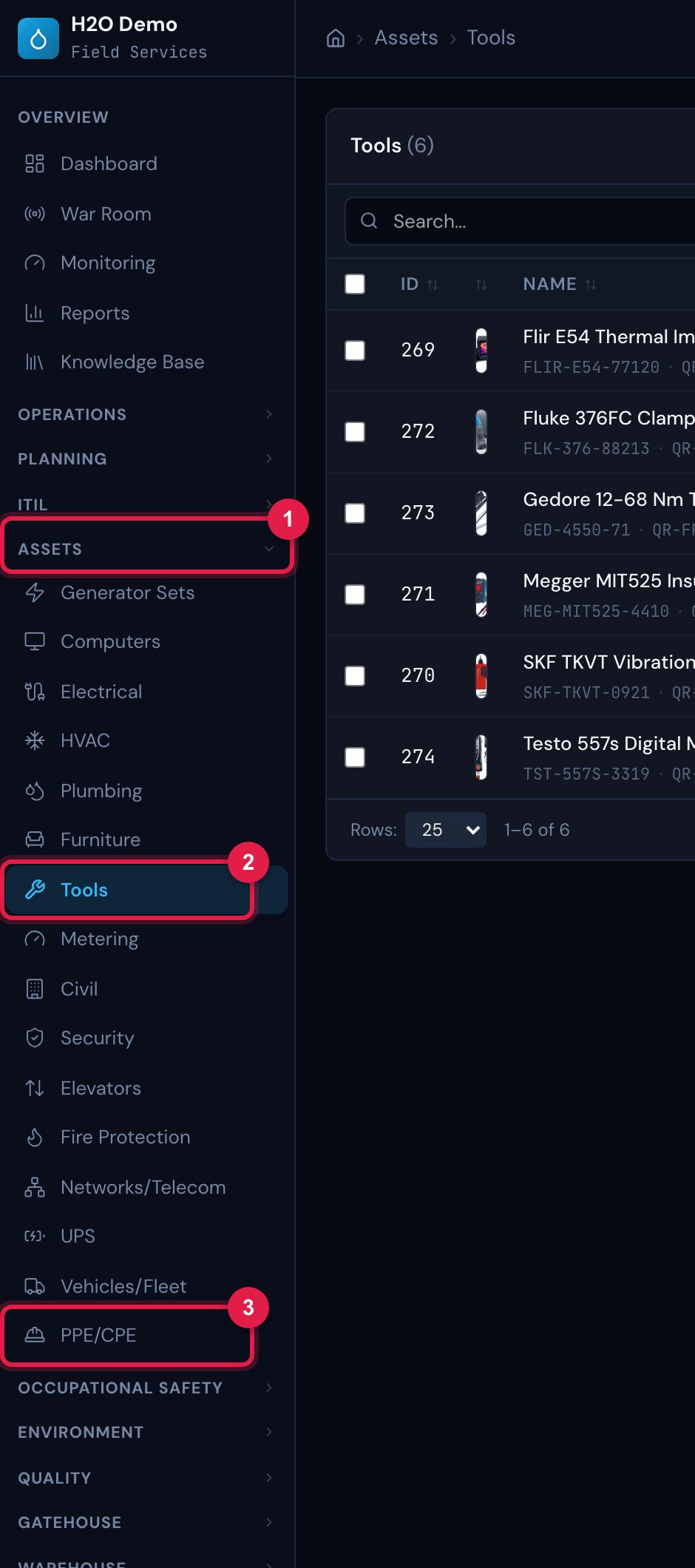
Figure 1. The Assets section of the side menu open, with the types the profile can see. Clicking a type opens its list of assets.
- 1Assets section — click the title to open or close it.
- 2A type (Tools): opens the list of tools.
- 3PPE/CPE type — the list gets the PPE columns and filters.
Asset or component?
Section titled “Asset or component?”An asset is what has its own record, list, label and QR. A component is the part tracked inside an asset — the generator’s oil filter, the UPS battery bank, the pump bearing: it has no menu or QR, lives in the asset’s Components tab and is used to forecast its replacement (chapter 5). A component can also point to another asset that is already registered (the motor that has its own record, for example).
Access rights
Section titled “Access rights”Access is controlled by the profile rights (People › Profiles › Permissions tab). The Assets group has one right per type — Generators, Computers, Electrical, HVAC, Hydraulic, Furniture, Tools, Measurement, Civil, Security, Elevators, Fire Protection, Networking, UPS, Vehicles / Fleet and PPE —, each with the levels Read, Edit, Create, Trash and Delete.
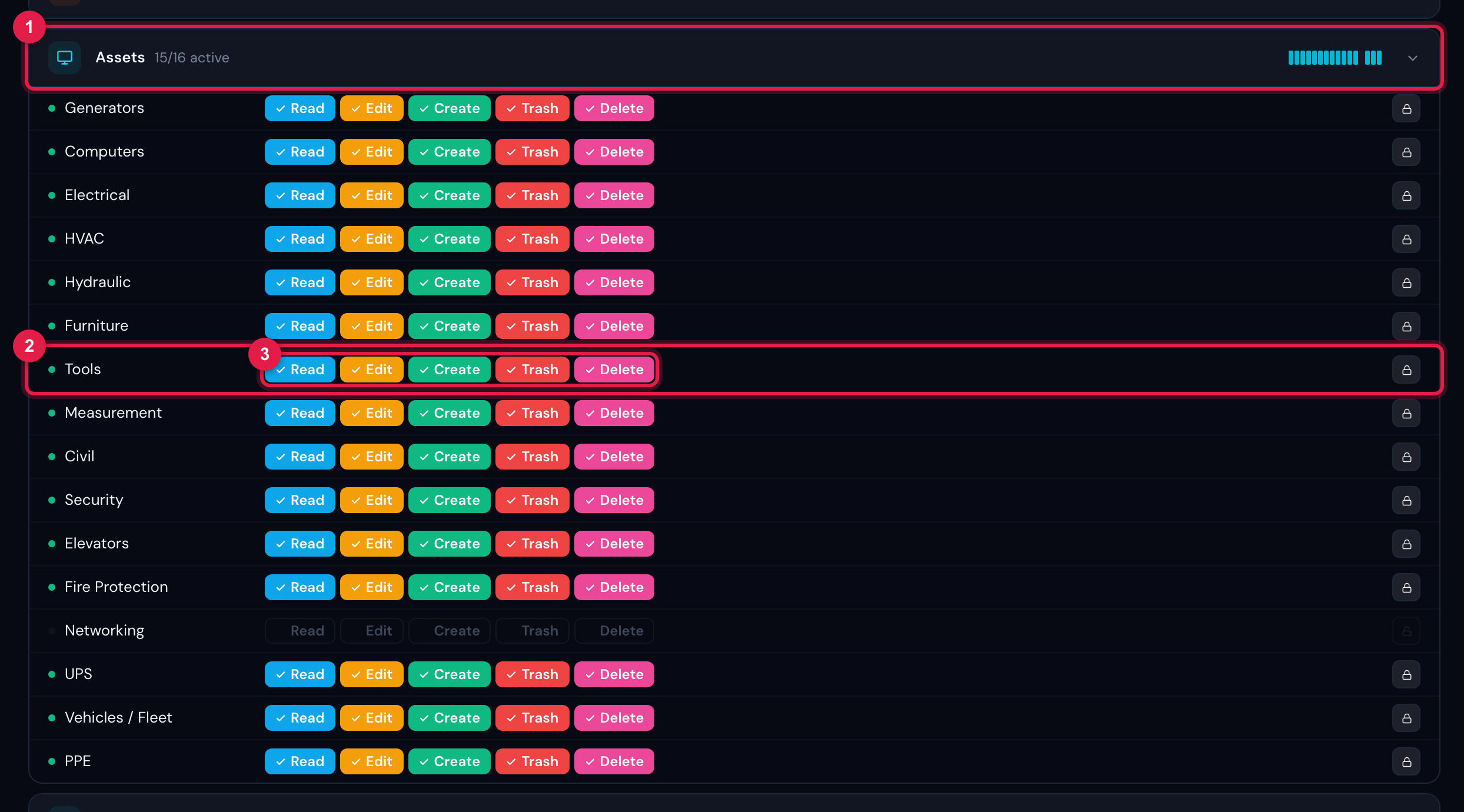
Figure 2. People › Profiles › Tecnico profile › Permissions tab, Assets group open: one right per asset type, each with the levels Read, Edit, Create, Trash and Delete.
- 1Assets group of the profile editor.
- 2Right of a type (Tools) — it also applies to the Calibrations tab.
- 3Levels of the right: Read, Edit, Create, Trash, Delete.
| What you want to do | Right and level required |
|---|---|
| See the list and the record of a type | Read on the type’s right |
| Register an asset (New button) | Create on the type’s right |
| Change the registration, the photo and the components (add, edit, remove, record replacement) | Edit on the type’s right |
| Delete the asset (it goes to the trash: it disappears from the lists, the record is kept) | Trash on the type’s right |
| Record, change and remove calibrations and certificates | Create, Edit and Trash on the Tools right |
| Metrics and readings of the Metering tab (of any type) | Measurement right of the Assets group: Read to see, Create for metric and reading, Edit to change the metric, Trash to remove |
| Asset Management tab | Asset Register right (Finance group): Read, Create and Edit |
| Reservations tab | Reservations right (Planning group): Read to see; Edit to enable, deliver and return; Create to reserve; Trash to delete |
| Documents tab | Documents right (Knowledge group): Create to upload or link, Trash to unlink |
Was this page helpful?
Thanks for the feedback!
Got it — we will improve this page.