
Sites and hierarchy
Manual — Companies and hierarchy · chapter 1 of 9
In H2O, a site is each unit that has its own data: your company, a branch, a client, a building you service, a construction site, a contract. Sites form a tree: at the top is the Root (the first site of the tree, usually named after your company) and, below it, the sites and sub-sites, in as many levels as needed.| Example tree | Level | Full name |
|---|---|---|
| Root (your company) | 1 | Your Company |
| Client served | 2 | Your Company > Client |
| Client building or construction site | 3 | Your Company > Client > Tower 1 Site |
- Level is the depth in the tree: the Root is level 1, and each sub-site sits one level below its parent.
- Full Name is the path from the Root, with the names separated by “ > “. It is what appears in lists and selectors, to tell apart two sites with the same name in different places of the tree.
- The level and the full name are calculated by H2O when the site is created and are not typed in. When you rename a site, the full name of every sub-site below it is updated as well.
Almost everything in H2O belongs to a site: tickets, tasks, assets, locations, documents, projects, employees, Occupational Safety and Environment records. The site decides who sees the record (chapter 2) and which lists and reports it goes into.
The header site
Section titled “The header site”The site button in the header (building icon) shows the active site. All lists, dashboards and reports show the data of that site — and, with the Site + sub-sites switch on, also that of the sites below it. How to switch sites is in the Getting started — web manual, chapter 5.
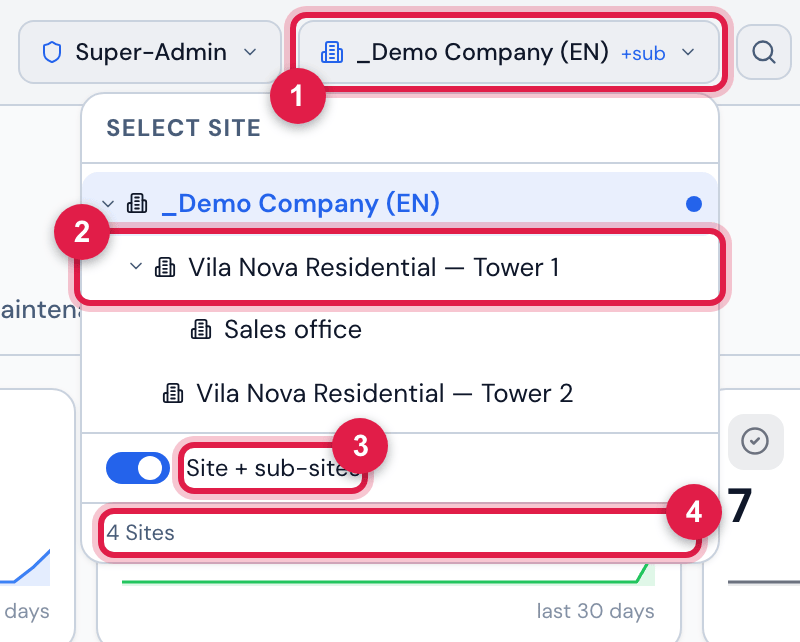
Figure 1. Select site open in the header: the tree of the sites the active profile reaches — the company and, indented below it, the sub-sites, one of them open showing the site below it —, with the current site highlighted, the Site + sub-sites switch and the count of Sites at the bottom.
- 1Button of the active site; +sub shows that the sub-sites are included.
- 2A sub-site: it is indented below its parent site; the arrow opens or closes the sites below.
- 3Site + sub-sites / This site only switch.
- 4How many sites the active profile reaches.
- On most screens, a new record is created in the active site of the header — for example, a New Location without a parent location (Locations and calendars manual). Before registering, check the site in the header.
- With Site + sub-sites, lists add up the site and all the sites below it. With This site only, they show only what is in the site itself (plus the recursive records of the sites above it, chapter 2).
- The switch only appears when your profile also covers the sub-sites (a recursive assignment, chapter 2) and the chosen site has sites below it.
Where the screens are
Section titled “Where the screens are”| Screen | Menu | What for |
|---|---|---|
| Sites | People › Sites | list, registration and record of each site, with documents, notes, users, history and statistics (chapters 3 to 7) |
| Select site | header (building icon) | choose the active site of the screens |
| Sites | H2O app, home screen | your sites with an address, the tickets of each one and the route there (chapter 8) |
Was this page helpful?
Thanks for the feedback!
Got it — we will improve this page.