
Users, profiles and groups: concepts
Manual — Users, groups and profiles · chapter 1 of 12
This manual is for those who manage access to H2O: who registers people, decides what each one can do and on which sites, and organizes the teams. The three screens are in the People menu: Users, Groups and Profiles.- User — the person who signs in to H2O (web and app), with a login, a password and two-factor authentication.
- Profile — a set of rights (what can be done in each module: read, create, edit…). The same profile serves many people: change the profile and it changes for all of them.
- Site — the company, the client, the job site (manual Companies and hierarchy).
- Group — a team of users (Electrical, Building Maintenance…), used in tickets, in planning and in ticket visibility.
The assignment: profile + site + recursive
Section titled “The assignment: profile + site + recursive”A user’s access is given by assignments. Each assignment brings together three things: a profile, a site and the Recursive flag. A user can have as many assignments as needed.
| Assignment | What the person gets |
|---|---|
| Technician on Job site A, not recursive | the rights of the Technician profile, only on Job site A. |
| Technician on the Company, recursive | the Technician rights on the Company and on every site below it, including those created later. |
| Supervisor on Tower 1 + Technician on the Company (recursive) | both: on Tower 1 the person can work as Supervisor or as Technician; on the other sites of the Company, as Technician. |
| Any profile on the Root, recursive | the whole site tree. |
- Assignments add up in reach: the person sees all the sites of all the assignments.
- Recursive always goes down the tree, never up.
- Assignments are registered in the Profiles tab of the user record (chapter 5). The first one is created when the user is registered (chapter 3).
Default profile, default site and active profile
Section titled “Default profile, default site and active profile”In the user record, Default Profile and Default Site show the assignment the user starts with when signing in. They can only point to an assignment that exists: to give access to another site, first add the assignment in the Profiles tab. When assignments are added or removed, H2O adjusts the default profile and site by itself, using the oldest assignment left.
Whoever has more than one profile chooses, in the header, which one to work with — the active profile. Next to it is the site switcher.
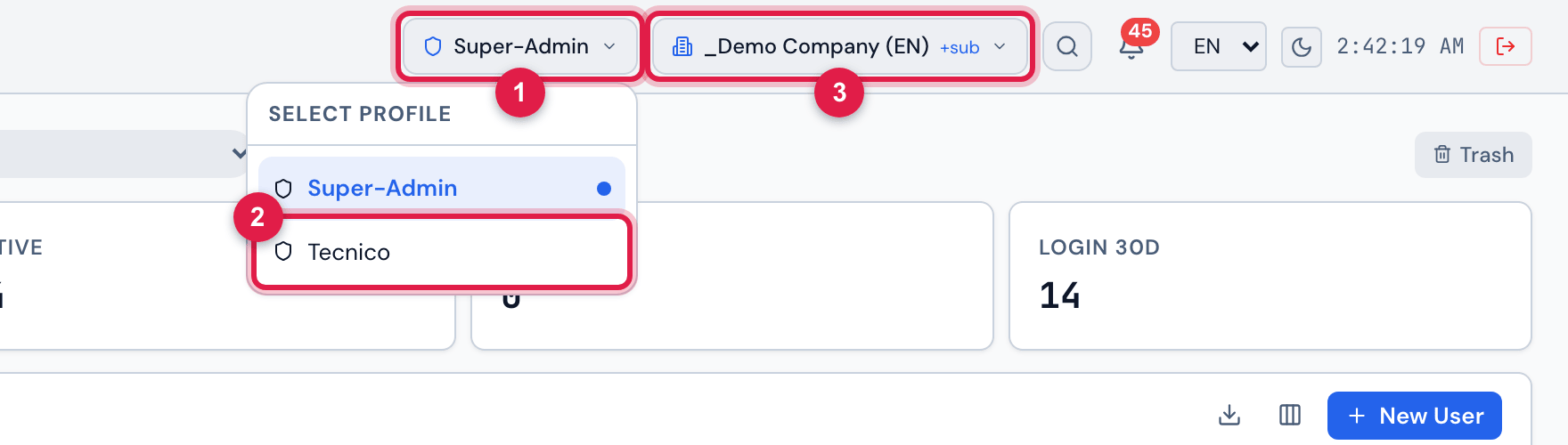
Figure 1. The H2O web header with the profile switcher open (Select profile): the user has two profiles, Super-Admin (the active one, marked with the dot) and Tecnico. Next to it, the site switcher.
- 1The active profile — click to switch.
- 2Another profile of the person: choosing it switches the rights at once (the menu and the buttons change).
- 3The site switcher: shows the sites where the active profile applies.
- On the web, only the active profile counts. The rights of one profile do not add up to those of another: someone who is Technician and Supervisor works as one or the other, switching in the selector.
- The active profile applies on the header site if it has an assignment on that site or, recursive, on a site above.
- In the H2O app, profiles add up: the app uses the rights of all the person’s assignments together.
Access rights to these screens
Section titled “Access rights to these screens”The Users, Groups and Profiles screens are unlocked by the rights of the same name, in the People group of the profile editor (chapter 10). Without the Read level, the item does not appear in the menu.
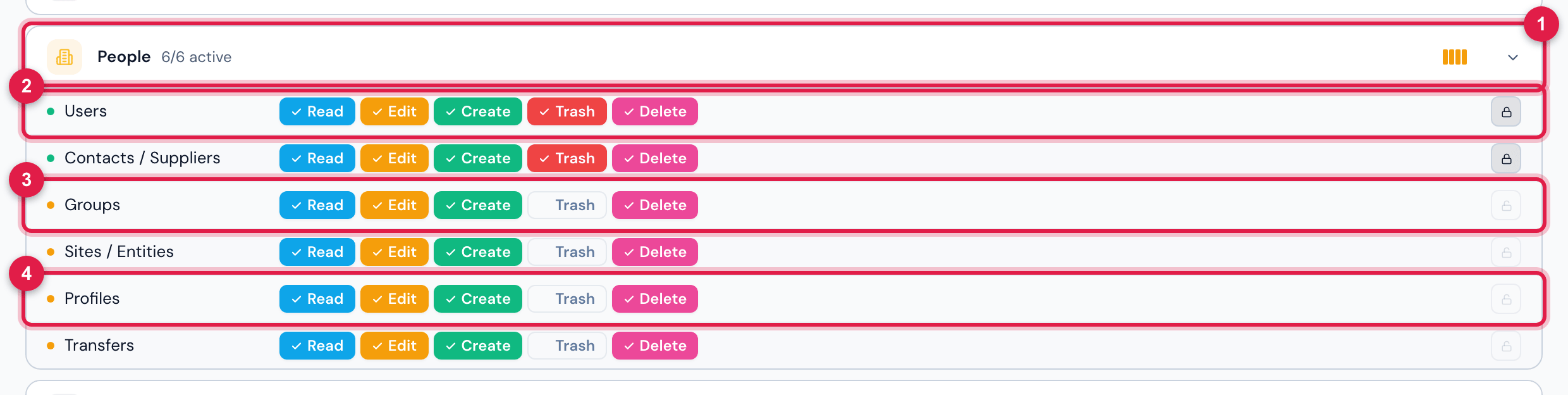
Figure 2. People › Profiles › a profile (here, Admin) › Permissions tab, People group open: the Users, Groups and Profiles rows, each with Read, Edit, Create, Trash and Delete — a colored level is on.
- 1People group — click to open or close.
- 2Users right.
- 3Groups right.
- 4Profiles right.
What each level unlocks is in chapter 11 (Rights reference). In short: Read opens the screen; Create registers; Edit changes — including the users’ assignments, password and two-factor authentication —; Trash deletes.
Was this page helpful?
Thanks for the feedback!
Got it — we will improve this page.