
Edit, move and delete
Manual — Locations and calendars · chapter 6 of 9
Edit requires the Edit level of the Locations right; Delete, the Trash level.Edit and move
Section titled “Edit and move”- In the record, click Edit. The Details tab turns into a form.
- Change Name, Building, Room, the Visible in sub-sites (recursive) box, the Address, the Geolocation and the Notes.
- To move it, choose another parent in Parent location (move to) — or — Root (no parent) — to make it a top-level location.
- Click Save. Location updated appears. Cancel discards the changes.
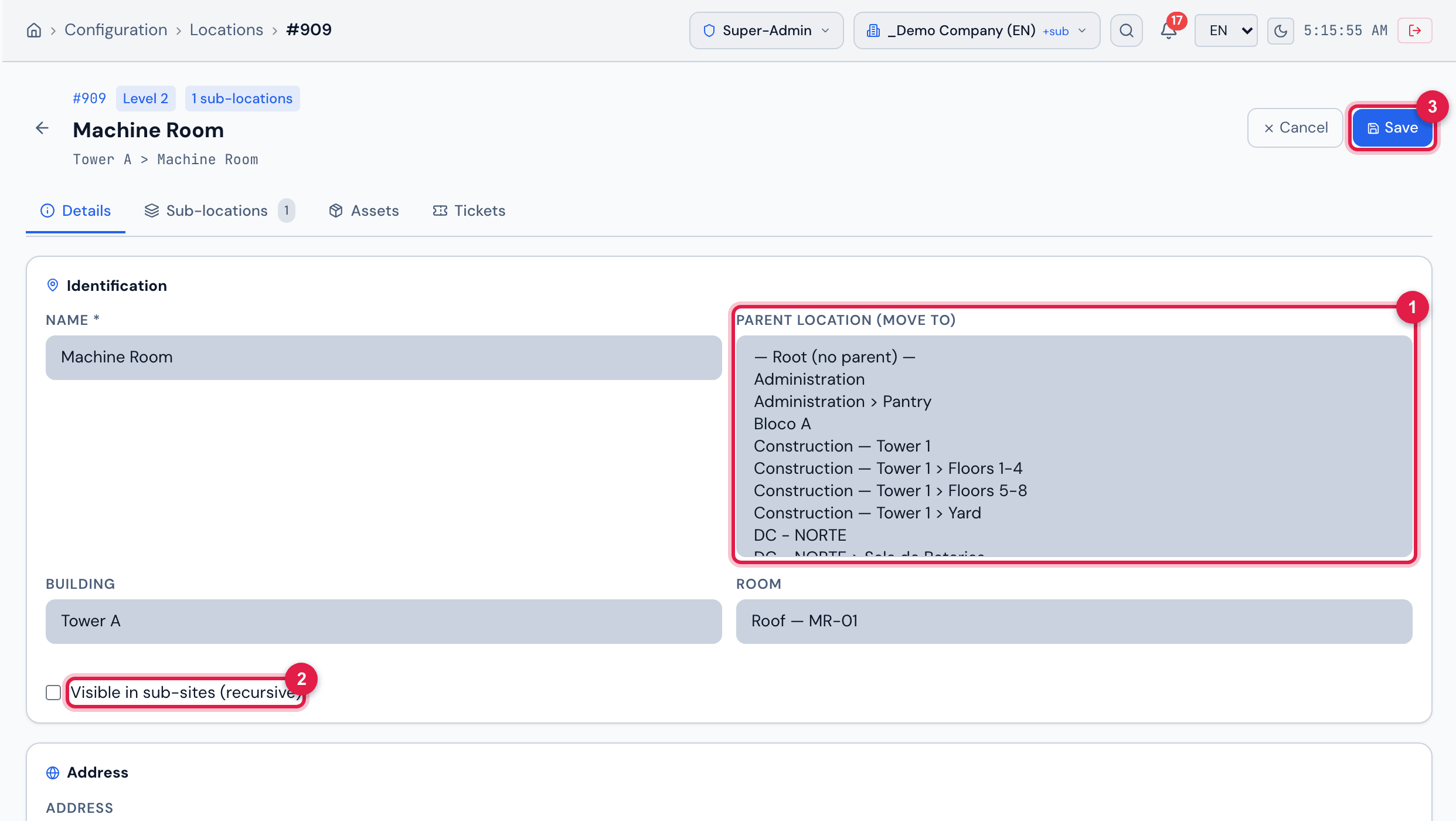
Figure 9. Record being edited: the Parent location (move to) field open with — Root (no parent) — and the paths of the other locations; on the right, Cancel and Save.
- 1Parent location (move to) — the new parent.
- 2Visible in sub-sites (recursive) box.
- 3Save.
- When moving or renaming, H2O updates the full path and the level of the location and of every location below it — the whole subtree goes along.
- A location cannot go inside one of its own sub-locations: H2O refuses with A location cannot be moved into one of its own sub-locations.
- Moving does not change the site of the location. If the new parent belongs to another site, the location stays in its own site and may not appear together with the parent for people who work only on the parent’s site.
- The site of a location cannot be changed on screen.
Delete
Section titled “Delete”From the record: Delete and confirm Delete this location? This action is irreversible. From the tree: the trash of the row and Delete location “name”?. Location removed appears.
- A location with sub-locations is not deleted: H2O warns A location with sub-locations cannot be deleted. Delete the sub-locations first.
Was this page helpful?
Thanks for the feedback!
Got it — we will improve this page.