
Password: changing and recovering it
Manual — Getting started — web · chapter 4 of 13
The password is personal: users change it themselves in My Profile, and the administrator can set a new password for any user. H2O has no password recovery by email — neither on the web nor in the app.Changing your password
Section titled “Changing your password”- Open My Profile (the card with your name, at the bottom of the menu).
- In the Change Password block, fill in Current password, New password and Confirm new password. The eye icon in the current password field shows all three.
- Click Change Password. The button is only enabled with all three fields filled in and the confirmation equal to the new password.
- Password changed successfully! appears, and the Last changed: line starts showing today’s date.
| Rule | Message |
|---|---|
| The new password must have at least 6 characters (and at most 128). | At least 6 characters |
| The confirmation must be equal to the new password. | The passwords do not match |
| The current password must be right. | Current password is incorrect |
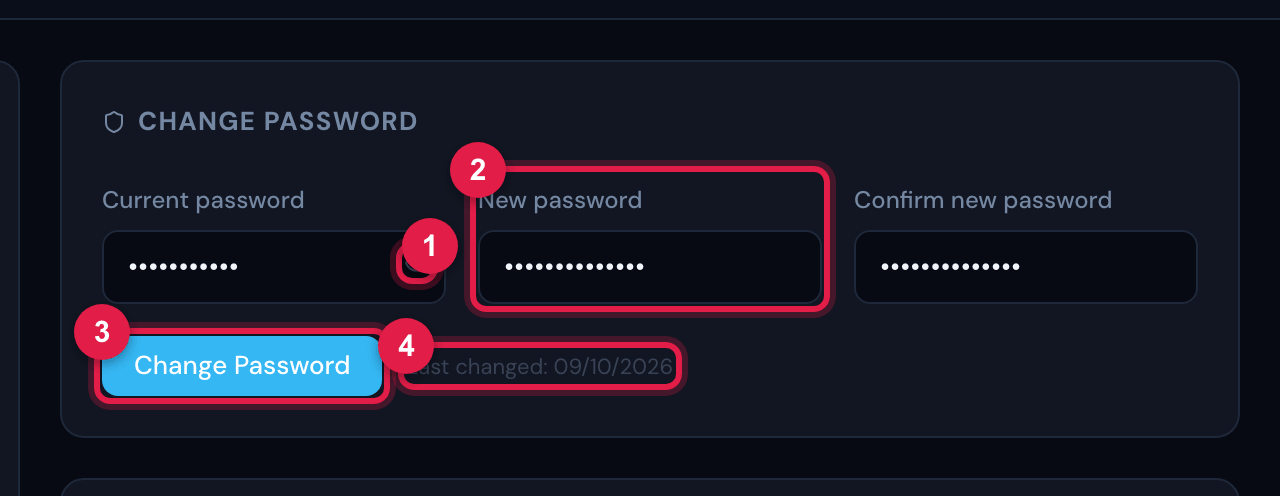
Figure 12. My Profile › Change Password with the fields filled in (not yet confirmed): Current password, New password and Confirm new password, the Change Password button, already enabled, and the date of the Last changed:.
- 1Eye: shows the three passwords.
- 2New password (next to it, Confirm new password).
- 3Change Password — enabled when the fields are complete and match.
- 4Last changed: — date of the last change.
I forgot the password
Section titled “I forgot the password”On the sign-in screen, the Forgot your password? link opens a notice: Ask the H2O administrator at your company to set a new password for you, in the People → Users menu. That is the way: the administrator sets a temporary password, you sign in with it and change it in My Profile. Got it closes the notice.
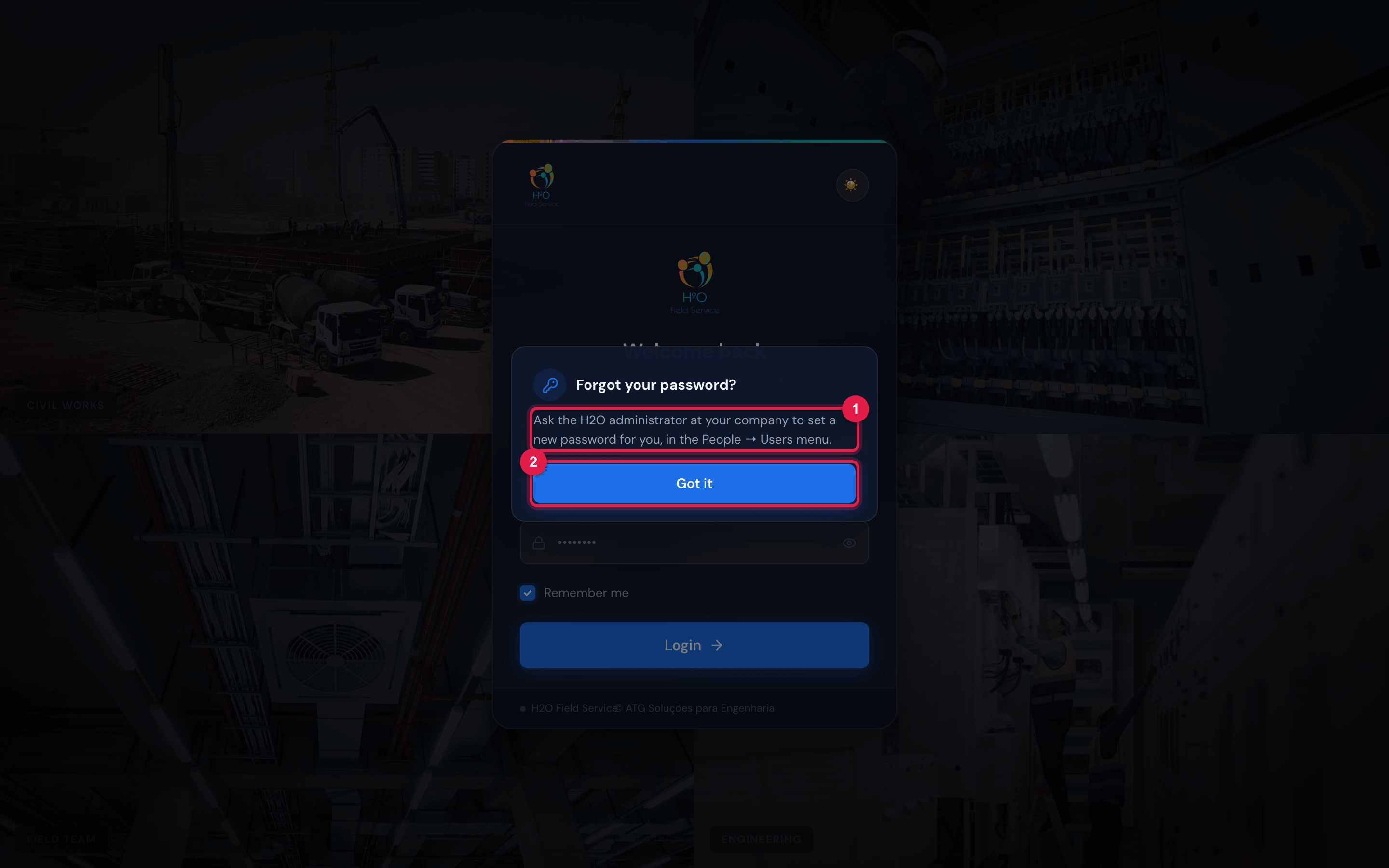
Figure 13. The Forgot your password? notice, over the sign-in screen, with the Got it button.
- 1The text that tells you to ask the administrator for a new password.
- 2Got it — closes the notice.
For the administrator: setting a new password
Section titled “For the administrator: setting a new password”- In People › Users, open the user.
- At the top of the record, click the Password button (next to Edit and Deactivate).
- In Change Password — user name, type the new password in the New password (min. 6 characters) field and click Change. Password changed appears.
- Give the password to the user through a secure channel and ask them to change it in My Profile as soon as they sign in.
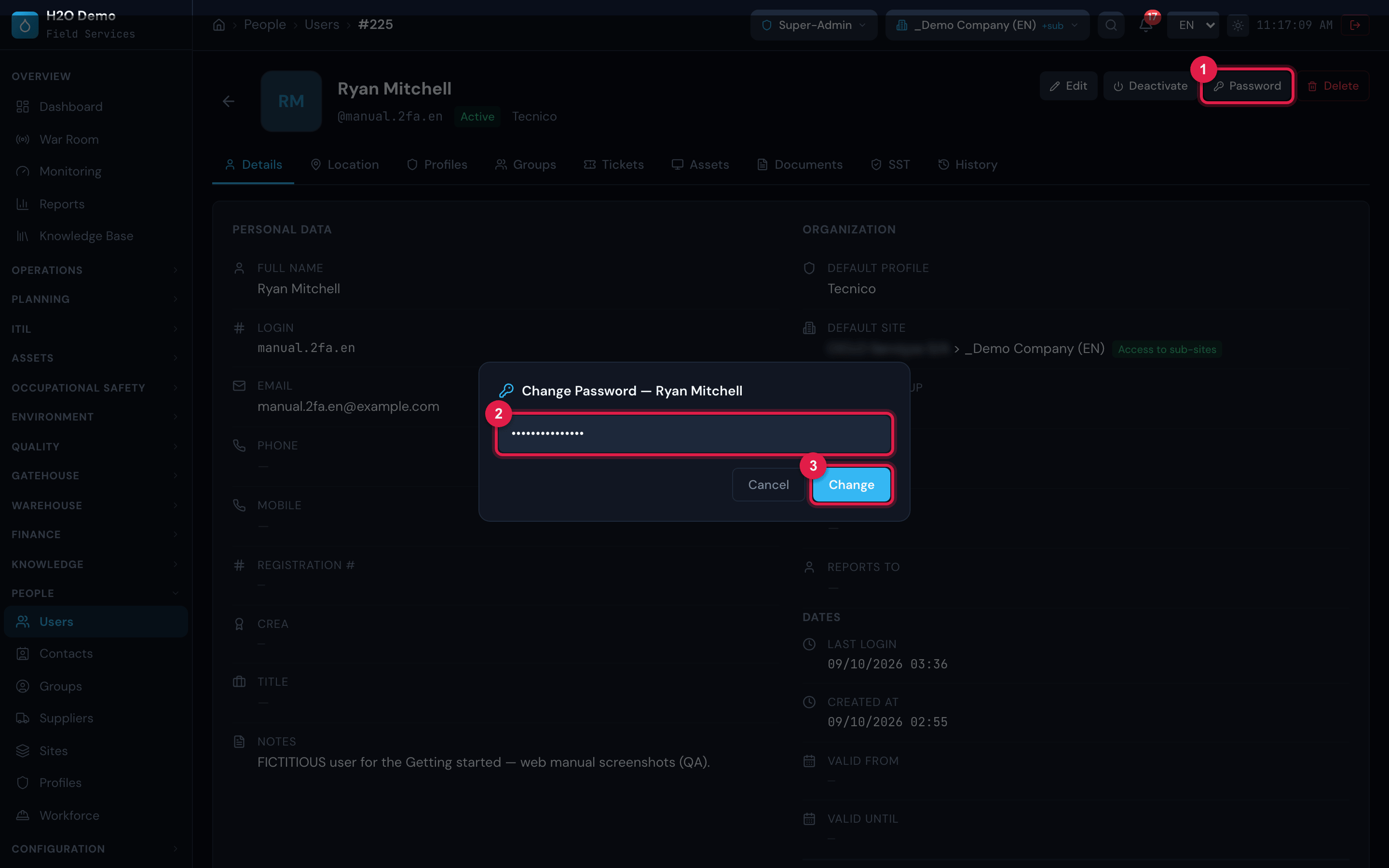
Figure 14. A user record in People › Users: the Password button at the top and the Change Password — window followed by the user name (here, Ryan Mitchell), with the New password (min. 6 characters) field filled in and the Cancel and Change buttons.
- 1The Password button of the user record.
- 2Field for the new password.
- 3Change — saves the new password.
Was this page helpful?
Thanks for the feedback!
Got it — we will improve this page.