
NF-e and receiving: concepts
Manual — NF-e and material receiving · chapter 1 of 11
The NF-e (Brazilian electronic invoice) travels with the material bought for the job. In H2O, the invoice is the receiving of that material: the storekeeper imports the invoice by its access key, checks quantity and quality item by item, photographs what arrived and attaches the invoice, the purchase order and the certificates; engineering checks the material and approves — at that moment the materials enter the stock; the client (the contractor) gives the final approval. Each approval carries the signature of whoever approves, and the invoice becomes an inspection PDF that can be sent by e-mail.Every invoice has a destination: a site or a project (manual Projects). The destination says in which site the material enters the stock and who can see the invoice.
Where it is
Section titled “Where it is”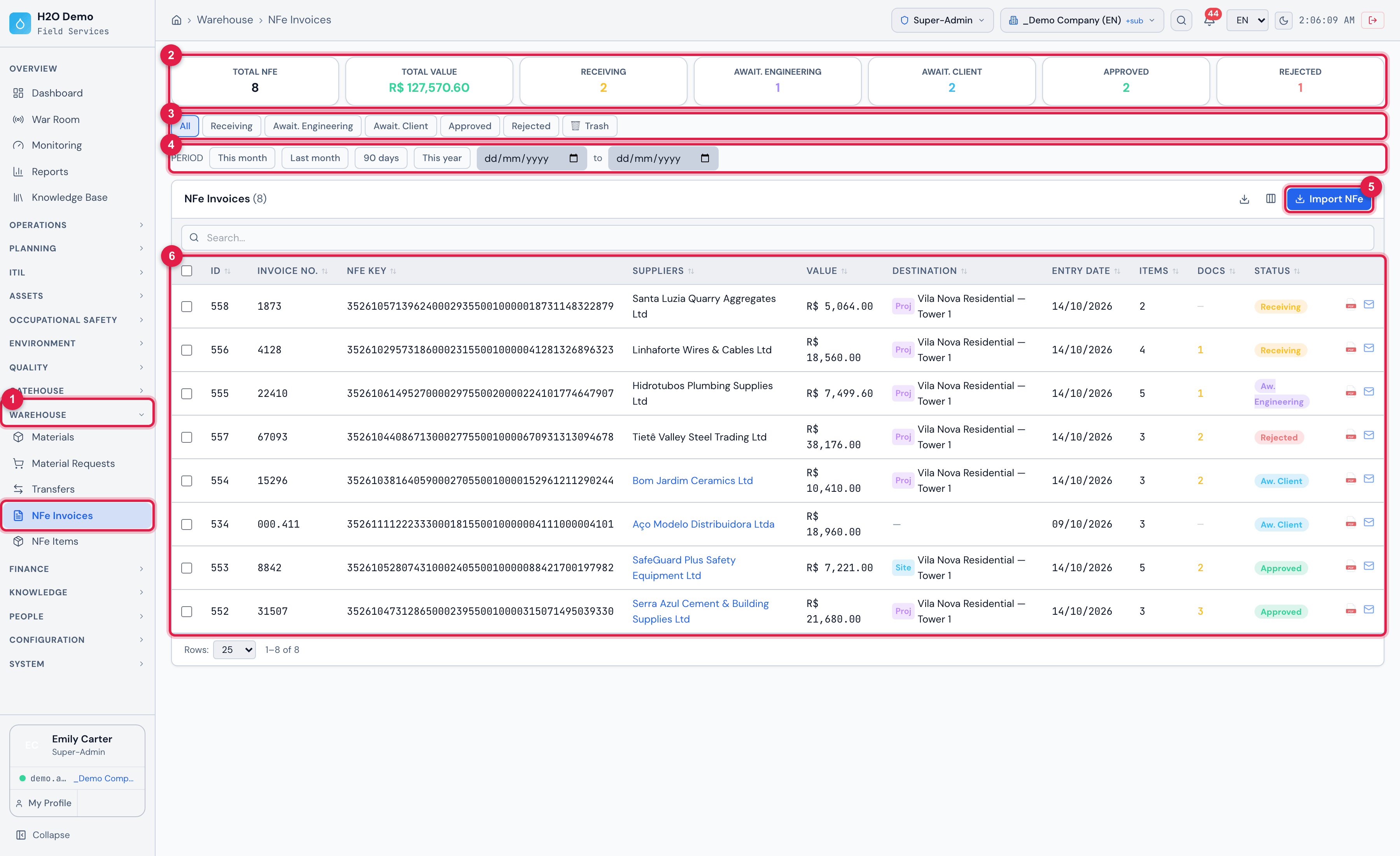
Figure 1. Warehouse › NFe Invoices: the cards per state, the tabs, the period and the list with the invoices of Vila Nova Residential — Tower 1 and of the company’s other destinations.
- 1The Warehouse › NFe Invoices menu.
- 2The cards: Total NFe, Total Value and one per state.
- 3The state tabs and 🗑 Trash.
- 4The issue Period.
- 5Import NFe — brings in a new invoice by its access key (chapter 3).
- 6The list: number, key, supplier, value, destination, items, documents, state, and the PDF and e-mail of each invoice.
| Where | What you do there | Chapter |
|---|---|---|
| Warehouse › NFe Invoices | all the invoices you can see, with filters, import, export, PDF and e-mail | 2, 3 and 9 |
| invoice record (click a row) | check the items, attach documents, approve, reject, the PDF and the history | 4 to 8 |
| Warehouse › NFe Items | the items of all invoices, with the check of each one and the spreadsheet | 9 |
| Warehouse › Materials | the stock that engineering’s approval loaded | 8 |
| Warehouse › Transfers | moving material from one site (warehouse) to another, with a numbered TR-… document | 8 |
| Overview › Reports › NFe | the invoices by month, by supplier and by state | 9 |
| People › Profiles › profile › Permissions, group Warehouse | the rights of each role | 1 |
| H2O app — Invoices on the home screen (for whoever has the right to see invoices) | import with the camera, check, photograph, scan the documents, send, approve and reject | 10 |
The states
Section titled “The states”The invoice goes through five states. The badge appears on the invoice record; the list uses the short name:
| State (record) | In the list | Means |
|---|---|---|
| Receiving | Receiving | imported; the warehouse is checking it. It is the state of every new invoice. |
| Awaiting Engineering | Aw. Engineering | checked and sent; waiting for engineering. |
| Awaiting Client | Aw. Client | approved by engineering; the materials have already entered the stock. Waiting for the client. |
| Approved | Approved | the client approved. Flow completed. |
| Rejected | Rejected | engineering or the client rejected it, with the reason. |
There is also the Archive state (in the app, ACC archive), for old archived invoices: no current screen takes an invoice to it, and the web list shows it only on the All tab.
Who does what
Section titled “Who does what”| Role | What they do | Where |
|---|---|---|
| Storekeeper (receiving) | imports the invoice, checks Quantity and Quality of each item, takes photos, attaches invoice, order and certificates, signs and sends to engineering | web and app |
| Engineering | checks the Material, decides the stock link of each item, approves with signature — and the stock is loaded — or rejects | web and app |
| Client (contractor) | approves with signature or rejects; can leave a note, which goes to Client note | web; in the app, approves or rejects without signing |
| whoever has Edit | sends an invoice Awaiting Client back for adjustment (Return for adjustment) | web |
The full path, with the buttons and rights of each step, is in chapter 7.
Access rights
Section titled “Access rights”The invoice uses the Invoices (NFe) row of the profile (People › Profiles › profile › Permissions tab, group Warehouse): Read, Edit, Create and Trash control the screen, and the Approve (Eng.) and Approve (Contractor) marks say who approves. In the NFe Validation row, the Approve (Eng. and Contractor) mark counts for both.
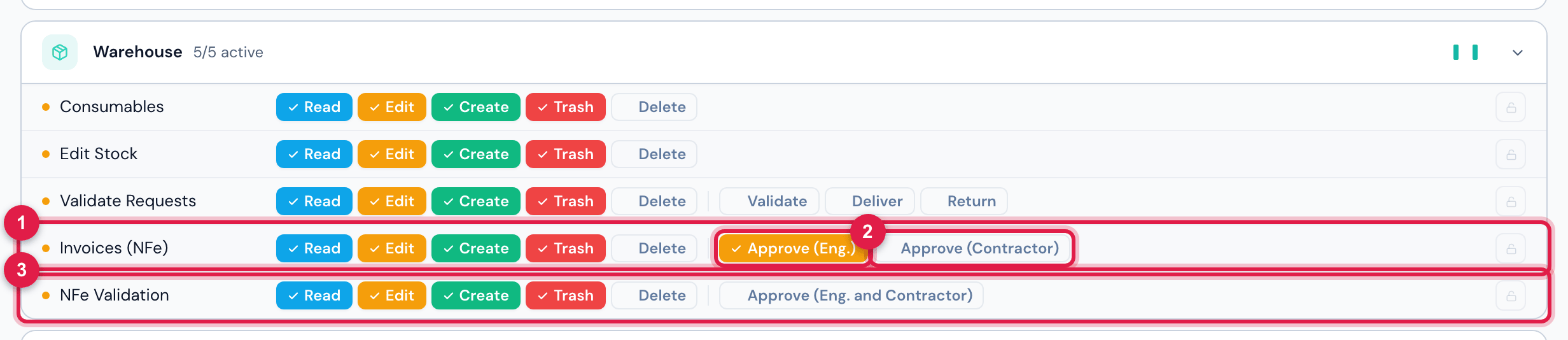
Figure 2. People › Profiles › Super-Admin › Permissions, group Warehouse: the Invoices (NFe) row, with the two approval options (this profile ticks only Approve (Eng.)), and the NFe Validation row, with the option that approves for both roles (unticked here).
- 1Invoices (NFe) row — Read, Edit, Create, Trash and Delete.
- 2Approve (Eng.) and Approve (Contractor) — who approves each step.
- 3NFe Validation row — Approve (Eng. and Contractor) approves and rejects for engineering and for the client.
| To… | You need, in the Invoices (NFe) row |
|---|---|
| see Warehouse › NFe Invoices and NFe Items, open the invoice, generate the PDF and send it by e-mail | Read |
| Import NFe | Create |
| Send to Engineering | Edit |
| check Quantity and Quality, comment on the item, Add Photo, find or discard the reference image | Edit, with the invoice Receiving or Awaiting Engineering |
| check Material | Edit and Approve (Eng.) |
| Add a document (Documents tab) | Edit, up to Awaiting Engineering |
| remove an item photo or a document | Trash, up to Awaiting Engineering |
| Analyze Similarity and Save Links (stock) | Read |
| Approve stock entry | Approve (Eng.) |
| Approve (Engineering) and Reject (Receiving or Awaiting Engineering) | Approve (Eng.) |
| Approve (Client) and Reject (Awaiting Client) | Approve (Contractor) |
| Return for adjustment | Edit |
| move to the trash, see 🗑 Trash and Restore | Trash |
Web and app
Section titled “Web and app”| I do this… | Web | App |
|---|---|---|
| import the invoice by its access key | yes, typing the key | yes, reading the DANFE barcode or typing it (with internet) |
| check Quantity and Quality | yes | yes, also without internet |
| check Material | yes, with Approve (Eng.) | yes, with Approve (Eng.) |
| item photos | yes | yes, camera or gallery |
| documents: invoice, order and certificate | yes, image or PDF | yes, with the document scanner, the camera, the gallery or a file |
| product reference image | view, find another and discard | view |
| stock link of the items | yes, item by item | no — loading is automatic (chapter 10) |
| send to engineering | yes | yes — also a Rejected invoice |
| approve as engineering | in Receiving or Awaiting Engineering, with signature | in In review or Awaiting engineering (Send to the client) |
| reject as engineering | yes | yes |
| approve and reject as the client | yes, with signature | yes, without signature |
| rejection reason and comments | a single history, with date and time | the same history; the app only adds to it |
| Return for adjustment | yes | no |
| signature | drawn at each action | Sign as Receiver or as Engineering, with the profile signature |
| inspection PDF | yes | yes (Receipt as PDF) |
| send the PDF by e-mail, one or several invoices | yes | no (share the PDF) |
| map of where the invoice was checked | no | yes, automatic |
| change history | yes | no |
Was this page helpful?
Thanks for the feedback!
Got it — we will improve this page.