
Saved filters
Manual — Getting started — web · chapter 8 of 13
The web has no favorites list. What it keeps are saved filters in the Tickets and Tasks lists (Operations menu): you build a filter once, give it a name and it becomes a shortcut next to the ready-made shortcuts. (The H2O app has Favorites, which are tasks marked with a star — see the app manual.)| List | Ready-made shortcuts |
|---|---|
| Tickets | Not solved (the default), Open, High priority, All |
| Tasks | To Do, Done, With Checklist, Mine, My Group, All |
- In the list, build the filter with the rules (status, priority, technician, site, dates…).
- On the shortcuts line, click Save (green button).
- In Filter name:, give it a short name (up to 40 characters) and confirm. In the Tickets list, Filter saved appears.
- The filter becomes a shortcut with a bookmark icon, after the ready-made shortcuts. Click it to apply it.
- To delete it, hover over the shortcut and click the X (Remove saved filter). In the Tasks list, H2O asks for confirmation: Remove this saved filter?
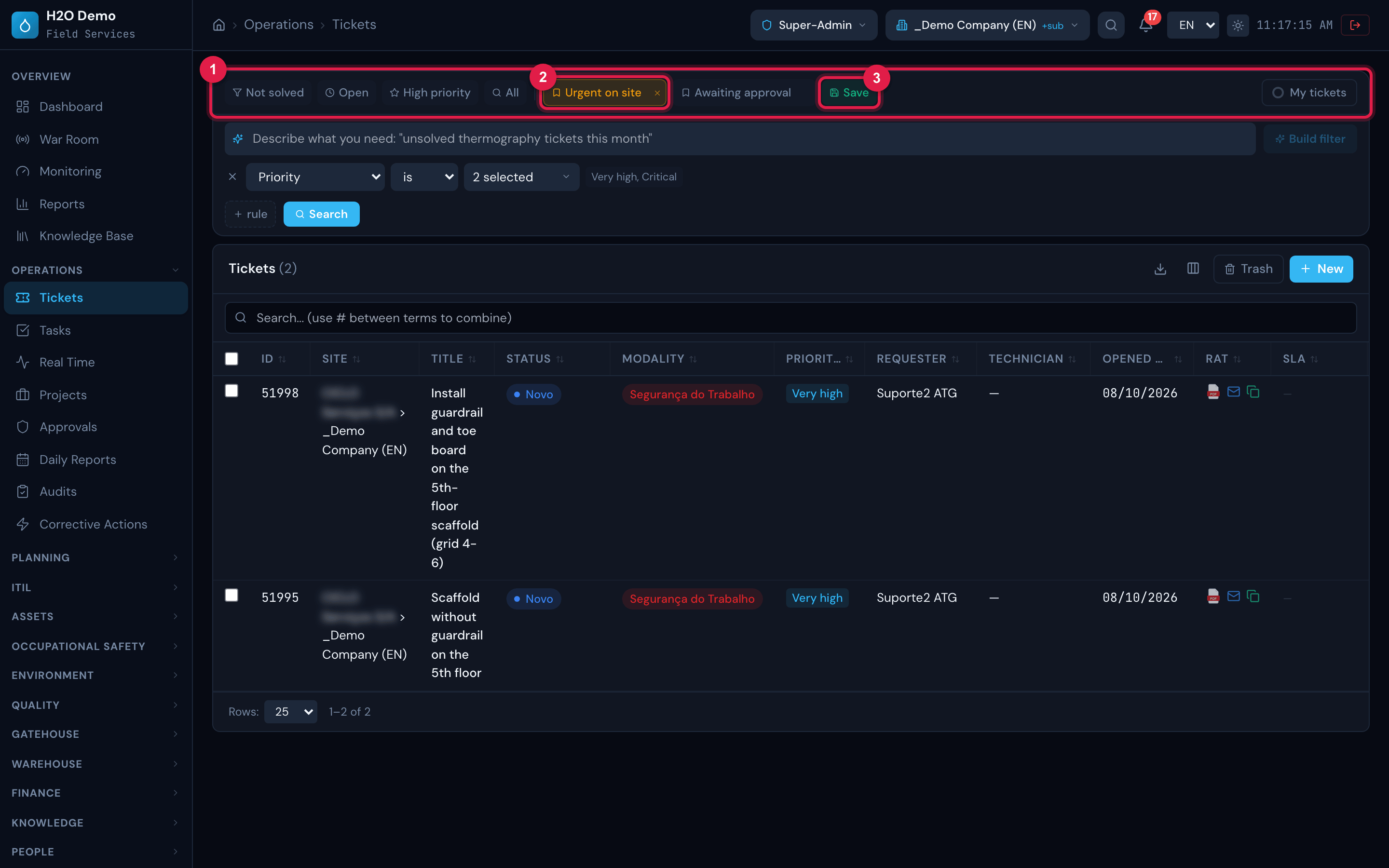
Figure 20. Tickets list with two saved filters: the ready-made shortcuts (Not solved, Open, High priority, All), the saved filters Urgent on site (applied, with the X showing on mouse-over) and Awaiting approval, and the green Save button.
- 1Ready-made shortcuts.
- 2Saved filters — click to apply; the X appears when you hover.
- 3Save — keeps the current filter.
Was this page helpful?
Thanks for the feedback!
Got it — we will improve this page.