
The site record
Manual — Companies and hierarchy · chapter 5 of 9
The record gathers everything H2O keeps about the site. At the top are the name, the number (#), the Level, the CNPJ and, below, the full name; on the right, Edit and Delete (chapter 7), depending on your profile. The tabs are Info, Sub-sites, Documents, Notes, Users, Assets, History and Statistics.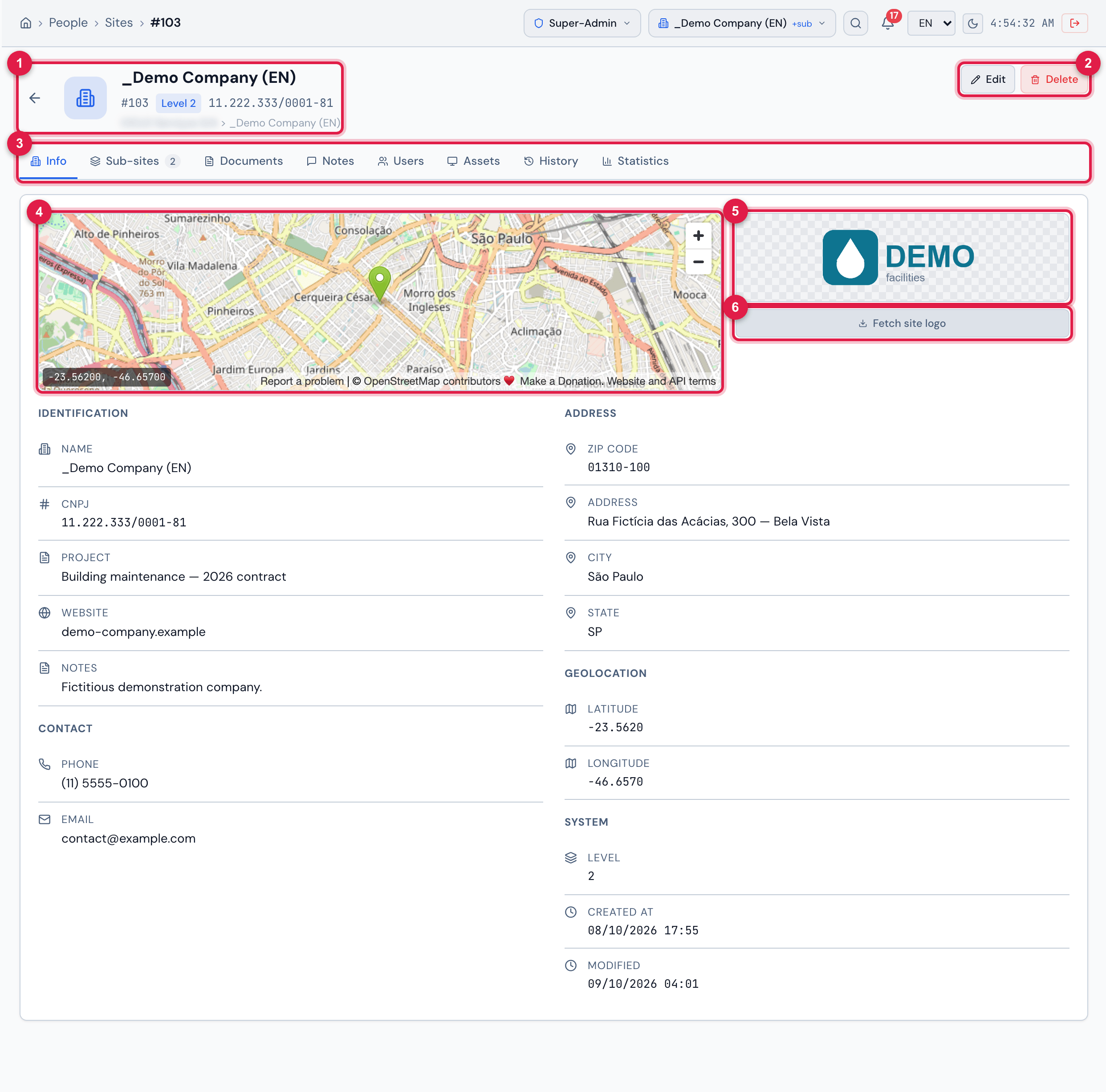
Figure 6. Site record, Info tab: the map with the point of the coordinates, the logo box with Fetch site logo and the data in Identification, Contact, Address, Geolocation and System.
- 1Header: name, # number, Level, CNPJ and, when it differs from the name, the full name.
- 2Edit and Delete.
- 3The record tabs; Sub-sites shows how many sites are directly below.
- 4Map — appears with latitude and longitude; without them, No geolocation.
- 5Logo — click to upload an image.
- 6Fetch site logo — tries to bring the logo from the Website.
Info, map and logo
Section titled “Info, map and logo”- The Info tab shows only the filled-in fields. System holds the Level, Created at and Modified.
- The map uses the latitude and longitude of the record, with the coordinates written in the corner.
- Logo: click the box (the camera icon appears on mouse-over) and choose a JPG, PNG, GIF, WEBP or SVG image of up to 2 MB. Above that, H2O warns Maximum 2MB. When saved, Logo updated appears. Uploading requires the Create level: without it, the box only shows the logo.
- Fetch site logo looks for the logo using the site’s Website address. Without a website, it warns Enter the website to fetch the logo; if nothing is found, Not found. Sometimes what comes back is only the site’s small icon (the one on the browser tab): check it and, if needed, upload a better image. The button only appears with the Edit or Create level.
| Logo of… | Where it appears |
|---|---|
| Root | on the sign-in screen (when the company has no other logo configured), in the Excel and PDF exports of the lists, on the public QR pages and in the header of the PDF reports |
| Each site | on the QR labels of the assets of that site (without a logo on the site, the Root’s applies) and in the client box of the ticket and task PDFs |
Sub-sites
Section titled “Sub-sites”The Sub-sites tab lists the sites directly below this one (one level only), with ID, Name, CNPJ, City and Sub — how many sites each one has below it. Click a row to open the sub-site record. The New Sub-site button creates a site down here (chapter 4); it only appears with the Create level.
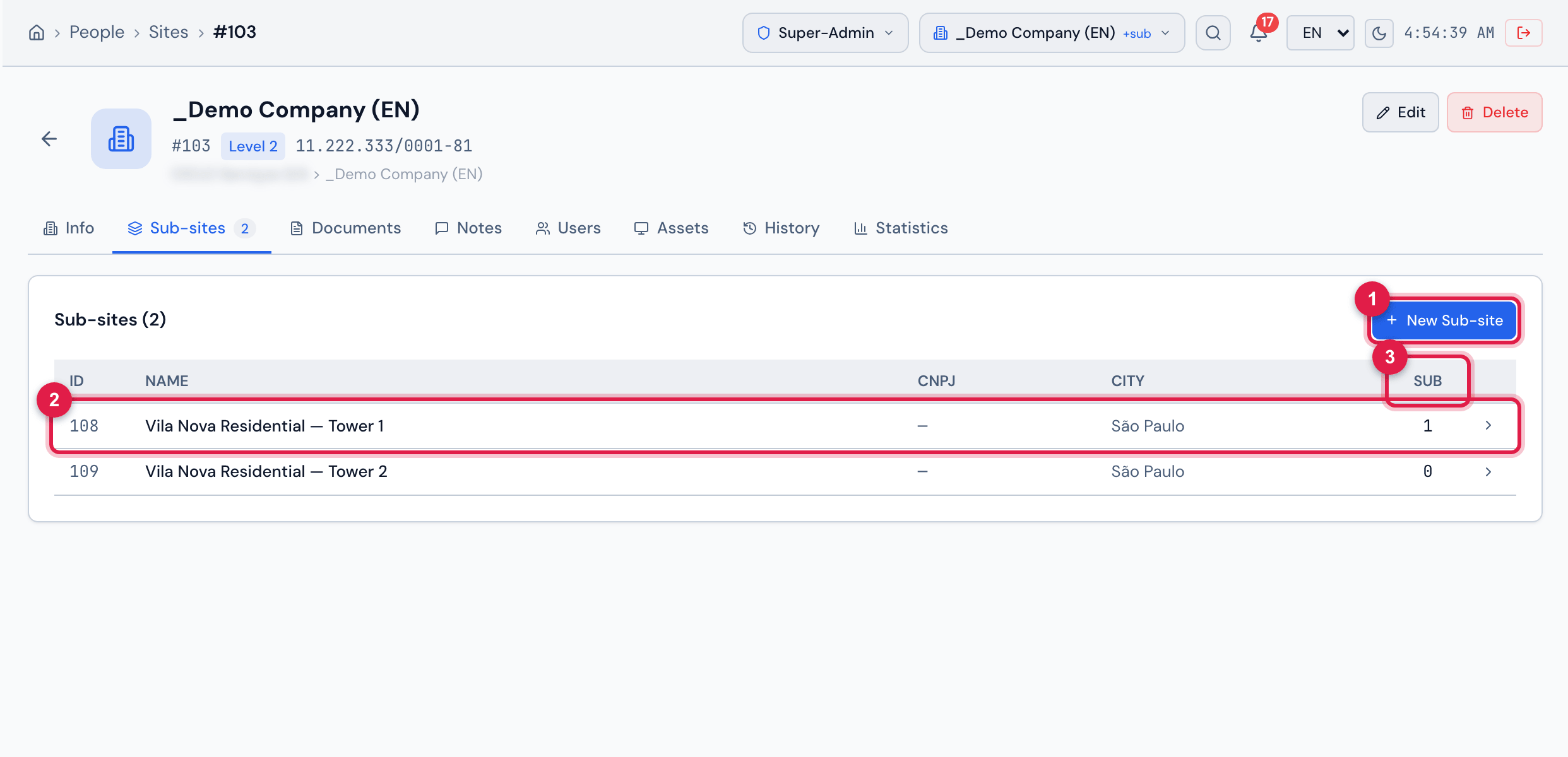
Figure 7. Sub-sites tab of the record: the sites of the level below, with the Sub column, and the New Sub-site button.
- 1New Sub-site.
- 2A sub-site — click to open its record.
- 3Sub — how many sites are below this sub-site.
Free messages about the site — access hours, front-desk contact, keys. Type in Write a note… and click Add; Note added appears. The field only appears with the Create level. Each note shows the author and the date. The trash icon removes the note after Remove this note?; it only appears with the Trash level. Notes cannot be edited: to correct one, remove it and write it again.
The Users tab lists who has an assignment directly on this site, with ID, Name, Login, Profile and Status (Active / Inactive). Someone with two profiles on the site appears on one row per profile. Someone who reaches the site through a recursive assignment on a site above does not appear here. Click a row to open the user record.
Assets
Section titled “Assets”The Assets tab lists the assets registered on this site, of all types, with name, type and serial — at the top, N asset(s) at this site and the refresh button. Click an asset to open its record. Without assets: No assets at this site.
- Only the assets of the site itself are included, without the deleted ones: those of the sub-sites are in the record of each sub-site (or in the Assets menu, with Site + sub-sites in the header).
- The tab uses the profile’s Computers right (the same one that loads the menu of asset types): without Read in Computers, it appears empty.
History
Section titled “History”The History tab shows the last 100 changes to the site, with who made them and when: the creation, changes to Name, Notes (recorded as “Comentário”), Address, City, State, Country, Phone, Email, Website, CNPJ, Latitude and Longitude, the logo change and documents and notes being added and removed. Changes to the other fields (such as ZIP Code, Registration, Project, Fax and Altitude) are saved but do not go into the history.
Statistics
Section titled “Statistics”The Statistics tab adds up the site and every site below it, at any level:
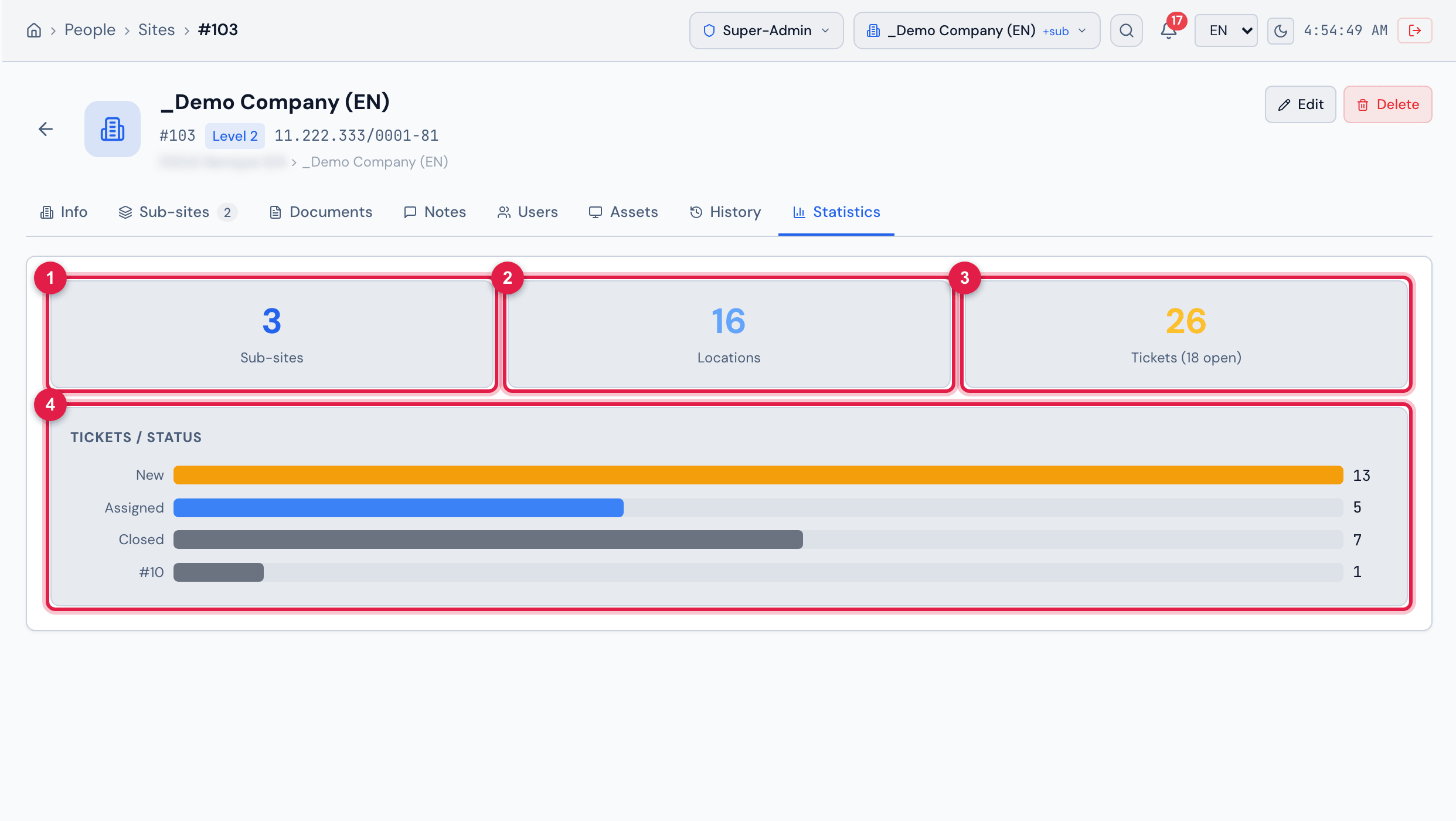
Figure 8. Statistics tab: the Sub-sites, Locations and Tickets boxes (with the open ones) and the Tickets / Status bars — in the picture, 3 sub-sites, 16 locations and 26 tickets, 18 of them open.
- 1Sub-sites — all the sites below, at any level.
- 2Locations — those of the site and of the sub-sites.
- 3Tickets — those of the site and of the sub-sites, without the deleted ones; in parentheses, the open ones.
- 4Tickets / Status — how many in each status.
- The Sub-sites number on the Statistics tab counts all levels; the number next to the name of the Sub-sites tab counts only the level below.
- Open tickets are those in New, Assigned, Planned or Pending.
Was this page helpful?
Thanks for the feedback!
Got it — we will improve this page.