
Activities
Manual — PMOC · chapter 6 of 10
The activities are the heart of the PMOC: what is done, how often, on which equipment and based on what. H2O brings the 15 default activities of MS Ordinance 3,523/1998 (Annex I) and RE 09/2003, created in one click; the company adjusts, deactivates or adds its own. Each activity has a task template — the checklist the technician answers — and it is the template that dictates the periodicity in the schedule.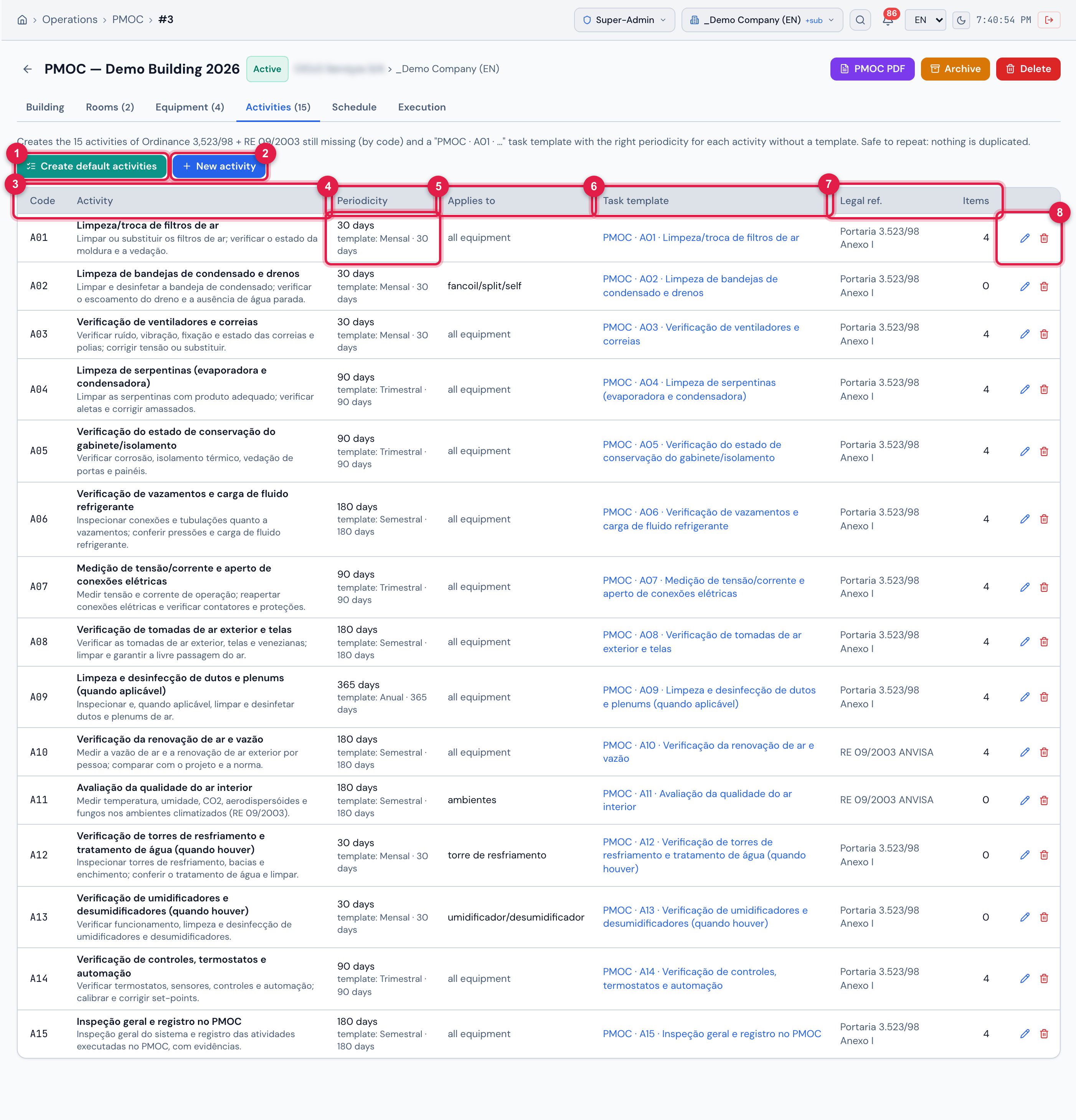
Figure 11. The Activities tab with the 15 default activities, each one linked to its PMOC · A0n · … template.
- 1Create default activities — creates the missing ones of the 15, by code, and the task templates.
- 2New activity — an activity of the company.
- 3The columns Code and Activity (with the description below; the Inactive badge when deactivated).
- 4Periodicity: the days of the activity and, below, template: … — the periodicity of the task template, the one that counts in the schedule. In amber when the two differ.
- 5Applies to: all equipment, the filter terms (“fancoil/split/self”) or “ambientes” (rooms).
- 6Task template — link to the template.
- 7Legal ref. and Items — how many equipment × activity pairs the schedule has already generated (chapter 7).
- 8The pencil (Edit activity) and the trash can (Remove activity).
The 15 default activities
Section titled “The 15 default activities”These are the activities that Create default activities registers, with the periodicity and the equipment filter of origin. The names are created in Portuguese (as the screen shows them — in italics below) and the PDF prints them translated while they are still the default ones. Everything is editable afterwards:
| Code | Activity | Periodicity | Applies to | Legal ref. |
|---|---|---|---|---|
| A01 | Air filter cleaning/replacement (Limpeza/troca de filtros de ar) | 30 days | all equipment | Portaria 3.523/98 Anexo I |
| A02 | Condensate tray and drain cleaning (Limpeza de bandejas de condensado e drenos) | 30 days | fancoil/split/self | Portaria 3.523/98 Anexo I |
| A03 | Fan and belt check (Verificação de ventiladores e correias) | 30 days | all equipment | Portaria 3.523/98 Anexo I |
| A04 | Coil cleaning (evaporator and condenser) (Limpeza de serpentinas (evaporadora e condensadora)) | 90 days | all equipment | Portaria 3.523/98 Anexo I |
| A05 | Cabinet/insulation condition check (Verificação do estado de conservação do gabinete/isolamento) | 90 days | all equipment | Portaria 3.523/98 Anexo I |
| A06 | Leak check and refrigerant charge (Verificação de vazamentos e carga de fluido refrigerante) | 180 days | all equipment | Portaria 3.523/98 Anexo I |
| A07 | Voltage/current measurement and electrical connection tightening (Medição de tensão/corrente e aperto de conexões elétricas) | 90 days | all equipment | Portaria 3.523/98 Anexo I |
| A08 | Outdoor air intake and screen check (Verificação de tomadas de ar exterior e telas) | 180 days | all equipment | Portaria 3.523/98 Anexo I |
| A09 | Duct and plenum cleaning and disinfection (when applicable) (Limpeza e desinfecção de dutos e plenums (quando aplicável)) | 365 days | all equipment | Portaria 3.523/98 Anexo I |
| A10 | Air renewal and airflow check (Verificação da renovação de ar e vazão) | 180 days | all equipment | RE 09/2003 ANVISA |
| A11 | Indoor air quality assessment (Avaliação da qualidade do ar interior) | 180 days | ambientes (rooms) | RE 09/2003 ANVISA |
| A12 | Cooling tower and water treatment check (when present) (Verificação de torres de resfriamento e tratamento de água (quando houver)) | 30 days | torre de resfriamento | Portaria 3.523/98 Anexo I |
| A13 | Humidifier and dehumidifier check (when present) (Verificação de umidificadores e desumidificadores (quando houver)) | 30 days | umidificador/desumidificador | Portaria 3.523/98 Anexo I |
| A14 | Controls, thermostats and automation check (Verificação de controles, termostatos e automação) | 90 days | all equipment | Portaria 3.523/98 Anexo I |
| A15 | General inspection and PMOC record (Inspeção geral e registro no PMOC) | 180 days | all equipment | Portaria 3.523/98 Anexo I |
Each default activity comes with a description of what to check (e.g. A02 — “Limpar e desinfetar a bandeja de condensado; verificar o escoamento do dreno e a ausência de água parada.” — clean and disinfect the condensate tray; check the drain flow and the absence of standing water), which goes to the body of the task template and is shown to the technician.
Create default activities
Section titled “Create default activities”- On the Activities tab, click Create default activities.
- Confirm: Create the missing default activities in this PMOC (and the matching task templates)?
- Read the result: {n} activity(ies) created, {t} task template(s) created.
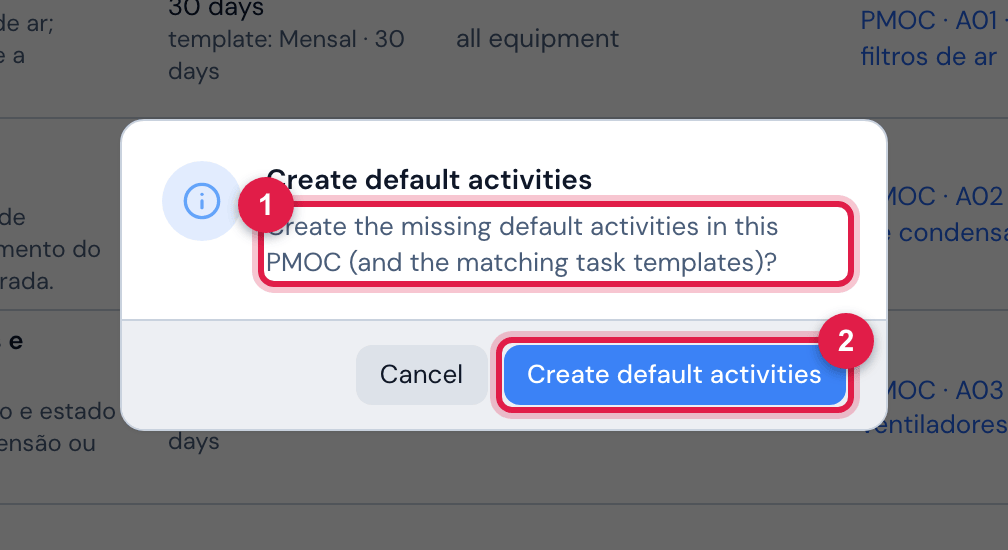
Figure 12. The confirmation of Create default activities.
- 1The confirmation text.
- 2Create default activities confirms; Cancel creates nothing.
- The button creates only the ones that are missing, by code (A01…A15). The ones that already exist — even edited — are not touched. You can click again without fear: nothing is duplicated.
- Deleted A07 by mistake? Click again: only that one comes back, with the original values.
- For each PMOC activity without a template (default or your own), H2O looks for a template named PMOC · <code> · <name> in the company; if it does not exist, it creates one with the right periodicity and links it to the activity. An activity that already has a chosen template does not change.
The task template created by the PMOC
Section titled “The task template created by the PMOC”The template PMOC · A01 · Limpeza/troca de filtros de ar is born like this:
| In the template | Value |
|---|---|
| Name | PMOC · <code> · <activity name> |
| Periodicity | the activity’s, translated into the Automatic Scheduling key: 30 days → Monthly, 90 → Quarterly, 180 → Semi-annual, 365 → Annual; any other value → Custom with the days |
| Content | the activity description and “Ref.: <legal reference>” |
| Site | the PMOC’s, recursive (the sites below see it) |
| Duration | 1 hour |
| Checklist items | in the cleaning activities (A01, A02, A04, A09 and any other with “limpeza” in the name): two items with Photo required — Registro fotográfico ANTES da limpeza (photo record BEFORE cleaning) and Limpeza executada — registro fotográfico DEPOIS (cleaning done — photo record AFTER). In the others, no item: add your own. |
Creating and editing an activity
Section titled “Creating and editing an activity”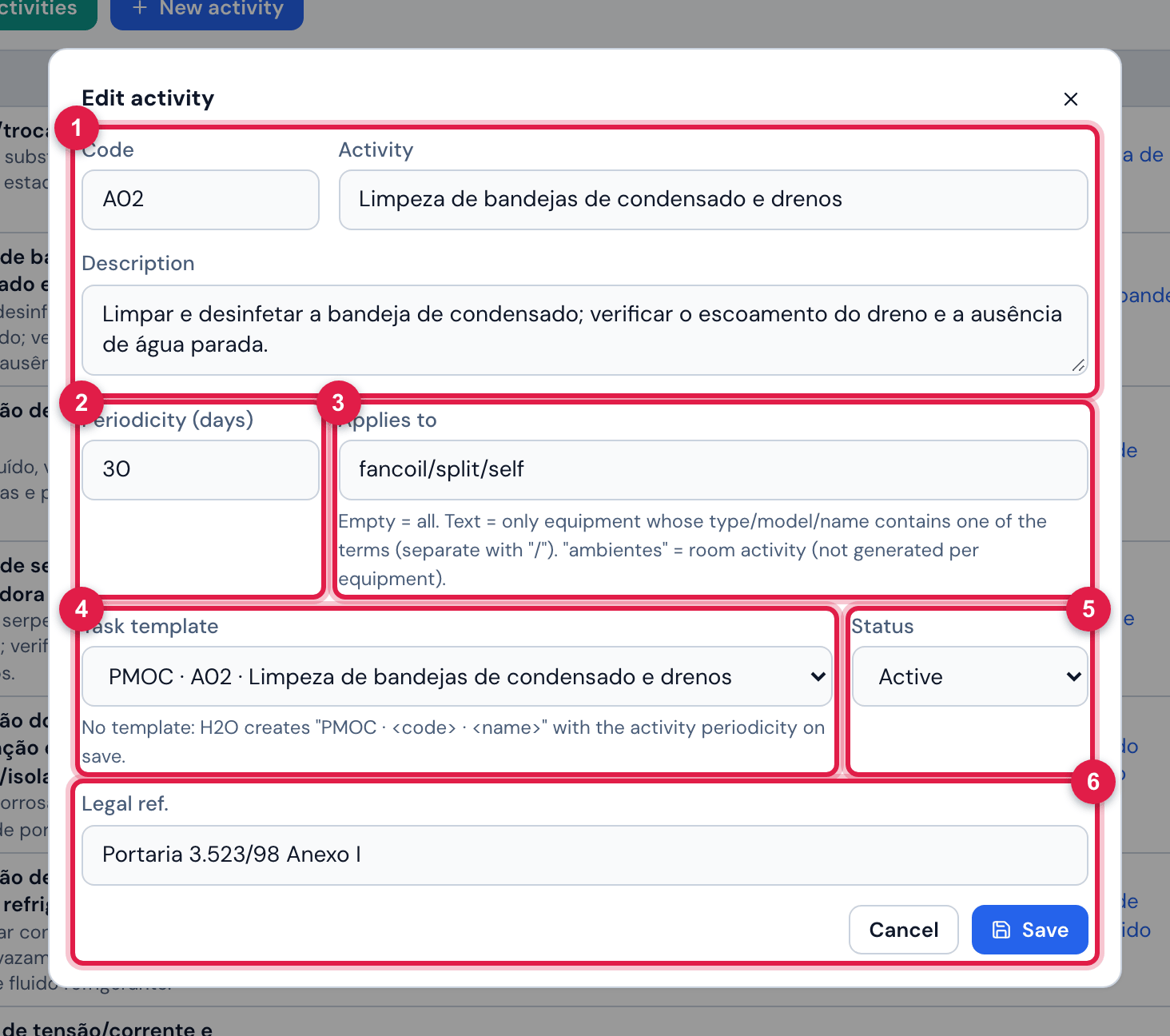
Figure 13. The Edit activity window of A02 · Limpeza de bandejas de condensado e drenos.
- 1Code (up to 20 characters) and Activity (required); below, Description.
- 2Periodicity (days) — from 1 to 3650.
- 3Applies to with the hint: Empty = all. Text = only equipment whose type/model/name contains one of the terms (separate with “/”). “ambientes” = room activity (not generated per equipment).
- 4Task template — the templates of the site (with the periodicity in parentheses when the template belongs to the site itself); — lets H2O create it: No template: H2O creates “PMOC · <code> · <name>” with the activity periodicity on save.
- 5Status: Active or Inactive.
- 6Legal ref. (up to 120 characters) and Save.
| Field | What it does |
|---|---|
| Code | the short code that identifies the activity in the table, in the schedule and in the PDF (A01…). For your own, use another series — “E01”, “C01” — so as not to collide with the default. |
| Activity and Description | the name and what to check; the description goes to the body of the created template. |
| Periodicity (days) | the periodicity declared in the plan (printed in the PDF). The one that counts in the schedule is the template’s — see below. |
| Applies to | the equipment filter: empty = all; terms separated by “/” = only the equipment whose type, model or name contains one of them, regardless of case (“torre de resfriamento”; “fancoil/split/self”); ambientes = room activity, with no ticket per equipment. |
| Task template | the checklist. Empty: H2O creates PMOC · <code> · <name> on save (or reuses one with that name). |
| Status | Inactive keeps the activity in the plan and in the PDF (marked “inactive”), but takes it out of the schedule: on the next generation its items are deactivated and the still-only-planned tickets go to the trash (chapter 7). |
| Legal ref. | free text: “Portaria 3.523/98 Anexo I”, “RE 09/2003 ANVISA”, “NBR 16401-3”, “manufacturer’s manual”… |
Activity periodicity × template periodicity
Section titled “Activity periodicity × template periodicity”The schedule is generated by Automatic Scheduling, and it reads the periodicity of the task template, not of the activity. That is why the Periodicity column shows both values: the days of the activity and, below, template: Monthly · 30 days. When they differ — the activity says 30 days, but someone chose a quarterly template — the row warns in amber: The effective periodicity in the schedule is the template one (90 days); the activity says 30 days. Adjust the template or the activity.
- Changed the periodicity of an activity that already has a template? The template does not change by itself. Edit the template in Knowledge › Templates — or switch the activity to a template with the right periodicity.
- Changed the activity’s template? Click Generate schedule again: the items start pointing to the new template (template updated). The tickets already generated stay as they are — replan them on the schedule page if needed (manual Automatic Scheduling, chapter 6).
- A template without periodicity (an ordinary, non-preventive template): the schedule generates nothing for it. Choose a template with periodicity or let H2O create its own.
Removing an activity
Section titled “Removing an activity”The trash can asks for confirmation — Remove activity “…”? Its schedule items are deactivated on the next generation. — and takes the activity out of the plan. The tickets already executed stay; the schedule items are only deactivated when someone clicks Generate schedule again (chapter 7). To stop generating without losing the activity from the PDF, prefer Inactive.
Was this page helpful?
Thanks for the feedback!
Got it — we will improve this page.