
Registering a location
Manual — Locations and calendars · chapter 4 of 9
There are two ways: New Location, at the top of the Locations screen, with all the fields; and New Sub-location, in a location record, which creates a child of it with name, building and room only. Both require the Create level of the Locations right. The ticket and asset pickers can also register locations on the spot (chapter 1).New Location
Section titled “New Location”- In Configuration › Locations, click New Location.
- Type the Name (required).
- In Parent location, leave — Root (no parent) — for a top-level location, or choose the location the new one will sit in. The list shows the full paths of the locations within your reach.
- Fill in Building and Room if you wish, and tick Visible in sub-sites (recursive) if the location should also appear in the sites below.
- In Address and Geolocation, fill in what makes sense; in Notes, any comment.
- Click Create (only enabled with the name filled in). Location created appears and the location record opens.
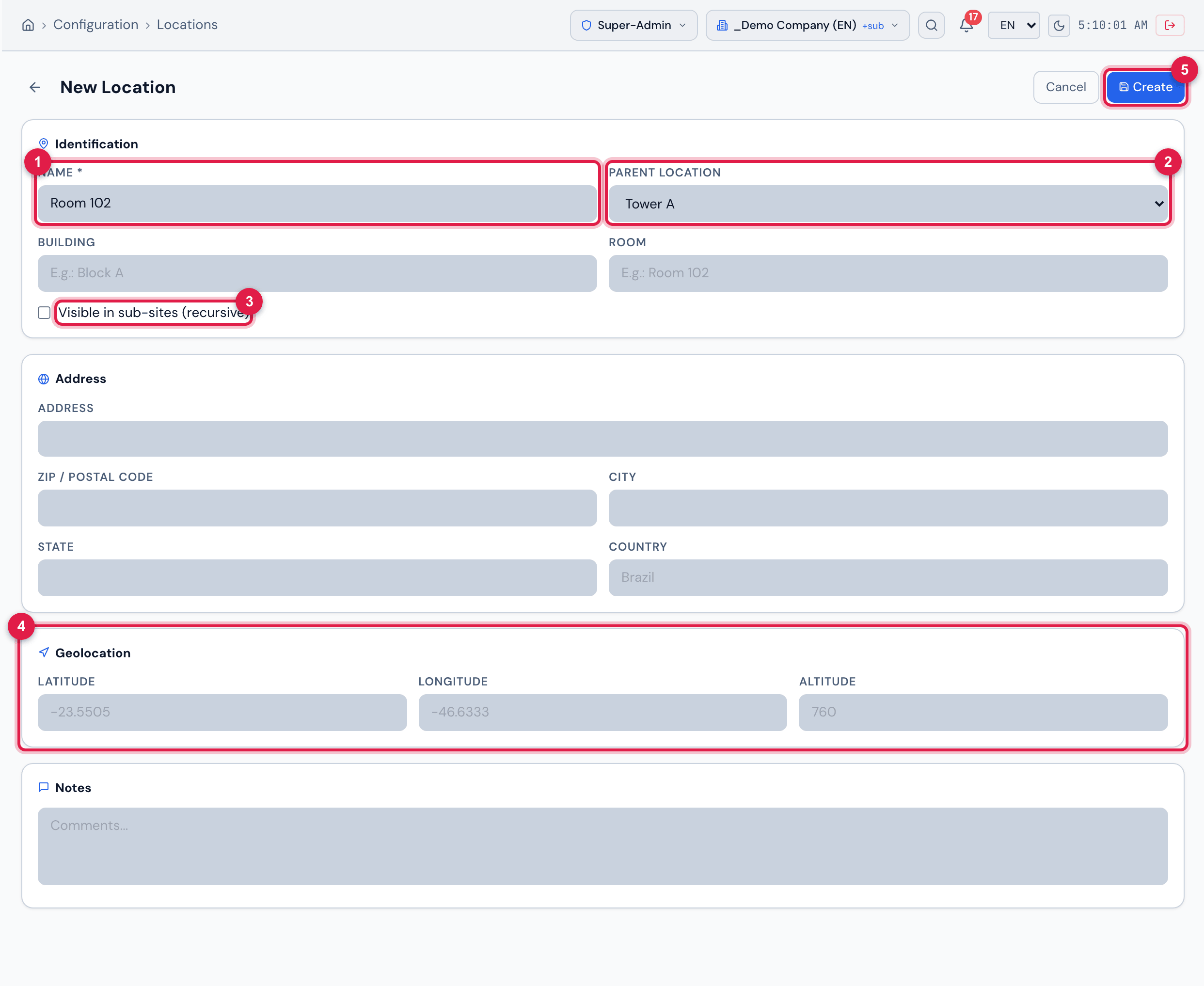
Figure 5. New Location page: in Identification, Name, Parent location, Building, Room and the Visible in sub-sites (recursive) box; below, Address (Address, ZIP / Postal code, City, State, Country), Geolocation (Latitude, Longitude, Altitude) and Notes; at the top, Cancel and Create.
- 1Name — required.
- 2Parent location — — Root (no parent) — or the location above.
- 3Visible in sub-sites (recursive).
- 4Geolocation — with latitude and longitude, the record shows the map.
- 5Create.
- Building and Room are free text (e.g. “Block A”, “Room 102”) and appear as columns in the tree and in the list.
- Unlike the site record, there is no ZIP code or coordinates lookup here: type latitude and longitude (e.g. copy them from a map).
- If the Parent location is a recursive location of a site above that you do not reach, the new location goes into the site in the header when that site above is the Root; in the other cases, H2O refuses with Error creating — choose a parent from your own site.
New Sub-location
Section titled “New Sub-location”- Open the record of the location that will be the parent and click the Sub-locations tab.
- Click New Sub-location.
- Type the Name and, if you wish, Building and Room.
- Click Create. Sub-location created appears and the list of the tab is refreshed.
- The sub-location is created in the same site as the parent location, whatever the site in the header.
- It is created without the recursive mark and without an address: to complete it, open its record and use Edit (chapter 6).
Was this page helpful?
Thanks for the feedback!
Got it — we will improve this page.