
Activating and generating the schedule
Manual — PMOC · chapter 7 of 10
With the building, the technical manager, the rooms and the activities in place, two clicks remain: Activate PMOC, which makes it the site’s current plan, and Generate schedule, which creates the Automatic Scheduling schedule and puts the preventive tickets on the calendar. The order between the two does not matter to H2O — you can generate the schedule of a draft — but the natural flow is to activate first.Activate PMOC
Section titled “Activate PMOC”Each site has one active PMOC. Activate PMOC appears in the header of every PMOC that is not active (draft or archived) for whoever has Edit in Maintenance plans.
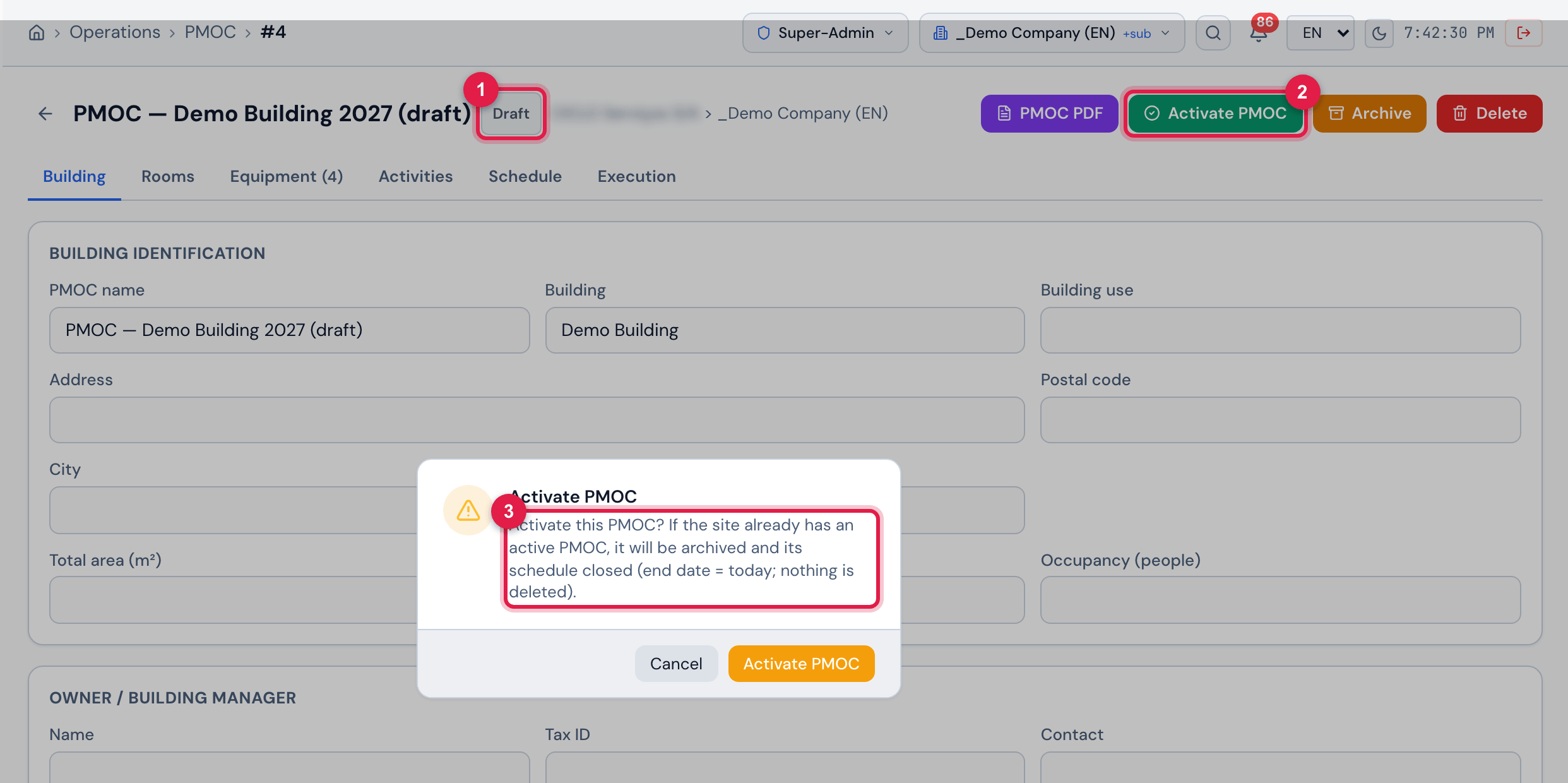
Figure 14. The draft PMOC — Demo Building 2027 (draft) with the Activate PMOC confirmation open.
- 1The Draft badge in the header.
- 2The Activate PMOC button (emerald green), next to PMOC PDF, Archive and Delete.
- 3The confirmation: Activate this PMOC? If the site already has an active PMOC, it will be archived and its schedule closed (end date = today; nothing is deleted).
- If the site did not have an active PMOC: the PMOC becomes Active — message PMOC activated.
- If it had: the previous one becomes Archived and its schedule is closed — the end date becomes today (if it was still in the future) and the status becomes Finished. Message PMOC activated; the previous one was archived and its schedule closed.
- Nothing is deleted: the tickets already generated by the closed schedule stay on the agenda and in the executions of the archived PMOC. The ones that should no longer happen, cancel them on the schedule page or in the ticket list.
Generate schedule
Section titled “Generate schedule”The Schedule tab explains in one sentence what is going to happen: PMOC execution uses Automatic Scheduling: one site schedule with one item per equipment × applicable activity. Each item periodicity is the task template one. Generating again does not duplicate: it only adds what is missing, updates a changed template and deactivates what left.
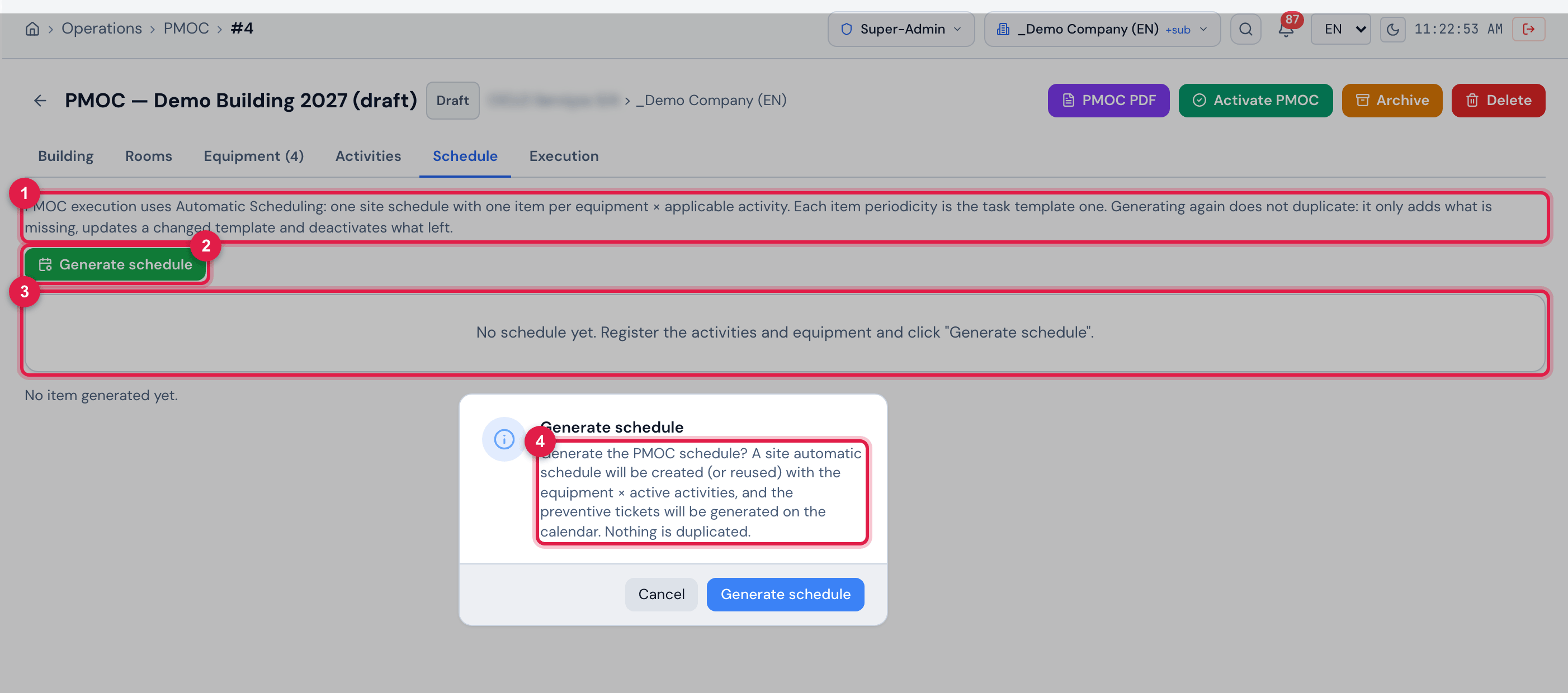
Figure 15. The Schedule tab of a PMOC still without a schedule, with the Generate schedule confirmation open.
- 1The introduction text of the tab.
- 2Generate schedule (green) — only with Edit in Maintenance plans.
- 3No schedule yet. Register the activities and equipment and click “Generate schedule”.
- 4The confirmation: Generate the PMOC schedule? A site automatic schedule will be created (or reused) with the equipment × active activities, and the preventive tickets will be generated on the calendar. Nothing is duplicated.
What the first generation does:
| Step | Detail |
|---|---|
| 1. creates the schedule | an Automatic Scheduling schedule of the site named PMOC · <PMOC name>, with the comment “PMOC #id — building” |
| 2. sets the horizon | start = the Start of the validity (empty: today); end = the End of the validity. Without an end, 12 months after the start, with the warning PMOC without a validity end date: the schedule runs 12 months from the start. |
| 3. chooses the calendar | the PMOC’s Schedule calendar; otherwise the site’s or the sites above; otherwise the company’s first one. With none: No calendar registered… Nothing was generated. |
| 4. creates one item per pair equipment × activity | for each active, equipment activity (Applies to ≠ “ambientes”) with a template, and for each piece of equipment of the inventory that the Applies to matches: one item with the asset, the activity template and the preferred day 10 of each month |
| 5. generates the tickets | the preventive tickets of the whole horizon, by the template periodicity, on the working days of the calendar — in one go, with no second button |
| 6. keeps the link | each pair becomes a row of the tab’s table, linked to the schedule item — it is through it that the Execution tab and the PDF know which ticket belongs to which activity |
The card and the result after generating:
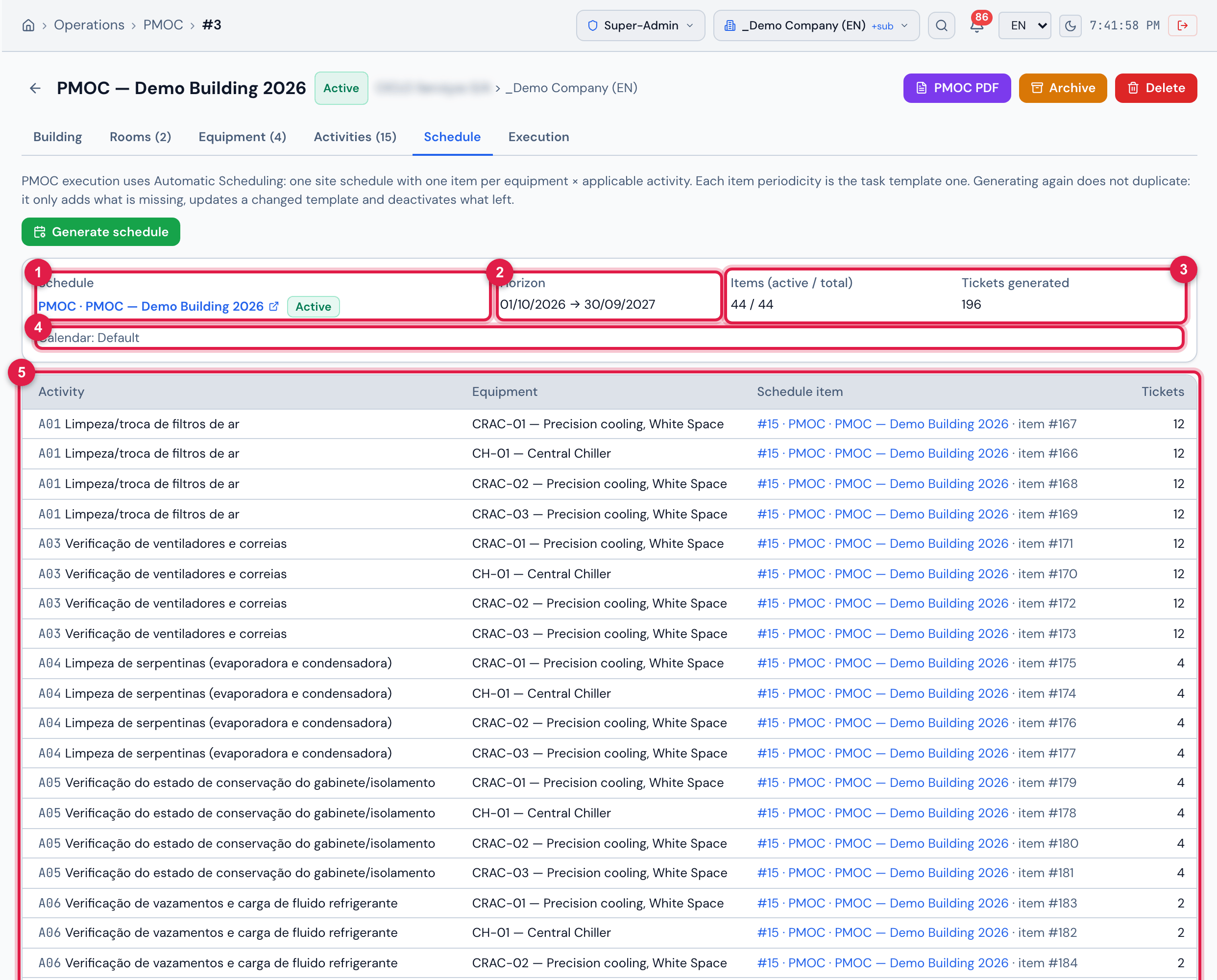
Figure 16. The Schedule tab of the Demo Building PMOC: schedule #15, active, with 44 items and 196 tickets, and the table of the pairs.
- 1The schedule card: the name PMOC · PMOC — Demo Building 2026 (link Open schedule) and the status — Active, Paused, Finished or Cancelled.
- 2Horizon — start → end of the schedule.
- 3Items (active / total) and Tickets generated.
- 4Calendar — the working-day calendar used.
- 5The table Activity × Equipment × Schedule item (the schedule number, the name and the item; inactive when deactivated) × Tickets (how many that item generated).
Generating again
Section titled “Generating again”Generate schedule can be clicked as many times as needed — after adding a split unit, creating an activity, changing a template or deactivating an activity. The schedule is the same one (reused) and each pair falls into one of the boxes of the result:
| Result | When | What happens to the tickets |
|---|---|---|
| new | equipment × activity pair that had no item yet | the item is created and the tickets generated from today to the end of the horizon |
| already existed | pair with an active item and the same template | nothing changes |
| template updated | the activity changed template | the item starts pointing to the new template; the tickets already generated stay as they are |
| reactivated | pair that was deactivated and is valid again (activity reactivated, “Applies to” that matches again) | the item becomes active again and generates its tickets from today onwards |
| deactivated | Inactive or removed activity; equipment that left the site or stopped matching the “Applies to” | the item becomes inactive and the tickets still only planned go to the trash; the ones already assigned, in progress or executed stay |
| skipped | room activity · no task template · “applies to” does not match | nothing is created; the reason appears below the result |
- Changed the validity after generating? The schedule horizon does not follow: adjust the dates on the schedule page (manual Automatic Scheduling, chapter 6) — or archive and create a new PMOC for the new validity.
- Changed the Schedule calendar in the PMOC? The next generation switches the schedule’s calendar; the tickets already generated are not moved.
- The warning Could not move the planned tickets of a deactivated item to the trash. says the item was deactivated, but some planned ticket remained: cancel it on the schedule page.
The schedule and its calendar
Section titled “The schedule and its calendar”The PMOC schedule is an ordinary Automatic Scheduling schedule: Open schedule takes you to it (Planning › Automatic Scheduling), where the monthly calendar, the total cards, the hours-per-month chart and the items are. Everything the Automatic Scheduling manual describes applies here — moving a ticket to another day, cancelling a visit, pausing the schedule, deleting an item.
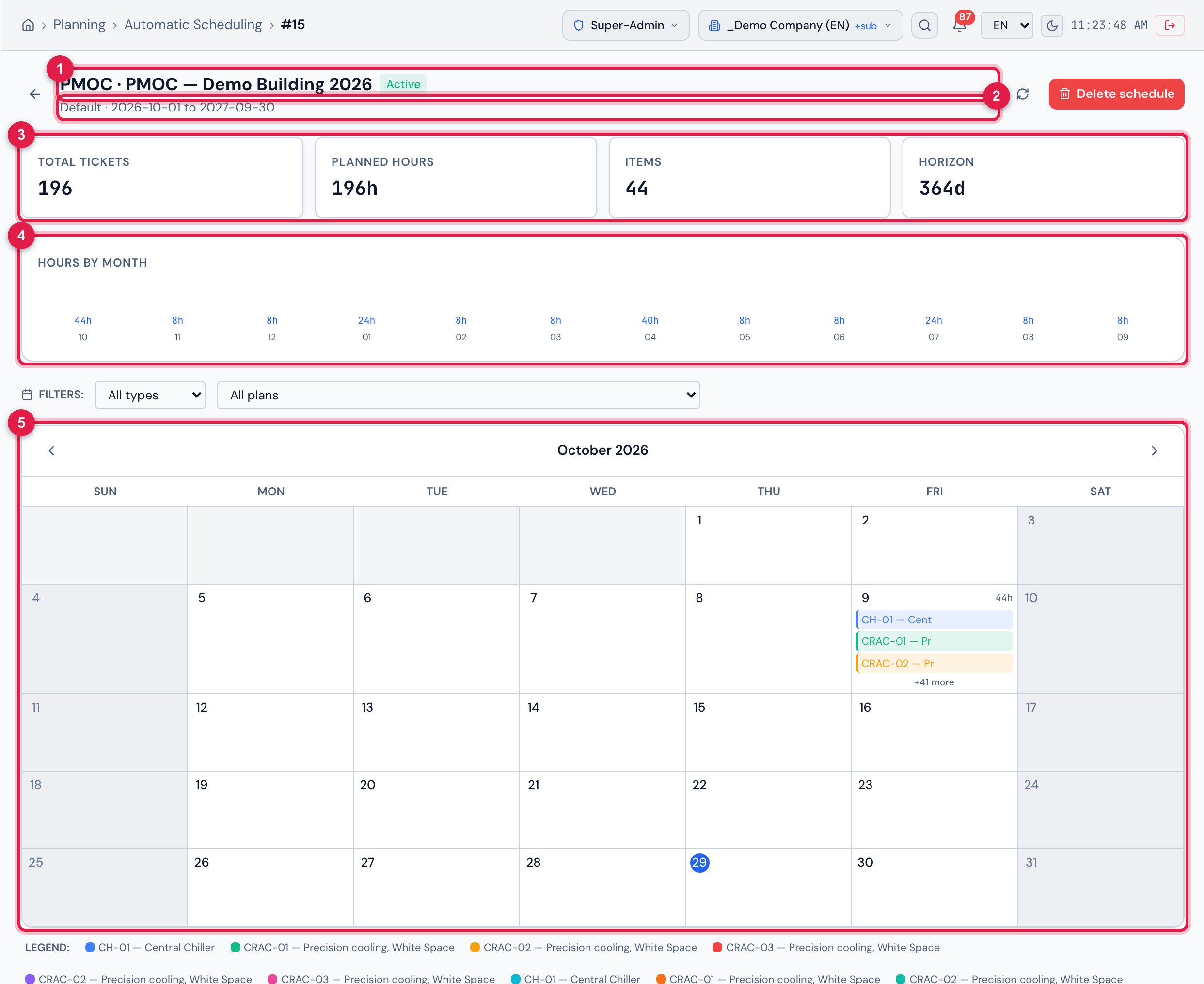
Figure 17. The schedule PMOC · PMOC — Demo Building 2026 open in Planning › Automatic Scheduling.
- 1The name PMOC · <PMOC name> and the status Active.
- 2The calendar and the period (Start to Horizon) — the same as on the card of the Schedule tab.
- 3The cards Total Tickets, Planned Hours, Items and Horizon (in days).
- 4Hours by Month — the preventive workload of the PMOC month by month; the first month already concentrates the hours of all the activities that start together.
- 5The monthly calendar: one event per ticket, on the working days of the calendar (manual Automatic Scheduling, chapter 5).
| To… | Do | Manual |
|---|---|---|
| understand the tickets generated (title “template - asset”, status Planned, preventive modality, the task with the checklist) | open a ticket of the schedule | Automatic Scheduling, chapter 4 |
| move a ticket to another day, see the hours per month | the schedule calendar | Automatic Scheduling, chapter 5 |
| cancel a visit, pause, change dates, delete an item or the schedule | the schedule page | Automatic Scheduling, chapter 6 |
| follow what was executed | the PMOC’s Execution tab (chapter 8) or the schedule | Automatic Scheduling, chapter 7 |
Archiving and deleting
Section titled “Archiving and deleting”| Button | Confirmation | What happens |
|---|---|---|
| Archive | Archive this PMOC? Its schedule will be closed (end date = today; tickets already generated remain). | status Archived; the schedule becomes Finished with end today. Message PMOC archived. Schedule closed (end date = today). The PMOC stays in the list (Archived filter), with the executions and the PDF. |
| Delete | Delete this PMOC? Rooms, activities and links stop showing; the schedule and tickets remain. | the PMOC disappears from the list. The schedule is not closed or deleted — close it beforehand (Archive) or on the schedule page. Requires Trash in Maintenance plans. |
Was this page helpful?
Thanks for the feedback!
Got it — we will improve this page.