
Accounts payable
Manual — Purchasing: orders, quotations and accounts payable · chapter 8 of 9
In Finance › Accounts payable you track what the company owes its suppliers. Each payable (CP-YYYY-NNNN) has one or more installments, and the list shows one row per installment, in due date order.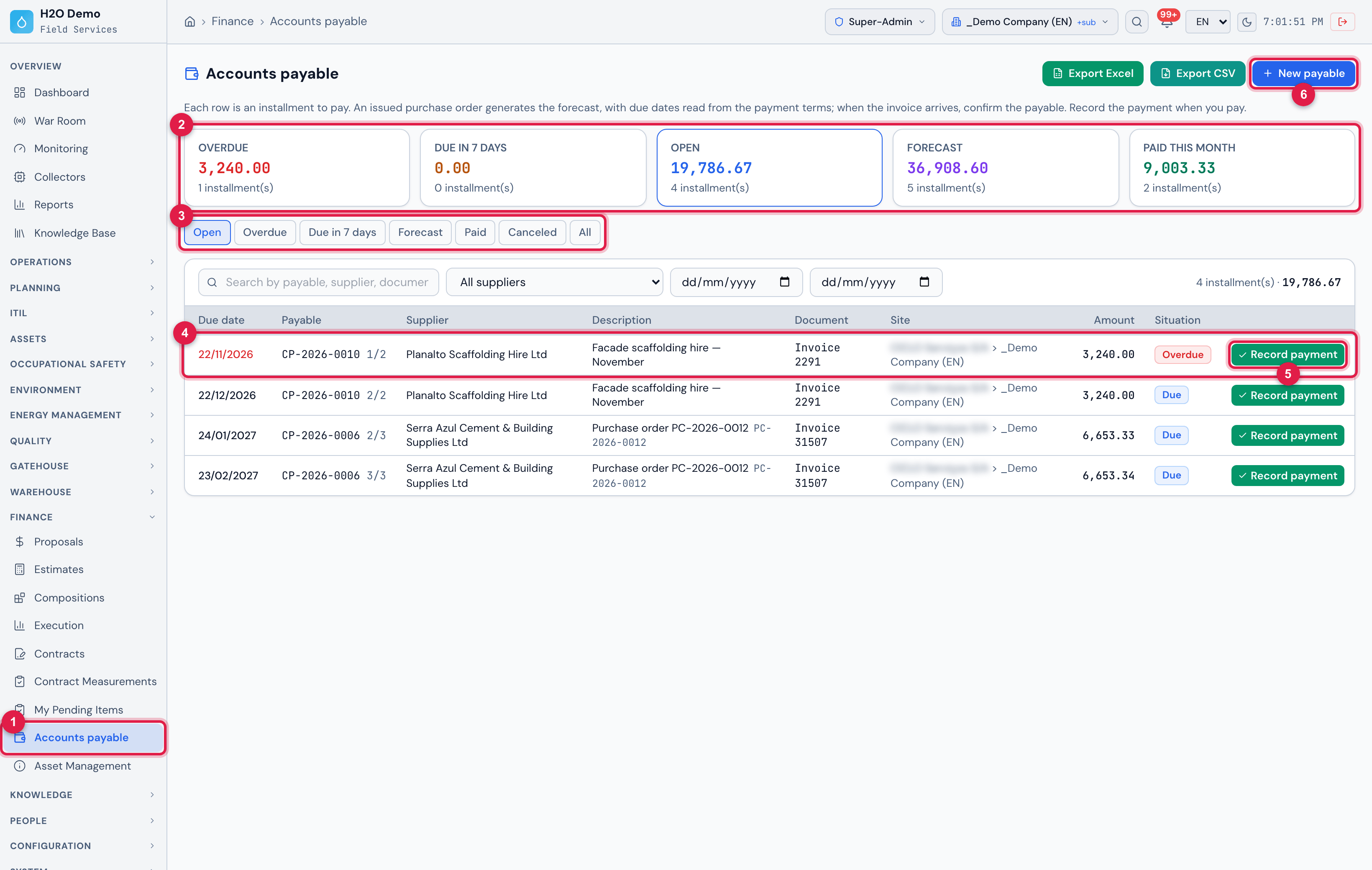
Figure 20. The Accounts payable list, on the Open tab.
- 1Accounts payable, in the Finance menu.
- 2The cards: Overdue, Due in 7 days, Open, Forecast and Paid this month, with the amount and the number of installments.
- 3The tabs: Open, Overdue, Due in 7 days, Forecast, Paid, Canceled and All.
- 4An installment: due date, payable and installment number, supplier, description, document, site, amount and situation.
- 5Record payment, on the row itself.
- 6New payable.
| Installment situation | What it means |
|---|---|
| Forecast | it came from an issued purchase order; the document has not arrived yet |
| Due | confirmed payable, due today or in the future |
| Overdue | no payment recorded and the due date has passed |
| Paid | the payment was recorded |
| Canceled | the payable was canceled |
The list has a search by payable, supplier, document or description, a supplier filter and the due date period. Export Excel and Export CSV take what is on screen.
The forecast that comes from the order
Section titled “The forecast that comes from the order”When a purchase order is issued, H2O creates a payable in Forecast, with the order amount. The installments come from the Payment terms:
| Payment terms | Installments |
|---|---|
| 30/60/90 | three equal installments, at 30, 60 and 90 days |
| 28 days | one installment, at 28 days |
| cash, or no number | one installment, on the base date |
- The base date is the order’s Expected delivery; without it, the Order date.
- While it is a forecast, the payable follows the order: if the amount, the payment terms or the expected delivery change, the installments are rebuilt.
- A canceled order cancels the forecast.
- The forecast does not go into the Open card: it has its own card and tab.
Confirming the payable
Section titled “Confirming the payable”When the invoice or the bill arrives, confirm the payable: it stops being a forecast and starts counting as an account payable.
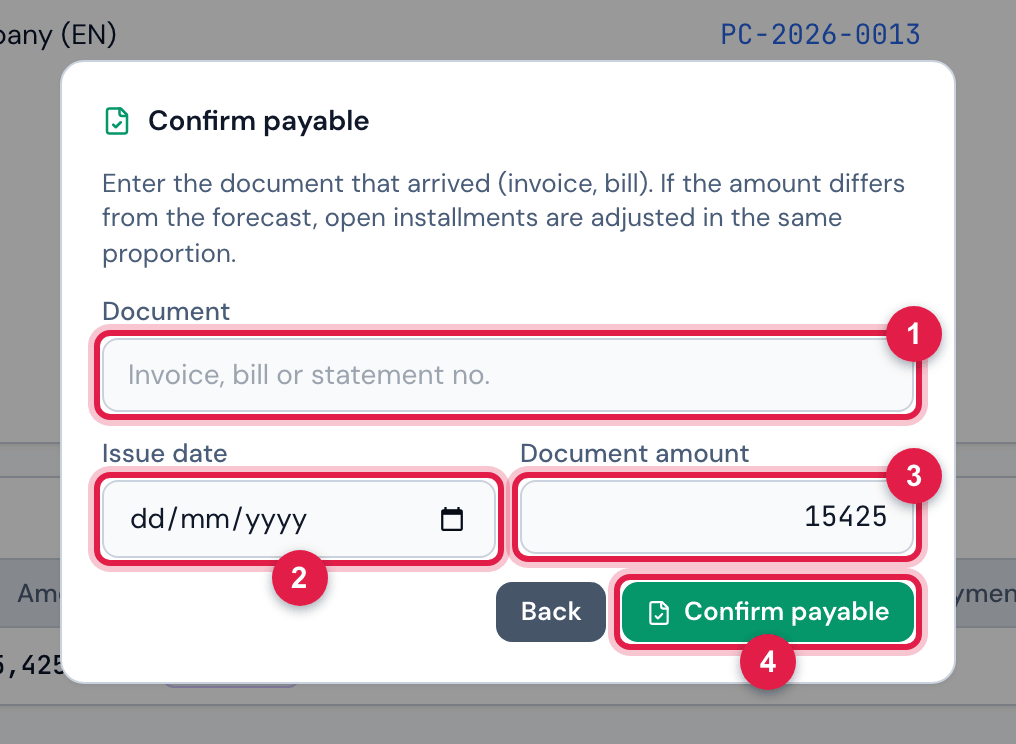
Figure 21. The Confirm payable window, opened on the record of a forecast.
- 1Document — the number of the invoice, bill or statement.
- 2Issue date.
- 3Document amount — it comes with the forecast amount; correct it if the document came different.
- 4Confirm payable.
- On the Forecast tab, click the installment to open the payable.
- Click Confirm payable.
- Enter the Document, the Issue date and, if it differs, the Document amount.
- Click Confirm payable.
If the document amount differs from the forecast, the open installments are adjusted in the same proportion. Once confirmed, the payable no longer follows the order. Recording the first payment on a forecast has the same effect.
The payable record
Section titled “The payable record”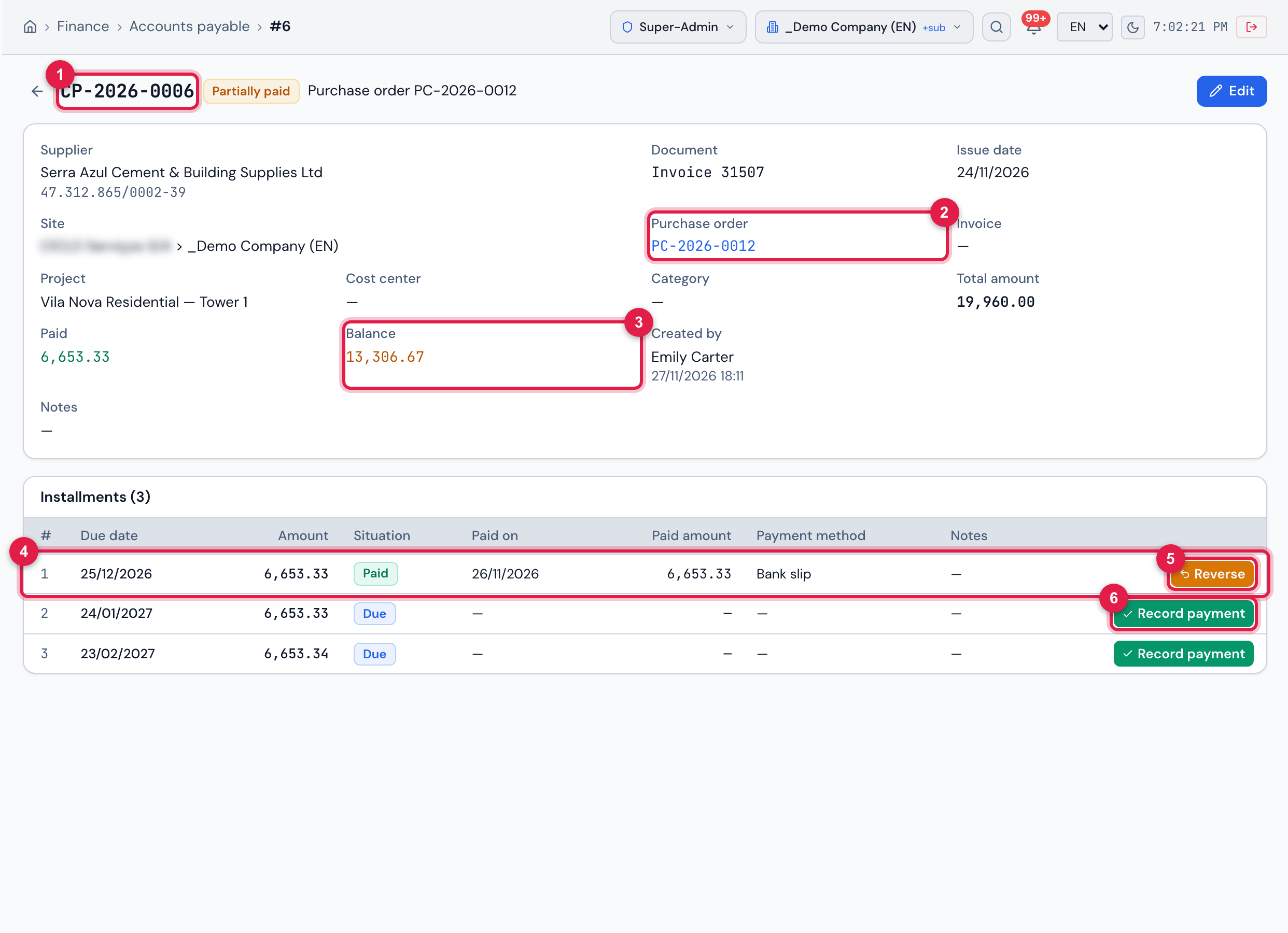
Figure 22. The record of a Partially paid payable.
- 1The payable number; next to it, the status and the description.
- 2Purchase order — the order that generated the payable; click to open it.
- 3Balance — what is left to pay.
- 4A paid installment: Paid on, Paid amount and Payment method.
- 5Reverse — undoes the payment.
- 6Record payment on an open installment.
- The payable status comes from the installments: Open with no payment, Partially paid with some, Paid with all.
- Edit changes the description, the document, the Cost center, the Category, the notes and the installments — dates, amounts and Add installment. A paid installment does not change. The payable amount is the sum of the installments.
- Cancel payable asks for the reason. Delete removes a payable created by mistake.
Recording a payment
Section titled “Recording a payment”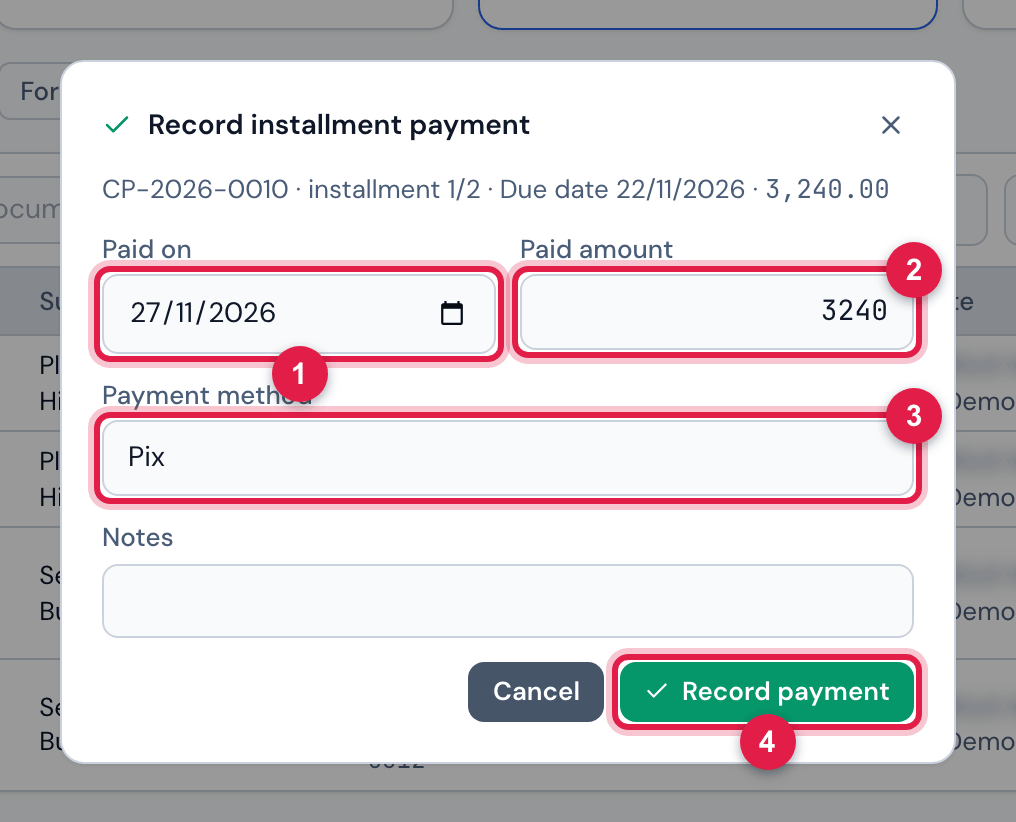
Figure 23. The Record installment payment window.
- 1Paid on — it comes with today’s date.
- 2Paid amount — it comes with the installment amount; change it if you paid with interest or a discount.
- 3Payment method — bank slip, Pix, transfer…
- 4Record payment.
The payment settles the whole installment: the situation becomes Paid and the amount goes into the Paid this month card. Recorded the payment on the wrong installment? Open the payable and click Reverse on its row.
Creating a standalone payable
Section titled “Creating a standalone payable”Not every bill comes from a purchase order — equipment hire, a service, freight. For those, create the payable by hand.
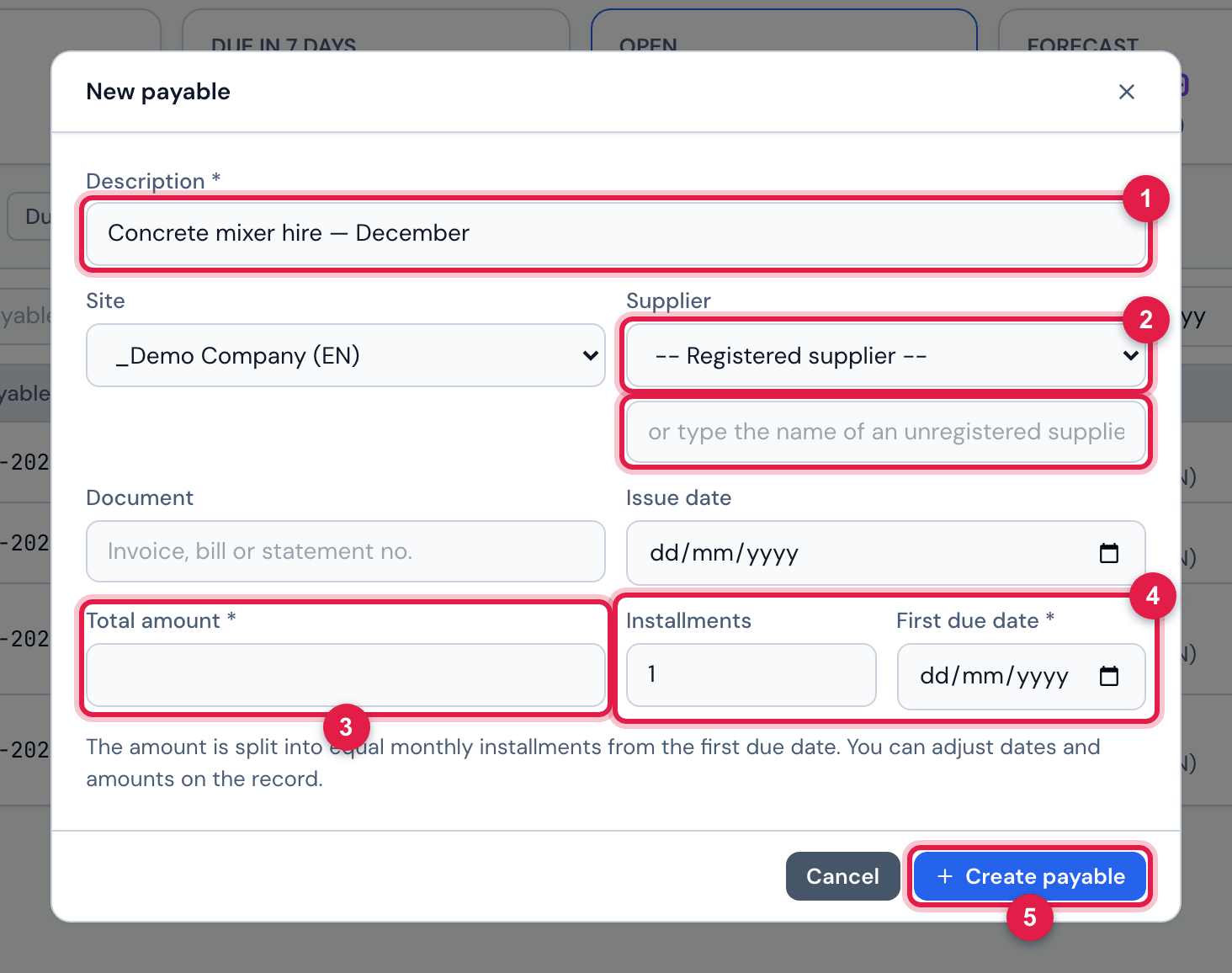
Figure 24. The New payable window.
- 1Description.
- 2Supplier — a registered one, or the name of an unregistered supplier.
- 3Total amount.
- 4Installments and First due date.
- 5Create payable.
The amount is split into equal monthly installments from the First due date. For installments with different dates or amounts, create the payable and adjust it on the record, in Edit. A standalone payable is created already Open.
Was this page helpful?
Thanks for the feedback!
Got it — we will improve this page.