
Rooms and equipment
Manual — PMOC · chapter 5 of 10
Ordinance 3,523/98 describes the PMOC by air-conditioned room: each space, what serves it, how many people occupy it and how much outdoor air it receives. In H2O the rooms are registered in the PMOC itself (Rooms tab) and receive the equipment from the site inventory (Equipment tab).The Rooms tab
Section titled “The Rooms tab”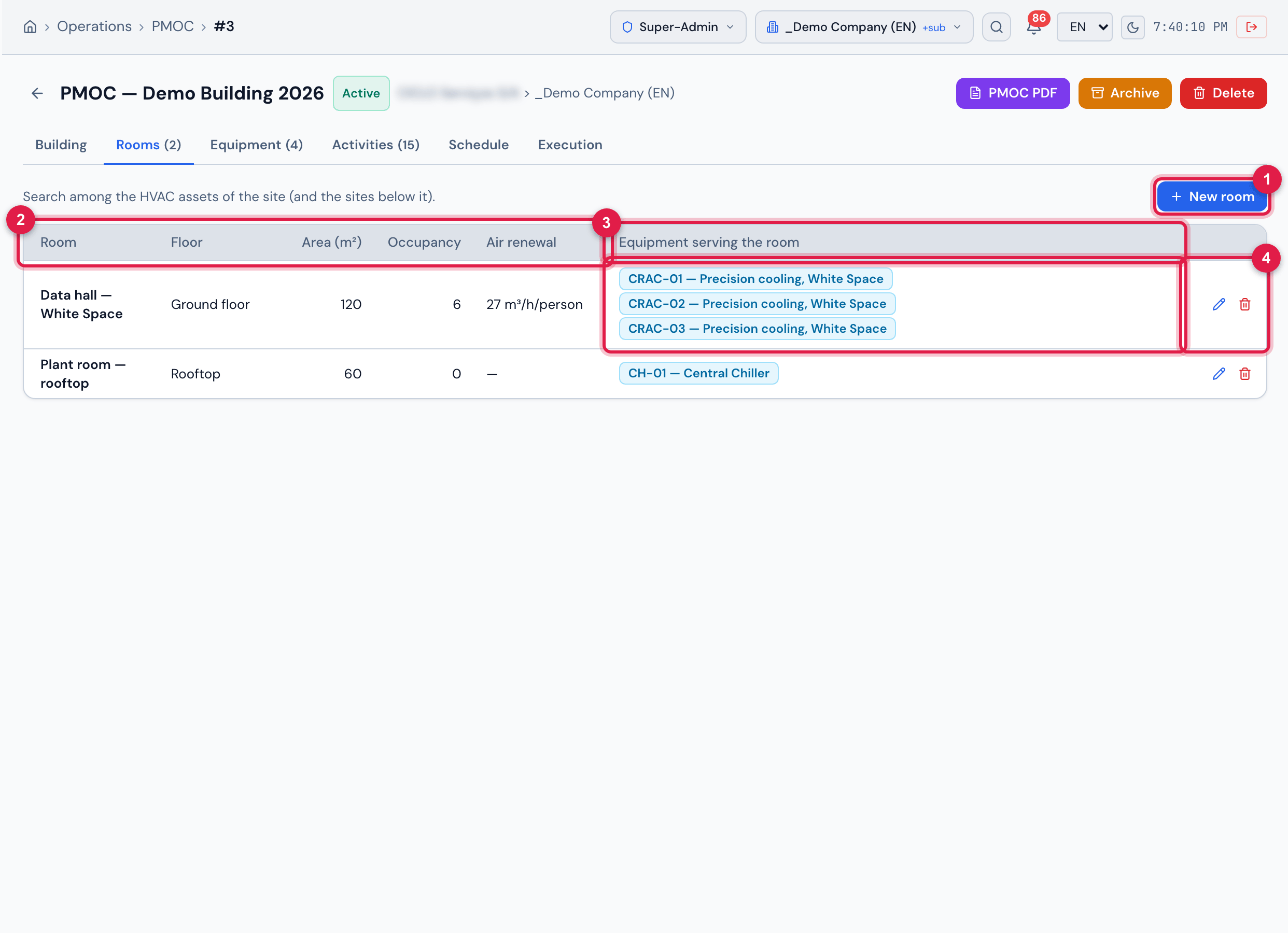
Figure 8. The Rooms tab of the Demo Building PMOC: two rooms and the equipment serving each one.
- 1New room (with Edit in Maintenance plans).
- 2The columns Room (with the notes below), Floor, Area (m²), Occupancy and Air renewal.
- 3Equipment serving the room — one badge per piece of equipment; No equipment linked. when there is none.
- 4The pencil (Edit room) and the trash can (Remove room).
- Click New room.
- Fill in Room (required — “Data hall — White Space”, “Plant room — rooftop”, “Meeting room”), Floor, Area (m²) and Occupancy (people).
- In Air renewal, write the outdoor air rate of the room — the field is free text, in whatever format the design uses (the hint suggests e.g. 27 m³/h/person, the RE 09/2003 reference for rooms of common use).
- In Equipment serving the room, use Search equipment… and tick the boxes of the assets that air-condition the room.
- Click Save.
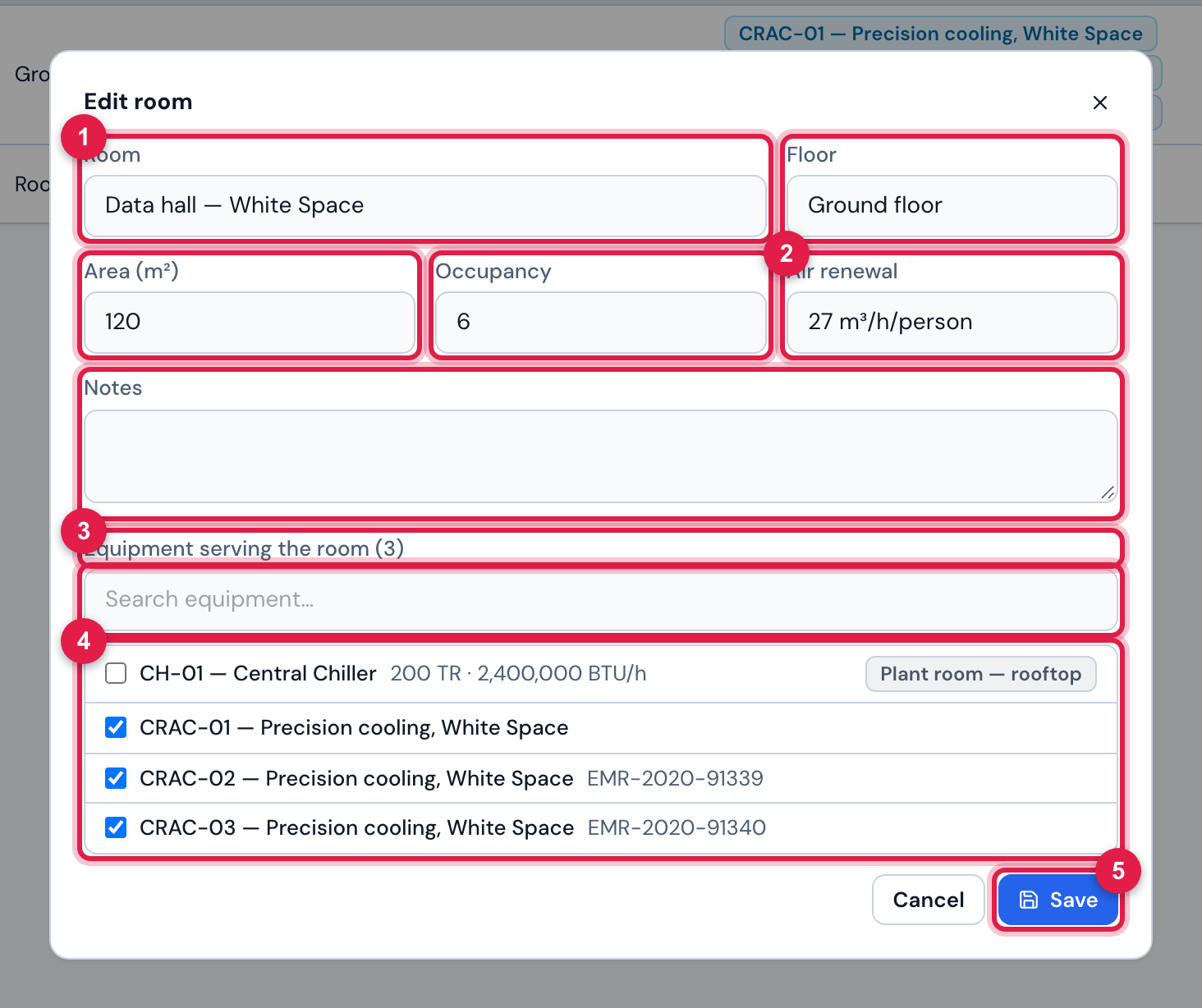
Figure 9. The Edit room window of the Data hall — White Space: the room data and the three CRACs ticked.
- 1Room, Floor, Area (m²) and Occupancy.
- 2Air renewal — free text, with the hint e.g. 27 m³/h/person — and Notes.
- 3Equipment serving the room with the count in parentheses and the Search equipment… search (by name, serial, type or site).
- 4The boxes: the HVAC assets of the site and of the sites below. A grey badge on the right shows the room the equipment is already in, when it is another one.
- 5Save records the data and replaces the room’s equipment list with what is ticked.
- A piece of equipment can serve more than one room (a central chiller serves them all). Tick it in each room; on the Equipment tab it appears with the rooms separated by commas.
- Remove room asks for confirmation — Remove room “…”? The equipment stays in the inventory. — and takes the room out of the PMOC. The equipment is untouched: it just stays no room until it is put in another one.
- The order of the rooms is the order of registration; it is the same in the PDF.
The Equipment tab
Section titled “The Equipment tab”The Equipment tab is the inventory: all the assets of the HVAC family of the PMOC site and of the sites below, read on the spot — there is nothing to register here. What you do on this tab is check whether the inventory is complete and what was left without a room.
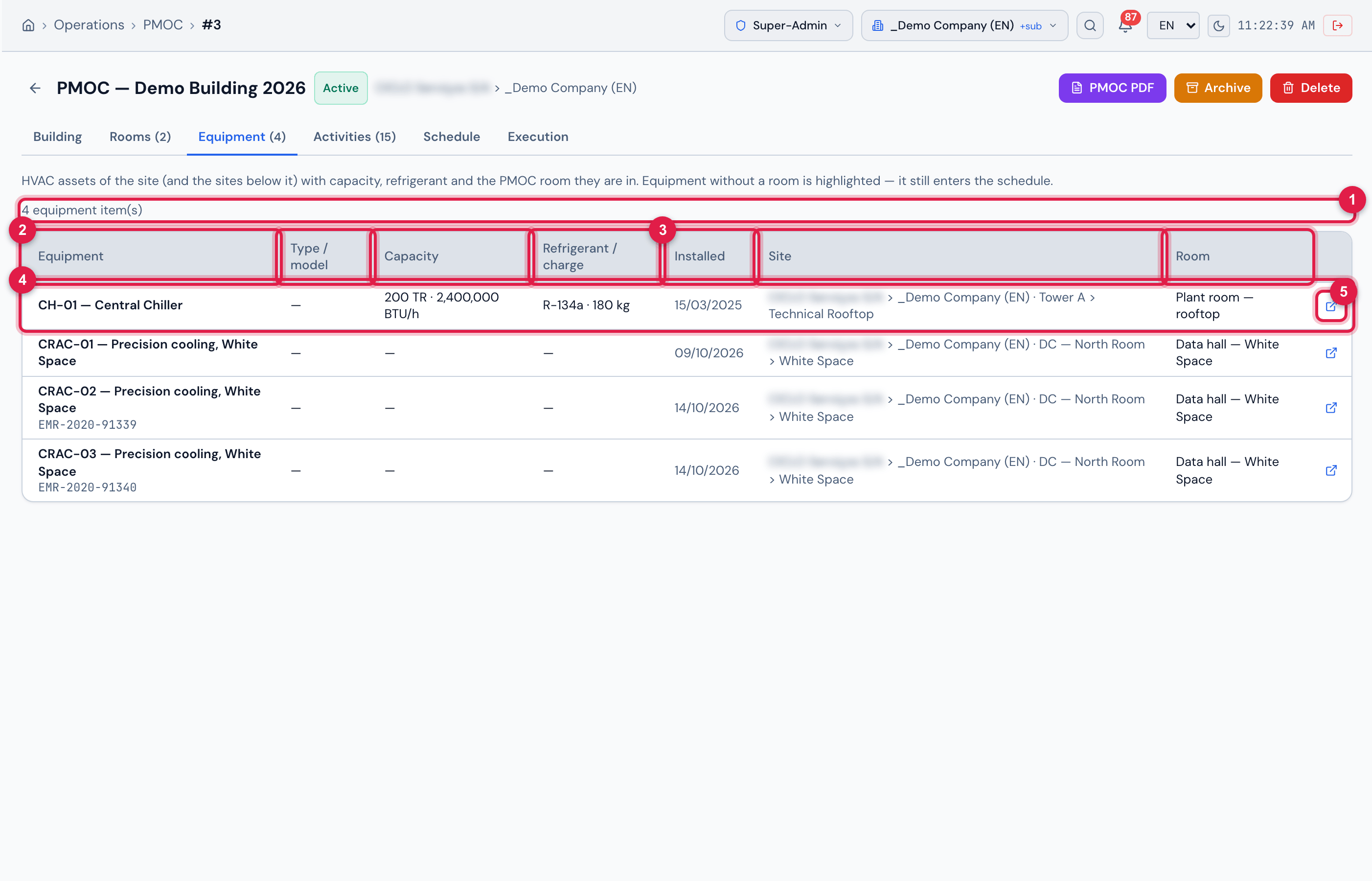
Figure 10. The Equipment tab: the four HVAC assets of the site — the three CRACs and the chiller — all of them already in a room.
- 1The counter {n} equipment item(s) — next to it, when there is any, the amber badge {n} equipment item(s) without a room (none here).
- 2The columns Equipment (with the serial number below), Type / model (type · model · manufacturer), Capacity (TR · BTU/h) and Refrigerant / charge.
- 3Installed, Site (with the asset location) and Room — the PMOC rooms the equipment is in.
- 4The Room column: an equipment item that no room claims would show an amber row with the no room badge — it is in the inventory and in the schedule anyway (none here).
- 5The Open asset icon — the asset page in Assets › HVAC, to complete capacity, refrigerant or installation.
Was this page helpful?
Thanks for the feedback!
Got it — we will improve this page.