
The location record
Manual — Locations and calendars · chapter 5 of 9
Click a location (in the tree, in the list or in a sub-location) to open its record. At the top are the number (#), the Level N, recursive (if applicable) and N sub-locations badges, the name and the full path; on the right, Edit and Delete (chapter 6), according to your profile. The tabs are Details, Sub-locations, Assets and Tickets.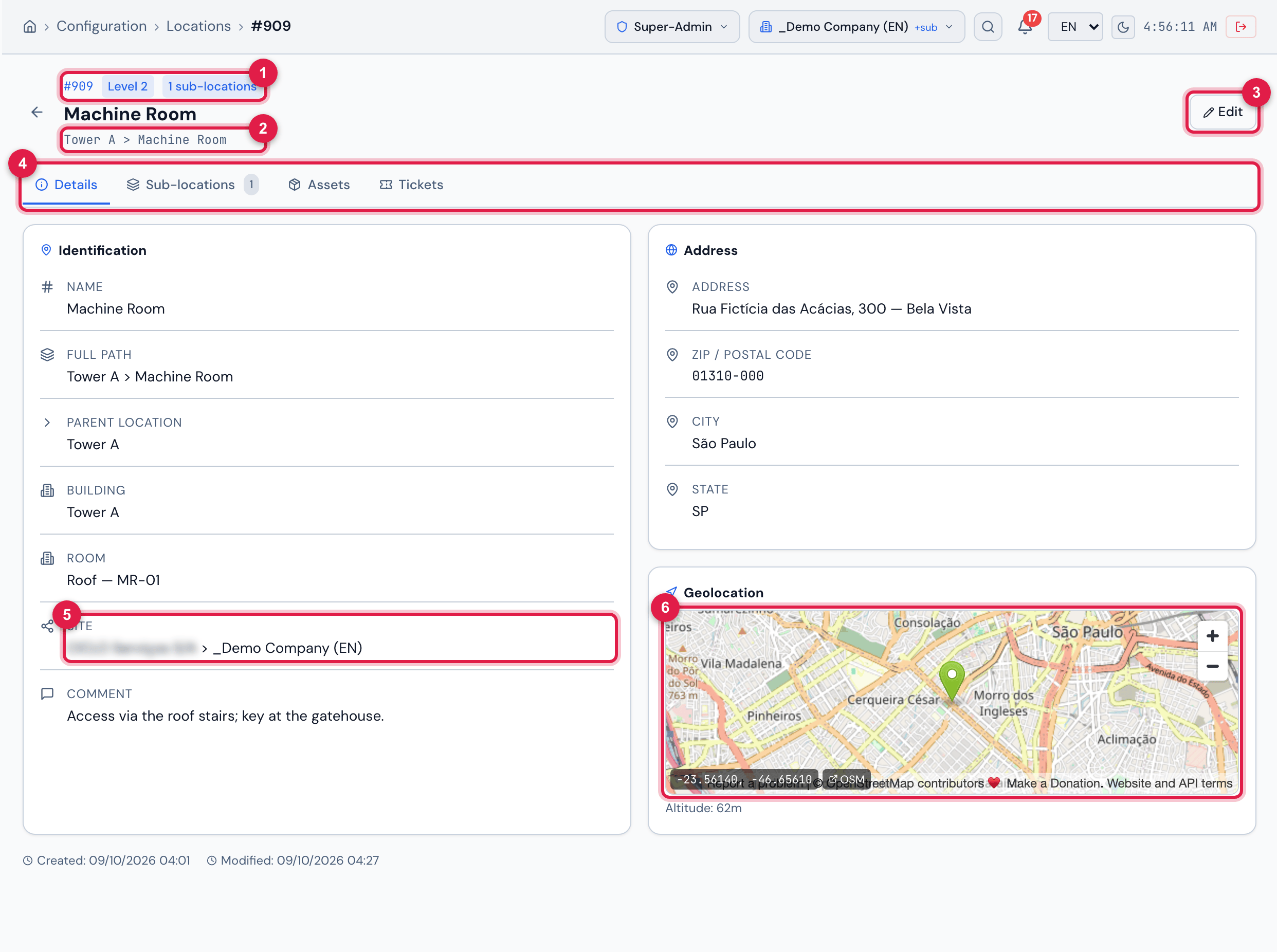
Figure 6. Location record, Details tab: Identification (name, full path, parent location, building, room, site), Address and Geolocation with the map; at the bottom, the creation and modification dates.
- 1Level N and N sub-locations badges (and recursive, when the location is recursive).
- 2Full path.
- 3Edit; Delete appears next to it only with the Trash level (the profile in the picture does not have it).
- 4Tabs of the record, with the counts.
- 5Site — the location’s site.
- 6Map — with latitude and longitude; OSM opens the point in OpenStreetMap.
Details
Section titled “Details”- Identification: Name, Full path, Parent location, Building, Room, Site, the Visible in sub-sites badge (when recursive) and Comment. Only the filled-in fields appear.
- Address: Address, ZIP / Postal code, City, State and Country.
- Geolocation: the map with the point (or No geolocation) and, if any, the altitude.
- At the bottom, Created: and Modified: with date and time.
Sub-locations
Section titled “Sub-locations”The Sub-locations tab shows Sub-locations of name, with the locations right below this one (up to 100), each with the N sub and rec (recursive) badges, the building and the room. Click one to open its record. New Sub-location (only with the Create level) opens the quick registration box (chapter 4). No children: No sub-locations.
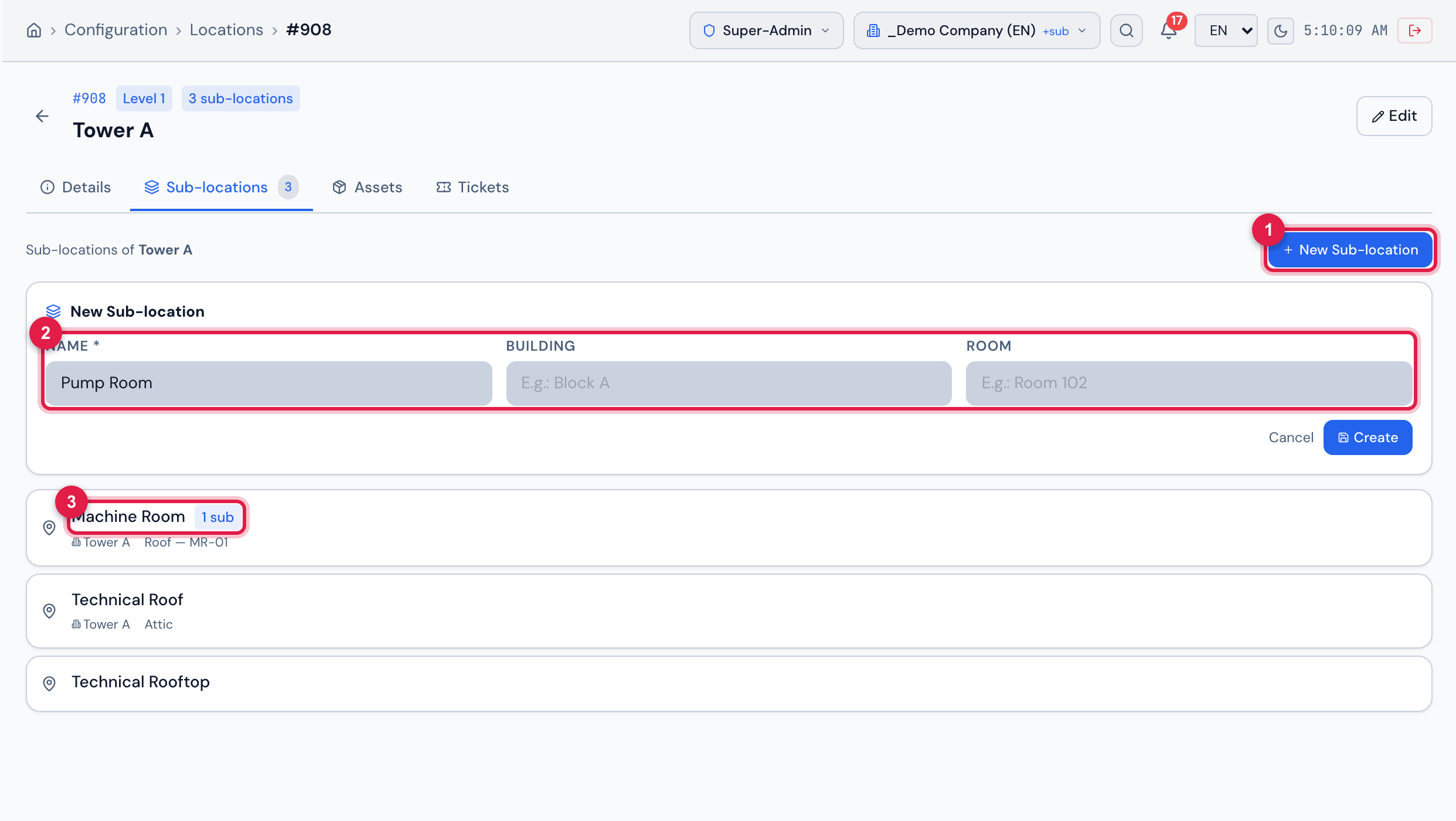
Figure 7. Sub-locations tab with the New Sub-location box open (Name, Building, Room, Cancel, Create) and, below, the sub-locations already registered.
- 1New Sub-location.
- 2Quick registration box: Name, Building and Room.
- 3A sub-location — click to open it.
Assets
Section titled “Assets”The Assets tab lists the assets that are at this location, of every type, with the name, the type and the serial — at the top, N asset(s) at this location and the refresh button. Click an asset to open its record. No assets: No assets at this location.
- Only the assets linked directly to this location are included, excluding deleted ones: those of the sub-locations are in the record of each one — as in the Assets column of the List mode (chapter 3).
- The assets of every site your links reach appear, whatever the Site + sub-sites / This site only switch in the header.
- The tab uses the Computers right of the profile (the same one that loads the asset type menu): without Read on Computers, it appears empty.
Tickets
Section titled “Tickets”The Tickets tab lists the tickets of this location and of all its sub-locations, from the most recent to the oldest, up to 50: number, status, title and opening date. Click a ticket to open it; the refresh button searches again. No tickets: No tickets at this location.
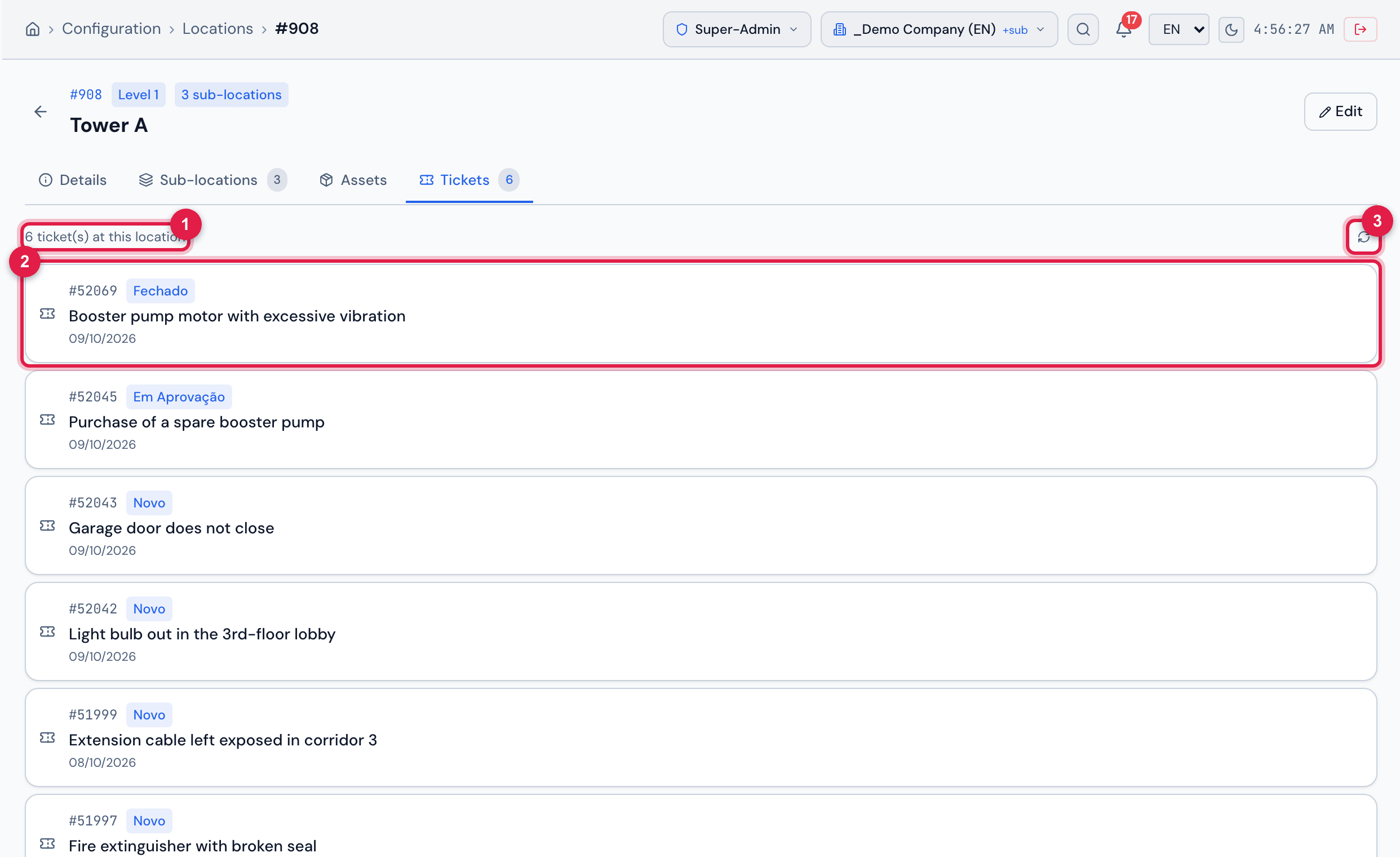
Figure 8. Tickets tab of the record: “N ticket(s) at this location” and the tickets of the location and of its sub-locations, with number, status, title and date.
- 1How many tickets the tab shows (at most 50).
- 2A ticket — number, status, title and date; click to open it.
- 3Refresh.
The tab respects the site in the header and the Tickets right of your profile: only the tickets you are allowed to see appear.
Was this page helpful?
Thanks for the feedback!
Got it — we will improve this page.