
Importing orders from a spreadsheet
Manual — Purchasing: orders, quotations and accounts payable · chapter 4 of 9
When the purchase is made in the customer’s ERP, bring the orders into H2O by spreadsheet. The same spreadsheet serves the opposite path: saving the ERP code on an order that was created in H2O.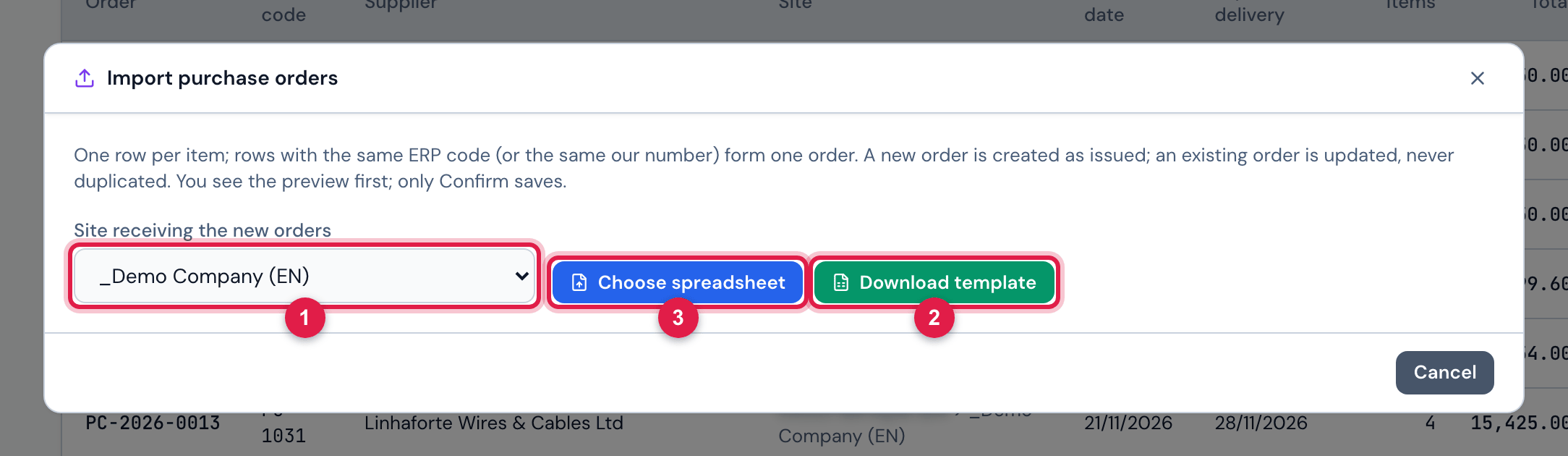
Figure 8. The Import purchase orders window.
- 1Site receiving the new orders.
- 2Download template — the spreadsheet with the right columns and the instructions.
- 3Choose spreadsheet — H2O reads the file and shows the preview.
- In Warehouse › Purchase orders, click Import spreadsheet.
- Click Download template and fill in the spreadsheet: one row per item.
- Choose the Site receiving the new orders.
- Click Choose spreadsheet and select the file.
- Check the preview: each order appears with its action — New, Update, Skipped or Error — and the warnings.
- Click Confirm. Up to this point nothing has been saved.
How to fill it in
Section titled “How to fill it in”| Column | What it is |
|---|---|
| ERP order code | the order number in the customer’s system |
| Our number (PC-…) | the order number in H2O — only to update an order that already exists |
| Order date, Expected delivery | the order dates |
| Supplier, Supplier tax ID | H2O looks the supplier up in the records by tax ID; if it is not found, the order keeps the name, not registered |
| Payment terms, Freight, Discount, Notes | the header data |
| Item code, Item description, Unit, Quantity, Unit price | the item of the row |
- Rows with the same ERP code (or the same our number) form one order. The header data is repeated on every row.
- Order that came from the ERP: fill in the ERP code and leave our number empty. The order is created in H2O already Issued.
- Order that was created in H2O: fill in our number and the ERP code. H2O finds the order and saves the code on it.
- Importing the same spreadsheet again does not duplicate: the order that already exists — found by the ERP code, at the site or at the jobs below it — is updated.
- A Received or Canceled order is not changed: it appears as Skipped.
Was this page helpful?
Thanks for the feedback!
Got it — we will improve this page.