
Filling in the daily report
Manual — Daily report · chapter 4 of 9
The daily report page opens from the list, from the project’s Daily Reports tab or right after creating it. The header and the flow buttons are at the top; the content, in the tabs.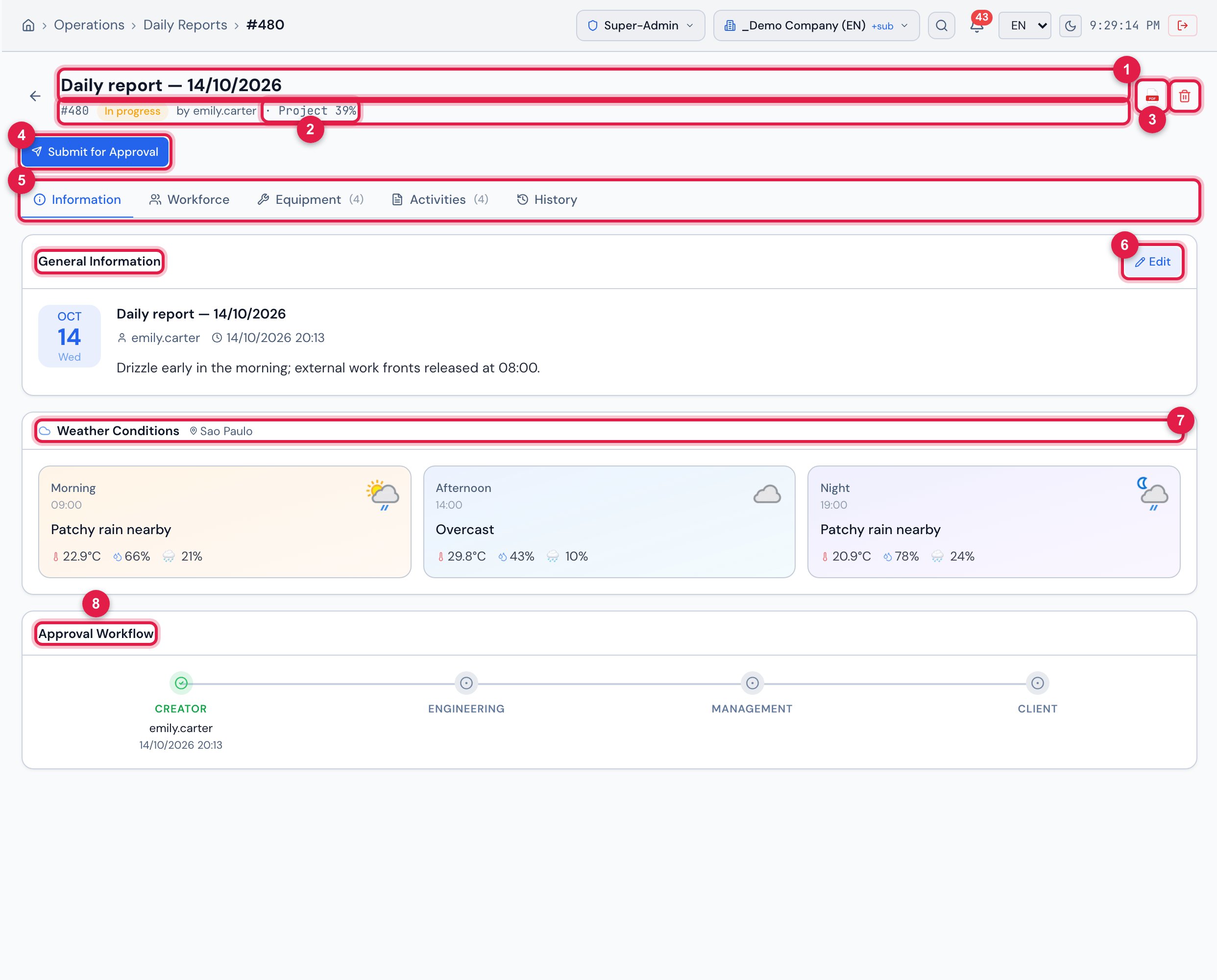
Figure 7. The page of a daily report of Vila Nova Residential — Tower 1, In progress, on the Information tab.
- 1Title (the name of the daily report or Daily report and the date), number, state and author.
- 2· Project N% — the job’s progress on the day (chapter 3).
- 3PDF icon and trash can (delete the daily report).
- 4The approval flow buttons (chapter 5).
- 5The Information, Workforce, Equipment, Activities and History tabs.
- 6General Information and Edit.
- 7Weather Conditions — morning, afternoon and night, saved at creation.
- 8Approval Workflow — who approved each step and when.
Information tab
Section titled “Information tab”- General Information: the date, the name, the author, the last change, the General observations and, highlighted, the Client observations.
- Weather Conditions: the three times with the icon, the condition, the temperature and the humidity, and the region queried. No data for a time that did not come.
- Energized area: appears when the answer is Yes or some energy field is filled in — Energized area?, Collaborators, Location and Observations.
- Team Comment and Idle Team (in red): the comments about the workforce.
- Approval Workflow: Creator, Engineering, Management and Client, each step with the user and the date/time of whoever approved. In a project with Daily report without client approval, the Client step does not appear (chapter 5).
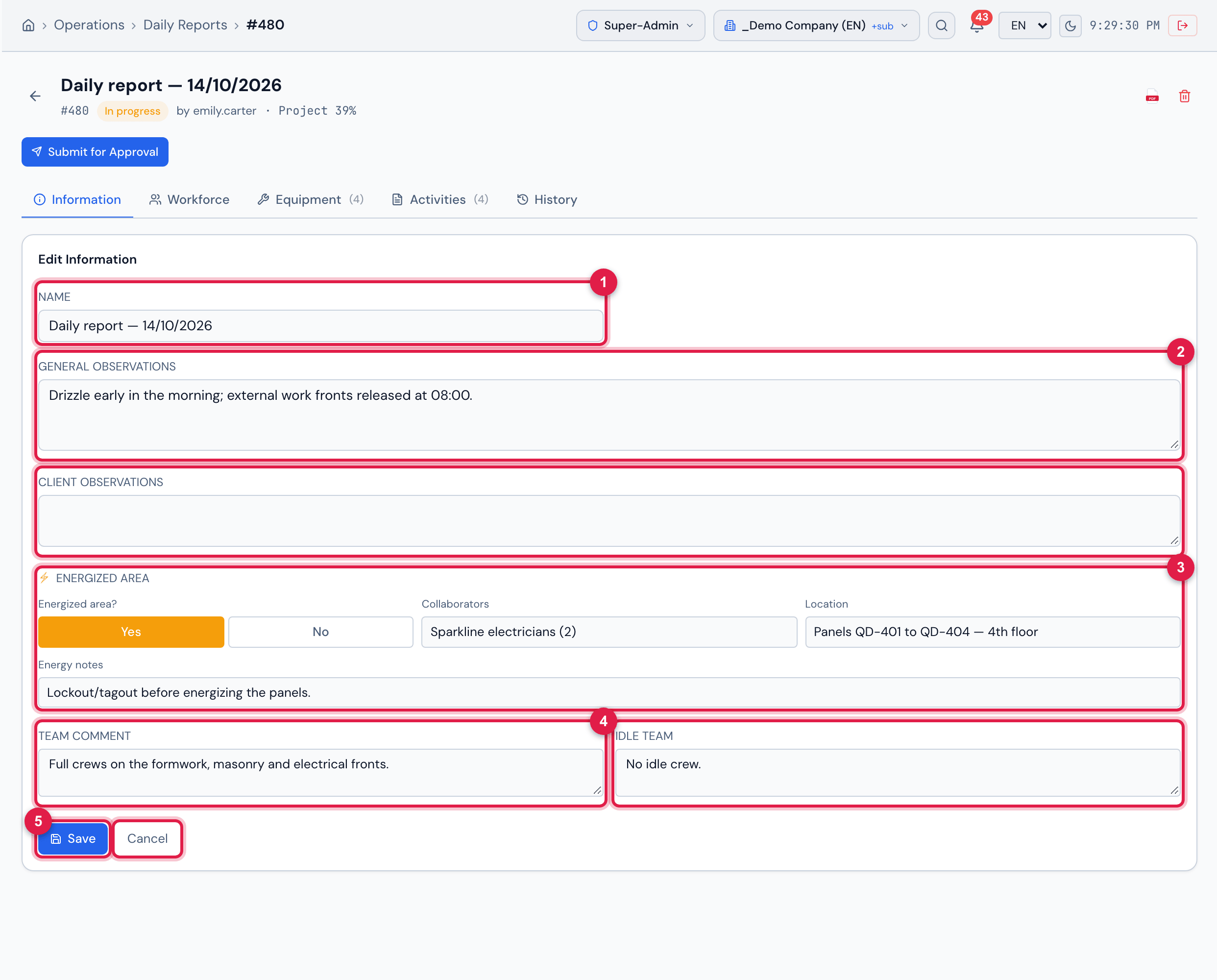
Figure 8. Edit Information of the same daily report, with the name, the general observations, the energized area and the team comments filled in.
- 1Name — the title of the daily report in the lists and in the PDF.
- 2General observations and Client observations.
- 3⚡ Energized area: Energized area? (Yes / No), Collaborators, Location and Energy notes.
- 4Team Comment and Idle Team.
- 5Save and Cancel.
| Field | What for | In the PDF |
|---|---|---|
| Name | a title — for example, “Daily report — 01/10/2026”. Without a name, the screens show the date. | — |
| General observations | the summary of the day. | NOTES › GENERAL |
| Client observations | what the client needs to know. It is also where the reason for a rejection is kept (chapter 5). | NOTES › CLIENT |
| Energized area? | Yes when there is work with an energized area on the day. It marks ⚡ Yes in the list. | the ENERGIZED AREA alert, only with Yes |
| Collaborators, Location, Energy notes | who works with the energized area, where and the precautions. | in the ENERGIZED AREA alert (Team, Location, Notes) |
| Team Comment | a note about the active workforce. | below the workforce table |
| Idle Team | why people were idle — work front not released, rain, lack of material. | below the idle workforce table |
When saving, Daily report updated appears. The weather cannot be edited (chapter 3).
Activities tab
Section titled “Activities tab”Each activity is an item of the day — a service performed or an occurrence — with its photos, videos and documents.
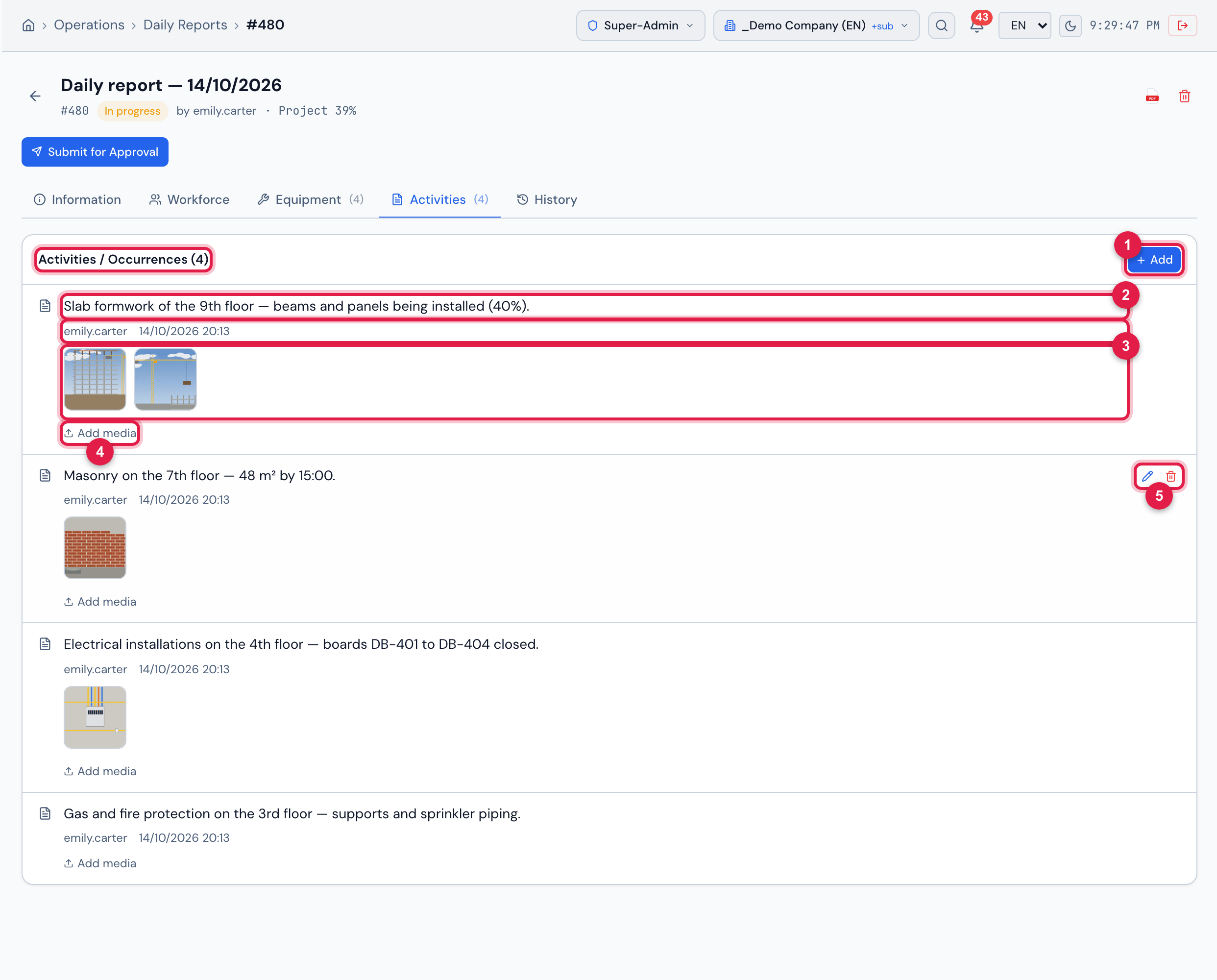
Figure 9. The Activities tab of a daily report of Vila Nova Residential — Tower 1: the day’s activities, with the photos of each one.
- 1Activities / Occurrences (N) and Add.
- 2The text of the activity, the author and the date/time.
- 3The thumbnails — click to enlarge; the video has the play symbol and the PDF, the PDF label.
- 4Add media — photos, videos and PDFs of this activity.
- 5Pencil (change the text) and trash can (remove), on hover.
- Click Add, write in Describe the activity or occurrence… and click Save (Content added).
- In the activity, click Add media and choose one or more files — image, video or PDF. The button appears with Create in Projects and Create in Documents.
- Follow the upload in the corner of the screen (Uploading 1 of 3…). Cancel stops after the file being uploaded.
- At the end, Media added, N media added or, if any fails, N added, N failed appears.
- To remove a media file, hover over the thumbnail and click the X (Remove this media?).
- Removing the activity asks Remove this content?.
- There is no separate media tab: every photo, video or PDF goes into an activity and appears in it. In the PDF, the photos come out right below the activity they belong to (chapter 6).
Workforce tab
Section titled “Workforce tab”The workforce is the number of people per job role and per company, split into direct and indirect, active and idle. The job roles come from People › Workforce and the companies, from the project team — see the Suppliers, contacts and workforce manual.
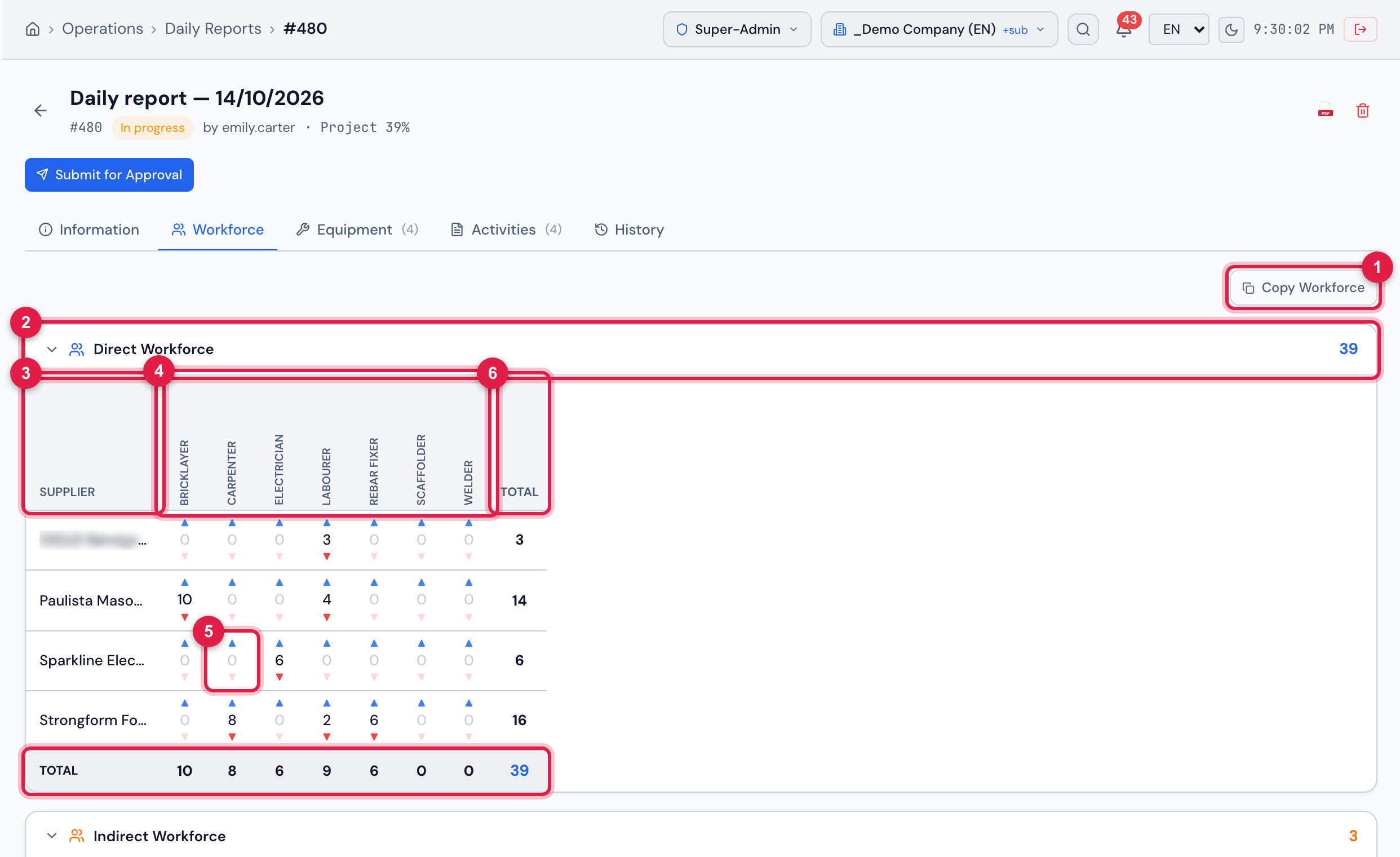
Figure 10. The Workforce tab: the Direct Workforce panel open, with the company and the team’s contractors in the rows and the job roles in the columns.
- 1Copy Workforce.
- 2The panel and its total — click the title to open or collapse it.
- 3Supplier: the first row is your own company; the others, the suppliers of the project team.
- 4The job roles, one per column.
- 5▲ and ▼ — add and remove one person; saved immediately.
- 6The Total column and row.
| Panel | What is entered |
|---|---|
| Direct Workforce | who worked on the day, in the job roles of the Direct type. |
| Indirect Workforce | who worked on the day, in the job roles of the Indirect type. |
| Idle Direct Workforce | direct professionals idle due to lack of released work fronts (collapsed when opened). |
| Idle Indirect Workforce | indirect professionals idle due to lack of released work fronts (collapsed when opened). |
- For a contractor to appear as a row, add it to the project Team (the Projects manual, chapter 5).
- No roles configured: the job’s site and the sites above it have no job roles in People › Workforce.
- The reason for idleness goes in Idle Team, on the Information tab.
- The ▲/▼ and Copy Workforce appear with Edit in Projects; without that right, the grid is read-only.
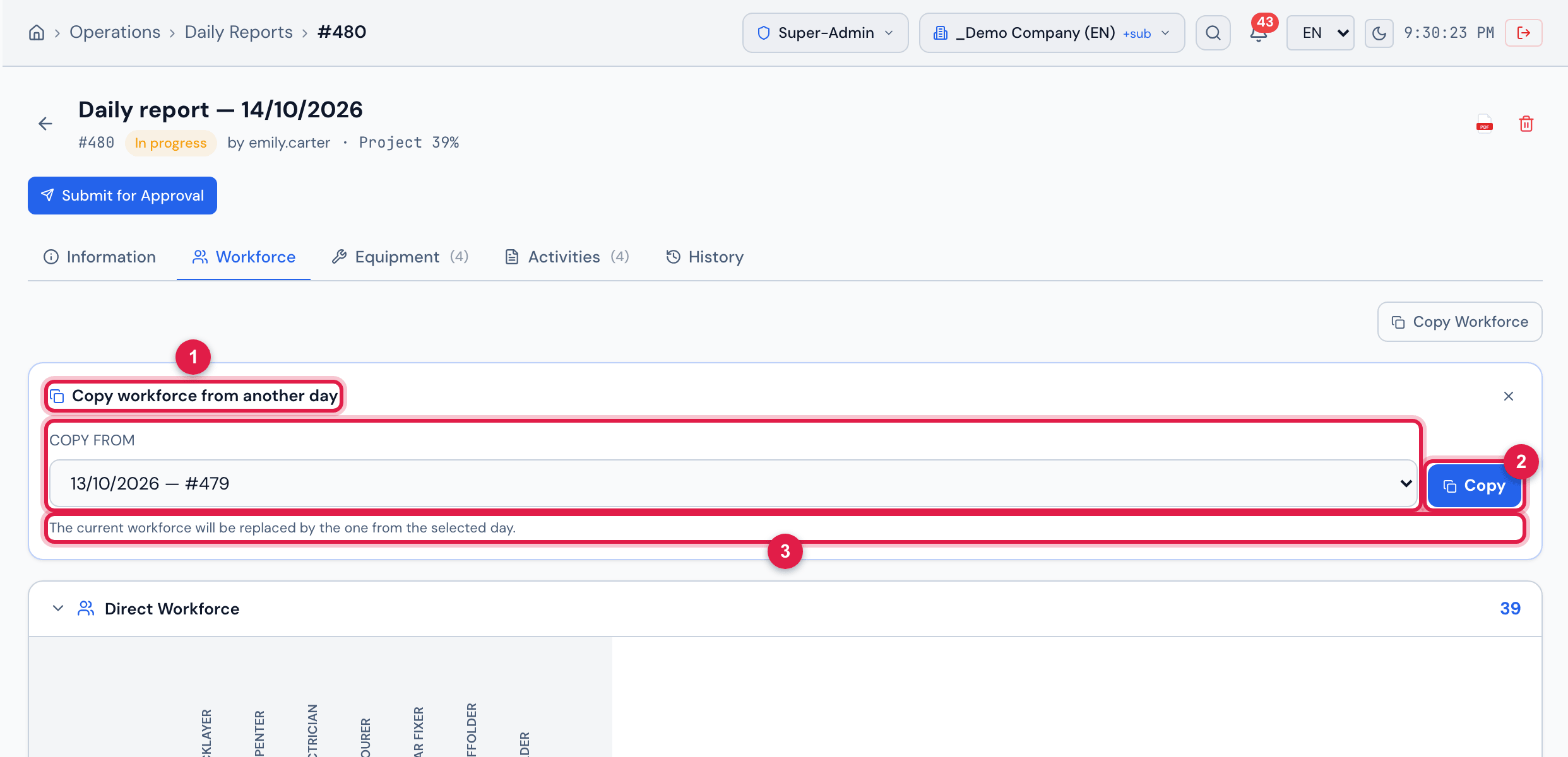
Figure 11. Copy Workforce open, with the previous day’s daily report chosen as the source.
- 1Copy workforce from another day and Copy from.
- 2Copy.
- 3The warning: The current workforce will be replaced by the one from the selected day.
When you click Copy, H2O asks for confirmation (This will replace the entire current workforce. Continue?) and replaces all the workforce of the daily report — the four panels — with that of the chosen day. Workforce copied successfully appears.
Equipment tab
Section titled “Equipment tab”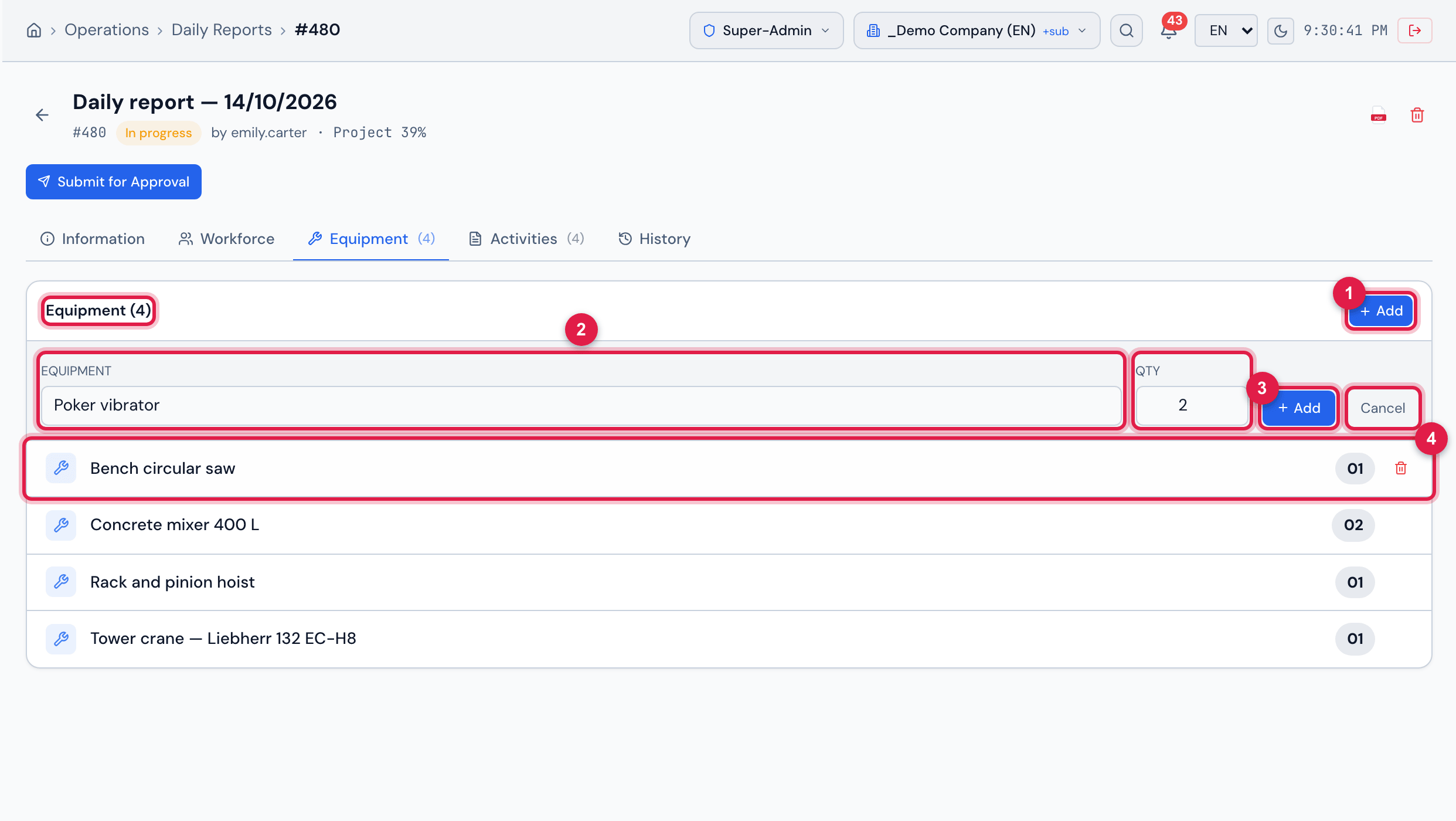
Figure 12. The Equipment tab with the add form open and the day’s equipment.
- 1Equipment (N) and Add.
- 2The equipment name and Qty.
- 3Add and Cancel.
- 4The list, with the quantity of each one; the trash can appears on hover.
- The name is free text — for example, “Concrete mixer 400 L”, “Poker vibrator”, “Tower crane”. The minimum quantity is 1 (Minimum quantity: 1).
- Removing asks Remove this equipment?.
- This is the equipment of the day. The rented machines, with mobilization, withdrawal and return, are in the project’s Equipment tab (the Projects manual, chapter 10).
Until when it can be changed
Section titled “Until when it can be changed”Was this page helpful?
Thanks for the feedback!
Got it — we will improve this page.