
The user list
Manual — Users, groups and profiles · chapter 2 of 12
People › Users holds the people of the site chosen in the header (and of the sub-sites, with Site + sub-sites). Whoever has the default site or some assignment on those sites is in the list.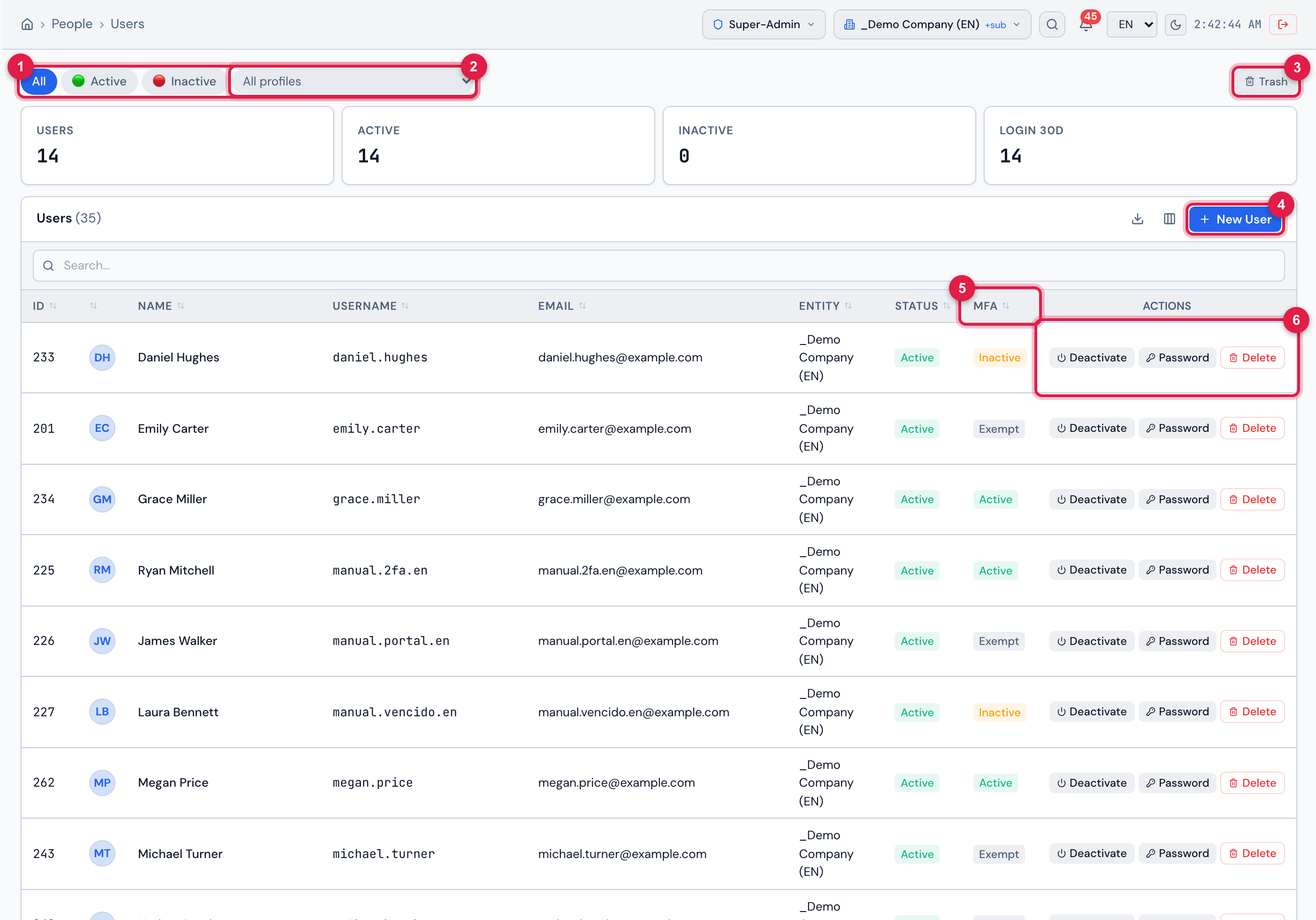
Figure 3. People › Users: the All / Active / Inactive and All profiles filters, the Trash button, the total cards, New User and the table with the Status and MFA columns and the actions of each row.
- 1Status filters: All, Active, Inactive.
- 2All profiles — shows only those who have the chosen profile; each profile comes with the number of users in parentheses.
- 3Trash — switches to the deleted users (chapter 8).
- 4New User (with the Create level).
- 5MFA column — the two-factor authentication status of each person.
- 6Row actions: Deactivate (or Activate), Password and Delete.
What the list shows
Section titled “What the list shows”- Cards: Users (site total), Active, Inactive and Login 30d (how many signed in during the last 30 days). The cards count only the site’s users, without the inherited ones.
- Search… looks in the login, the first name, the last name, the phone, the mobile and the email.
- Columns: ID, photo (or the initials), Name, Username (the login), Email, Entity (the default site), Status and MFA. Phone, Last Login and Created at are hidden: turn them on with the columns button, next to New User. The download button exports the list.
- Click a row to open the user record (chapter 4).
| MFA column | Means |
|---|---|
| Active | the person has already set up the authenticator app; H2O asks for the code at sign-in. |
| Exempt | the administrator exempted the person from the requirement (chapter 6). |
| Inactive | not set up yet: within the 7-day period, or the period has passed and setup will be required at the next sign-in (chapter 7). |
Row actions
Section titled “Row actions”| Action | Level needed on Users | What it does |
|---|---|---|
| Deactivate / Activate | Edit | blocks or allows the person’s sign-in (chapter 8). |
| Password | Edit | sets a new password for the person (chapter 6). |
| Delete | Trash | sends the user to the trash, after confirmation (chapter 8). |
Without the level, the button does not appear.
Inherited users
Section titled “Inherited users”Whoever has a recursive assignment on a site above the header site — for example, an administrator of the parent company — also works on this site. These people appear on the first page, after the people of the site, with the yellow inherited badge, the name in gray and, in the actions, the disabled Inherited button: they are managed on the site above. The number in parentheses next to the Users title includes the inherited ones; the cards do not.
- Inherited users follow the list status: with Active, only the active ones appear; with Inactive, only the inactive ones; in the Trash, only those in the trash.
- The search and the profile filter do not apply to them: with a search or a chosen profile, the inherited users stay in the list. To check only the people of the site, look at the rows without the badge.
- Each inherited user appears only once, on the first page. The following pages bring only the people of the site, and the total counts the inherited users.
Was this page helpful?
Thanks for the feedback!
Got it — we will improve this page.