
In the app
Manual — Commissioning · chapter 9 of 10
In the H2O app, the technician runs the tests like any task and answers the Test result when completing. And anyone on the team sees, in the Commissioning tab of the asset — also by scanning the QR label —, which phases the equipment is in and what is missing.The Commissioning tab of the asset
Section titled “The Commissioning tab of the asset”In the asset panel, the Commissioning tab is the last of the pills and only appears when the asset is in some phase.
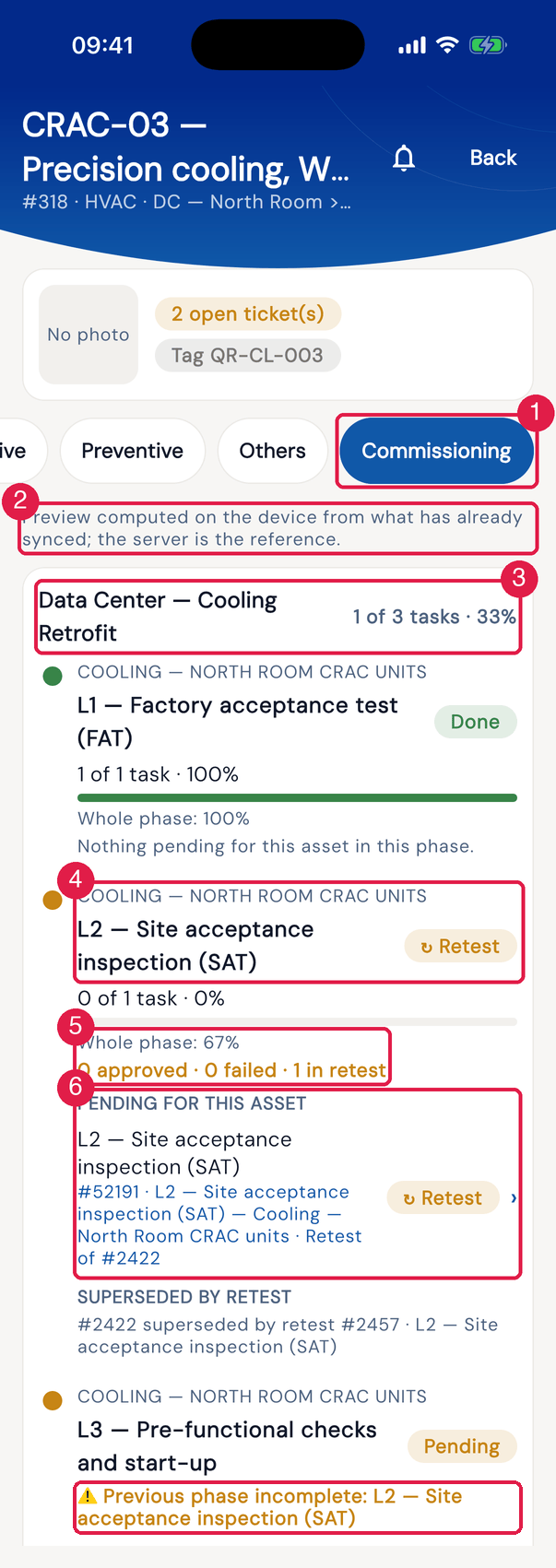
App H2OFigure 20. In the app, CRAC-03 — Precision cooling, White Space on the Commissioning tab, opened from the QR label: the project, the phase timeline with the status of each phase and the pending items of this asset.
- 1The Commissioning pill.
- 2The notice: Preview computed on the device from what has already synced; the server is the reference.
- 3The project and the asset total: N of M tasks · X%.
- 4The phase: system, name, status and, when there is one, the ⚠ Previous phase incomplete: … warning.
- 5Whole phase: X% and, when there is a failure, N approved · N failed · N in retest.
- 6PENDING FOR THIS ASSET — tap to open the ticket.
- The tab is read-only and works offline: the app computes with what has already synced, with the same rule as the server. The recorded phase % (Whole phase) is the server one.
- Each pending item shows the reason — To do, ✘ Failed or ↻ Retest — and, on a retest task, Retest of #N.
- A failed task that already has a retest goes to SUPERSEDED BY RETEST, as history.
- The phase shows the same six states as the web — Done, In progress, Pending, ✘ Failed, ↻ Retest and No ticket — and the same previous-phase-incomplete warning, which only informs. The project matrix stays on the web.
Through the asset QR code
Section titled “Through the asset QR code”When you scan the asset label with the QR Code card on the home screen (the Assets manual, chapter 10), the app opens the asset panel directly on the Commissioning tab when it has a pending phase task. With nothing pending, it opens on the record, as always.
In the field, this is the shortcut to “what is left to test on this equipment?”: point, see the pending item, tap to open the ticket.
The Test result when completing
Section titled “The Test result when completing”On a task of a ticket linked to a phase, Complete task (task with a checklist) and Finish activity (simple task) ask one more question before closing: the test result. Outside commissioning, nothing changes.
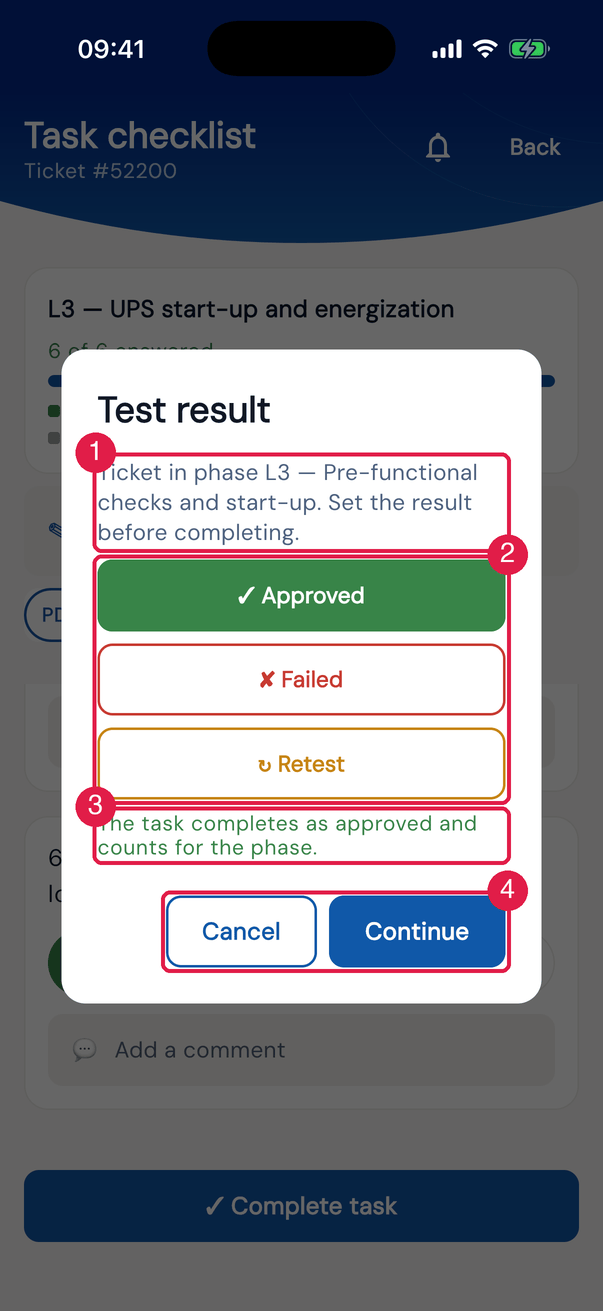
App H2OFigure 21. The Test result dialog when completing the start-up (L3) of UPS-02 — 80 kVA UPS, North Room, with Approved chosen.
- 1Ticket in phase …. Set the result before completing.
- 2✓ Approved, ✘ Failed and ↻ Retest, one below the other; the chosen one is filled in its color.
- 3What the chosen option does.
- 4Continue (or Request retest), the filled button, and Cancel, the outlined one.
| Option | What happens in the app |
|---|---|
| ✓ Approved (default) | goes on with the usual completion — non-conformity warning, signature — and the task completes as approved. The task completes as approved and counts for the phase. |
| ✘ Failed | asks for confirmation (Confirm failure?) and then goes on with the completion: the task completes as failed and, when it syncs, the server opens the GQE item and the retest task (chapter 7). |
| ↻ Retest | the button becomes Request retest. The task does not complete: it stays open, flagged for retest — Flagged for retest — the task stays open. |
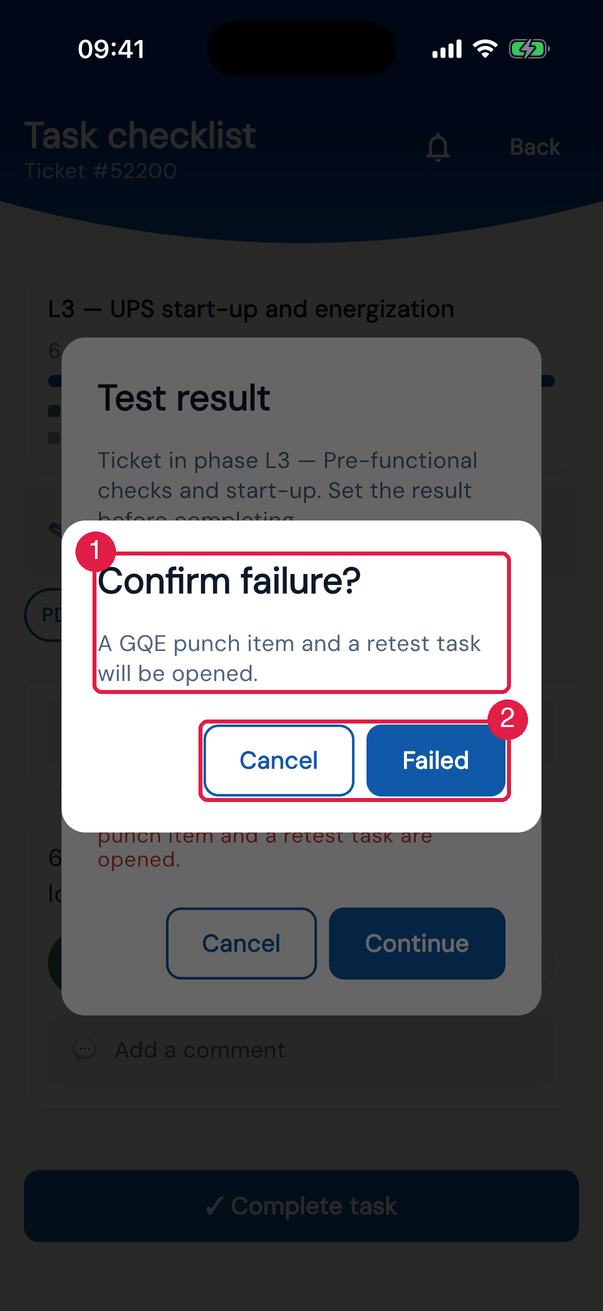
App H2OFigure 22. The failure confirmation: Confirm failure? — A GQE punch item and a retest task will be opened.
- 1The title and the explanation.
- 2Failed confirms; Cancel goes back to the dialog.
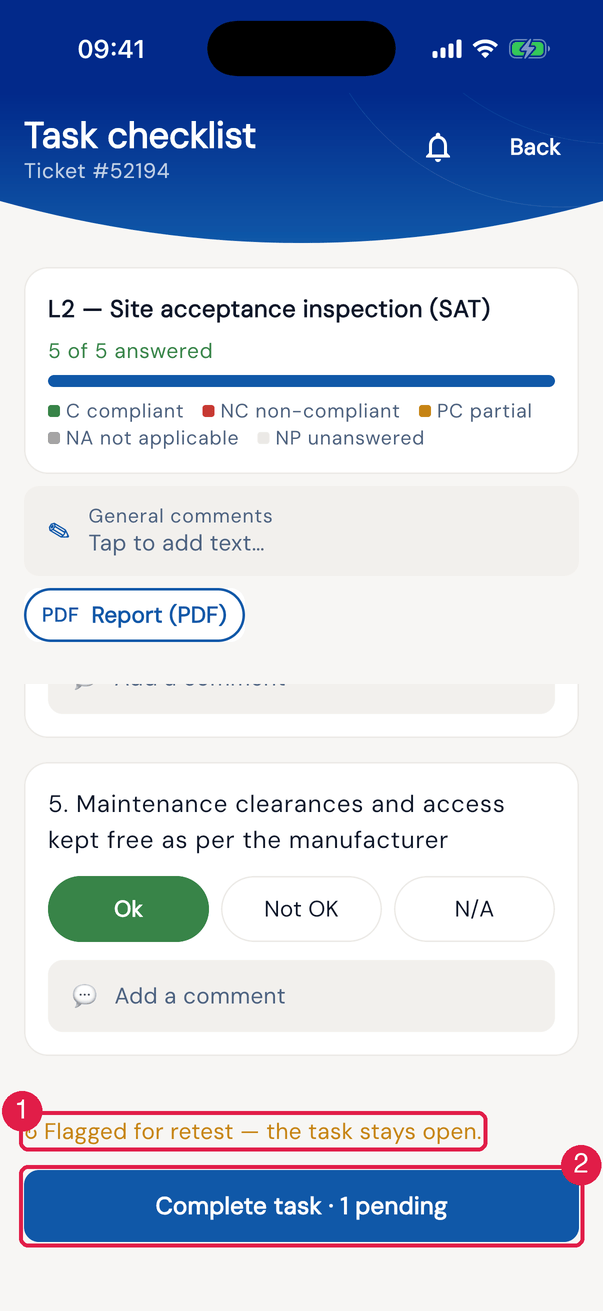
App H2OFigure 23. The task after Request retest: it stays open, with the ↻ Flagged for retest — the task stays open. notice above the complete button.
- 1The retest notice.
- 2Complete task — when the test is redone, complete it again and give the result. Here the button reads Complete task · 1 pending: a required checklist photo is missing, and it comes before the result question.
- In the checklist, the order is: first the checklist pending items (unanswered items, mandatory photos); then the Test result; then the non-conformity warning, when the template generates an NCR per item; finally the signature.
- It works offline: the result goes together with the completion at the next sync. The GQE item and the retest task are created by the server when the completion arrives, and come down to the app right after.
- If the ticket was linked to the phase with the screen open, the question starts appearing as soon as the link reaches the device.
- In the task list, commissioning tasks show the result badge: ✔ Approved, ✘ Failed or ↻ Retest (also on the retest task).
Was this page helpful?
Thanks for the feedback!
Got it — we will improve this page.