
Who sees each site
Manual — Companies and hierarchy · chapter 2 of 9
Each person’s access to sites comes from the assignments in their user record: each assignment combines a profile, a site and the Recursive mark. Assignments are registered by the administrator in the user record (manual Users, groups and profiles).- Assignment without Recursive — the person reaches only that site.
- Recursive assignment — reaches the site and every site below it, including sub-sites created later.
- Assignments add up: someone with one assignment in Client A and another in Client B reaches both.
- An assignment that is recursive on the Root reaches the whole tree.
- The profile chosen in the header decides what the person can do (the menu items and the buttons); the site selector shows the sites where that profile applies.
Recursive records
Section titled “Recursive records”Some records have the recursive option — for example, the location (Visible in sub-sites (recursive)) and the site document (Visible in sub-sites (recursive), chapter 6). A recursive record still belongs to the site where it was created, but also appears in every site below it.
- Typical use: register once, in the company, what applies to all construction sites — for example, a company document with Visible in sub-sites or a location shared by all the sites below.
- The recursive record of a sub-site does not go up to the parent site.
- In the sites below, the record appears marked — the document with the Inherited badge; the location with the recursive badge. The inherited document has no trash icon in the sub-site: it can only be removed in the record of the site where it was uploaded.
The Sites / Entities right
Section titled “The Sites / Entities right”The Sites screen is unlocked by the Sites / Entities right of the profile (People › Profiles › profile › Permissions tab, People group). Without the Read right, the Sites item does not appear in the menu.
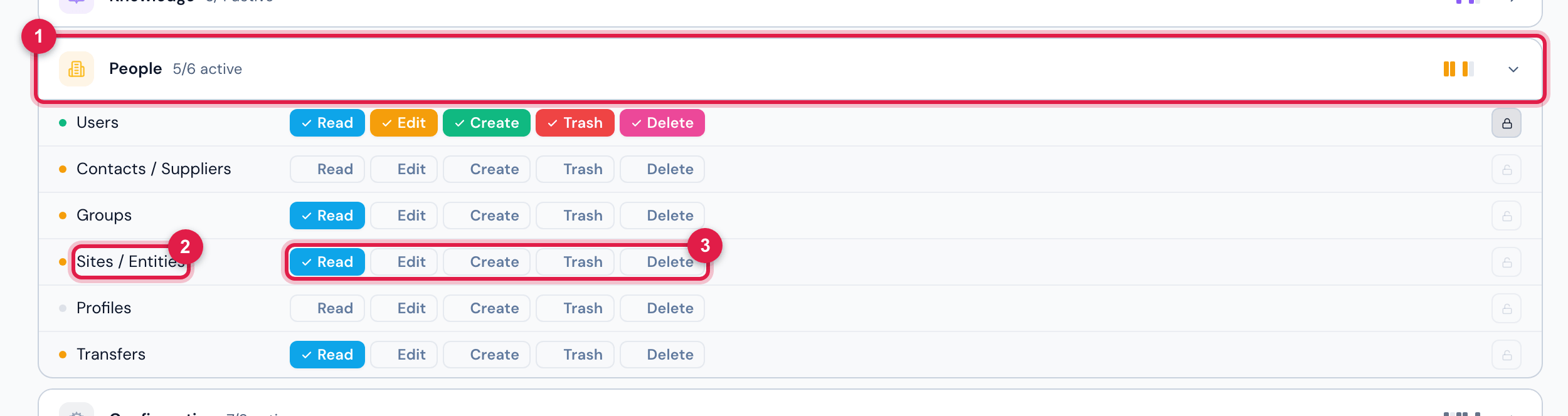
Figure 2. People › Profiles › a profile › Permissions tab, with the People group open: the Sites / Entities row and the levels Read, Edit, Create, Trash and Delete. Click a level to switch it on or off, then save.
- 1People group — click to open or close it.
- 2Sites / Entities right.
- 3The levels of the right; the colored ones are on.
| Level | What it allows on the Sites screen |
|---|---|
| Read | see the list and the record of each site, with the Documents, Notes, Users, History and Statistics tabs, and download the documents. |
| Create | New Site and New Sub-site, upload the logo, upload documents and add notes. |
| Edit | Edit the site data. Fetch site logo requires Edit or Create. |
| Trash | Delete the site, remove documents and remove notes. Note: despite the name of the level, deleting a site does not go through the trash — it is permanent (chapter 7). |
| Delete | not used by the Sites screen. |
The site document can also be downloaded by anyone with Read in the Tickets right, even without access to the Sites screen — this is the case of the documents used in the ticket report (chapter 6).
Was this page helpful?
Thanks for the feedback!
Got it — we will improve this page.