
The invoice list
Manual — NF-e and material receiving · chapter 2 of 11
Warehouse › NFe Invoices shows the invoices of all the sites you can see, from newest (by issue date) to oldest. Click a row to open the invoice record (chapter 4).Cards, tabs and period
Section titled “Cards, tabs and period”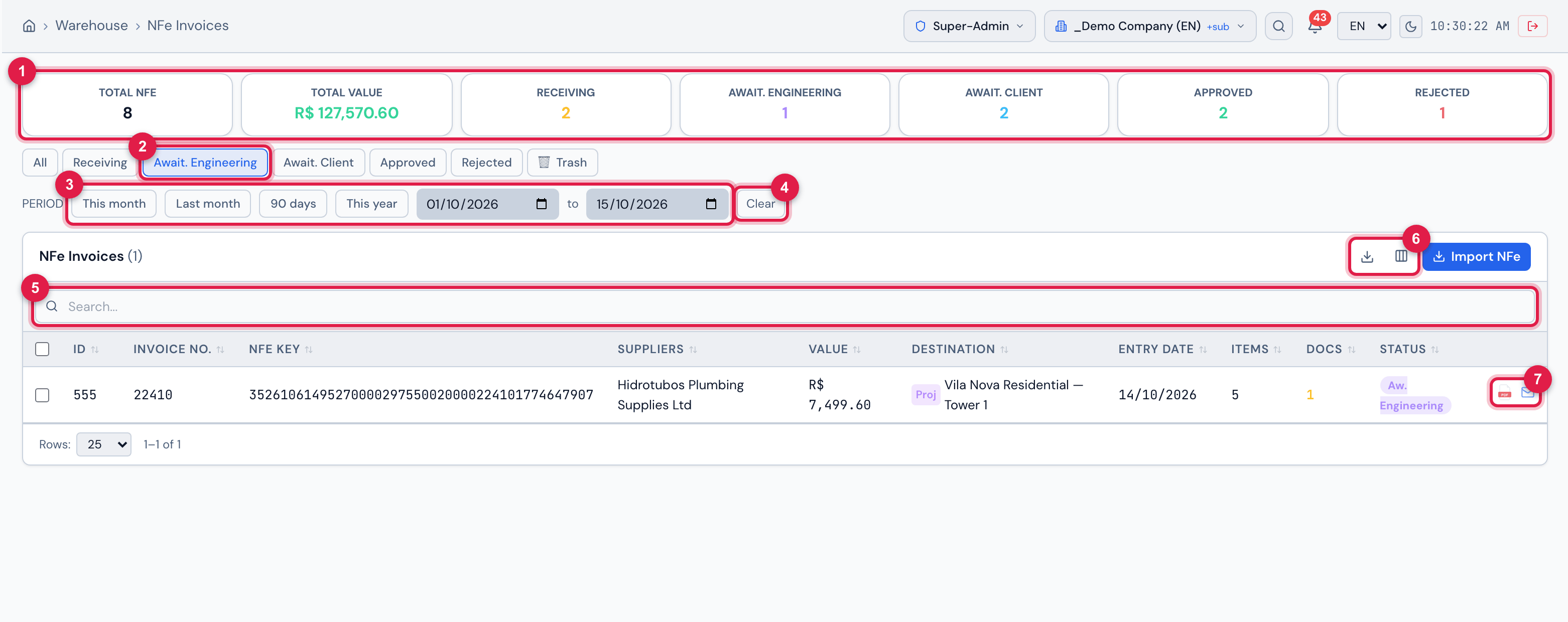
Figure 3. The Await. Engineering tab: invoice 22410 from Hidrotubos, for Vila Nova Residential — Tower 1, is waiting for engineering.
- 1The cards — they follow the list’s search and period.
- 2The clicked tab.
- 3The Period shortcuts and the to dates.
- 4Clear — back to all dates.
- 5The Search… box.
- 6Export and Columns.
- 7The PDF icon and the e-mail icon of an invoice.
- The tabs: All, Receiving, Await. Engineering, Await. Client, Approved and Rejected filter by state; 🗑 Trash (for whoever has Trash in Invoices (NFe)) shows the deleted invoices, with their count beside it.
- Period: This month, Last month, 90 days and This year fill in both dates; the dates can also be typed. The period is by the invoice’s issue date, not by the date it entered H2O. Without dates, the list shows all of them.
- The cards — Total NFe, Total Value and one per state — count the invoices in the list with the search and the Period applied. The tab does not change the cards: they already count state by state.
- The search looks in the invoice number, the access key, the supplier’s name and CNPJ (tax ID), the purchase order number, the additional information and the ID.
The columns
Section titled “The columns”| Column | What it shows |
|---|---|
| checkbox | marks the invoice for sending several PDFs by e-mail (chapter 9) |
| ID | the invoice’s internal number in H2O |
| Invoice No. | the invoice number |
| NFe Key | the 44-digit access key |
| Suppliers | the issuer. With Read in Contacts / Suppliers, the name opens the supplier record |
| Value | the invoice total |
| Destination | Proj or Site and the destination name (chapter 3) |
| Entry Date | the day the invoice was imported |
| Date | the issue date — hidden; show it in Columns |
| Items | how many products the invoice has |
| Docs | how many documents (invoice, order, certificates) were attached |
| Status | the state, with the short tab name |
| icons | Generate the inspection PDF and Send the report by e-mail (chapter 9) |
Click the heading of ID, Invoice No., Suppliers, Value, Entry Date, Date or Status to sort. Export downloads the list as Excel or PDF (chapter 9).
The trash
Section titled “The trash”The trash keeps the invoices deleted from the record (chapter 4). Nothing is erased for good: the invoice stays there, with its items, photos and approvals.
- The 🗑 Trash tab appears only for whoever has Trash in Invoices (NFe).
- The columns are those of the list, plus Deleted on. Restore asks Restore this NFe? and returns the invoice to the state it was in (NFe restored).
- Importing again the key of an invoice that is in the trash does not create another invoice: the import warns This invoice (NF-e no. …) was already imported and is in the trash. To use it again, restore it in NF-e › Trash (Restore button). (chapter 3).
Was this page helpful?
Thanks for the feedback!
Got it — we will improve this page.