
Creating the collector and generating the token
Manual — Data collectors · chapter 3 of 10
The collector is born in H2O, before any installation: you say which site it belongs to, what to do with a late reading and whether you want a ticket when it loses contact. On saving, H2O generates the pairing token — the code the installer will ask for on the customer computer.New collector
Section titled “New collector”- In Overview › Collectors, click New collector.
- Fill in the Name (e.g. “Technical Room Collector”) and choose the Site.
- In Subsites this collector can read, select the subsites whose assets this collector will read.
- In Collector type, leave Software.
- Check Late readings and Ticket when contact is lost (below).
- Click Save and generate token.
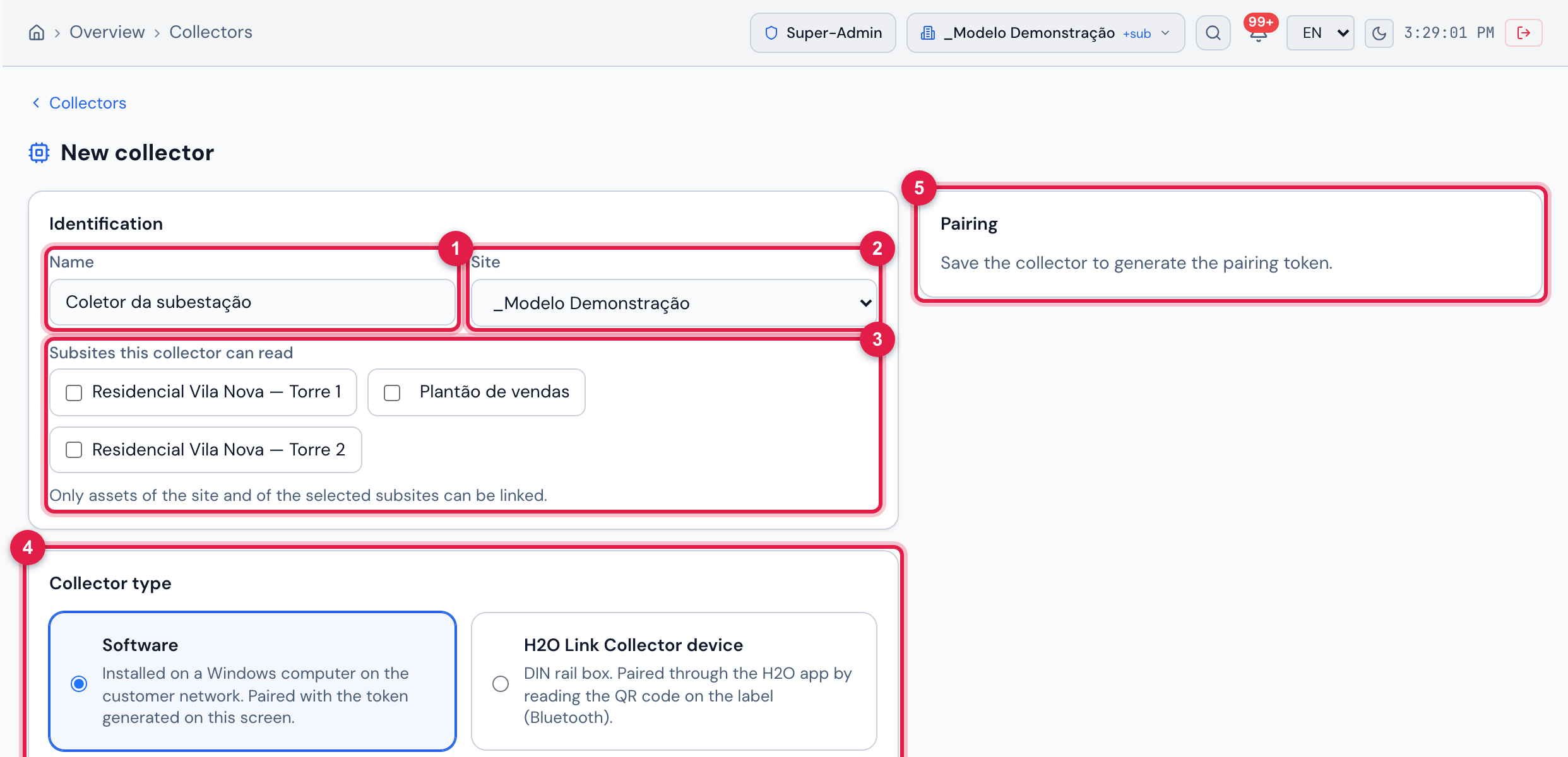
Figure 2. The New collector screen: the Identification and Collector type cards and, on the right, the Pairing card still empty.
- 1Name — required. It cannot repeat the name of another collector of the same site.
- 2Site — required. Only the sites you can see.
- 3Subsites this collector can read — the sites below the chosen site. Without subsites, the screen says This site has no subsites.
- 4Collector type: Software (Windows computer, paired with the token) or H2O Link Collector device (DIN rail box, paired through the app).
- 5The Pairing card warns: Save the collector to generate the pairing token.
| Field | Rule |
|---|---|
| Name | required, up to 160 characters. Repeated name in the same site: A collector with this name already exists in this site. |
| Site | required when creating. Once created, it does not change: The collector site cannot be changed after creation. |
| Subsites this collector can read | only the assets of the site and of the selected subsites show up for linking. You can select and unselect later — but a subsite with a linked asset cannot be removed: There are linked assets in: … Unlink those assets before removing the subsite from the collector. |
| Collector type | Software today. The H2O Link Collector device arrives with the device |
| Notes | free text (where the computer is, who the IT contact is) |
| Collector active | only appears after creation. Unchecked, the collector becomes Inactive and H2O stops accepting its calls (chapter 8) |
Late readings and ticket on lost contact
Section titled “Late readings and ticket on lost contact”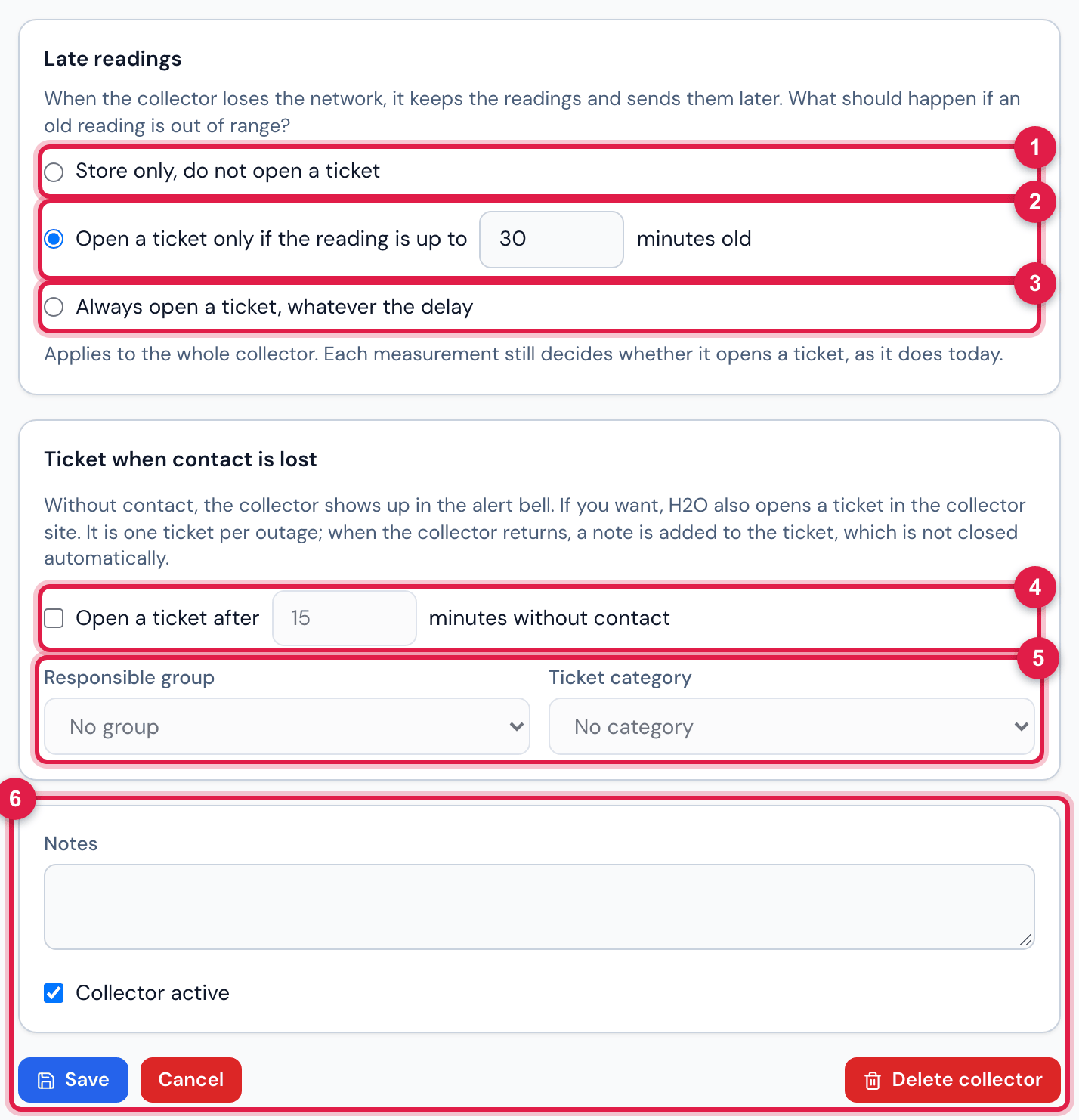
Figure 3. The Settings tab of the collector, scrolled down to the Late readings and Ticket when contact is lost cards.
- 1Store only, do not open a ticket.
- 2Open a ticket only if the reading is up to … minutes old — the option that comes selected, with 30 minutes.
- 3Always open a ticket, whatever the delay.
- 4Open a ticket after … minutes without contact — unchecked by default.
- 5Responsible group and Ticket category.
- 6Notes, Collector active and the Save button.
The screen explains the question of Late readings: When the collector loses the network, it keeps the readings and sends them later. What should happen if an old reading is out of range?
| Option | What happens to the old out-of-range reading | When to choose it |
|---|---|---|
| Store only, do not open a ticket | it enters the history and the chart as an anomaly, but never opens a ticket | collector for recording only |
| Open a ticket only if the reading is up to N minutes old | opens a ticket if the reading is at most N minutes old on arrival; older than that, it is only stored. N goes from 1 to 10080 (7 days); the default is 30 | the common case: a ticket for what is happening now, not for what has already passed |
| Always open a ticket, whatever the delay | opens a ticket even if the reading is hours or days old | when every departure from the range must become a service record |
The Ticket when contact is lost card turns on the automatic ticket for a collector outage: check Open a ticket after, enter the minutes (minimum 5; the default is 15) and choose the Responsible group and the Ticket category. How the ticket is born, what goes into it and when it is updated is in chapter 7.
The pairing token
Section titled “The pairing token”When you click Save and generate token, H2O warns Collector created. Write down the token: it is shown only now. and opens the collector page on the Settings tab, with the token in a dark box in the Pairing card, the Copy token button and the line Single use · valid until with the date and time.
| Token rule | Detail |
|---|---|
| Format | your company identifier in H2O, a dash and eight characters in two groups — for example DEMO-7K3M-9QP2. It does not use the letters I, L and O or the numbers 0 and 1, to avoid confusion when typing |
| Validity | 24 hours from generation |
| Single use | it serves to pair one installation. Once used, it is no longer valid |
| Shown once | H2O does not keep the readable token. Once you leave the page, the dark box disappears and the notice The token is shown only when it is generated. If it was lost, generate another one. remains |
| Typing | the installer accepts uppercase or lowercase, with or without the dashes |
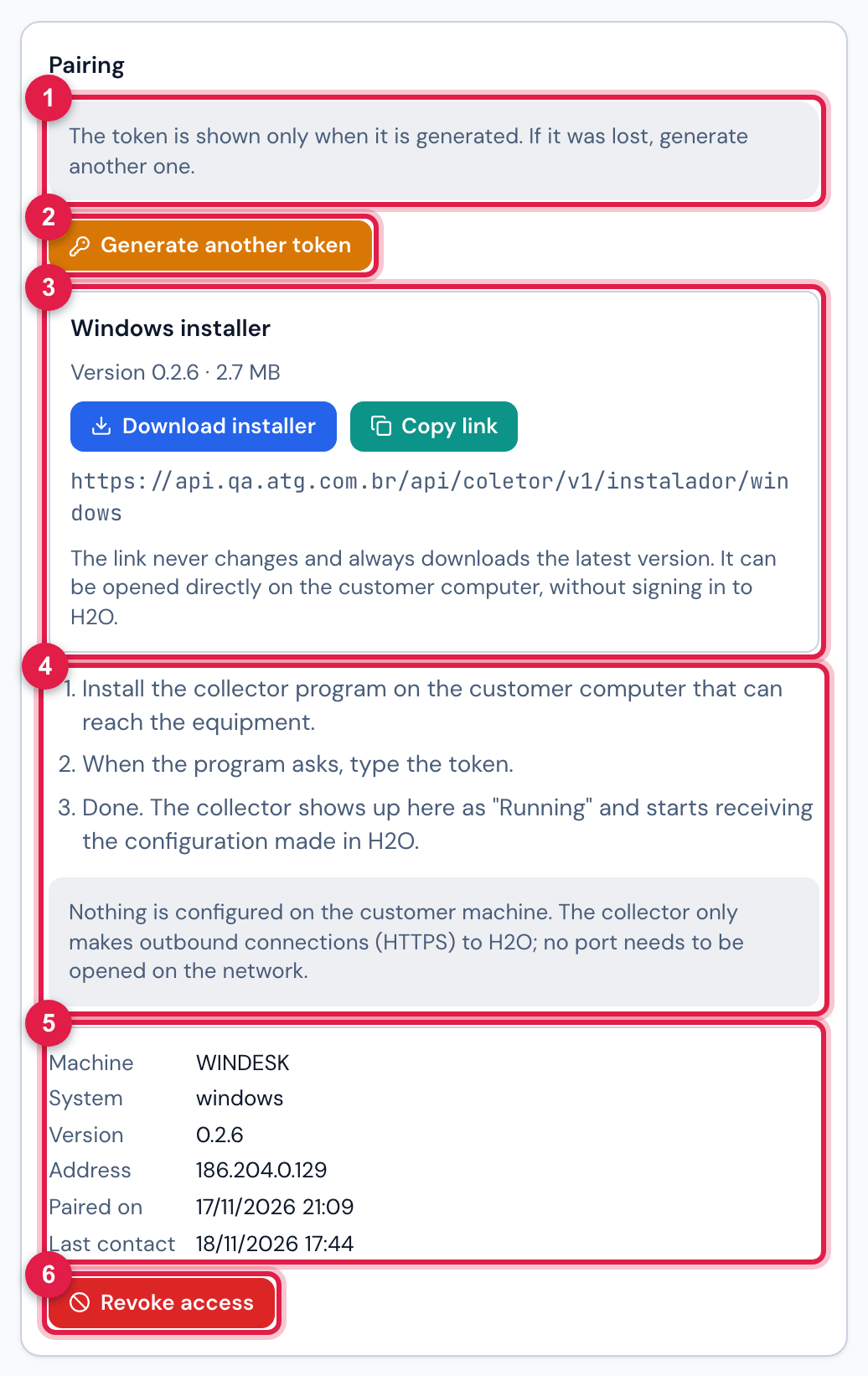
Figure 4. The Pairing card of a collector already paired, on the Settings tab.
- 1The token notice: after leaving the page where it was generated, it is not shown again.
- 2Generate another token — creates a new token; the previous one is no longer valid.
- 3Windows installer: the version and the size, Download installer, Copy link and the link in full.
- 4The three installation steps and the notice that the collector only makes outbound connections.
- 5The pairing data: Machine, System, Version, Address, Paired on and Last contact.
- 6Revoke access (chapter 8).
While a generated token waits to be used, the card shows There is a token waiting to be used, valid until … and the list of collectors shows token valid until … in the Version column.
Downloading the installer
Section titled “Downloading the installer”In the same Pairing card, the Windows installer block shows the published version and the file size, with two buttons:
| Button | What it does |
|---|---|
| Download installer | downloads the file h2o-coletor-<versão>-instalador.exe to the computer you are on |
| Copy link | copies the installer address, to paste into the browser of the customer computer, into an e-mail or into a ticket for the IT team |
The screen explains the link: The link never changes and always downloads the latest version. It can be opened directly on the customer computer, without signing in to H2O. The link also appears in full, below the buttons, to select and copy by hand.
The three steps of the card sum up what comes next: Install the collector program on the customer computer that can reach the equipment. · When the program asks, type the token. · Done. The collector shows up here as “Running” and starts receiving the configuration made in H2O. Chapter 4 shows each screen of the installer.
Was this page helpful?
Thanks for the feedback!
Got it — we will improve this page.