
Items and question types
Manual — Task templates and checklists · chapter 4 of 10
The items are in the Checklist Items tab of the record. Each item is a question with a type — the type decides how it is answered, what counts as non-compliant and how the answer appears in the PDF.The Checklist Items tab
Section titled “The Checklist Items tab”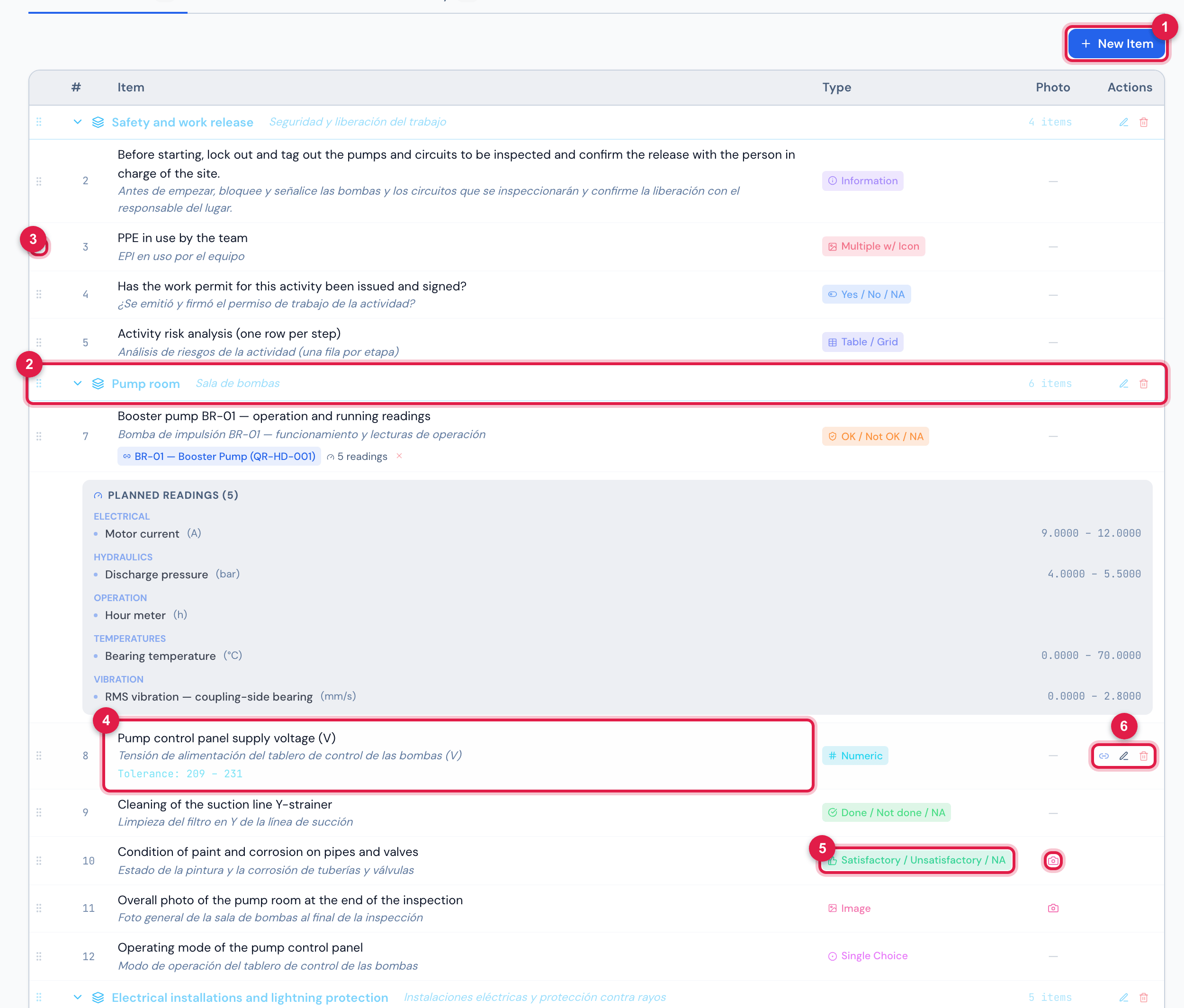
Figure 7. The items of Monthly infrastructure inspection — Data Center — one item of each type, except the four electrical test sheets (further below): the sections (items of the Grouping type) with their items below, the type of each one, the camera on those requiring a photo and the range of the numeric ones.
- 1New Item.
- 2A Grouping: the blue row with the section title and N items; click to collapse or expand.
- 3The ⋮⋮ handle — drag to change the order.
- 4The item, with the translation in italics and, in Numeric, the Tolerance.
- 5The Type and the Photo column (📷 = photo required).
- 6On mouse-over: Link asset, Edit and Delete.
- Order: drag by the ⋮⋮ handle and drop at the new position — it is saved immediately. The items below a Grouping belong to it until the next grouping.
- Edit opens the item in its own row: text, translation, type, the Photo box, the range and the options. Save / Cancel.
- Delete asks Delete this item? and removes the item from the checklist.
New Item
Section titled “New Item”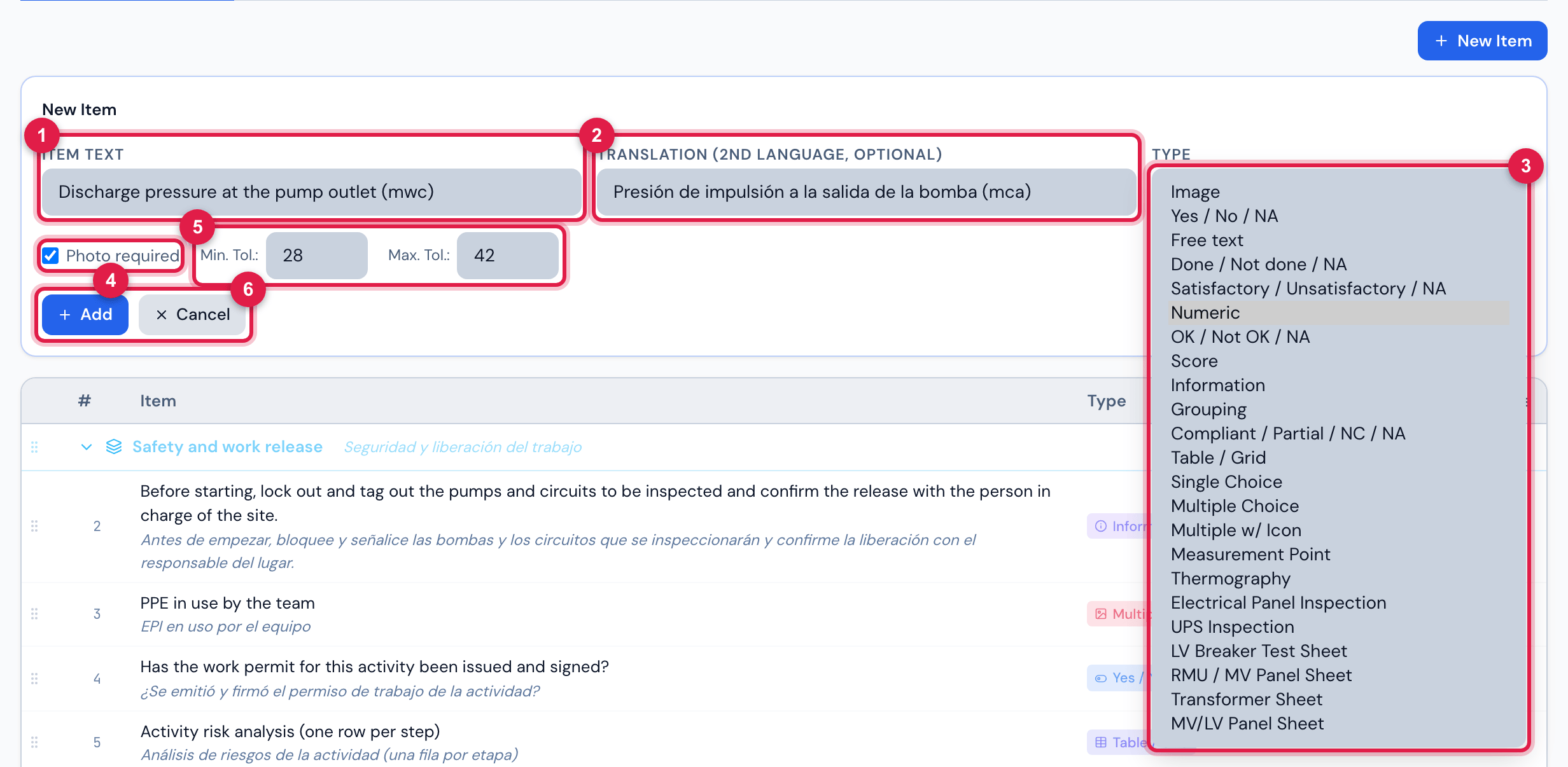
Figure 8. New Item of the Numeric type (not saved): “Discharge pressure at the pump outlet (mwc)”, the Spanish translation, the Type list open with the 23 types, the acceptable range in Min. Tol.: and Max. Tol.: and the required photo.
- 1Item text — the question.
- 2Translation (2nd language, optional).
- 3Type — the 23 types.
- 4Photo required.
- 5Min. Tol.: / Max. Tol.: — only in Numeric.
- 6Add / Cancel.
- In the Checklist Items tab, click New Item.
- Write the question in Item text. Be direct and verifiable: “Output voltage (V)”, “Air filters clean”, “Identification label legible”.
- Choose the Type (table below). Depending on the type, extra fields appear: the range in Numeric, the Classification: in Compliant / Partial / NC / NA and the Options in the choice types.
- Tick Photo required if photographic evidence is mandatory.
- Click Add (or Enter). The item goes to the end of the list — drag it to the right place.
- Translation (2nd language, optional): the same text in the team’s other language (in the templates of the English demo company, Spanish). It appears in italics, below the question, in the web and app checklist and in the PDF.
- Photo required: without the photo (or a PDF) the checklist cannot be finished — unless the answer is N/A. A non-compliant answer also opens the photo area. It works the same in items generated by the AI assistant (chapter 5).
- Classification: (Construction site or Documents, in the viewer’s language) groups the Compliant / Partial / NC / NA items in the project audit statistics.
The 23 types
Section titled “The 23 types”In the table, NC is the answer that counts as non-compliant — the one that asks for a photo, paints the item red and, with Generates Non-Conformity, becomes an NCR (chapter 8). PC (partial) turns yellow, but does not generate an NCR.
| Type | What it is for | How it is answered — web · app | Non-compliant when | In the PDF |
|---|---|---|---|---|
| Image | evidence only: “Photo of the equipment nameplate” | web Send photo/PDF · app Take photo / Another photo (N). The photo is the answer and is always required | never | the item card and the photos below |
| Yes / No / NA | closed question | web and app Yes · No · N/A | No | the three options on the right, the selected one in colour |
| Free text | written record: readings, remarks | web box Type the text… + Save · app ✎ Tap to add text… | never | Resp: and the text |
| Done / Not done / NA | task performed or not: “Filter cleaning” | web Done · Not done · N/A · app the same | Not done | the three options |
| Satisfactory / Unsatisfactory / NA | condition assessment | web Satisfactory · Unsatisfactory · N/A · app the same | Unsatisfactory | the three options |
| Numeric | measurement with a range: voltage, temperature, pressure | web Value field + Save, or N/A; shows Tolerance: Min … / Max … · app Enter value or N/A | value outside the Min. Tol.: – Max. Tol.: range (with one side only: below the minimum or above the maximum) | the value in a green (within range) or red box |
| OK / Not OK / NA | simple check | web OK · Not OK · N/A · app Ok · Not OK · N/A | Not OK | the three options |
| Score | rating from 1 to 5 | buttons 1 to 5 | never | the five boxes, the selected one in colour |
| Information | notice to the technician: “Switch off the main breaker before opening the panel” | web OK · app ✓ Ok, acknowledged — the acknowledgement counts as the answer | never | the OK ticked |
| Grouping | section title — splits the checklist | not answered | — | the section band |
| Compliant / Partial / NC / NA | audits and inspections | web Compliant · Partially compliant · Non-compliant · Not applicable · app the same | Non-compliant (Partially compliant = PC) | the four options |
| Table / Grid | the APR risk grid | rows with Activity, Hazards Identified, Hazard Source, Potential Harm, Safety Recommendations and Responsible; Add row | never | the whole grid |
| Single Choice | one choice among your own options | one button per option · app the same | never | the options, with the chosen one marked |
| Multiple Choice | several choices: “Systems inspected” | buttons that tick and untick · app the same (✓) | never | the options, with the ticked ones |
| Multiple w/ Icon | like the previous one, with a drawing per option | figures that tick and untick | never | the figures, with the ticked ones |
| Measurement Point | lightning protection earthing reports and the like: several measured points | one row per point (Add point): Point, Measurement, compliance (Compliant · Partial · Non-compliant · N/A), Observation, Recommendation and photos of the point | point Non-compliant | the P1…Pn table and the photos of each point |
| Thermography | thermographic report: one panel per row | Add panel: Panel, minimum and maximum temperatures, Severity (None · Minor · Moderate · Severe), six OK/NOK/NA checks, camera parameters and the photo pair Thermogram + visible photo | severity Moderate or Severe (Minor = PC) | one page per panel, in the report layout |
| Electrical Panel Inspection | panel maintenance: one panel per row | panel from the site’s asset list or by name (in the app also by the label QR): Criticality (Critical · Regular · Minimal · None), Non-conformity description, Technical guidance, Notes and photos with captions | criticality Critical or Regular (Minimal = PC) | the panel card with the criticality table and the photos |
| UPS Inspection | UPS report: one unit per row | UPS from the list, by name or by QR (app): the equipment record, 29 OK/NOK/NA checks in three groups, room ventilation, battery data and the front, rear and battery bank photos | any NOK check | the record, the three OK/NOK/NA tables and the photos |
| LV Breaker Test Sheet | low-voltage breaker test (Pit Stop): one sheet per breaker | sheet from the site asset list or blank (in the app also by QR): position, Stage, line-up, Poles, equipment data and counters, 9 inspections A · R · NA, the grids Insulation – breaker open, Insulation – breaker closed and Contact resistance, the result and the General, Nameplate and Test photos | sheet Failed | one sheet per page, in the layout of the test report |
| RMU / MV Panel Sheet | medium-voltage preventive maintenance: one sheet per RMU + transformer or per MV panel | like the previous one: the Sheet type (RMU + XFMR or MV panel), the list of Breakers with initial and final counter, the transformer block, the inspections of the type, five insulation and contact grids per breaker and the transformer insulation | sheet Failed | one sheet per page |
| Transformer Sheet | electrical shutdown: one sheet per transformer | TAG, reference document, characteristics, 6 inspections, HV/LV, LV/ground and HV/ground insulation and the Turns ratio per phase, with the optional reference ratio | sheet Failed | one sheet per page |
| MV/LV Panel Sheet | electrical shutdown: one sheet per panel | TAG, reference document, characteristics, 6 inspections, the insulation (optional: With insulation test) and the contact resistance of each circuit breaker in the panel (Add circuit breaker) | sheet Failed | one sheet per page |
| Min. Tol.: / Max. Tol.: | What applies (web and app) |
|---|---|
| both filled in (209 and 231) | range: from 209 to 231, both included; outside it, non-compliant |
| only Max. Tol.: (minimum empty or 0) | one-sided limit: up to the maximum; above it, non-compliant |
| only Min. Tol.: (maximum empty or 0) | one-sided limit: from the minimum up; below it, non-compliant |
| both empty, or 0 and 0 | no range: every value is compliant |
The Table / Grid, Measurement Point, Thermography, Electrical Panel Inspection and UPS Inspection types and the four electrical test sheets are “row-based”: whoever executes adds as many rows (or sheets) as needed, and the item only counts as answered with at least one. In these types, the required photo is checked row by row.
Electrical test sheets: the limits
Section titled “Electrical test sheets: the limits”The four sheets (LV Breaker Test Sheet, RMU / MV Panel Sheet, Transformer Sheet and MV/LV Panel Sheet) follow the electrical test reports: inside the task, the technician fills in one sheet per piece of equipment, and H2O judges each measurement by the item’s limits. The limits are on the template item itself: when creating the item (or in Edit), once the sheet type is chosen, the Sheet limits block appears.
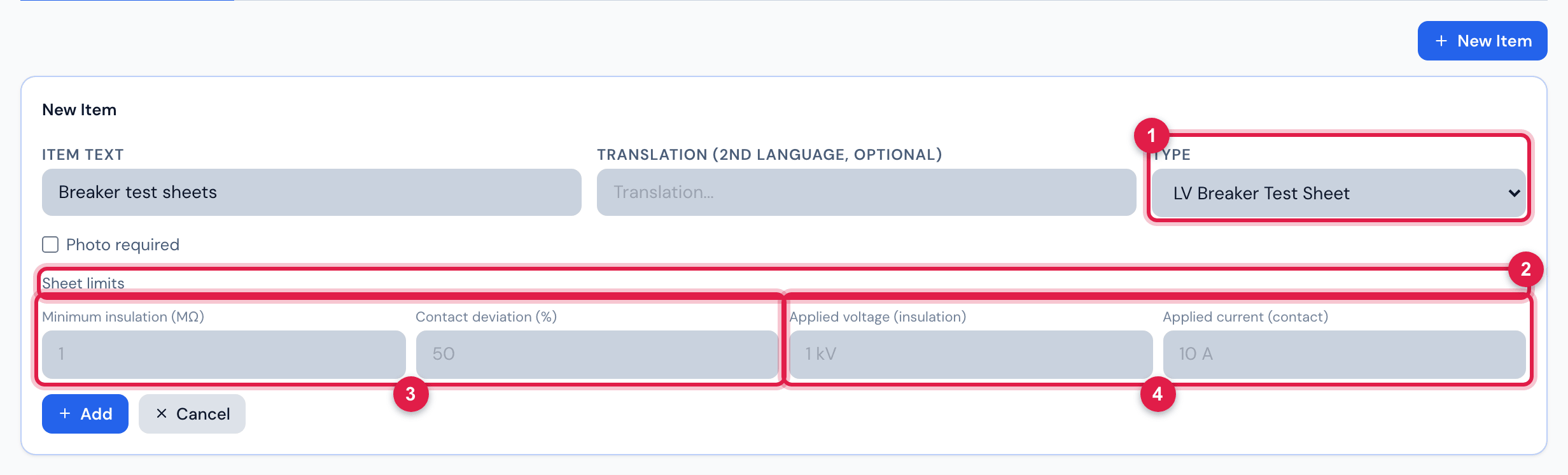
Figure 9. New Item of the LV Breaker Test Sheet type (not saved): the Sheet limits block, with the defaults in grey.
- 1Type — LV Breaker Test Sheet.
- 2Sheet limits — an empty field uses the default, shown in grey.
- 3Minimum insulation (MΩ) and Contact deviation (%) — the rule that passes or fails each cell.
- 4Applied voltage (insulation) and Applied current (contact) — already filled in on each cell of the sheet.
| Sheet | Limits and defaults |
|---|---|
| LV Breaker Test Sheet | Minimum insulation (MΩ) 1 · Contact deviation (%) 50 · Applied voltage (insulation) 1 kV · Applied current (contact) 10 A |
| RMU / MV Panel Sheet | minimum insulation 1 MΩ · contact deviation 50 % · applied voltage 10 kV · Applied voltage (XFMR LV side) 0.5 kV · applied current 10 A |
| Transformer Sheet | minimum insulation 1 MΩ · Ratio deviation (%) 0.5 · Applied voltage (HV) 10 kV · Applied voltage (LV) 500 V |
| MV/LV Panel Sheet | minimum insulation 1 MΩ · contact deviation 50 % · applied voltage 500 V · applied current 10 A |
- Insulation: a cell below the minimum fails (TΩ and GΩ are converted to MΩ; “> 1 TΩ” counts as at least 1 TΩ).
- Contact: with two or more cells in the grid, the one that deviates from the average by more than the deviation fails.
- Turns ratio: only judged when the sheet has the reference ratio; without it, it is for information only.
- The limit applies to the whole template. If a customer requires 100 MΩ, change it on their template: the sheets are then judged by that value.
Options of the choice types
Section titled “Options of the choice types”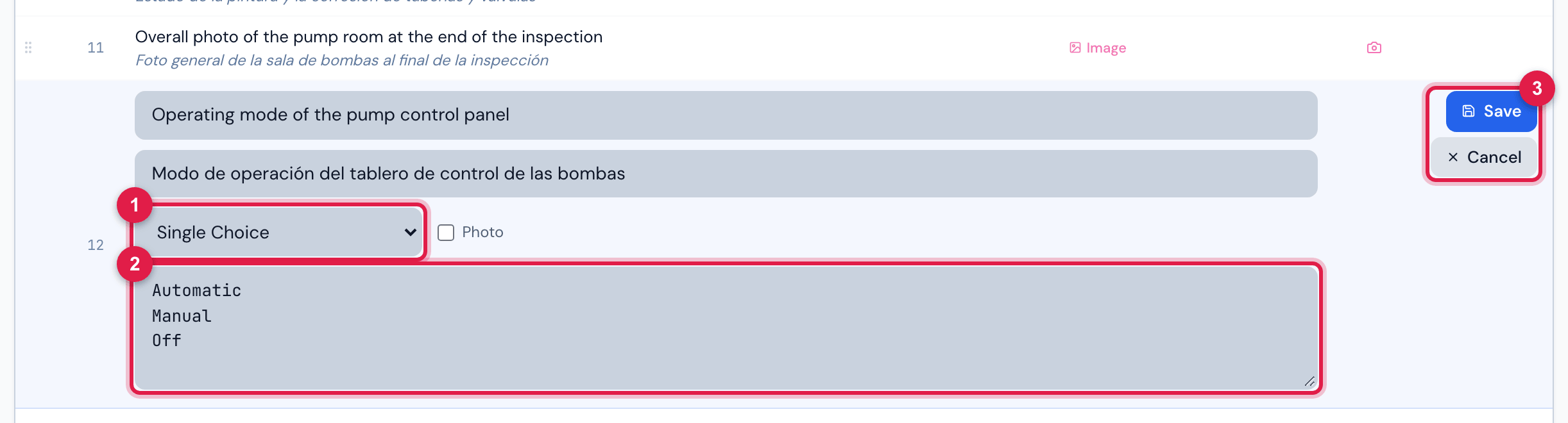
Figure 10. The item Operating mode of the pump control panel (Single Choice) being edited: Automatic, Manual and Off, one per line.
- 1The choice Type.
- 2The options box, one per line (in New Item, labelled Options (one per line — pick one)).
- 3Save / Cancel.
- Single Choice and Multiple Choice: one option per line.
- Multiple w/ Icon: one option per line in the format label | <svg>…</svg> — the label, a vertical bar and the SVG drawing. Without the drawing, the option becomes a plain button.
- With no options, the Preview tab warns Define options in the template and the item cannot be answered.
- Changing the text of an option after the template is in use leaves the old answers with the old text (chapter 9).
Asset linked to the item (patrols)
Section titled “Asset linked to the item (patrols)”In patrol templates (Planning › Patrols — chapter 6), each item can point to a monitored asset: Link asset (the chain icon) opens Search asset by name, tag or serial…; without typing, the list shows the assets with measurement metrics. Once the asset is chosen, the item shows its name and Planned readings (N) — the asset’s metrics, with the expected range. During execution, the technician fills in these readings together with the answer. The X next to the asset unlinks it. The metrics are registered on the asset (manual Assets, chapter 6).
Template materials
Section titled “Template materials”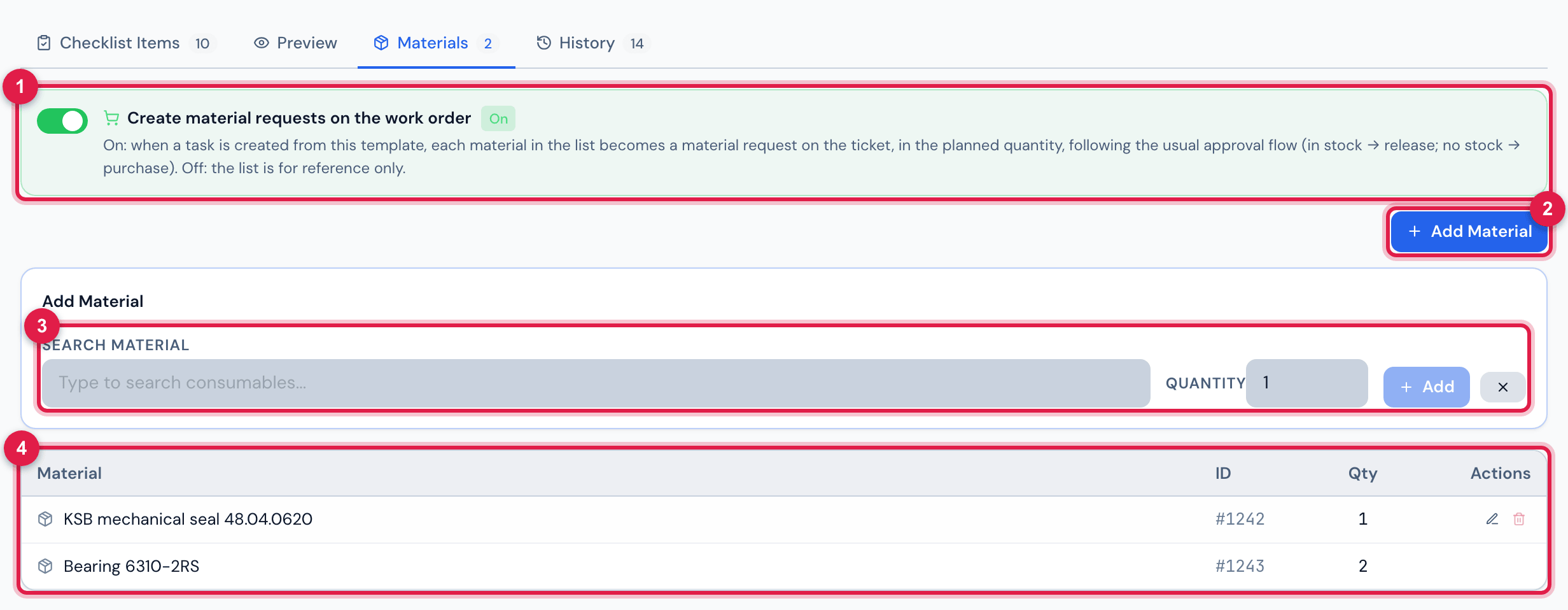
Figure 11. Materials tab of Mechanical seal replacement — booster pump: the Create material requests on the work order switch on, the seal and the bearings, with the quantity.
- 1Create material requests on the work order — On (the default) or Off.
- 2Add Material.
- 3Search Material (Type to search consumables…) and Quantity.
- 4The list: Material, ID, Qty and the actions (edit the quantity, remove).
The Materials tab lists what the team needs to take to execute the checklist, searching among all the warehouse materials. Add Material needs Create; changing the quantity (click the number), Edit; removing, Trash. Each change goes into the History (chapter 9).
With the Create material requests on the work order switch on, every time a task is created from this template, each material in the list becomes a material request on the ticket, in the planned quantity. The request follows the usual warehouse flow: with stock on the site, it goes to release; without stock, to purchase.
- The switch starts On on every template; changing it needs Edit in Task Templates. Clone copies the switch together with the materials.
- It applies wherever a task is created from a template: the ticket’s Tasks tab, the app, the tasks created when opening or cloning a ticket, Automatic Scheduling, Maintenance Plans, Patrols, Commissioning and the retest task.
- On the ticket, the Materials tab shows these requests with the from template badge. The requester is the task’s technician (or whoever created it); the comment says Planned in template: <template name> and the ticket history records Template materials: N request(s) created — these two texts come out in the company’s language.
- Off, the list is for reference only, as before.
Was this page helpful?
Thanks for the feedback!
Got it — we will improve this page.