
Gantt
Manual — Projects · chapter 7 of 13
The Gantt tab draws the project tasks on a timeline. Whoever has Edit in Projects adjusts the schedule right there, dragging the bars; whoever has Create links tasks with dependencies; whoever has Trash deletes dependencies. Whoever only has Read sees the drawing and can turn on Critical, without the editing buttons.The screen
Section titled “The screen”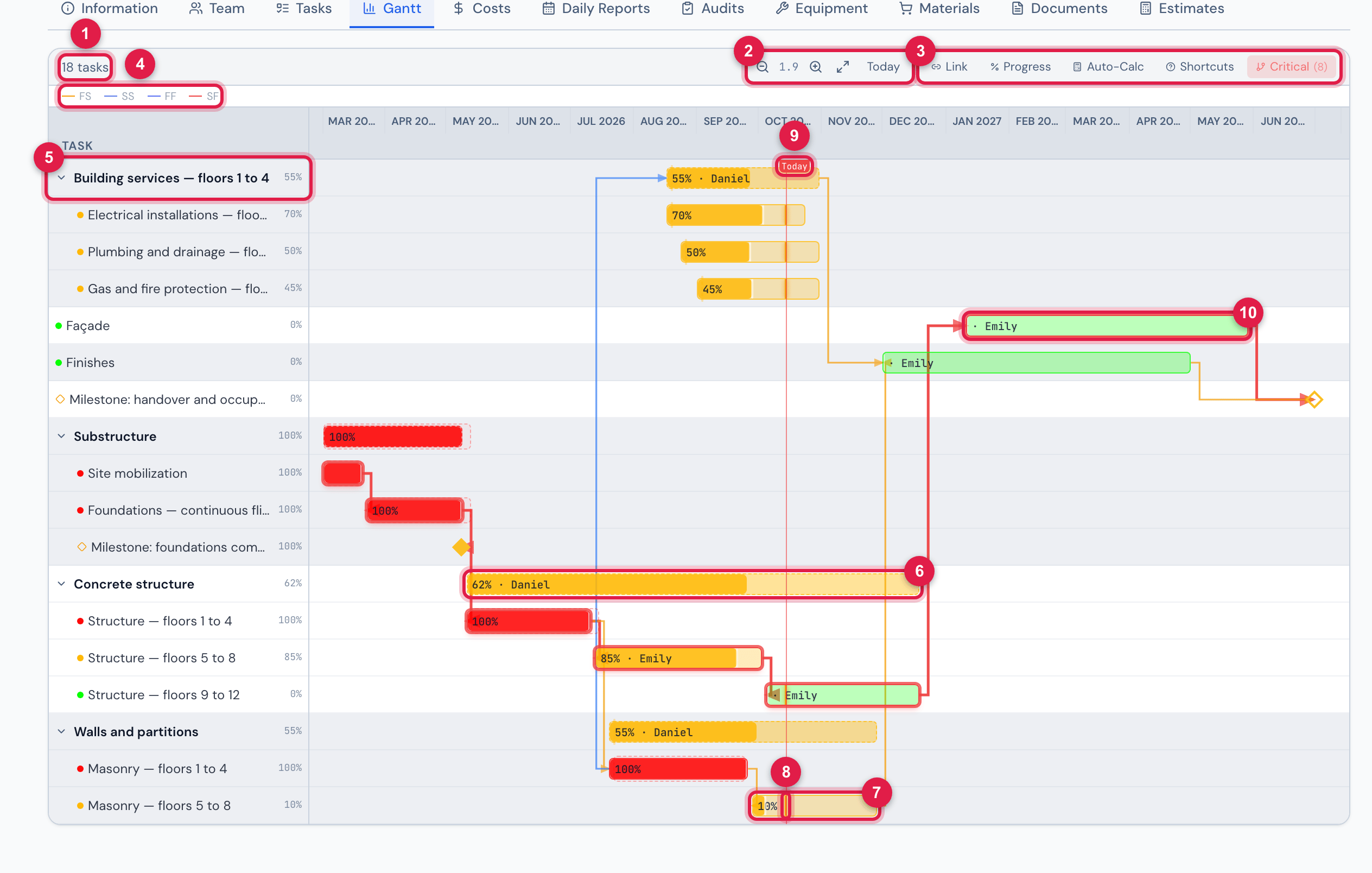
Figure 14. Gantt tab of Vila Nova Residential — Tower 1 with the critical path on: the dashed parent tasks, the subtasks, a milestone, today’s line and the dependencies.
- 1How many tasks the Gantt has.
- 2Zoom − / +, Fit to screen (the whole schedule across the chart width) and Today.
- 3Link (Create right), Progress and Auto-Calc (Edit right), Shortcuts (for those who can edit the Gantt) and Critical (for everyone).
- 4Dependency legend: FS, SS, FF, SF.
- 5Task column — the arrow of a parent task shows or hides its subtasks.
- 6Bar of a parent task: dashed, it is the summary of the subtasks.
- 7Bar of a subtask, with the % painted inside.
- 8Thin marker — where the task should be today.
- 9Red Today line.
- 10Task on the critical path, with a red outline.
| Element | How to read it |
|---|---|
| Solid bar | a task without subtasks, from planned start to planned end. The painted part is the %; the color is the task state’s color. |
| Dashed bar | a parent task: it summarizes the subtasks and cannot be dragged. |
| Diamond | a milestone. |
| Light dashed band behind the bar | the actual dates, when filled in. |
| Thin marker on the bar | where the task should be today, in a straight line between start and end. Hover over it to see Should be at X%. |
| Lines between bars | the dependencies, in the color of the type (FS, SS, FF, SF). |
| Warning icon next to a parent | the subtasks’ dates are outside the parent’s range. Click Auto-Calc to fix it. |
Hover over a bar to see the responsible person, state, Start, Finish, Duration, actual start date, the % compared with the expected one and the dependencies (Depends on / Blocks). A long project opens with readable bars and the chart scrolls sideways inside its frame (the page stays still); Fit to screen fits the whole period into the width.
Adjusting the schedule by dragging
Section titled “Adjusting the schedule by dragging”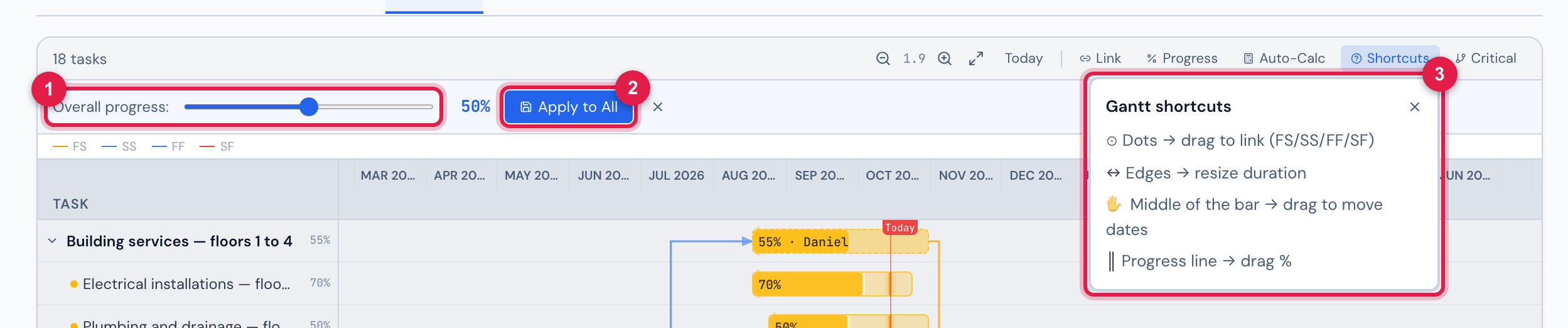
Figure 15. The Overall progress band open and the Gantt shortcuts box.
- 1Overall progress: — the control from 0 to 100%, in steps of 5.
- 2Apply to All — records the % in all the tasks of the project.
- 3Gantt shortcuts — the four ways of dragging.
| Drag… | To |
|---|---|
| the middle of the bar | move the whole task: start and end move together, by the number of days dragged. |
| the left or right edge | change only the start or only the end (the minimum duration is one day). |
| the progress line, inside the bar | change the %. |
| a dot of one bar to the dot of another | create a dependency; the chosen ends define the type (FS, SS, FF or SF). |
- Dragging bars and the % needs Edit; creating a dependency with the dots needs Create. Each drag saves at once. With the project From tasks, the project % and the parents’ % adjust right after.
- Link is the way without dragging: click Link, then the source bar and the target bar — it creates a Finish → Start dependency. Esc cancels.
- To delete a dependency, click its line and confirm Remove dependency? (Trash right).
- In a commissioning phase, the progress line cannot be dragged: the % comes from the tickets (chapter 6). The phase dates can be dragged normally.
- Moving a task does not push the ones that depend on it; adjust each one.
Critical path, Progress and Auto-Calc
Section titled “Critical path, Progress and Auto-Calc”| Button | What it does |
|---|---|
| Critical | turns the highlight of the critical path on and off: the sequence of tasks without slack, which defines the project end date. The button shows how many tasks are critical. It only changes the view. |
| Progress | opens the Overall progress: band. Apply to All records the same % in all the tasks of the project — useful to reset a schedule or close everything at 100% at the end. Commissioning phases are left out (the message says how many were skipped). |
| Auto-Calc | recalculates the dates of each parent task from its subtasks and the parents’ % by the average. The project % only changes in From tasks mode; in Manual and From schedule modes it stays as it is. The message shows the project % and how many % and dates were adjusted (or Everything was already in sync). |
Was this page helpful?
Thanks for the feedback!
Got it — we will improve this page.