
Creating the PMOC and the building
Manual — PMOC · chapter 3 of 10
Creating the PMOC takes three fields. The rest — building, owner, technical manager, ART, validity — is filled in on the page, on the Building tab, and can be completed little by little: the PMOC is born as a Draft and only counts once it is activated (chapter 7).New PMOC
Section titled “New PMOC”- In Operations › PMOC, click New PMOC.
- Fill in the PMOC name (e.g. “PMOC — Demo Building 2026” — the year helps, because each validity period is usually a new PMOC).
- Choose the Building site — the site whose HVAC assets enter the plan (chapter 2). It comes filled in with the active company.
- Enter the Building (the name of the building, as it appears on the PDF cover) and click Create.
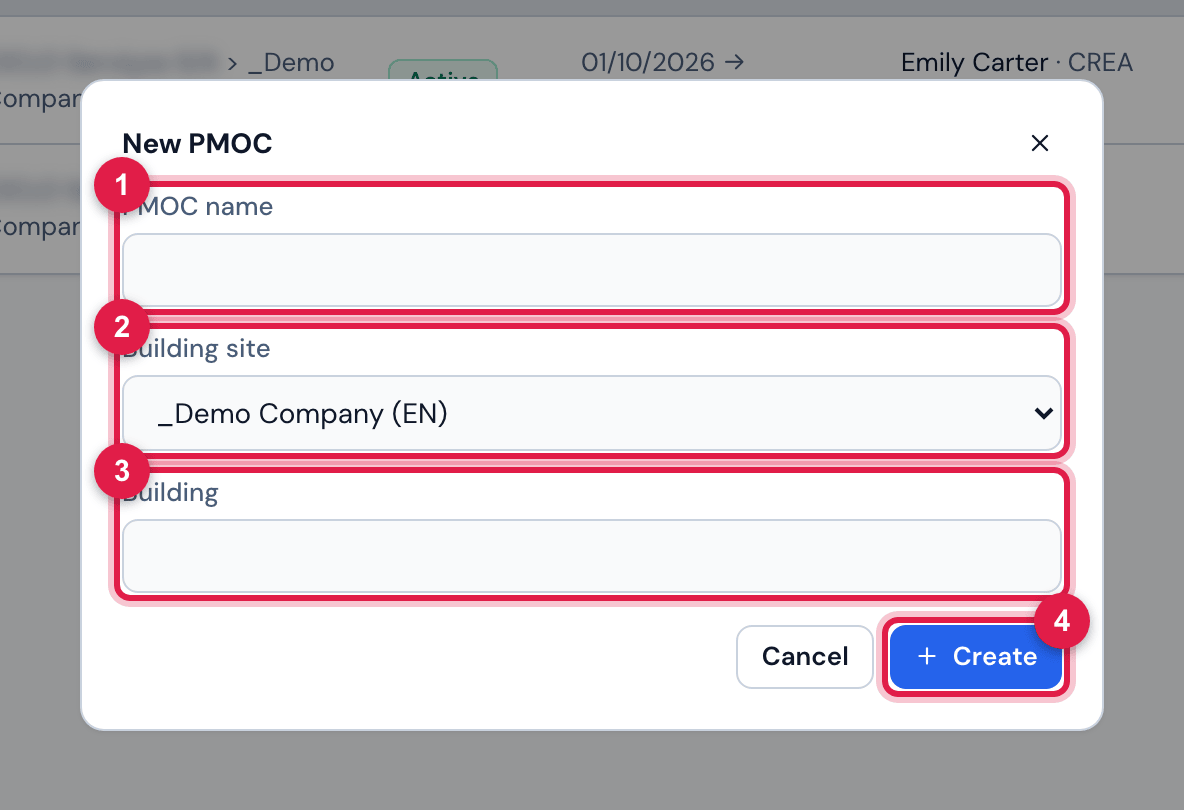
Figure 4. The New PMOC window.
- 1PMOC name — required.
- 2Building site — required; only the sites you see.
- 3Building — the name of the building; can be left for later.
- 4Create opens the page of the new PMOC, already on the Building tab. Cancel closes without creating.
The page and the tabs
Section titled “The page and the tabs”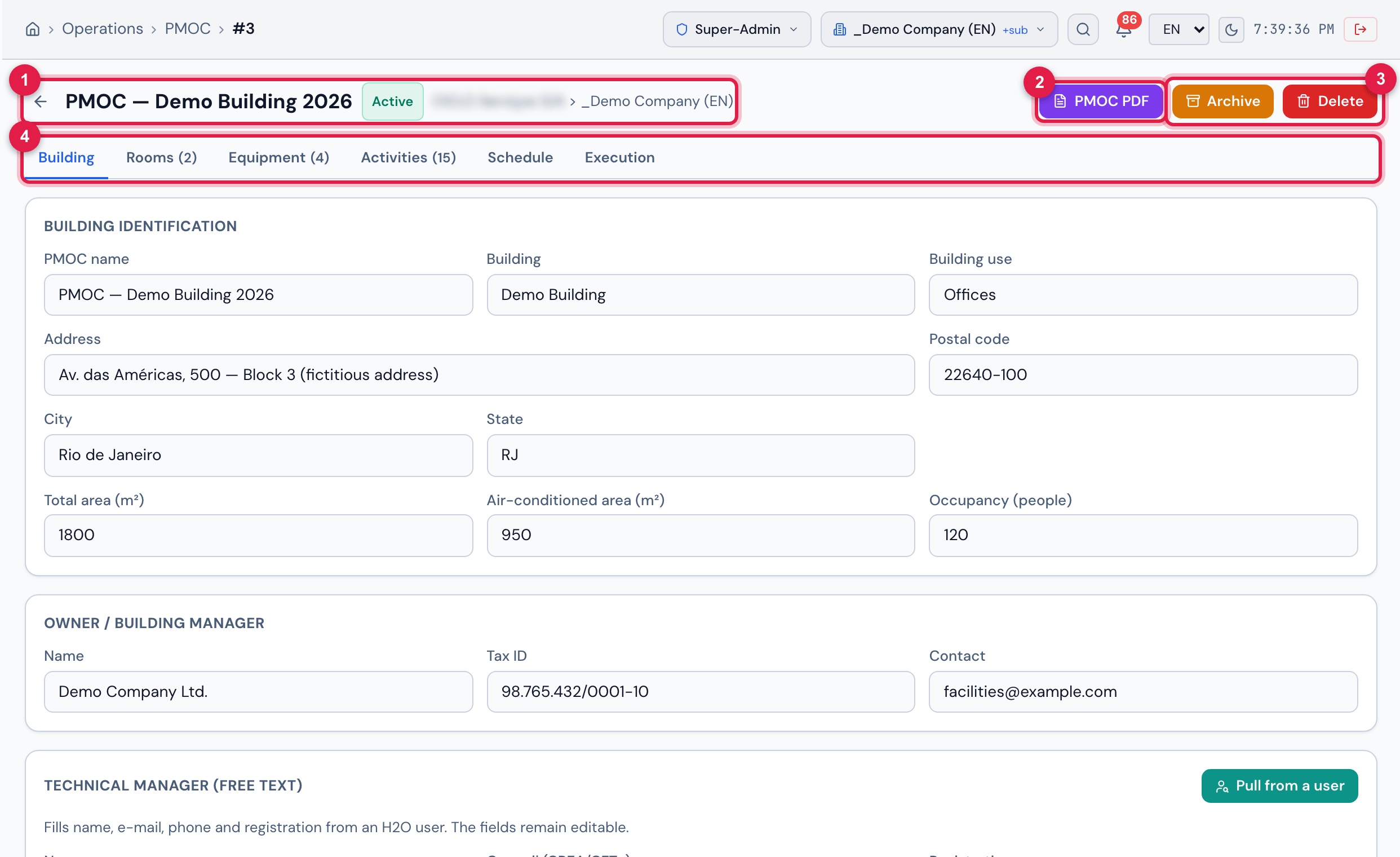
Figure 5. The page of the PMOC PMOC — Demo Building 2026, Active, of the site _Demo Company (EN).
- 1The arrow goes back to the list; next to it, the PMOC name, the status badge (Draft, Active or Archived) and the site.
- 2PMOC PDF — the document (chapter 9), for anyone who can read.
- 3Archive and Delete (on a PMOC that is not active, Activate PMOC also appears) — chapter 7. Only with the rights of chapter 1.
- 4The tabs Building, Rooms, Equipment, Activities, Schedule and Execution — Rooms, Equipment and Activities show the count in parentheses.
| Tab | What it has | Chapter |
|---|---|---|
| Building | identification, owner, technical manager, ART, validity, calendar and notes | 3 and 4 |
| Rooms | the air-conditioned rooms and the equipment serving each one | 5 |
| Equipment | the HVAC inventory of the site, with what has no room | 5 |
| Activities | the activities of the plan, periodicities and templates | 6 |
| Schedule | generate the schedule and see the items and tickets generated | 7 |
| Execution | the preventive tickets of the period, with evidence | 8 |
The Building tab: identification and owner
Section titled “The Building tab: identification and owner”The tab opens with four cards. The first two are the building identification and the owner; the others (technical manager, ART, validity) are in chapter 4. A single Save, at the end of the tab, records everything.
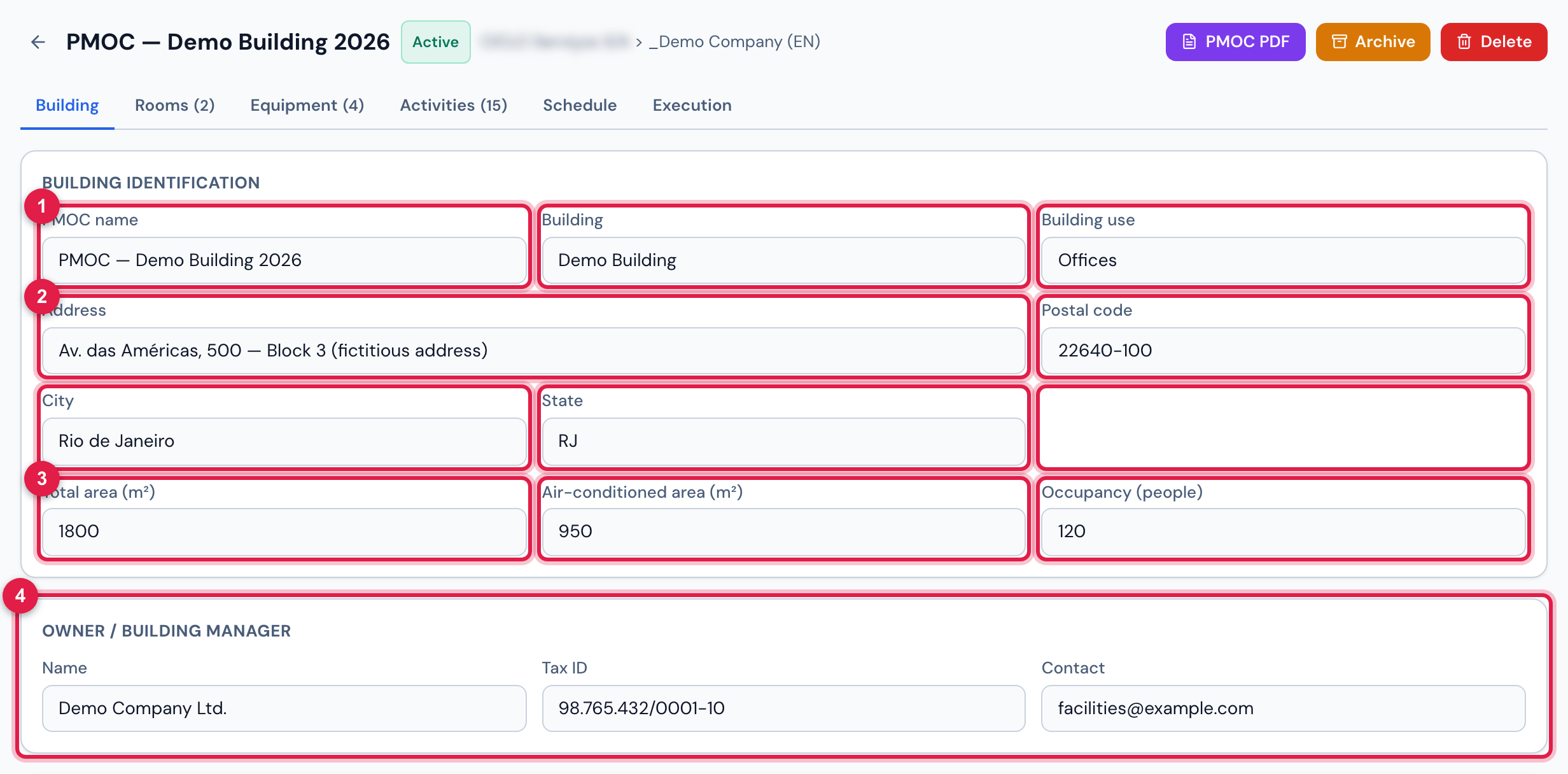
Figure 6. The top of the Building tab: Building identification and Owner / building manager.
- 1Building identification: PMOC name, Building and Building use (offices, hospital, shopping mall, school…).
- 2Address, Postal code, City and State.
- 3Total area (m²), Air-conditioned area (m²) and Occupancy (people) — the areas accept a comma (“1200,5”).
- 4Owner / building manager: Name, Tax ID and Contact — whoever signs next to the technical manager on the PDF.
| Field | Goes to | Note |
|---|---|---|
| PMOC name | list, page header, schedule name (“PMOC · <name>”) | required; if cleared on save, the previous name stays |
| Building | PDF cover (title) and PDF file name | without a building, the PDF uses the PMOC name |
| Building use | PDF cover | free text |
| Address, Postal code, City, State | PDF cover | the PDF joins City/State |
| Total area (m²), Air-conditioned area (m²) | PDF cover | decimals with a comma or a point |
| Occupancy (people) | PDF cover | whole number; the occupancy per room is on the Rooms tab |
| Name, Tax ID, Contact of the owner | PDF cover and the signature line Building manager |
Was this page helpful?
Thanks for the feedback!
Got it — we will improve this page.