
Access, profiles and signature
Manual — Occupational Safety · chapter 2 of 13
Access to the module is controlled by the profile rights (People › Profiles › Permissions tab, Occupational Safety group). Each menu page matches a right; users without the right do not see the menu item — neither on the web nor in the app hub. The levels are the same as in the rest of H2O: Read, Edit, Create, Trash (soft delete) and Delete.| Right | Pages it unlocks | Note |
|---|---|---|
| Workers | Workers, PPE record (read-only), user SST tab | The base of everything: without a worker there is no training, APR, PPE or ASO. |
| Trainings | Trainings, Required training (NR), SST work instructions by job role | The SST work instruction uses this right (it has no right of its own). |
| APR | APR, Verify signature | Edit unlocks create/sign/finish. |
| PT (Work Permit) | PT | Finishing requires a linked, finished APR. |
| Inspections | Inspections, SST dashboard | “Report deviation” in the inspection also requires the Deviations right. The SST dashboard menu item only appears with Inspections; the server, however, returns the dashboard numbers to anyone with Read on APR, PT, Inspections or Deviations. |
| Deviations | Deviations | A deviation is a ticket: ticket rights also apply. |
| Accidents & incidents | Accidents & incidents | Health data: the victim’s ICD code only appears with this right. |
| Risk inventory / PGR | Risk inventory, PGR (revisions) | Create unlocks “New risk”; Edit unlocks publishing the PGR. |
| Medical exams / ASO (health data) | Medical exams (ASO) | Health data (LGPD, the Brazilian data protection law): every view and download is logged. The Técnico (technician) profile does not have it. |
| CIPA (safety committee) | CIPA | Edit unlocks minutes, members and signatures. |
| eSocial SST (S-2210/S-2220/S-2240) | eSocial (SST) and the “eSocial complement” block on the other screens | Users without the right do not see the purple complement block. |
| Contractor SST oversight / gov.br signature | Contractor SST oversight and the external signature block (gov.br/ICP) | The “Fiscal de Contrato” (contract inspector) and “Gestor de Contrato” (contract manager) profiles get it by default. |
| PPE Records / Acknowledgments | PPE acknowledgments, “Deliver PPE” button and return on the record | Create = deliver; Edit = return. |
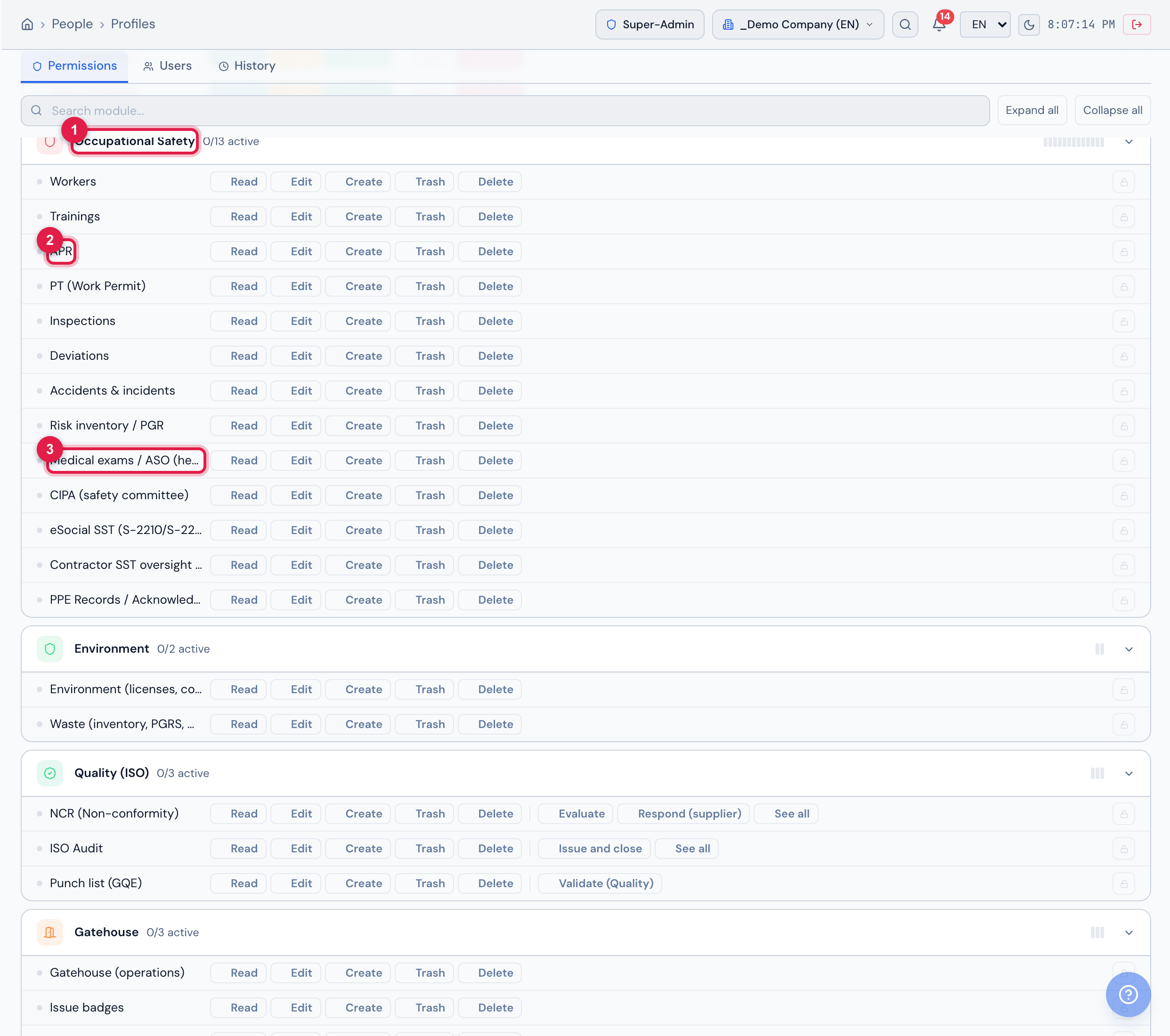
Figure 3. Profile editor (People › Profiles › Permissions): the Occupational Safety group with its 13 rights (Workers, Trainings, APR, PT, Inspections, Deviations, Accidents & incidents, Risk inventory / PGR, Medical exams / ASO, CIPA, eSocial SST, Contractor SST oversight, PPE Records / Acknowledgments) and, below it, Environment, Quality (ISO) and Gatehouse. Each row has the five levels Read, Edit, Create, Trash and Delete (colored when active); the padlock on the right locks the row. Expand all / Collapse all open and close the groups.
- 1Header of the Occupational Safety group, with the counter of active rights (0/13 in this profile).
- 2Row of the APR right — Read, Edit, Create, Trash, Delete.
- 3Medical exams / ASO right — health data (as is Accidents & incidents): grant it only to those who need it.
Who signs what
Section titled “Who signs what”There are two ways to sign in the module, and the manual repeats this distinction in every chapter:
- User’s registered signature — used by whoever is accountable for the document: person responsible for the APR/PT/Inspection, technical lead (RT) of the training and of the PGR, issuer of the SST work instruction, accident investigator, CIPA president and secretary. The system takes the signature saved in My Profile › Digital Signature and stamps date, time, IP and code. Users sign only for themselves — nobody signs on behalf of someone else.
- Signature drawn on screen — used by the worker taking part: team acknowledgment on the APR, PT work crew, training attendance, PPE receipt, acknowledgment of the SST work instruction. The worker draws it with a finger (app) or with the mouse (web) on the spot; the image is stored with the record.
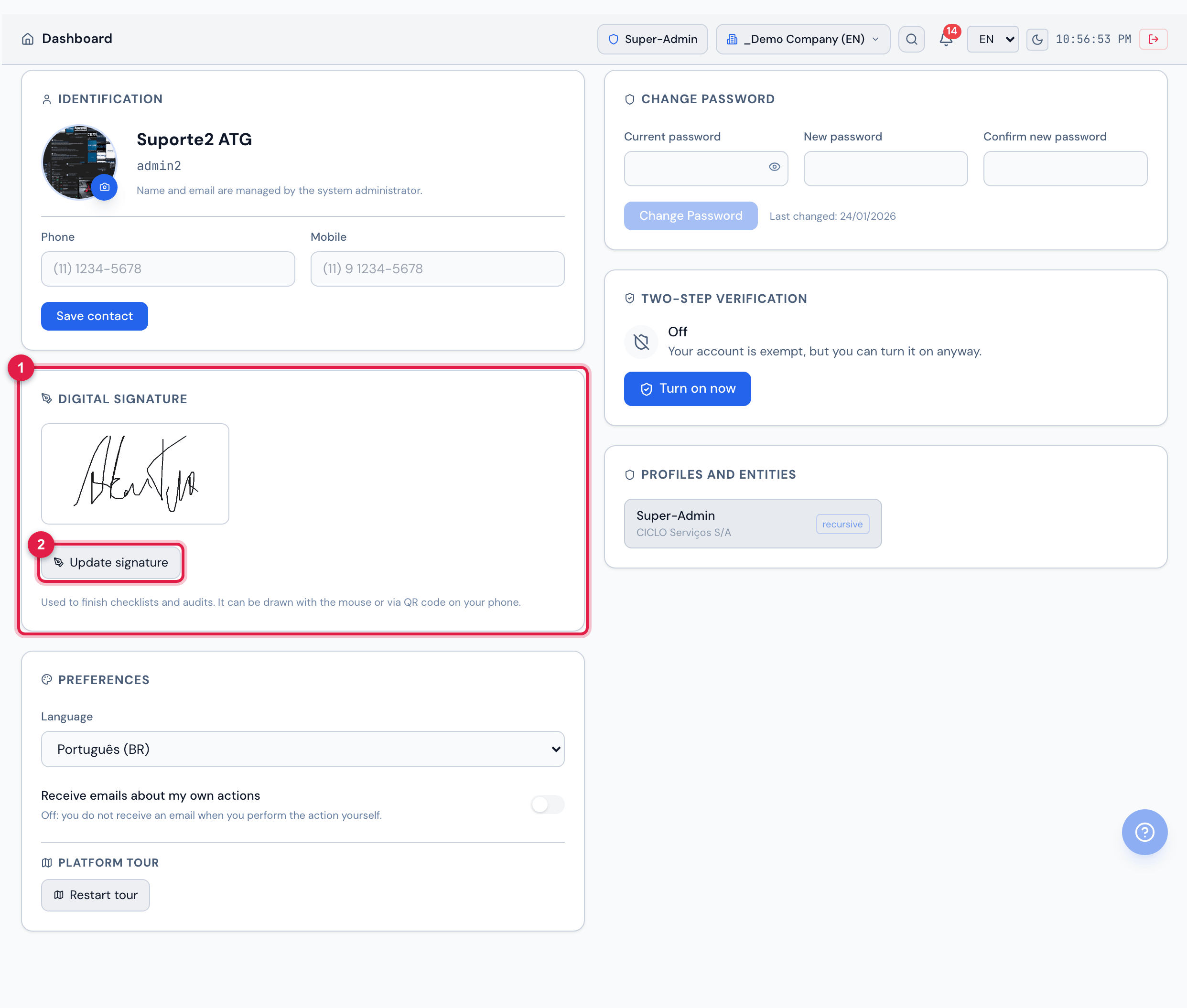
Figure 4. My Profile › Digital Signature: draw the signature once (with the mouse or through a QR code on the phone) and replace it with Update signature. Without it, when you try to sign as the responsible person the system warns “Register your signature in My Profile” and opens the pad so you can register it right away.
- 1Digital Signature block: the user’s current signature and the note “Used to finish checklists and audits. It can be drawn with the mouse or via QR code on your phone.”.
- 2Update signature button — redraws and replaces the signature.
User × worker: the user SST tab
Section titled “User × worker: the user SST tab”The user is whoever signs in to the system; the worker is the worker’s SST record (job role, company, CPF, trainings, PPE, ASO). A technician who uses the app is both. To avoid registering twice, the user screen (People › Users › open the user) has the SST tab:
- Create record from the user — creates the worker with the user’s name, employee ID and entity, and links it right away.
- Link to an existing worker — when the record already existed.
- With the record linked, the tab shows the status of required training, SST work instruction, ASO and PPE, and the full record link opens the PPE record.
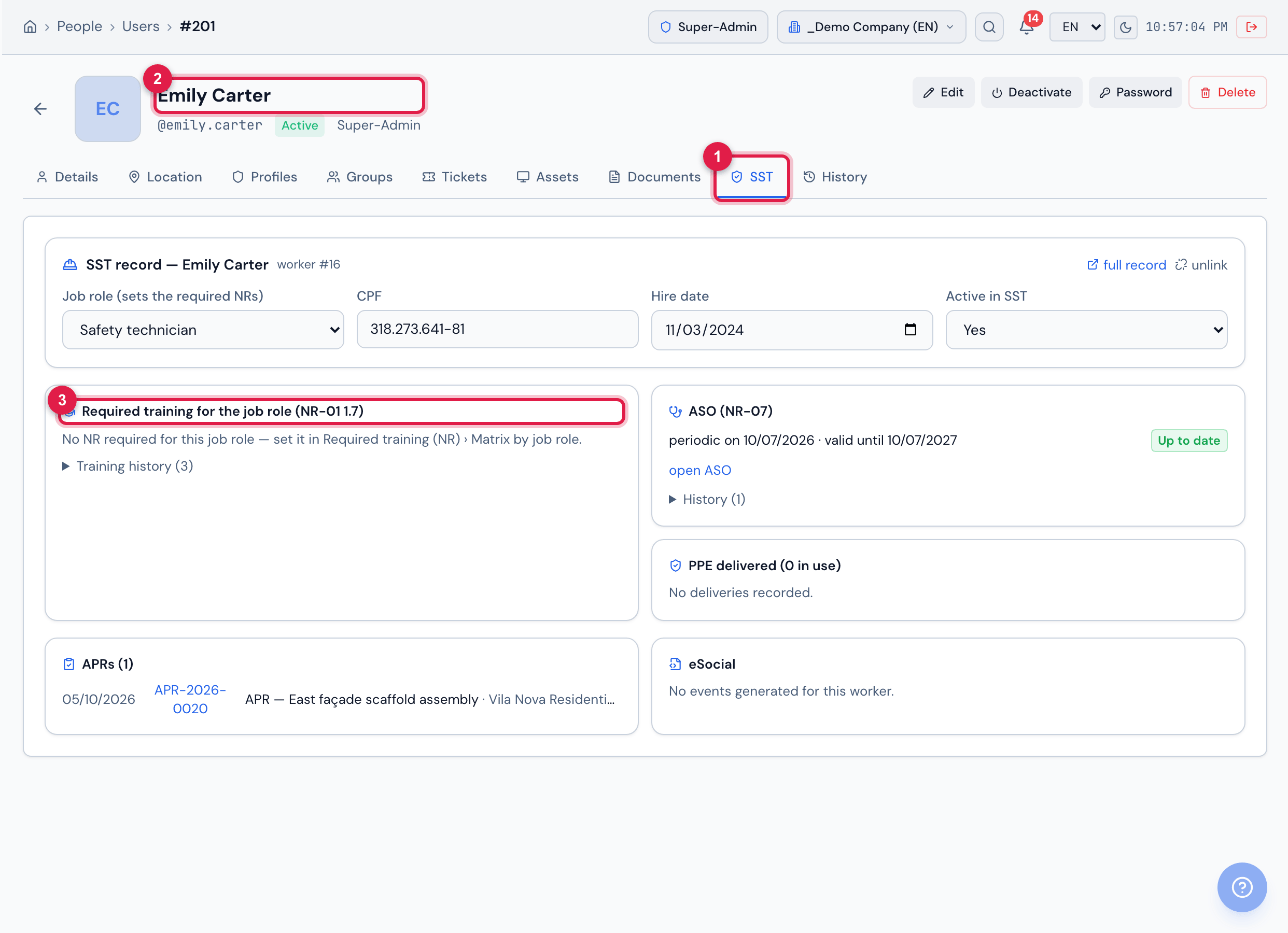
Figure 5. User SST tab: the linked SST record (Job role, CPF, Hire date, Active in SST; full record and unlink links) and the worker cards — Required training for the job role (with the Training history), ASO (NR-07) up to date, PPE delivered, APRs and eSocial.
- 1SST tab of the user record.
- 2User (Emily Carter) — the SST record right below is the worker linked to that user (one per user).
- 3Required training for the job role (NR-01 1.7) — here the Safety technician job role has no NR checked in the matrix yet.
Was this page helpful?
Thanks for the feedback!
Got it — we will improve this page.