
Flow 2 — Risk inventory, action plan and PGR
Manual — Occupational Safety · chapter 4 of 13
NR-01 (the Brazilian regulatory standard on general provisions and risk management) requires the company to identify hazards, assess risks and keep a Risk Management Program (PGR) with an inventory and an action plan, revised every two years or whenever something changes. In H2O the PGR is the inventory: you record the risks by project, job role and sector, link the actions (work orders) and, when it is consistent, publish a revision — which freezes a copy, receives the technical lead’s signature and becomes the active PGR. The field APR draws from this inventory (chapter 5).| Step | Where | Result |
|---|---|---|
| 1. Record risks | Risk inventory › New risk | one row per hazard → risk, with group, L × S, level, controls, PPE, legal basis |
| 2. Action plan | Inventory › open the risk › Action plan (linked work orders) or the Action plan tab | work orders (tickets) with assignee and due date linked to the risk |
| 3. Publish the PGR | PGR (revisions) › Publish revision | PGR-YYYY-000N active, signed by the RT, next revision in 24 months, PDF |
| 4. Use in the APR | APR › Checklist tab › Bring risks from the inventory (PGR) | APR grid filled in with the risks of the project and of the team’s job roles |
Risk inventory
Section titled “Risk inventory”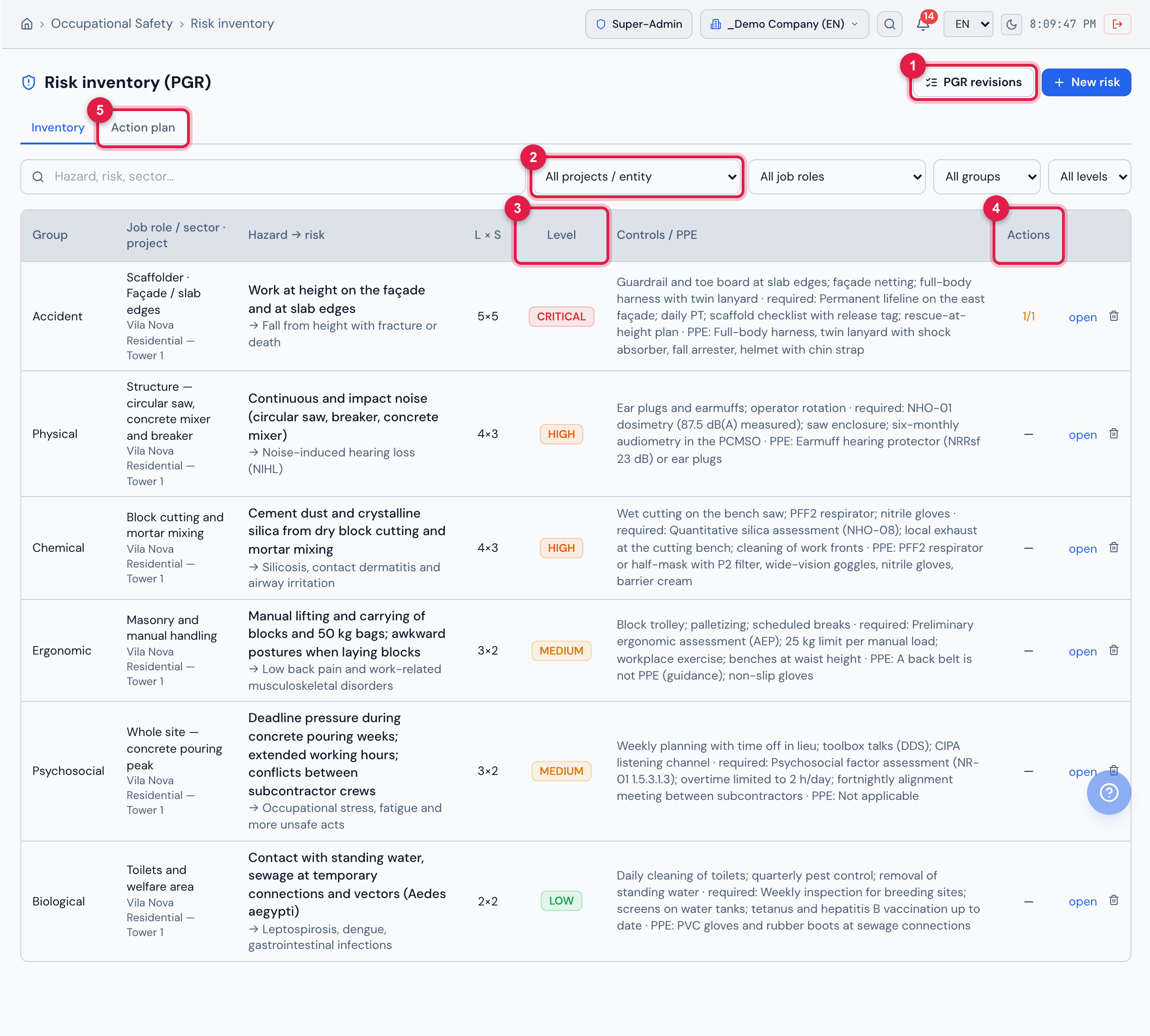
Figure 26. Risk inventory (PGR): filters by project, job role, group and level; one row per risk with L × S, colored level, controls/PPE and the action count (open work orders/total).
- 1PGR revisions button (next to it, New risk).
- 2Project/entity filter — next to it, job role, group and level; on the left, the search by hazard, risk or sector.
- 3Level column: low, medium, high, critical (calculated from L × S).
- 4Actions column: open work orders / plan total (1/1 on the critical risk).
- 5Action plan tab — all linked work orders.
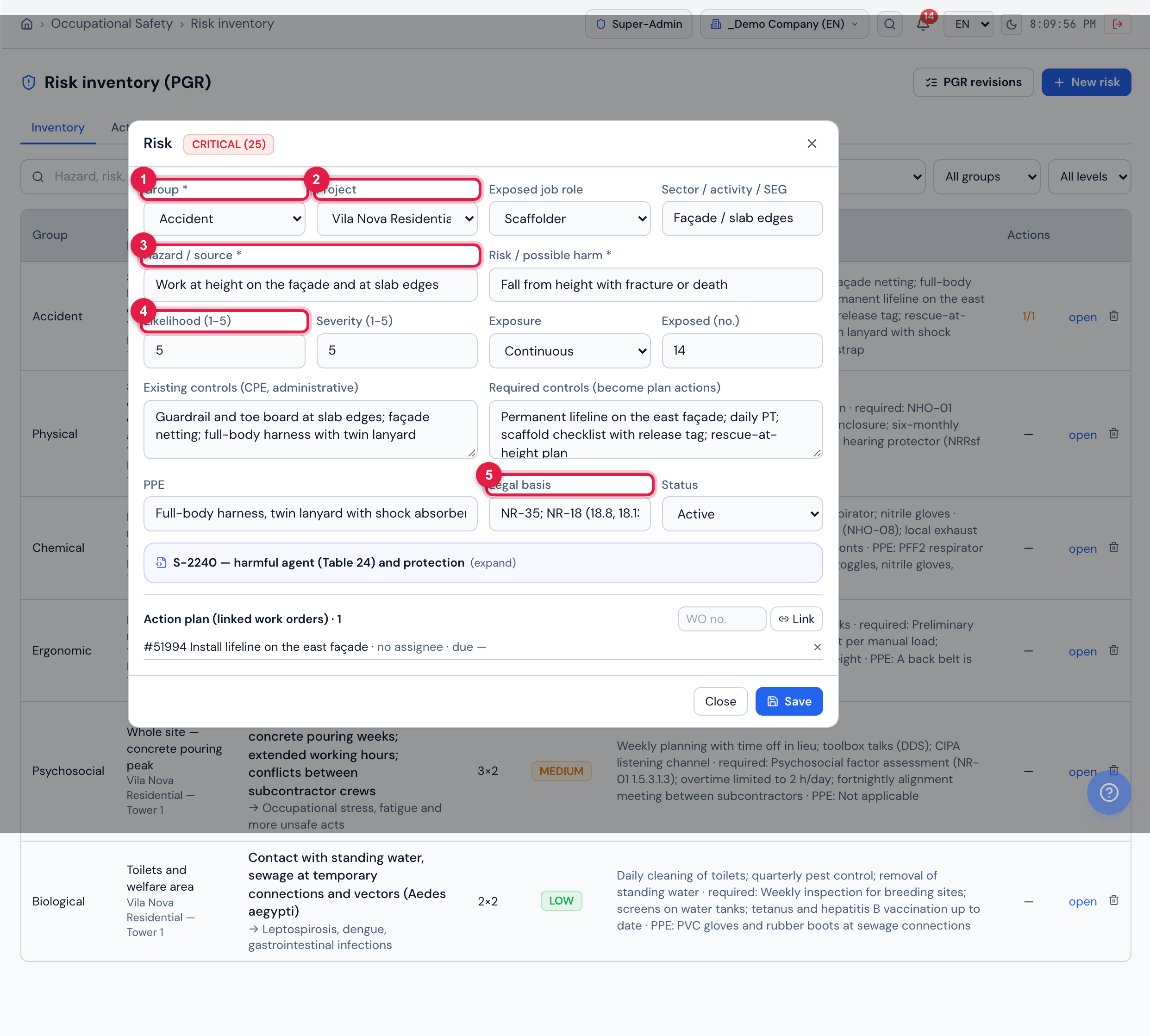
Figure 27. Risk modal with the calculated level in the title (CRITICAL (25)). The level comes from Likelihood × Severity (1 to 5 each): up to 4 = low, up to 9 = medium, up to 15 = high, above that = critical. Below the fields, the S-2240 block (expand) and the Action plan (linked work orders) with WO no. → Link.
- 1Group (required): Physical, Chemical, Biological, Ergonomic, Accident, Psychosocial — the six groups of NR-01/eSocial.
- 2Project (empty = applies to the whole entity); next to it, Exposed job role and Sector/activity/SEG.
- 3Hazard / source (required); next to it, Risk / possible harm (required).
- 4Likelihood (1-5); next to it, Severity (1-5) → calculated level. On the same row, Exposure and Exposed (no.).
- 5Legal basis (e.g., NR-35; NR-18); on the same row, PPE and Status; above, existing and required controls.
- Click New risk, choose the Group and the Project (or leave it blank for the entity).
- Enter the Exposed job role (e.g., Montador de andaime — scaffolder) and the Sector/activity (e.g., Fachada leste — andaime fachadeiro).
- Describe the Hazard/source (e.g., Work at height without a lifeline) and the Risk/harm (e.g., Fall with serious injury or death).
- Set Likelihood and Severity; check the level.
- Fill in the existing and required controls, the PPE and the legal basis (e.g., NR-35 35.5.4). Save.
- Open the risk again: the Action plan (linked work orders) block appears — enter the WO no. and click Link. The work order is created beforehand in Tickets (or with the action button on the accident, chapter 6).
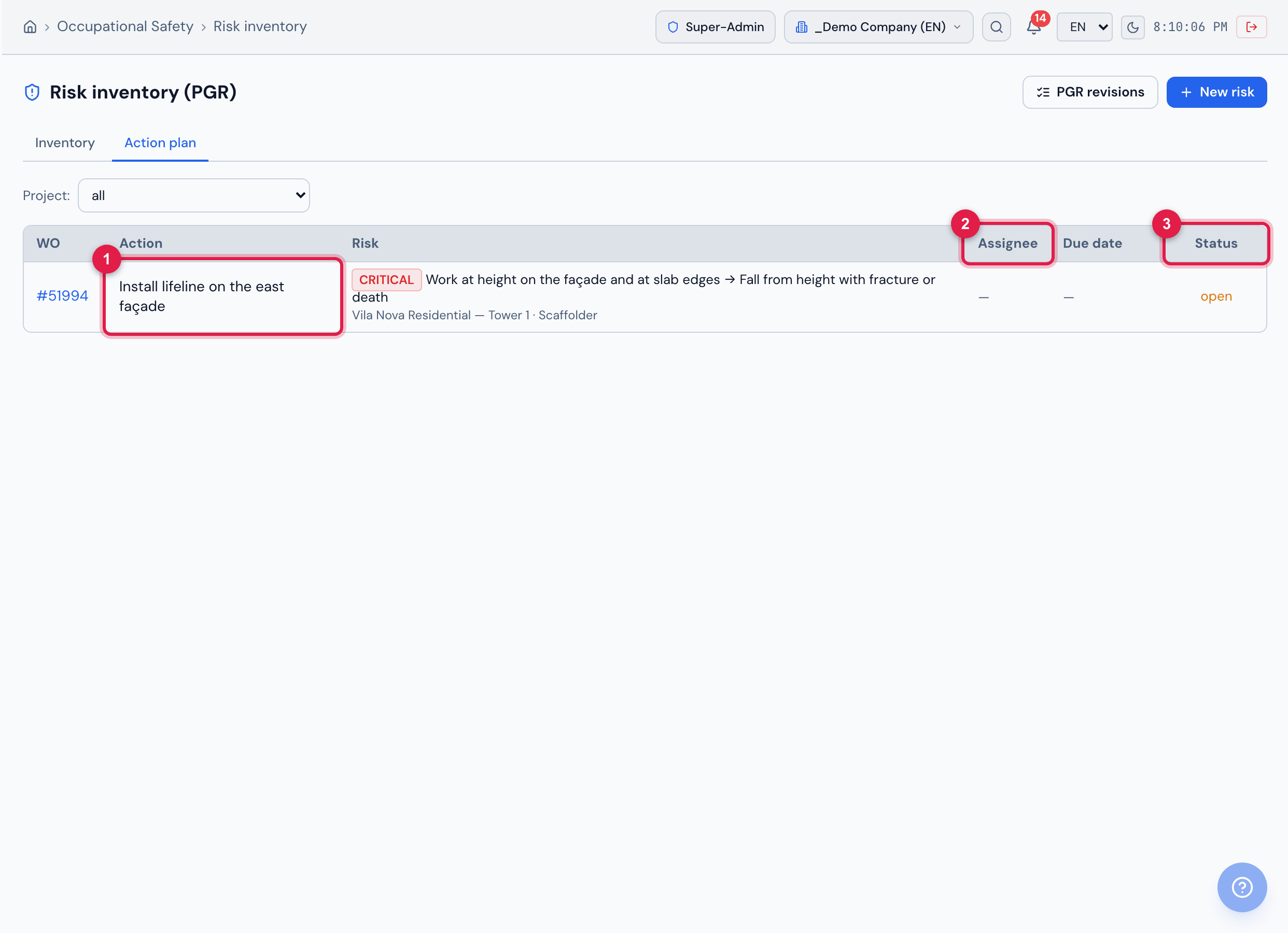
Figure 28. Action plan tab (filter by project): work orders linked to risks with assignee, due date and status; the work order number (#51994) opens the ticket.
- 1Action column — the work order title; on the left the number, on the right the source risk with its level.
- 2Assignee column (next to it, Due date) — “—” when the work order has none yet.
- 3Status column: completed, overdue, open.
When you edit a risk, the purple eSocial complement (S-2240) block also appears — harmful agent code (Table 24), assessment type, effective CPE/PPE. Fill it in only if the company generates the S-2240 through H2O (chapter 8).
PGR — publishing a revision
Section titled “PGR — publishing a revision”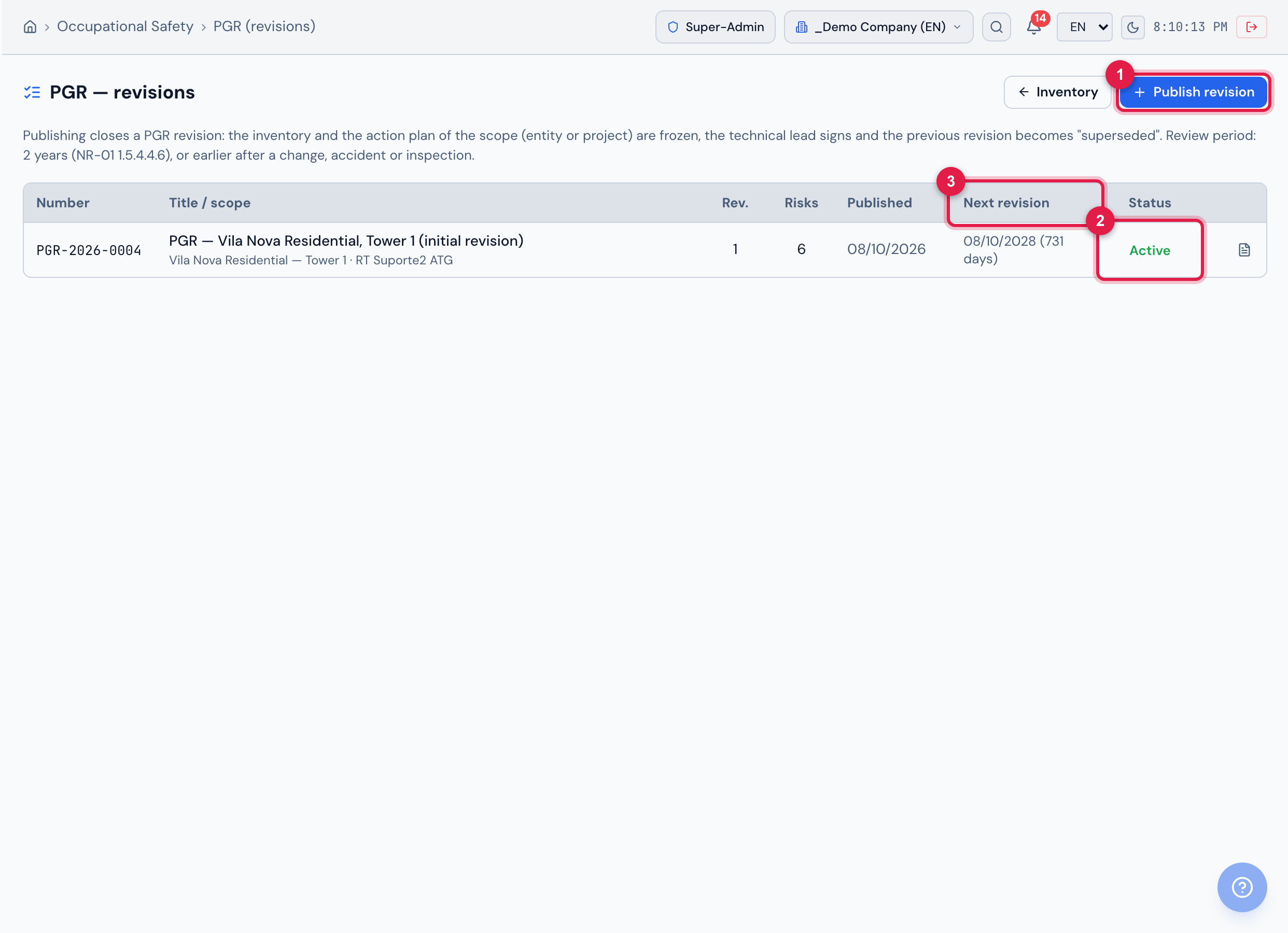
Figure 29. PGR — revisions: number (PGR-2026-0004), title/scope with the RT, revision, number of risks (6), publication date, next revision with the days left (amber at 60 days, red if overdue), status and the PDF icon.
- 1Publish revision button.
- 2Status: Draft → Active → Superseded.
- 3Next revision column: 24 months after publication (08/10/2028 · 731 days).
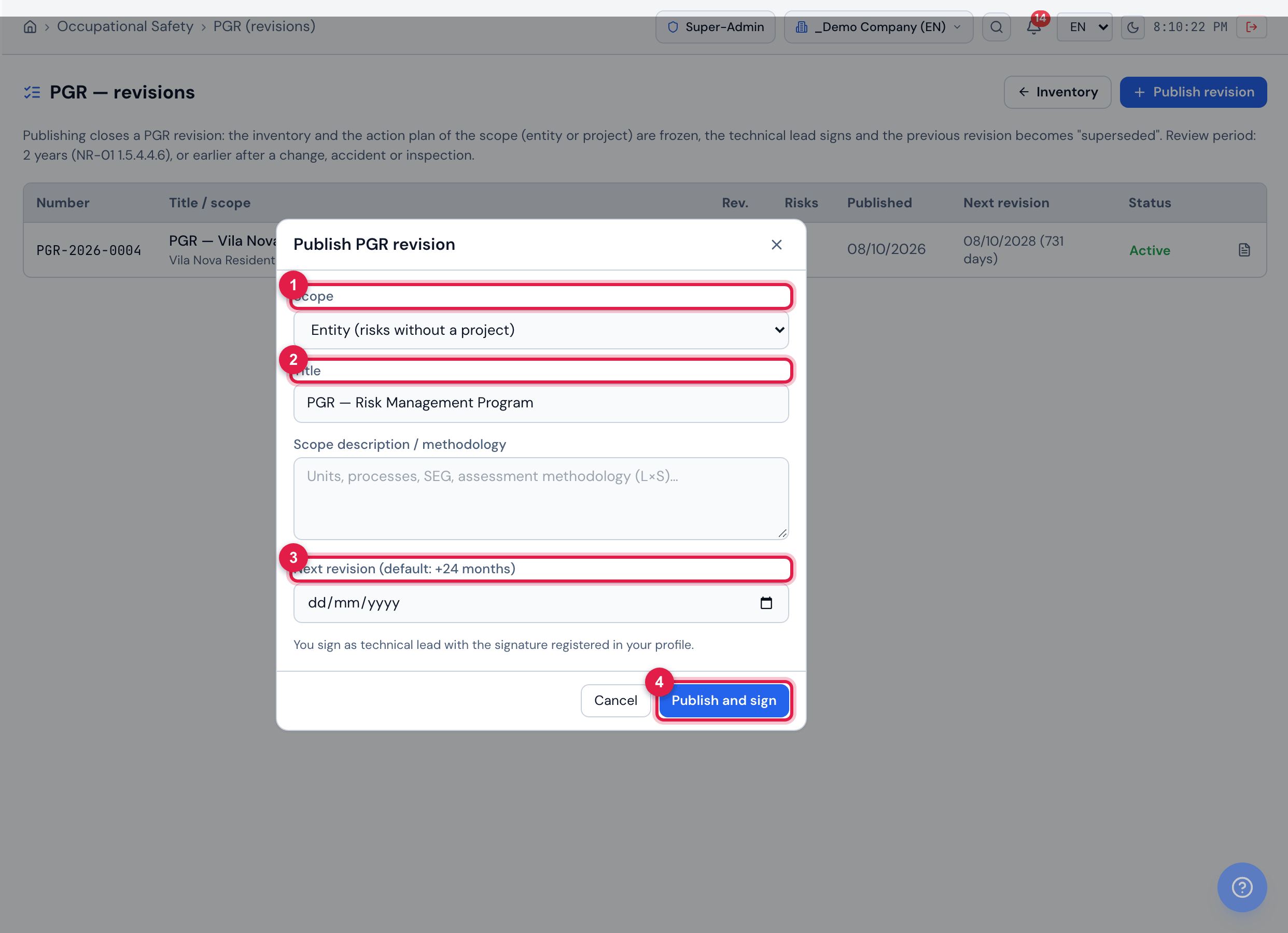
Figure 30. Publish PGR revision modal: scope (entity or project), title, description of the methodology and the next revision date. Publish and sign uses the registered signature of the signed-in user, who becomes the RT of the revision.
- 1Scope: whole entity (risks without a project) or one project.
- 2Revision Title; below, Scope description / methodology.
- 3Next revision (default: +24 months).
- 4Publish and sign — signs as RT with the signature registered in the profile.
- With the inventory reviewed, go to PGR (revisions) › Publish revision.
- Choose the scope (the project or the entity), give it a title (e.g., “PGR 2026 — Residencial Vila Nova”) and describe the methodology.
- Click Publish and sign. The system copies the inventory and the plan of that scope, records the hash, signs as RT and marks the previous revision as Superseded.
- Download the PDF for the project file. The SST dashboard and the Oversight page now show “Active PGR” with the days until the next revision.
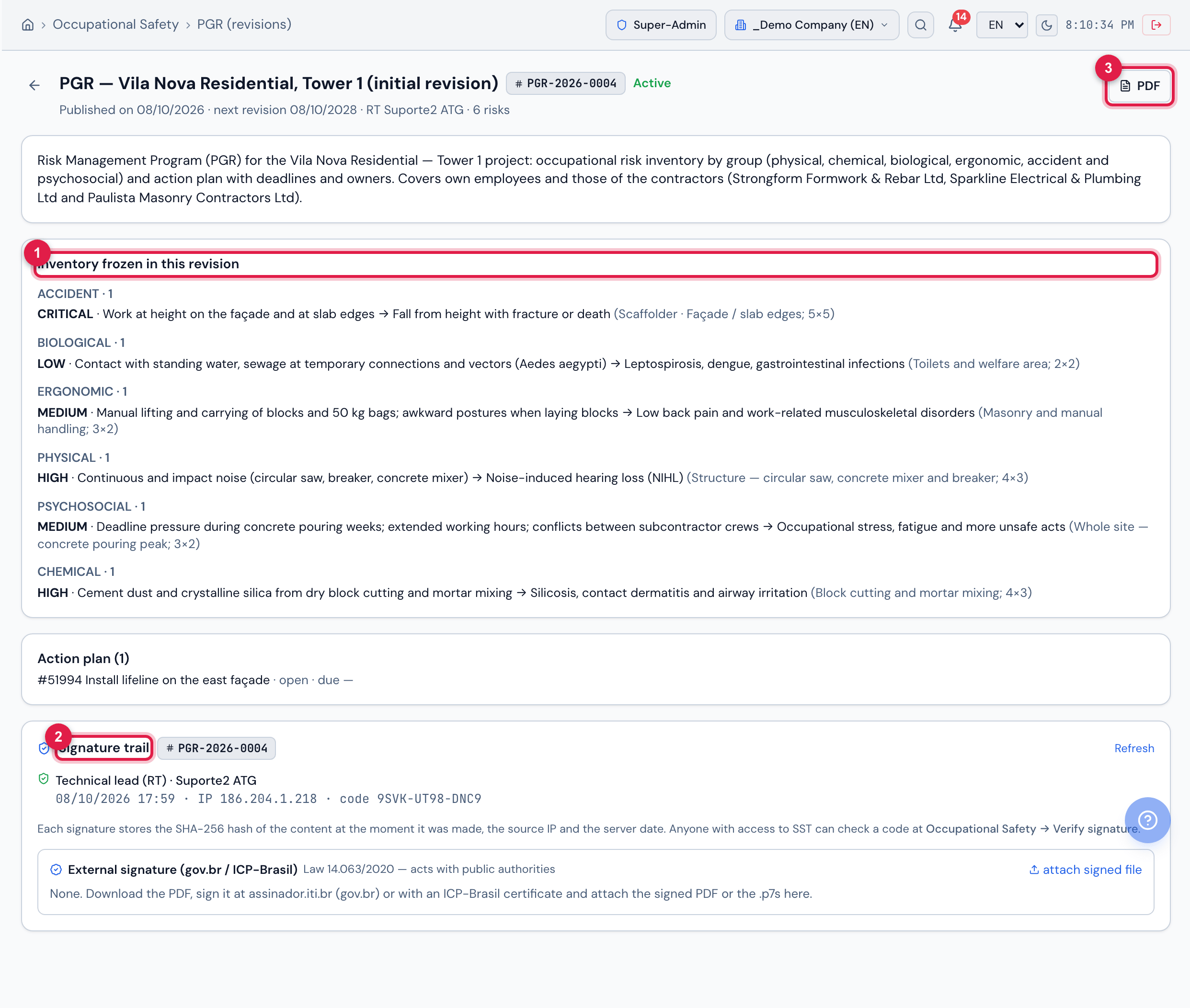
Figure 31. Detail of the active revision PGR-2026-0004: inventory frozen by risk group (6 risks), action plan (1 work order) and the RT signature trail, with the external signature block (gov.br / ICP-Brasil).
- 1Inventory frozen in this revision (it does not change when the live inventory changes).
- 2Signature trail: Technical lead (RT), date/time, IP and code.
- 3PDF button.
Was this page helpful?
Thanks for the feedback!
Got it — we will improve this page.