
Two-factor authentication step by step
Manual — Users, groups and profiles · chapter 7 of 12
This chapter is to hand over to whoever is going to use H2O. Two-factor authentication asks, besides the password, for a 6-digit code that changes every 30 seconds, generated by an authenticator app on the phone. Whoever finds out the password cannot sign in without the phone.| Phase | What happens |
|---|---|
| 7-day period | starts at the first sign-in. The person signs in normally and the web shows at the top of every screen the strip Set up two-factor authentication. Your account will require it in N days. |
| Period passed | after the password, the Set up two-factor authentication screen asks to scan the QR right there; without it, the sign-in does not finish. |
| On | every sign-in asks for the code, except on devices marked as trusted. |
| Exempt | the administrator exempted the person (chapter 6): they are never required, but can turn it on. |

Figure 11. The yellow period strip, at the top of every web screen: Set up two-factor authentication. Your account will require it in 7 days.
- 1How many days are left.
- 2Set up now — opens My Profile, at the verification block.
- 3X (Dismiss) — hides the strip until you close the browser tab.
Before you start: the authenticator app
Section titled “Before you start: the authenticator app”- Install an authenticator app on the phone — any TOTP app will do, such as those from Google, Microsoft or Authy. Use the one your company recommends. It is a separate app from the H2O app and works without internet.
- Check that the phone’s date and time are set to automatic: the code depends on the clock, and a phone that is ahead or behind generates codes that are refused.
- Do the activation on the computer, with the phone in hand. Setup is only done on the web: the H2O app warns about the period, but does not set it up.
Turning it on through My Profile
Section titled “Turning it on through My Profile”- Open My Profile — through your name, at the bottom of the menu, or through Set up now on the yellow strip.
- In the Two-Step Verification block (status Off), click Turn on now.
- On the phone, in the authenticator app, tap add account / scan QR code and point the camera at the QR on the screen. The app creates the H2O — company name account, with your login, and starts showing a 6-digit code.
- Could not scan the QR? Click Can’t scan? and type into the app the key shown under Enter this key manually in the app: (in the app, the option to type the key; if it asks, the type is time-based).
- On the computer, type in App code the code the app shows now and click Activate.
- Keep the 8 recovery codes (below) and click I saved the codes, continue. The block changes to On — Your account is protected with an authenticator app.
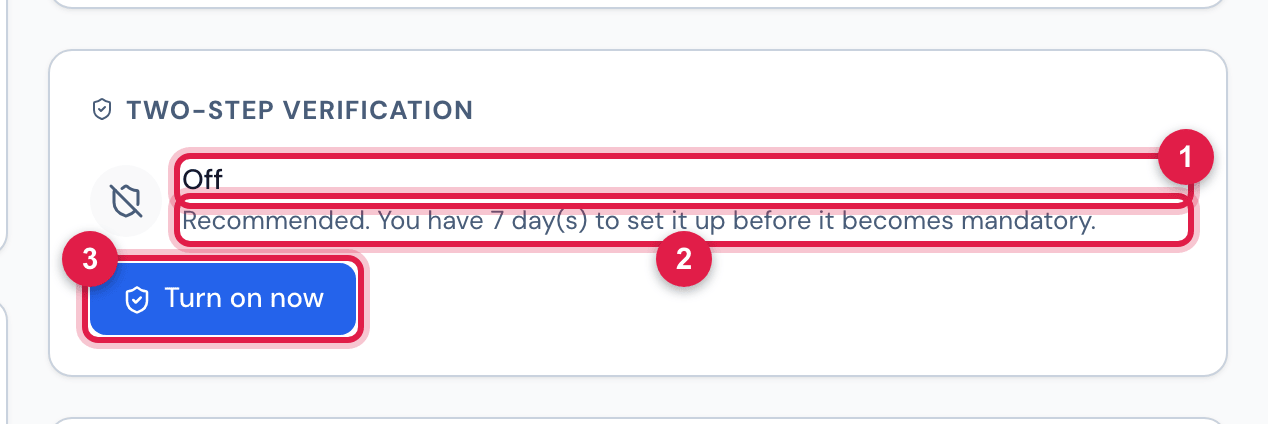
Figure 12. My Profile › Two-Step Verification before turning it on: the Off status, the period reminder and the Turn on now button.
- 1Status: Off.
- 2Recommended. You have 7 day(s) to set it up before it becomes mandatory.
- 3Turn on now.
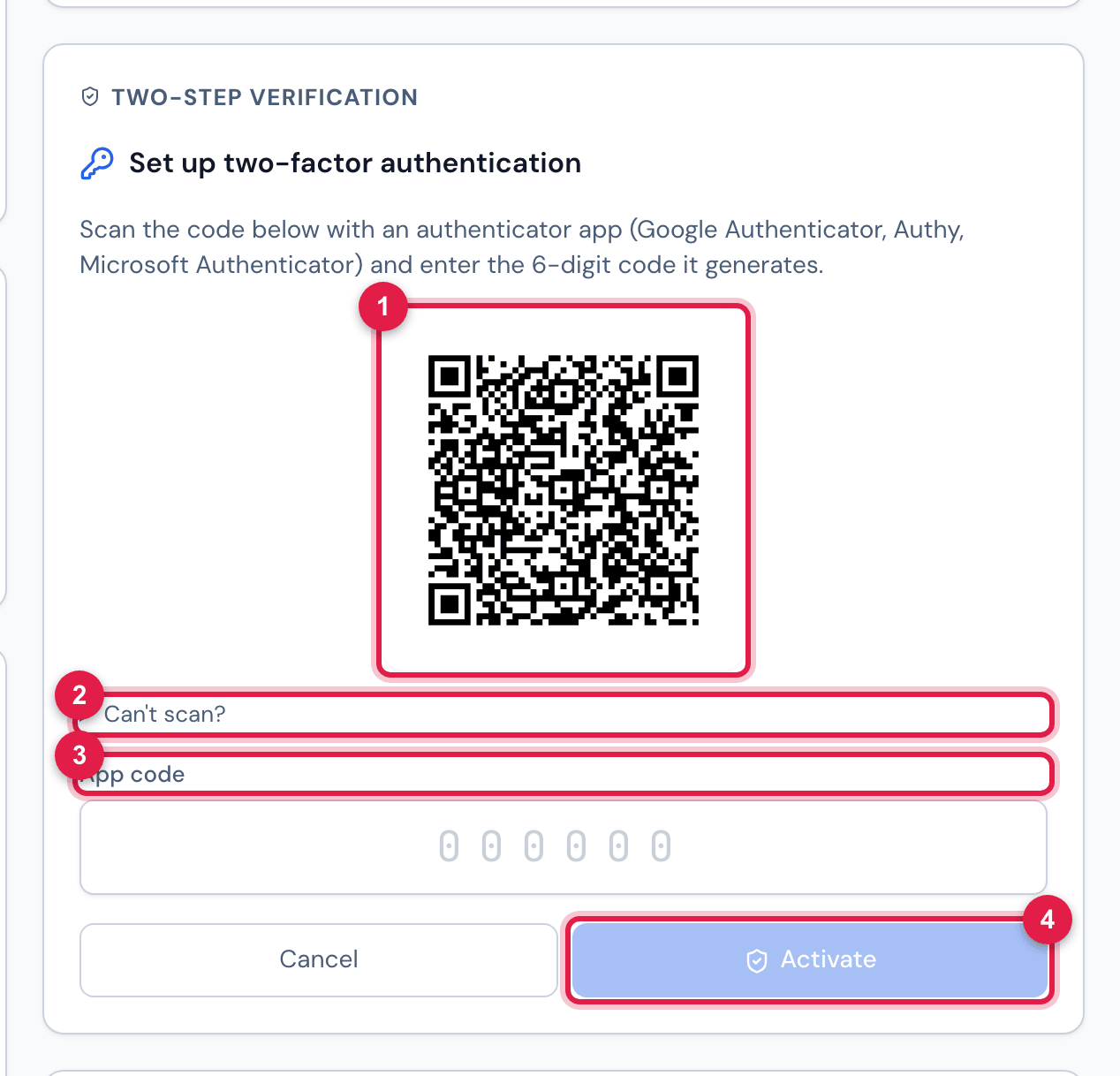
Figure 13. After Turn on now: Set up two-factor authentication, with the QR code for the authenticator app, Can’t scan?, the App code field and the Cancel and Activate buttons (the latter is only enabled with the 6 digits).
- 1The QR code — scan it with the authenticator app on the phone.
- 2Can’t scan? — shows the key to type.
- 3App code — the 6 digits the app shows now.
- 4Activate — checks the code and turns the verification on.
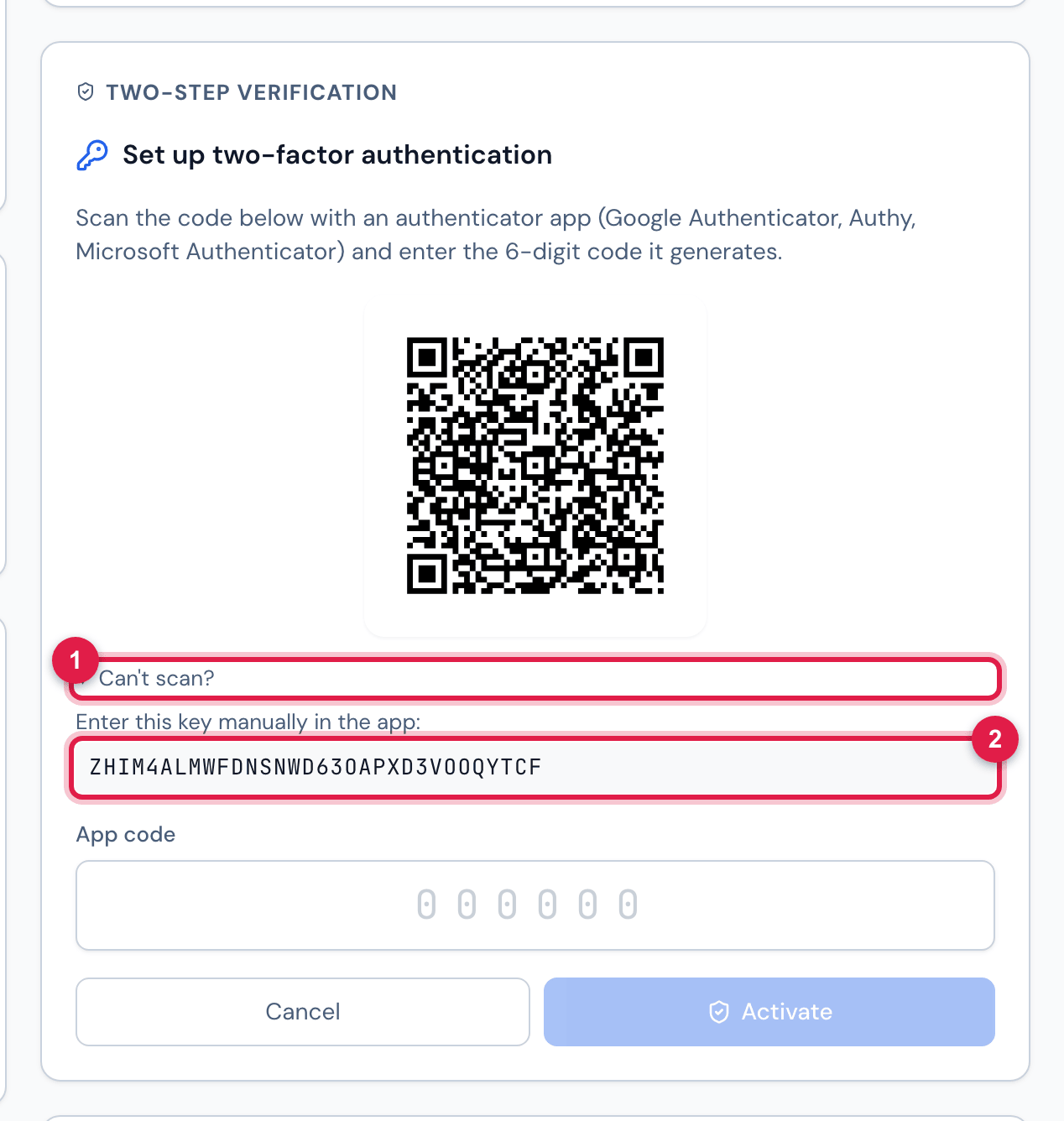
Figure 14. Can’t scan? open: Enter this key manually in the app: and the key, for when the QR cannot be read.
- 1Can’t scan?
- 2The key to type into the authenticator app.
The recovery codes
Section titled “The recovery codes”When you turn it on, H2O shows 8 recovery codes in the XXXX-XXXX format. Each one works once and replaces the app code when you are without the phone. They are not shown again.
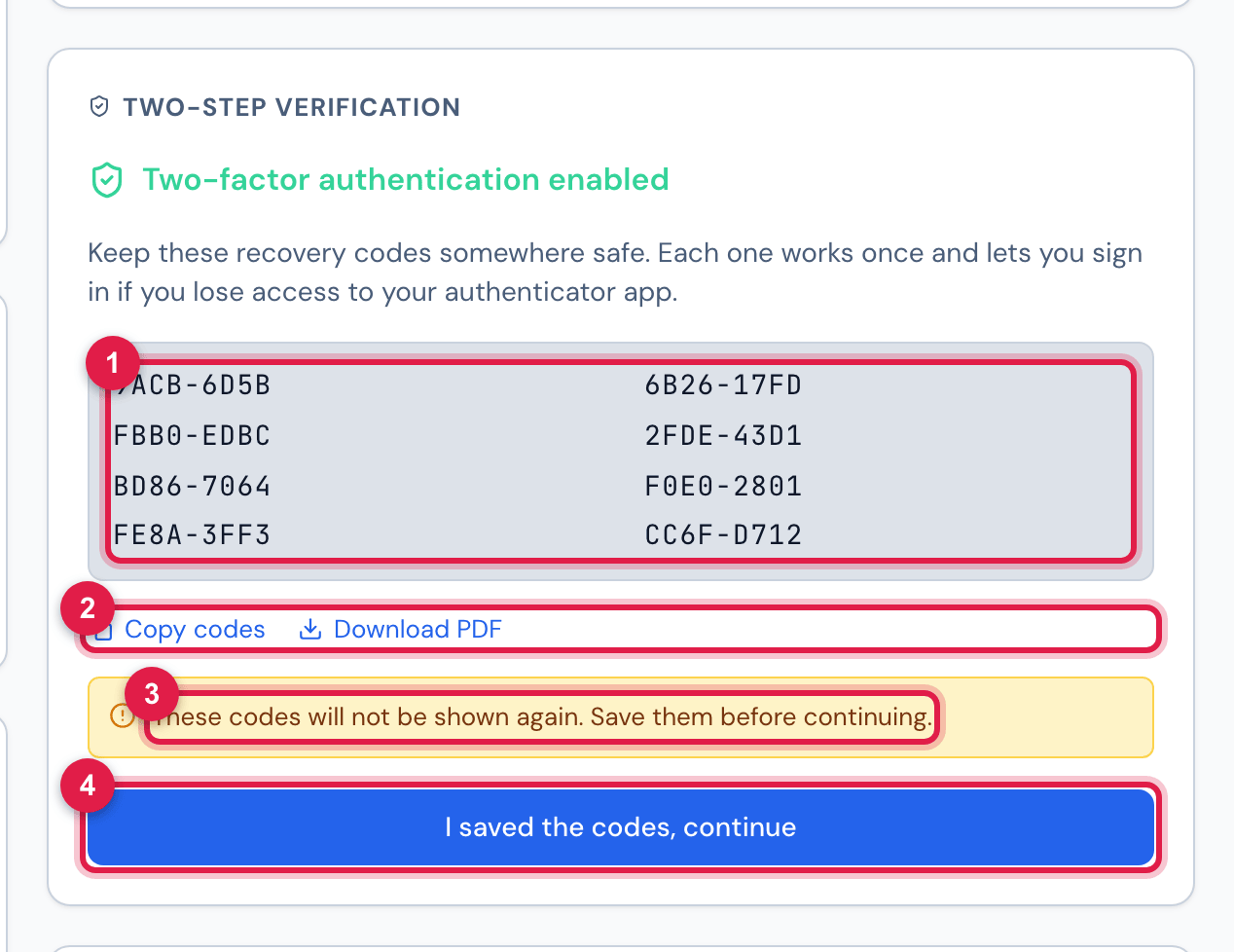
Figure 15. Two-factor authentication enabled: the 8 recovery codes, Copy codes, Download PDF, the warning that they will not be shown again and I saved the codes, continue.
- 1The 8 codes — each one works once.
- 2Copy codes and Download PDF.
- 3These codes will not be shown again. Save them before continuing.
- 4I saved the codes, continue.
- Keep them away from the phone with the authenticator app — printed, or in a password manager on the computer: whoever loses the phone loses both together.
- Do not send the codes by email or message, and do not keep them with the password.
Signing in with the code
Section titled “Signing in with the code”- Type the username and password and click Login.
- In Enter the 6-digit code from your authenticator app., type the code the app shows now and click Verify.
- Without the phone? Type a recovery code in the same field, with the hyphen.
By ticking Trust this device for 30 days, H2O stops asking for the code on that browser for 30 days. Do not tick it on a shared computer. The list of trusted devices is in My Profile (Getting started — web manual, chapter 3, with the sign-in screens and the common problems).
I lost my phone or changed devices
Section titled “I lost my phone or changed devices”| Situation | What to do |
|---|---|
| I changed phones and still have the old one | sign in normally and, in My Profile, click Change authenticator app: confirm the password, scan the new QR with the new phone, type the code and keep the 8 new codes. Until the change is finished, the old app keeps working. |
| I lost my phone, but I have the recovery codes | sign in with a recovery code instead of the app code and use Change authenticator app. |
| I lost my phone and the codes | ask the administrator to reset your verification (chapter 6). You sign in with the password only, get a new 7-day period and set it up again through My Profile. |
Was this page helpful?
Thanks for the feedback!
Got it — we will improve this page.